

Most office work in Excel looks the same. You get a list of orders, tasks or invoices. Then your boss asks questions. “How much did the West region sell?” “Who is our top seller?” “How many work days do we have left?”
Excel can answer these in seconds. You only need the right function. A function is a ready-made tool. You give it some information, and it gives you an answer.
This guide covers 15 Microsoft Excel functions that office workers use all the time. Each one has a simple example and one task in a free practice file. Every explanation uses plain words. You do not need to be good at math.
This post builds on the basics. If SUM, IF and COUNTIF are new to you, read 15 Excel functions every beginner should learn first, then come back. If you are not sure what Excel is for, start with what Excel is used for.
All 15 functions work in Excel 2016 and newer.
It is a small sales office. Here is what is inside:
- Team Sales: 24 orders with the date, due date, salesperson, region, product, reference code, phone number, amount and status.
- Staff: 6 salespeople with their employee ID and team.
- Practice: 16 tasks. There is one task for each function. The yellow cells are for your answers.
- Answer Key: the right formula and answer for each task.
Every example in this post comes from this file.

The 15 Functions at a Glance
| Group | Functions | What they help you do |
| Add and count with rules | SUMIFS, COUNTIFS, AVERAGEIF | Answer “how much” and “how many” questions |
| Make smarter decisions | AND, OR | Check more than one rule at once |
| Find information | MATCH, INDEX | Find an item and pull data from a list |
| Rank your numbers | LARGE, RANK | Find top numbers and positions |
| Fix and shape text | LEFT, SUBSTITUTE, TEXT | Clean up and change how text looks |
| Work with dates | NETWORKDAYS, MONTH, EOMONTH | Count work days and group by month |

How to Read the Patterns in This Post
Each function has a “pattern”. The pattern shows what goes inside the brackets. We write it in plain words, so you can see what each part means.
For example, the pattern for SUM looks like this:
SUM( the cells you want to add )
Parts are separated by commas. In some countries, Excel uses a semicolon (;) instead of a comma. If a formula does not work, try a semicolon.
Words you type inside a formula go in double quotes, like “West”. Numbers do not need quotes.
On the Practice sheet, the data is on other sheets. So the formulas have sheet names such as ‘Team Sales’!. You do not need to type those. Start the formula, click the other sheet, and click the cells. Excel writes the sheet name for you.
Add and Count With Rules
SUMIFS: Add Numbers That Match More Than One Rule
What it does: It adds numbers, but only for rows that match your rules.
Easy way to think about it: “Add the amounts, but only for West and only if Paid.”
The pattern:
SUMIFS( numbers to add, where to check rule 1, rule 1, where to check rule 2, rule 2 )
You can add more pairs of “where to check” and “rule” if you need them.
Task 1: Add the Amount of orders from the West region that are Paid.
- Open the Practice sheet and click the yellow cell next to task 1.

- Type this formula:
=SUMIFS(‘Team Sales’!I2:I25,’Team Sales’!E2:E25,”West”,’Team Sales’!J2:J25,”Paid”)
- Press Enter.
The answer is 1,325.

What each part means:
- I2:I25 is the Amount column. These are the numbers to add.
- E2:E25 is the Region column. The rule is “West”.
- J2:J25 is the Status column. The rule is “Paid”.
Excel adds only the rows where both rules are true.
Tip: There is also SUMIF, which has one rule. SUMIFS is the better one to learn, because you can use one or many rules. Note that the “numbers to add” come first in SUMIFS, but come last in SUMIF.
Common mistake: The ranges must all be the same size. If one range is shorter, you get an error.
COUNTIFS: Count Rows That Match More Than One Rule
What it does: It counts rows that match your rules.
Easy way to think about it: “How many orders are from North and still Pending?”
The pattern:
COUNTIFS( where to check rule 1, rule 1, where to check rule 2, rule 2 )
Task 2: Count the orders from the North region that are Pending.
=COUNTIFS(‘Team Sales’!E2:E25,”North”,’Team Sales’!J2:J25,”Pending”)
The answer is 3. Three orders from the North are waiting to be paid.

Tip: You can use signs in your rules. For example, “>=200” means “200 or more”. Put the sign and the number inside the quotes.
AVERAGEIF: Find the Average for One Group
What it does: It finds the average of numbers, but only for rows that match a rule.
Easy way to think about it: “What is the typical order amount in the East?”
The pattern:
AVERAGEIF( where to check, rule, numbers to average )
Task 3: Find the average Amount of orders from the East region.
=AVERAGEIF(‘Team Sales’!E2:E25,”East”,’Team Sales’!I2:I25)
The answer is 391.25.
Excel finds the rows where the Region is East. Then it averages their Amounts.

Tip: If no rows match your rule, Excel shows #DIV/0!. That means “nothing to average”. Check that you spelled the rule correctly.
Make Smarter Decisions
You know the IF function from the basic guide. It checks one rule. AND and OR help IF check more than one rule at the same time.
AND: All Rules Must Be True
What it does: It gives TRUE only if every rule is true. It is almost always used inside IF.
Easy way to think about it: “Follow up only if the amount is big AND the order is still pending.”
The pattern:
IF( AND( rule 1, rule 2 ), answer if yes, answer if no )
Task 4: For row 2, show “Follow up” if the Amount is 200 or more AND the Status is Pending. Otherwise show “OK”.
=IF(AND(‘Team Sales’!I2>=200,’Team Sales’!J2=”Pending”),”Follow up”,”OK”)
The answer is OK. Row 2 has an Amount of 270, which passes the first rule. But the Status is Paid, not Pending. One rule failed, so AND is false.
Copy the formula down to check every order. Excel will show “Follow up” only for big, unpaid orders.

OR: At Least One Rule Must Be True
What it does: It gives TRUE if any one of the rules is true.
Easy way to think about it: “Team A is for North OR South.”
The pattern:
IF( OR( rule 1, rule 2 ), answer if yes, answer if no )
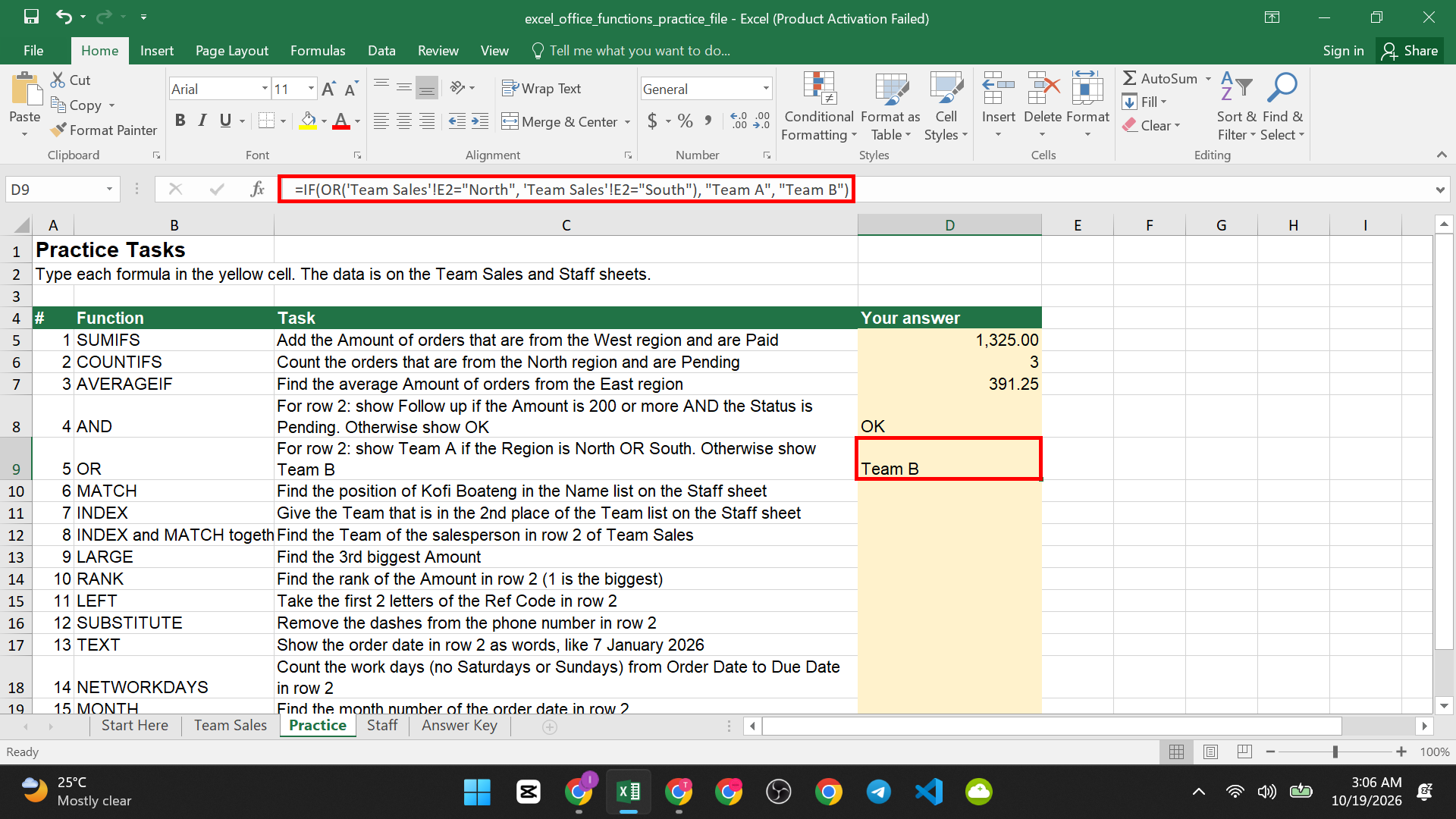
Task 5: For row 2, show “Team A” if the Region is North OR South. Otherwise show “Team B”.
=IF(OR(‘Team Sales’!E2=”North”,’Team Sales’!E2=”South”),”Team A”,”Team B”)
The answer is Team B. Row 2 is from the West, which is neither North nor South.
AND or OR? Use a simple trick. If every rule must pass, use AND. If one passing rule is enough, use OR.
Find Information in a List
Office workers often need to look something up. For example: “Which team does this person work in?” INDEX and MATCH work together to do this. First, learn each one alone.
MATCH: Find the Position of an Item
What it does: It tells you where an item is in a list. The answer is a position number, like 1st, 2nd or 3rd.
The pattern:
MATCH( what to find, the list, 0 )
Type 0 at the end. It means “find an exact match”.
Task 6: Find the position of Kofi Boateng in the Name list on the Staff sheet.
=MATCH(“Kofi Boateng”,Staff!A2:A7,0)
The answer is 2. Kofi is the 2nd name in the list.

INDEX: Get the Item at a Position
What it does: It gives you the item that sits at a position in a list. It does the opposite of MATCH.
The pattern:
INDEX( the list, position number )
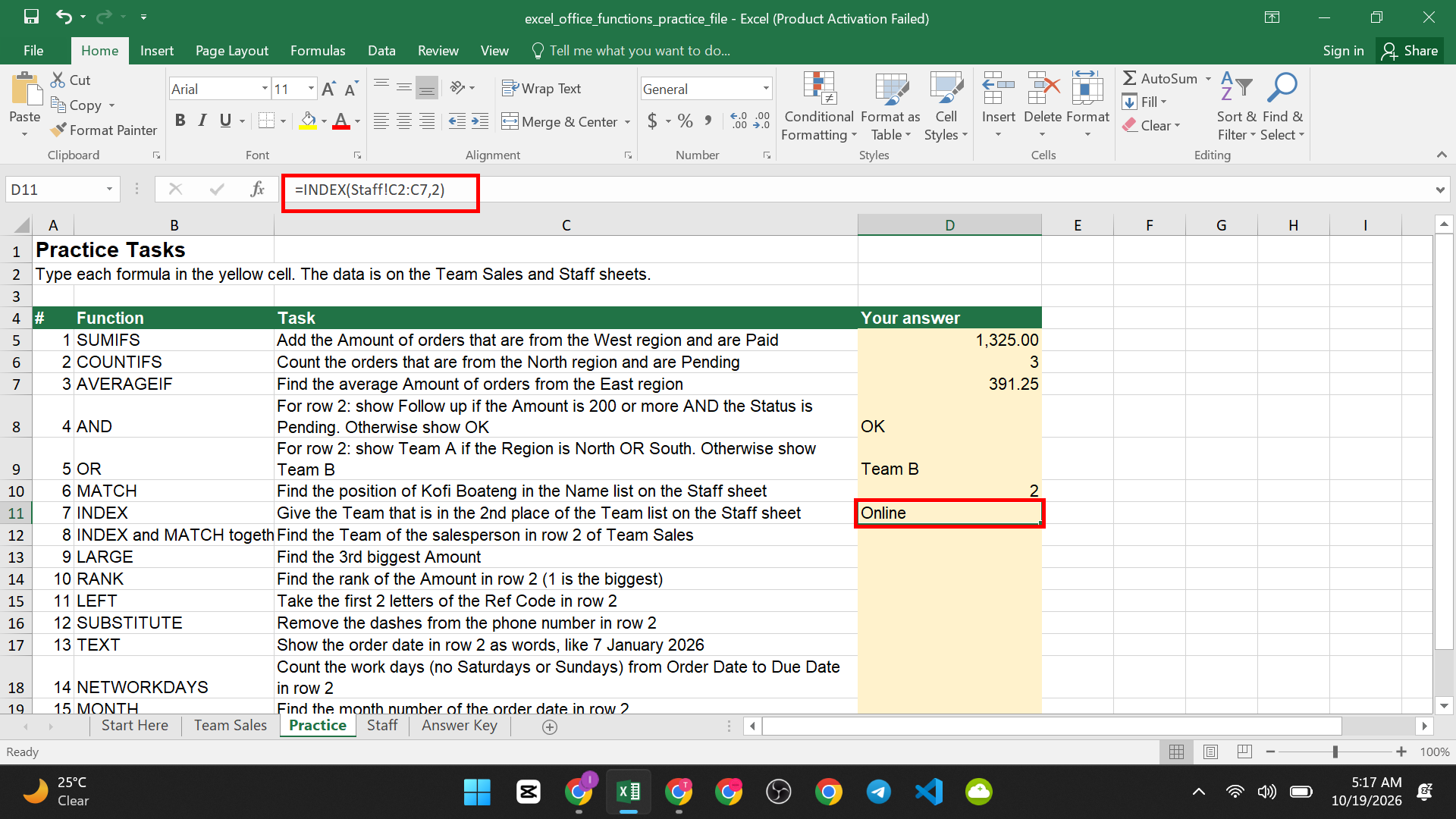
Task 7: Give the Team that is in the 2nd place of the Team list on the Staff sheet.
=INDEX(Staff!C2:C7,2)
The answer is Online. The 2nd team in the list is Online.
INDEX and MATCH Together: Look Things Up
Now put them together. MATCH finds the position. INDEX uses the position to get the answer.
Easy way to think about it: “Find where Esi is in the Name list (MATCH). Then take the Team from that same place (INDEX).”
The pattern:
INDEX( the list to get the answer from, MATCH( what to find, the list to search, 0 ) )
Task 8: Find the Team of the salesperson in row 2 of Team Sales.
=INDEX(Staff!C2:C7,MATCH(‘Team Sales’!D2,Staff!A2:A7,0))
The answer is Corporate. Row 2’s salesperson is Esi Owusu. MATCH finds Esi in the 3rd place. INDEX takes the 3rd Team, which is Corporate.

Why not VLOOKUP? VLOOKUP (explained in our beginner functions guide) can only look to the right. With INDEX and MATCH, the answer can be in any column, even to the left of what you search. They also do not break when someone adds a column. That is why many office workers prefer them.
Newer Excel: Excel 2021 and Microsoft 365 also have XLOOKUP. It is not in Excel 2016 or 2019. INDEX and MATCH work in all versions, so use them when you share files.
Common mistake: Forgetting the 0 in MATCH. Without it, Excel may return a wrong answer.
If you see an error like #N/A, the item was not found. Check for spelling mistakes or extra spaces.
Rank Your Numbers
LARGE: Find the 1st, 2nd or 3rd Biggest Number
What it does: It finds the biggest, second biggest, third biggest number, and so on.
The pattern:
LARGE( the numbers, which place )
Task 9: Find the 3rd biggest Amount.
=LARGE(‘Team Sales’!I2:I25,3)
The answer is 635. If you type 1 instead of 3, you get the biggest. Type 2 for the second biggest.

Tip: MAX gives only the biggest number. LARGE gives any place you choose, which is perfect for a “Top 3” report. There is also SMALL for the smallest numbers.
RANK: Find the Place of One Number in a List
What it does: It tells you where one number sits when the list is put in order. 1 is the biggest.
The pattern:
RANK( the number, the list of numbers )
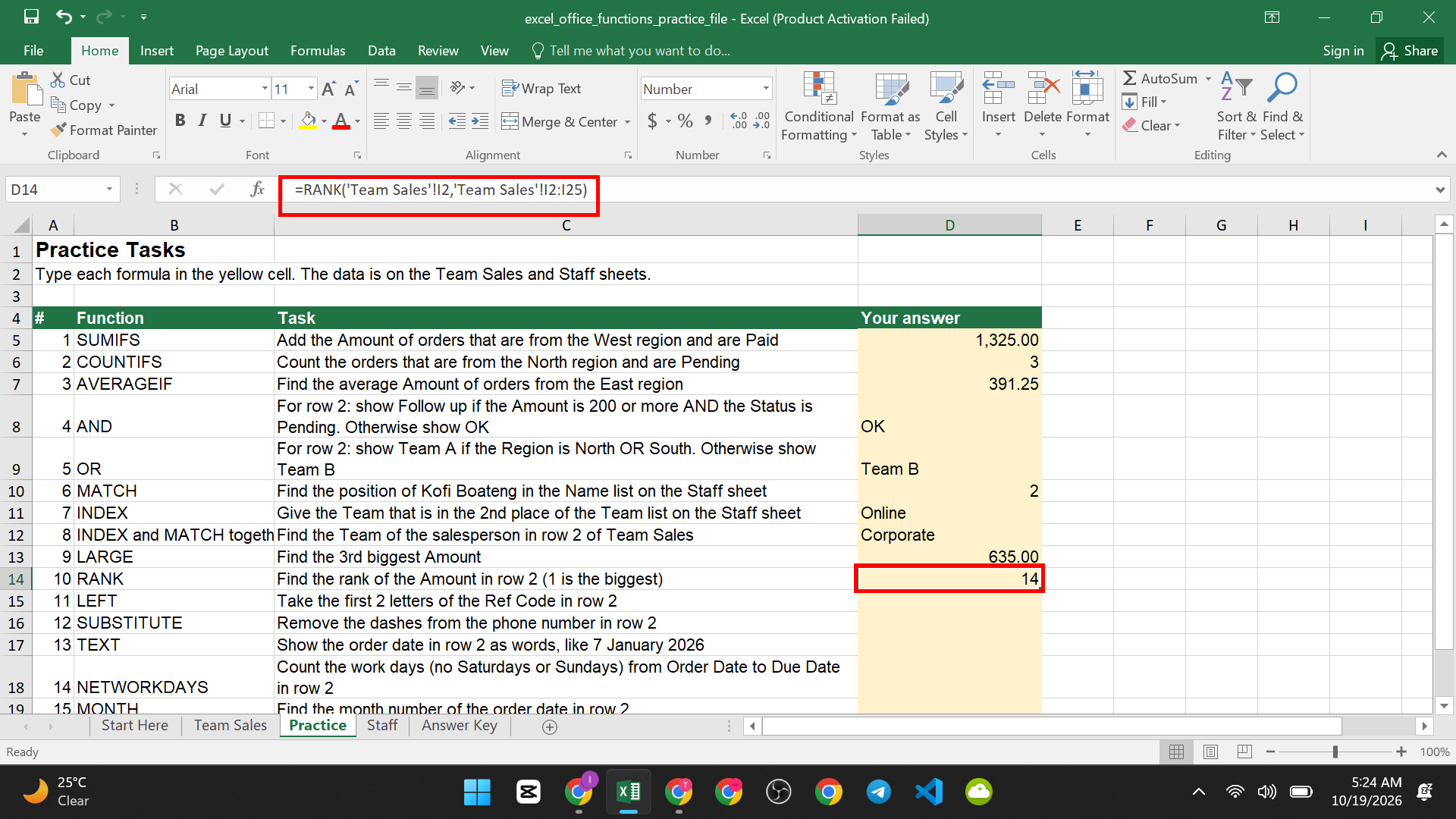
Task 10: Find the rank of the Amount in row 2.
=RANK(‘Team Sales’!I2,’Team Sales’!I2:I25)
The answer is 14. The Amount of 270 is the 14th biggest of the 24 orders.
If you want to copy this formula down, lock the list with dollar signs. Click inside the list and press F4. The formula then looks like this:
=RANK(‘Team Sales’!I2,’Team Sales’!I2:I25)
Keep the dollar signs exactly as shown. Without them, the list moves as you copy the formula, and your ranks will be wrong.
Tip: To rank from the smallest, add a 1 at the end: RANK( number, list, 1 ).
Fix and Shape Text
LEFT: Take Letters From the Start of Text
What it does: It takes a number of letters from the left side of the text.
The pattern:
LEFT( the text, how many letters )
Task 11: Take the first 2 letters of the Ref Code in row 2.
=LEFT(‘Team Sales’!G2,2)
The answer is PP. The Ref Code is PP-1001, and the first 2 letters are PP, the code for Pen Pack.

Tip: There is also RIGHT, which takes letters from the end, and MID, which takes letters from the middle.
SUBSTITUTE: Replace Text With Other Text
What it does: It swaps one piece of text for another. You can use it to remove something by replacing it with nothing.
The pattern:
SUBSTITUTE( the text, text to find, text to put instead )
Task 12: Remove the dashes from the phone number in row 2.
=SUBSTITUTE(‘Team Sales’!H2,”-“,””)
The answer is 0241811222. The phone number was 024-181-1222. Two quote marks with nothing between them (“”) mean “nothing”. So Excel replaces each dash with nothing.

Tip: This also helps when data is copied from other places and has odd characters. But note, a result like 0241811222 is text. If a number loses its first zero, format the cell as Text first.
TEXT: Change How a Number or Date Looks
What it does: It turns a number or date into text that looks the way you choose. This is great for sentences and reports.
The pattern:
TEXT( the number or date, “the look you want” )
Task 13: Show the order date in row 2 as words.
=TEXT(‘Team Sales’!B2,”d mmmm yyyy”)
The answer is 8 January 2026.

What the look letters mean:
| Letters | Meaning | Example |
| d | Day number | 8 |
| dd | Day with two digits | 08 |
| mmm | Short month | Jan |
| mmmm | Full month | January |
| yyyy | Four-digit year | 2026 |
For numbers, “#,##0.00” shows a comma for thousands and two decimals. So 1325 becomes 1,325.00.
Good to know: The result of TEXT is text, not a number or date. You cannot add it up. Use TEXT only for display. If a date shows as a number like 46030, that is a formatting issue. Our Home tab guide shows how to set number formats. The look letters can differ in some languages, so test it on your computer.
Work With Dates
In Excel, a date is a number behind the scenes. That is why you can do math with dates. These three functions help with real work questions. Our guide on how to insert today’s date in Excel covers how to enter dates quickly.
NETWORKDAYS: Count Work Days Between Two Dates
What it does: It counts the days between two dates, but skips Saturdays and Sundays.
Easy way to think about it: “How many working days do we have to finish this order?”
The pattern:
NETWORKDAYS( start date, end date )
Task 14: Count the work days from the Order Date to the Due Date in row 2.
=NETWORKDAYS(‘Team Sales’!B2,’Team Sales’!C2)
The answer is 22. The order date is 8 January 2026 and the due date is 7 February 2026. That is 31 days on the calendar, but only 22 of them are work days. Both the start and end days are counted.
Tip: To skip public holidays too, type a list of holiday dates in a few cells. Then add that list as a third part of the formula usually as a range of data.
MONTH: Get the Month Number From a Date
What it does: It gives you the month number, from 1 to 12.
The pattern:
MONTH( the date )
Task 15: Find the month number of the order date in row 2.
=MONTH(‘Team Sales’!B2)
The answer is 1. January is month 1.

Why office workers use it: You can add a “Month” column and then use SUMIFS or COUNTIFS to total by month. There are also YEAR and DAY functions that work the same way.
EOMONTH: Find the Last Day of a Month
What it does: “EOMONTH” means “end of month”. It gives you the last day of a month. This is handy for payment due dates, like “pay by the end of the month”.
The pattern:
EOMONTH( the date, months to move )
Type 0 for the same month, 1 for next month, or -1 for last month.
Task 16: Find the last day of the month of the order date in row 2.
=EOMONTH(‘Team Sales’!B2,0)
The answer is 31-Jan-2026. If you see a number like 46053, click the cell and format it as a Date.

Why it is useful: Excel knows that months have different lengths, and it knows about leap years. You do not have to count the days yourself.
If a Formula Does Not Work
Check these in order.
- Check your brackets. Every opening bracket needs a closing one.
- Check your quotes. Words need double quotes. Numbers do not.
- Check the ranges. In SUMIFS and COUNTIFS, all ranges must be the same size.
- Check the spelling of items. Extra spaces cause “not found” errors. Use TRIM from the beginner guide to clean them.
- Check for text numbers. Numbers stored as text do not add up or sort correctly.
- Check the column width. If you see ####, the column is too narrow. See how to fix the #### error in Excel.
- Press F9. Make sure calculation is on Automatic (Formulas tab, Calculation Options).
Not sure where the Formulas tab or the formula bar is? Read our Excel interface guide. To work faster, learn the 10 Excel keyboard shortcuts every user should know.
Make Your Report Ready for Work
Once your formulas work, protect them from being changed by accident. See how to lock specific cells in Excel without locking the whole sheet. Before printing, add page numbers by following how to insert page numbers in Excel. To understand how sheets and cells work together in a larger report, read workbooks vs worksheets vs cells.
Your Practice Plan
- Do tasks 1 to 3 (SUMIFS, COUNTIFS, AVERAGEIF).
- Do tasks 4 and 5 (AND, OR).
- Do tasks 6 to 8 (MATCH, INDEX, and both together).
- Do tasks 9 and 10 (LARGE, RANK).
- Do tasks 11 to 13 (LEFT, SUBSTITUTE, TEXT).
- Do tasks 14 to 16 (NETWORKDAYS, MONTH, EOMONTH).
- Check each answer on the Answer Key sheet.
Try to do each task before you look at the key. Mistakes are a normal part of learning.


