

A laptop that dies in the middle of work is frustrating. The good news is that Windows has many settings that can help your battery last longer. You do not need extra software.
This guide gives you 9 simple ways to make your Windows laptop battery last longer.
What to expect: Each setting helps a little. Together they can add up to a big gain. How much you gain depends on your laptop, your battery’s age and how you use it. We do not promise exact hours.
Before You Start
- Know what you are saving. The screen, the processor and background apps use the most power on most laptops.
- Change one thing at a time. Then you can see what helps.
- Your battery gets older. After a few years, any battery holds less charge. No setting can fix a worn battery. We show how to check this in the last step.
The 9 Ways at a Glance
| # | Way | Helps | Effort |
| 1 | Turn on Battery saver | A lot, when low on charge | 1 minute |
| 2 | Choose a power mode for battery | A lot | 1 minute |
| 3 | Lower the screen brightness | A lot | 1 minute |
| 4 | Set shorter screen and sleep timers | Medium | 2 minutes |
| 5 | Lower the refresh rate | Medium, on some laptops | 2 minutes |
| 6 | Find apps that use the most battery | A lot | 5 minutes |
| 7 | Limit startup and background apps | Medium | 5 minutes |
| 8 | Turn off wireless and extras you do not use | Small to medium | 1 minute |
| 9 | Check your battery health | Shows the real limit | 5 minutes |

Turn On Battery Saver
Battery saver is a built-in mode. When it is on, Windows limits some background activity and can lower your screen brightness.
Turn it on quickly:
- Press Windows key + A to open Quick Settings (on Windows 11) or the Action Center (on Windows 10).

- Click the Battery/Energy saver tile to turn it on. If you do not see it, click the battery icon in the taskbar and look there.

Set it to turn on by itself:
- On Windows 11, open Settings > System > Power & battery. On Windows 10, open Settings > System > Battery.
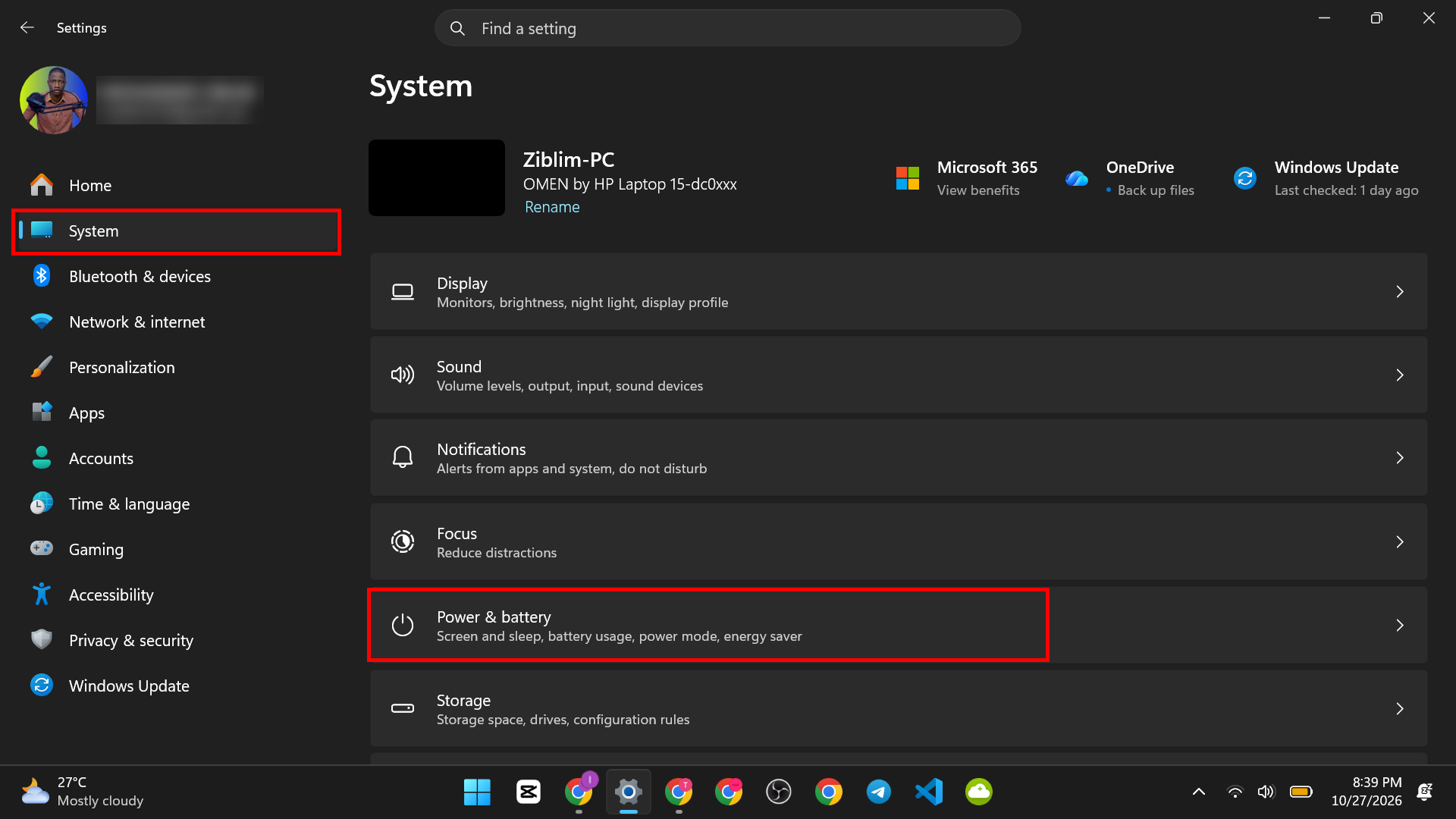
- Find Battery/Energy saver.

- Turn on Always use enery saver and tick the option to lower the screen brightness when battery saver is on, if you see it.

What to expect: Some background tasks may pause, like mail checks. Battery saver turns off by itself when you plug in the laptop.
Choose the Right Power Mode for Battery
A power mode tells Windows how to balance speed and battery life.
On Windows 11:
- Open Settings > System > Power & battery.
- Find Power mode. On newer versions, you will see one setting for On battery and one for Plugged in.

- For battery, choose Best power efficiency or Balanced.

- For plugged in, you can choose Best performance if you want speed.

On Windows 10:
- Click the battery icon in the taskbar.
- Move the slider toward Battery saver or Recommended.
The best choice depends on what you do. Writing, browsing and email work fine in a power-saving mode. For video editing or games, you may want more speed and a shorter battery time.
Lower the Screen Brightness
The screen often uses more power than any other part of a laptop. Lowering the brightness is one of the easiest ways to save battery.
- Press Windows key + A.
- Move the Brightness slider to the left.
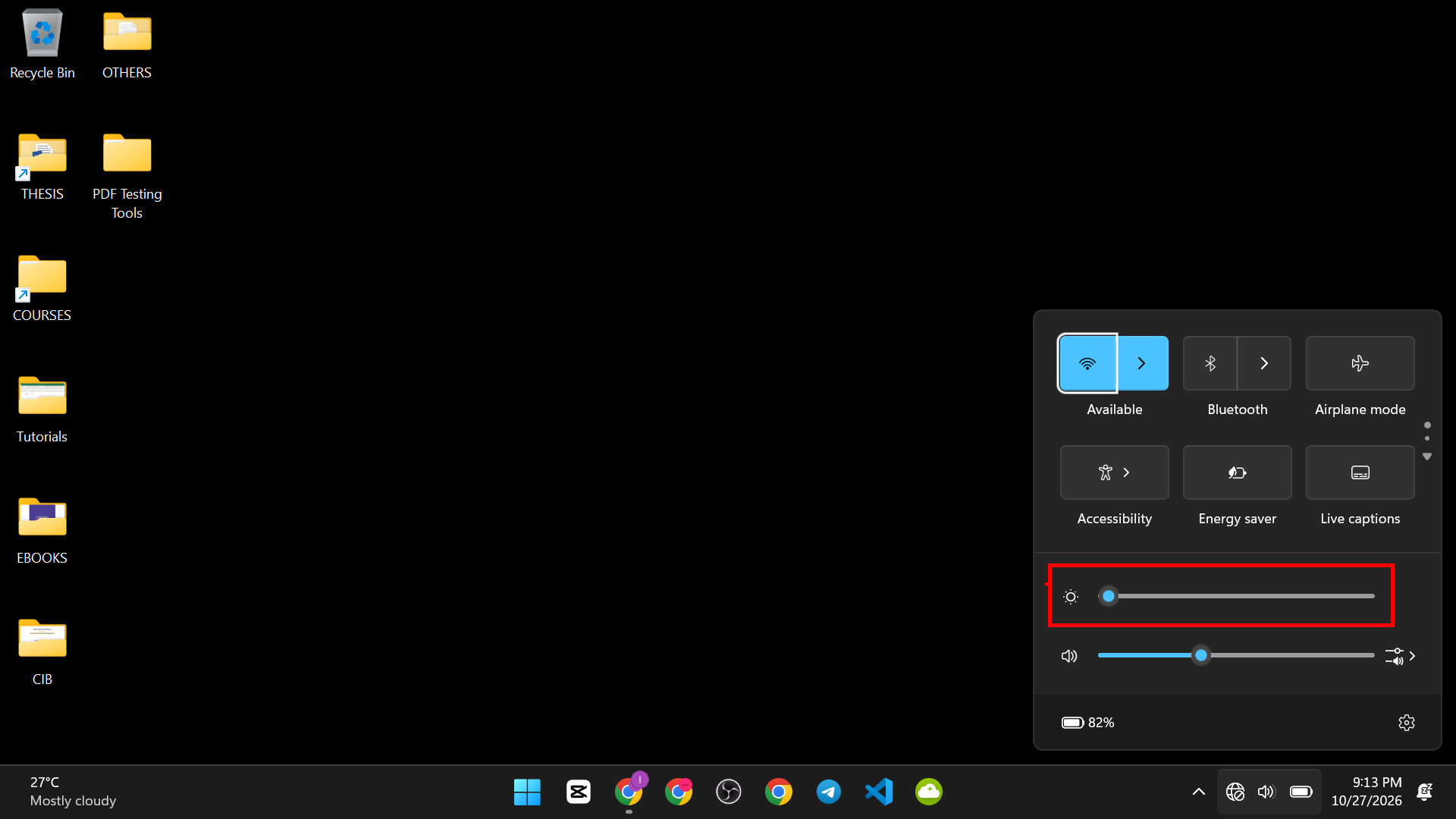
You can also go to Settings > System > Display and use the Brightness slider. If your laptop has a light sensor, you may see an option for Change brightness automatically when lighting changes. It can help, but it can also make the screen brighter than you want. Test it.

Tip: Your keyboard may have brightness keys. They are often on the top row, with a sun icon. You may need to hold the Fn key.
About dark mode: Dark mode saves power only on some screens, like OLED screens. On most laptop screens, it makes little difference. Use it if you like how it looks.
Set Shorter Screen and Sleep Timers
A screen that stays on when you walk away wastes battery. Set timers for when you are on battery.
On Windows 11:
- Open Settings > System > Power & battery.

- Click Screen, sleep & hibernate timeouts.

- Under On battery power, turn off my screen after, choose a short time, like 3 or 5 minutes and for put my device to sleep after, choose a time like 9 minutes.

On Windows 10:
- Open Settings > System > Power & sleep.
- Set the Screen and Sleep times under On battery power.
Trade-off: Very short times can be annoying if you read for a long time without touching the laptop. Pick a time that suits you.
Lower the Refresh Rate
Some laptops have a screen that updates 120 or 144 times each second (this is the refresh rate). It looks smooth, but it uses more power than 60 times each second.
- Open Settings > System > Display.
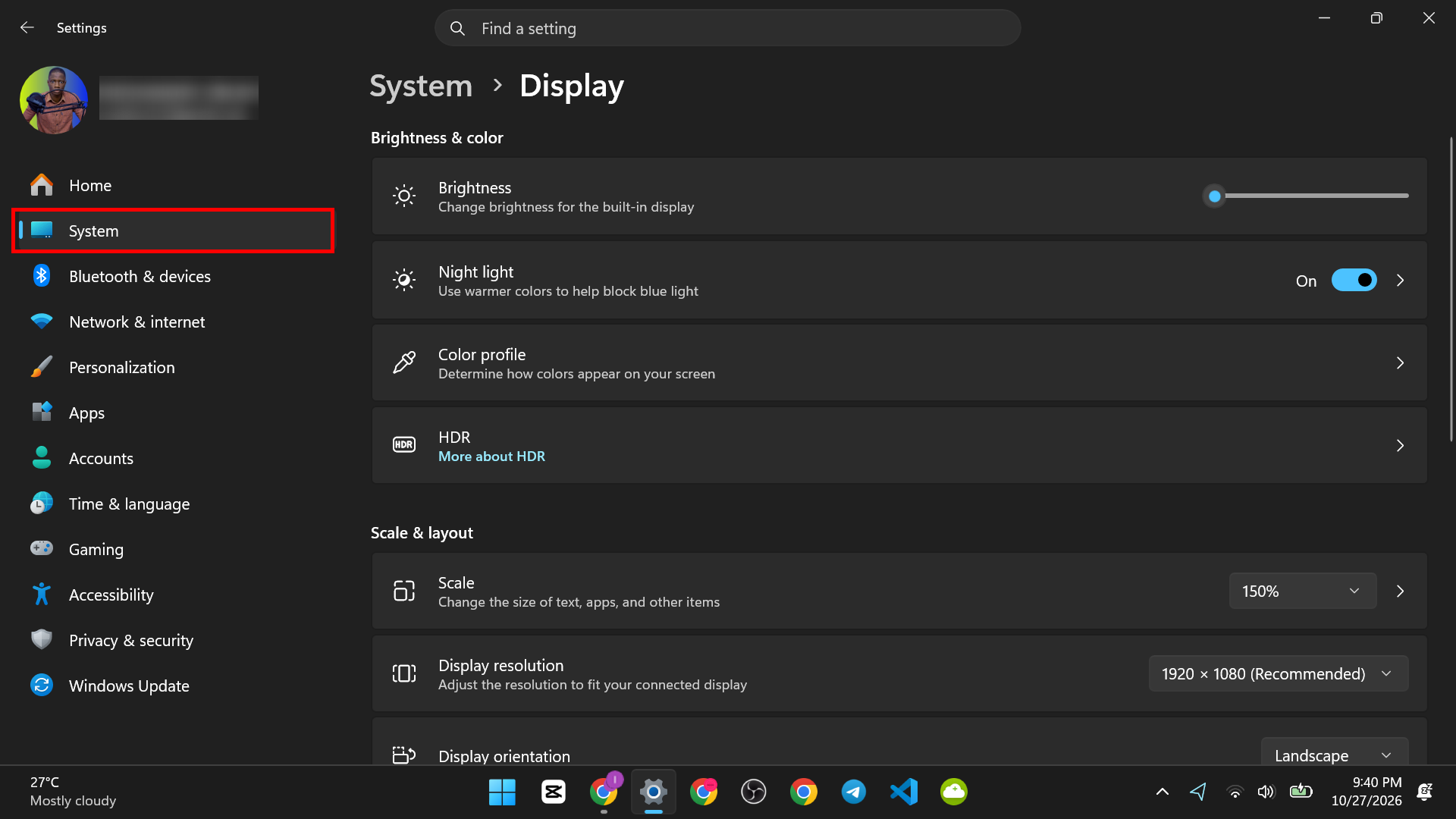
- Click Advanced display.

- Next to Choose a refresh rate, pick 60 Hz when you want to save battery.
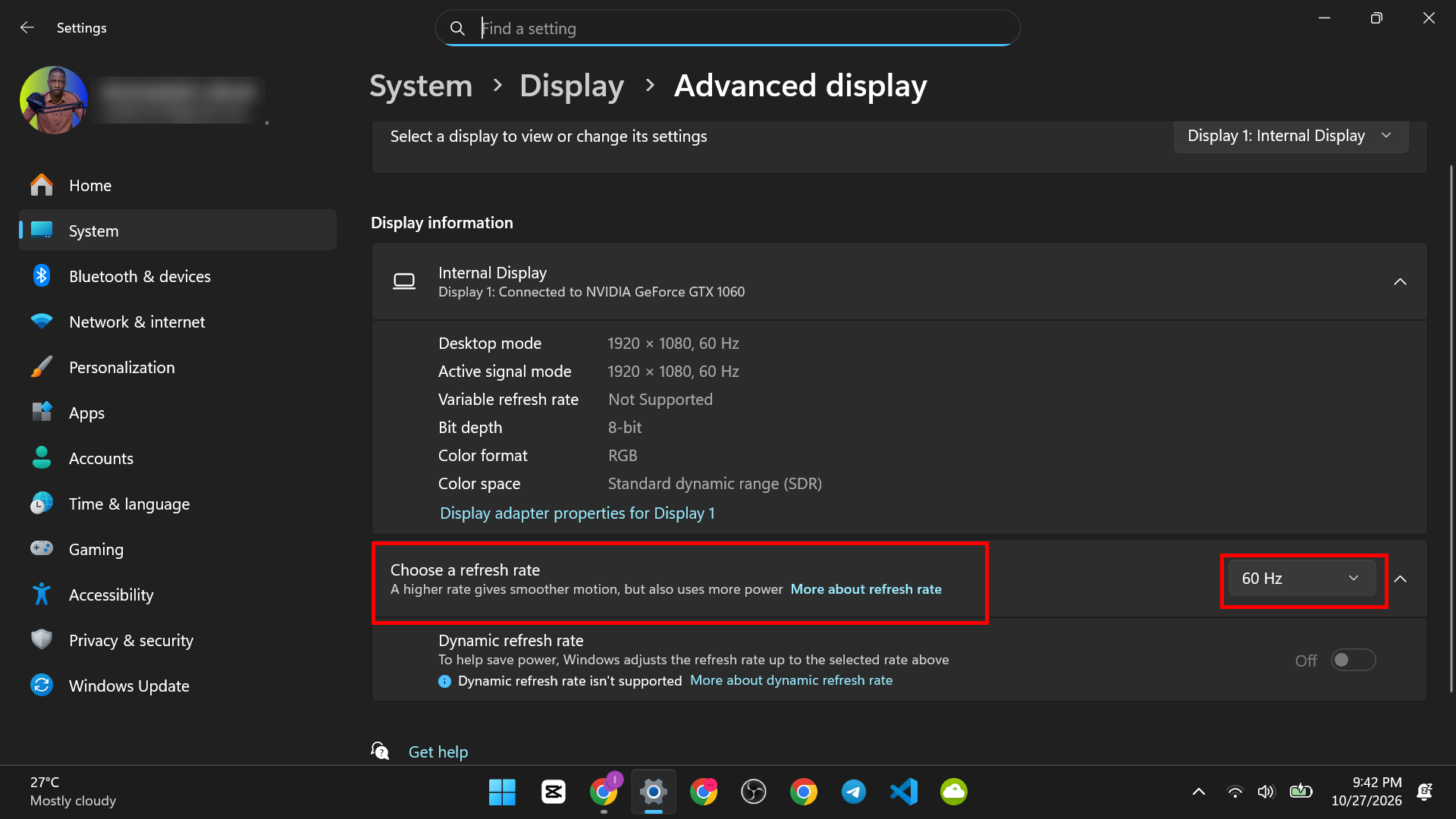
Dynamic refresh rate: On some Windows 11 laptops, you may see an option like Dynamic (60 or 120 Hz). In this mode, Windows changes the rate by itself. It gives smooth motion when you need it, and saves power when you do not.

If you only see one choice, your screen does not offer more options. This setting is only available on laptops with a high refresh rate screen.
Find Apps That Use the Most Battery
Do not guess. Windows tells you which apps use the most power.
On Windows 11:
- Open Settings > System > Power & battery.
- Click Battery usage.

- Choose Last 24 hours or Last 7 days, and look at the list. It shows how much each app has used.

On Windows 10:
- Open Settings > System > Battery.
- Click See which apps are affecting your battery life.
To see it live, press Ctrl + Shift + Esc to open Task Manager. On the Processes tab, look at the Power usage column. If you do not see it, right-click a column heading and add it. (For more shortcuts, see our list of 200 Windows shortcuts.)

Look for apps that use a lot of power but that you do not need. Close them when you are on battery. On Windows 11, you can also right-click a heavy app in Task Manager and choose Efficiency mode to lower its priority.
Limit Startup and Background Apps
Apps that start with Windows and run in the background use power all day.
- Press Ctrl + Shift + Esc to open Task Manager.
- Click Startup apps (Windows 11) or the Startup tab (Windows 10).

- Right-click apps you do not need at start, and choose Disable.
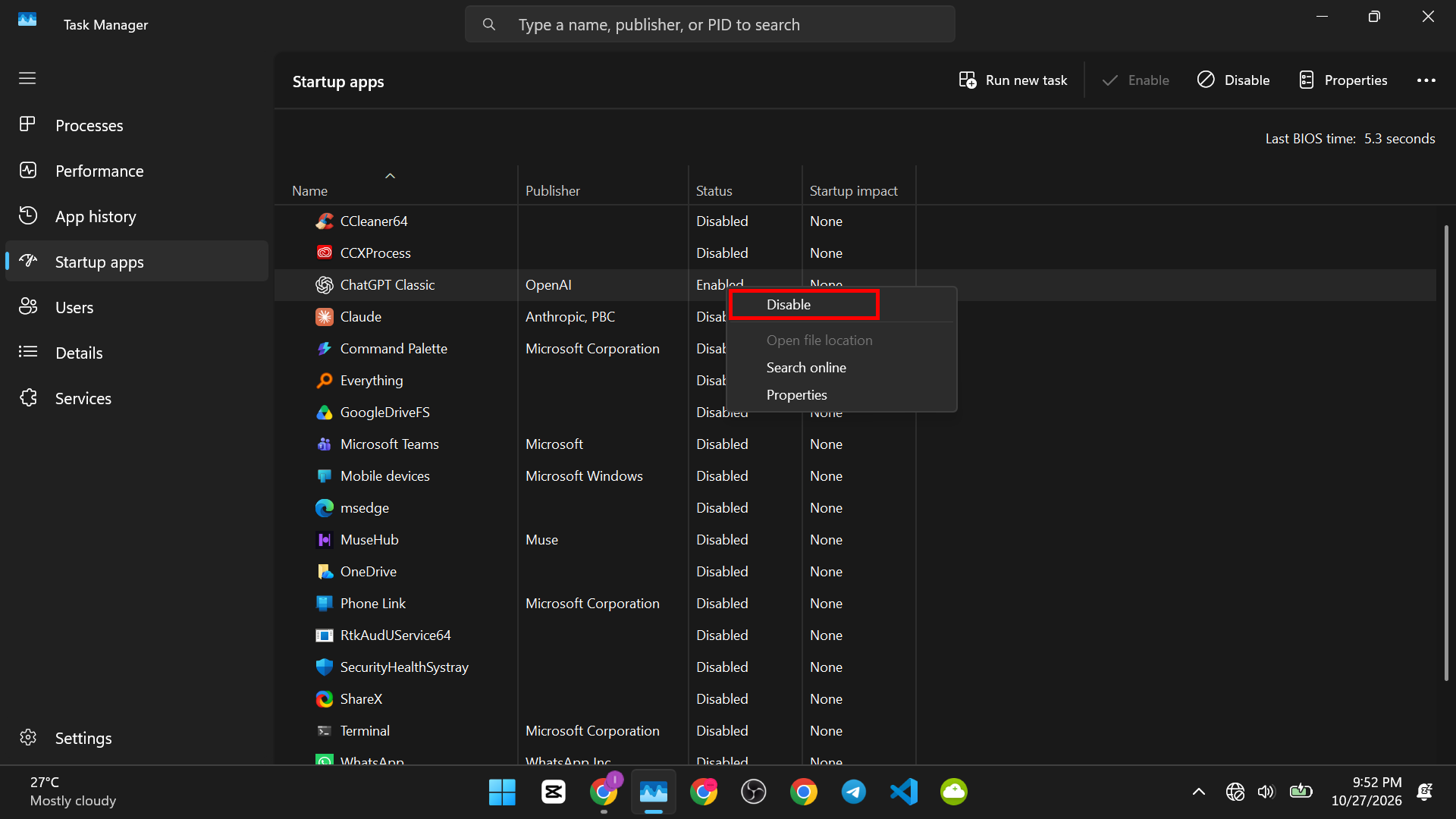
This does not uninstall them. They just stop starting by themselves. Do not disable your antivirus or anything you do not recognize.
You can also limit Microsoft Store apps that run in the background. For the steps, see our guide on settings that make a Windows PC slow. Note that this setting is only for Microsoft Store apps. Regular desktop programs do not have it.
Turn Off Wireless and Extras You Do Not Use
Some parts of your laptop use power even when you are not using them.
- Bluetooth. Turn it off if you are not using a Bluetooth mouse or headphones. Press Windows key + A and click the Bluetooth tile.
- Wi-Fi. If you work offline, turn it off, or use Airplane mode to turn off all wireless.
- Keyboard backlight. Turn it off or lower it. Most laptops have a key on the keyboard for this, often with the Fn key.
- Location. In Settings > Privacy & security > Location (Windows 11), turn off location for apps that do not need it.

- Devices you plug in. A USB drive, a phone being charged or a mouse with a light can use battery power. Unplug what you do not need.
Each one helps a little. Together, they add up.
Check Your Battery Health With a Battery Report
Sometimes the problem is not your settings. The battery may be worn. Windows can make a report that shows this.
- Press Windows key + R, type cmd and press Enter. (New to the Run box? See how to open the Run command in Windows. Our Run commands list has more.)
- In the black window, type this and press Enter:
powercfg /batteryreport

- Windows shows where it saved the report, usually a file called battery-report.html in your user folder. Open that file in your browser.

- Find the Installed batteries section. Compare Design capacity with Full charge capacity.
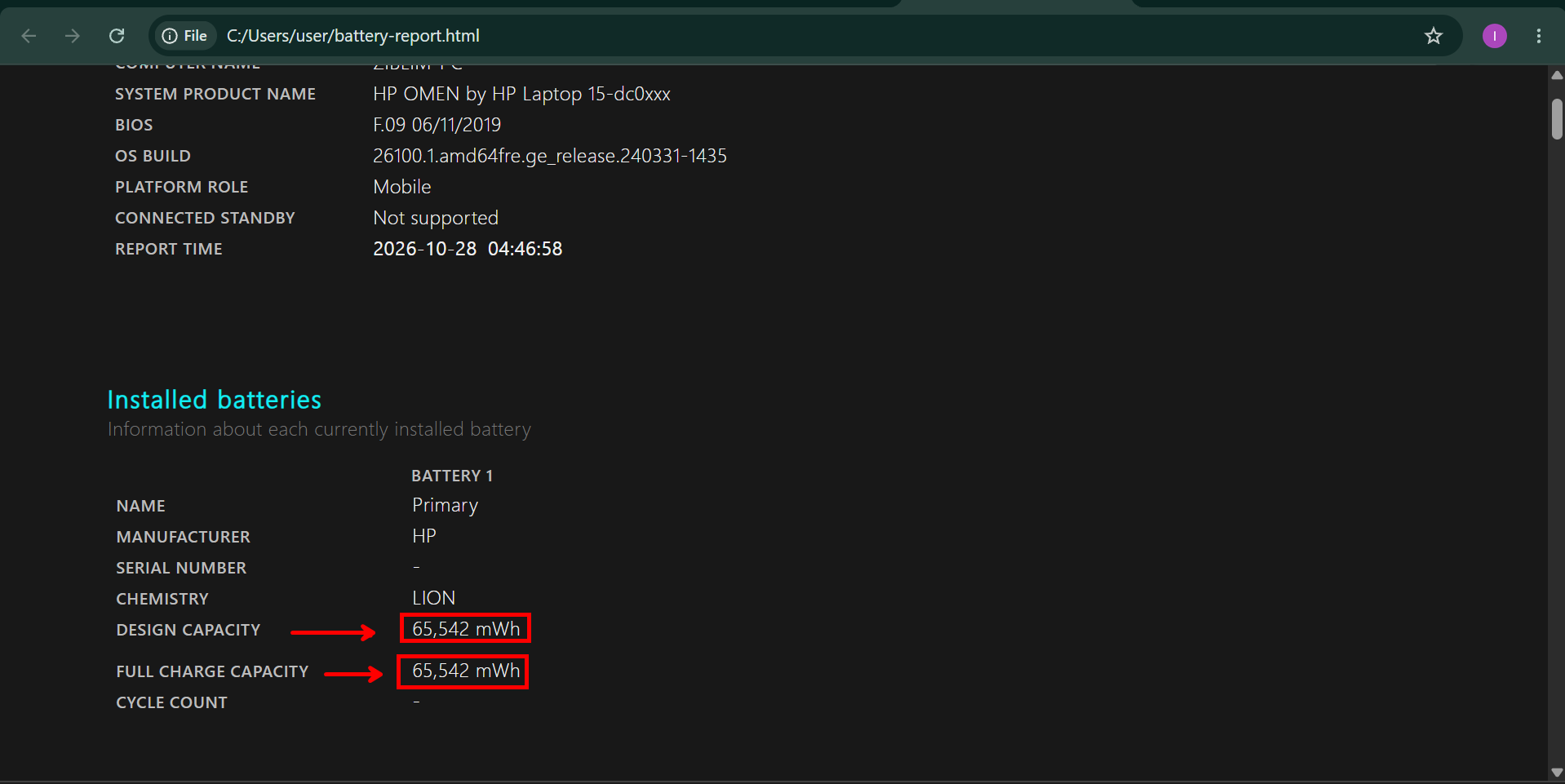
How to read it: Design capacity is how much the battery held when it was new. Full charge capacity is how much it holds now. If the full charge number is much lower than the design number, the battery is worn. A new battery may be the best fix.
Also useful: The report has a battery life history, so you can see how long your charges last.

For battery drain while the laptop sleeps, you can type powercfg /sleepstudy in the same window. It makes a report of what used battery during sleep.
Habits That Protect Your Battery
- Keep it cool. Heat is bad for batteries. Do not leave your laptop in a hot car, and keep the vents clear.
- Do not keep it at 90 percent all the time, if you can avoid it. Many laptops have an option from the maker (in an app like Lenovo Vantage, Dell Power Manager or HP Support Assistant) to limit the charge, for example to 80 percent. If yours does, it can help the battery live longer when you are often plugged in.
- Update Windows and your drivers. Updates fix power problems. Check Settings > Windows Update. Your laptop maker may also give you BIOS and driver updates.
- Use the right charger. Cheap chargers can harm batteries.
What Not to Do
- Do not install “battery saver” or “battery booster” programs from unknown makers. They rarely help and some are harmful.
- Do not turn off Windows updates or your antivirus to save power. The gain is small, and the risk is high.
- Do not drain the battery to zero all the time. Charge it before it gets very low.
If Your Battery Still Drains Fast
- Restart your laptop. A stuck app can use power.
- Check Battery usage (the sixth way) for an app using too much.
- Run the battery report (the tenth way) to see if the battery is worn.
- Update Windows and drivers.
- Check your power mode and screen settings again.
- Think about a new battery. If the report shows it is worn, replacing it may be the best fix. Check with your laptop maker


