
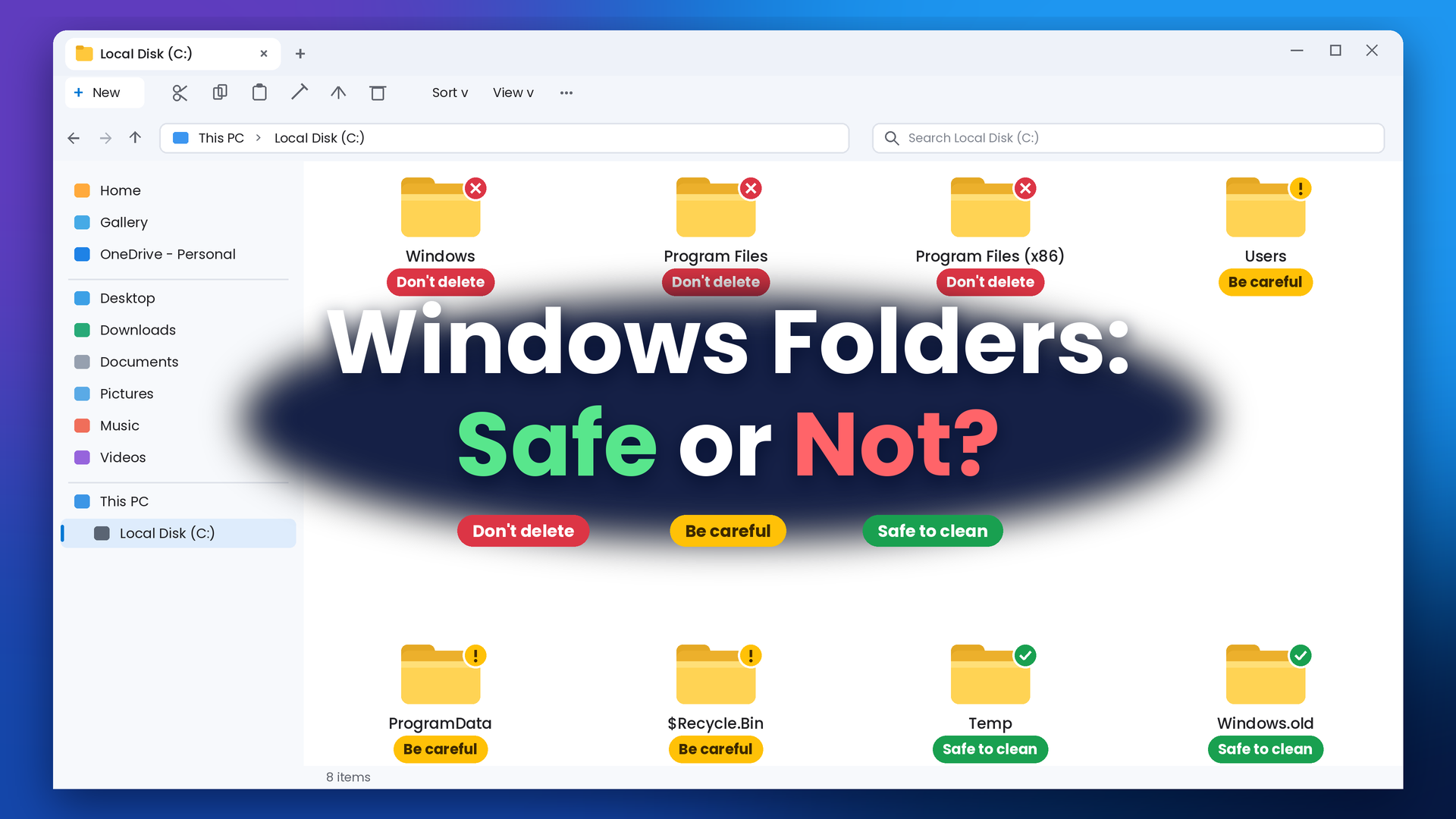

When your drive is nearly full, it is tempting to open the C: drive and delete big folders. Do not do that yet. Some Windows folders are safe to clean. Others will stop your PC from starting if they are removed.
This guide explains 10 important Windows folders in simple words. For each one, you will see where it is, what it does, whether it is safe to delete, and what to do instead. It works for Windows 10 and Windows 11.
The rule to remember: Do not delete a folder because it is big. Delete things with the right tool, such as Settings, Storage Sense or the Uninstall option. These tools remove only what is safe.
The 10 Folders at a Glance
| Folder | Where it is | What it holds | Safe to delete by hand? |
| Windows | C:\Windows | Windows itself | No, never |
| System32 | C:\Windows\System32 | Core system files | No, never |
| Program Files | C:\Program Files and C:\Program Files (x86) | Installed apps | No. Use Uninstall |
| Users | C:\Users | Personal files for each account | No. These are your files |
| AppData | C:\Users\YourName\AppData | App settings and caches | Careful |
| ProgramData | C:\ProgramData | App data shared by all users | Careful |
| Temp | C:\Windows\Temp and your user Temp folder | Short-term files | Mostly, with the right tool |
| SoftwareDistribution | C:\Windows\SoftwareDistribution | Windows Update downloads | Careful. Do not do it by hand |
| Windows.old | C:\Windows.old | Your old Windows version | Yes, with the right tool, if you are sure |
| WinSxS | C:\Windows\WinSxS | Windows component store | No. Use the cleanup tools |
Folders marked “No” can stop Windows from working. “Careful” means they are safe only in certain cases. “Yes, with the right tool” means you can remove them, but only through Windows.

How to See These Folders
Some folders are hidden by default. You need to show them to look at them.
- Open File Explorer (press Windows key + E).

- Click This PC and then open your C: drive.

- Click View in the toolbar.

- Go to Show and tick Hidden items. On Windows 10, tick Hidden items in the Show/hide group.

Hidden folders such as ProgramData now appear. They may look a little faded. That is normal.

A faster way: Press Windows key + R, type a name such as %appdata% and press Enter. This opens that folder directly. If you have not used the Run box before, read how to open the Run command in Windows. Our list of Windows Run commands has more.
Folder 1: Windows
Where: C:\Windows

What it is: This is the heart of the system. It holds Windows itself, drivers, fonts and many other files that Windows needs every day.
Safe to delete? No. Never.
What happens if you delete things here: Windows may not start, or it may act strangely. Windows protects most of it and will show “You need permission” messages. If you see those messages, stop.
What to do instead: Free up space with Settings, Storage Sense or Disk Cleanup. See our guide on freeing up storage space in Windows.
Folder 2: System32
Where: C:\Windows\System32
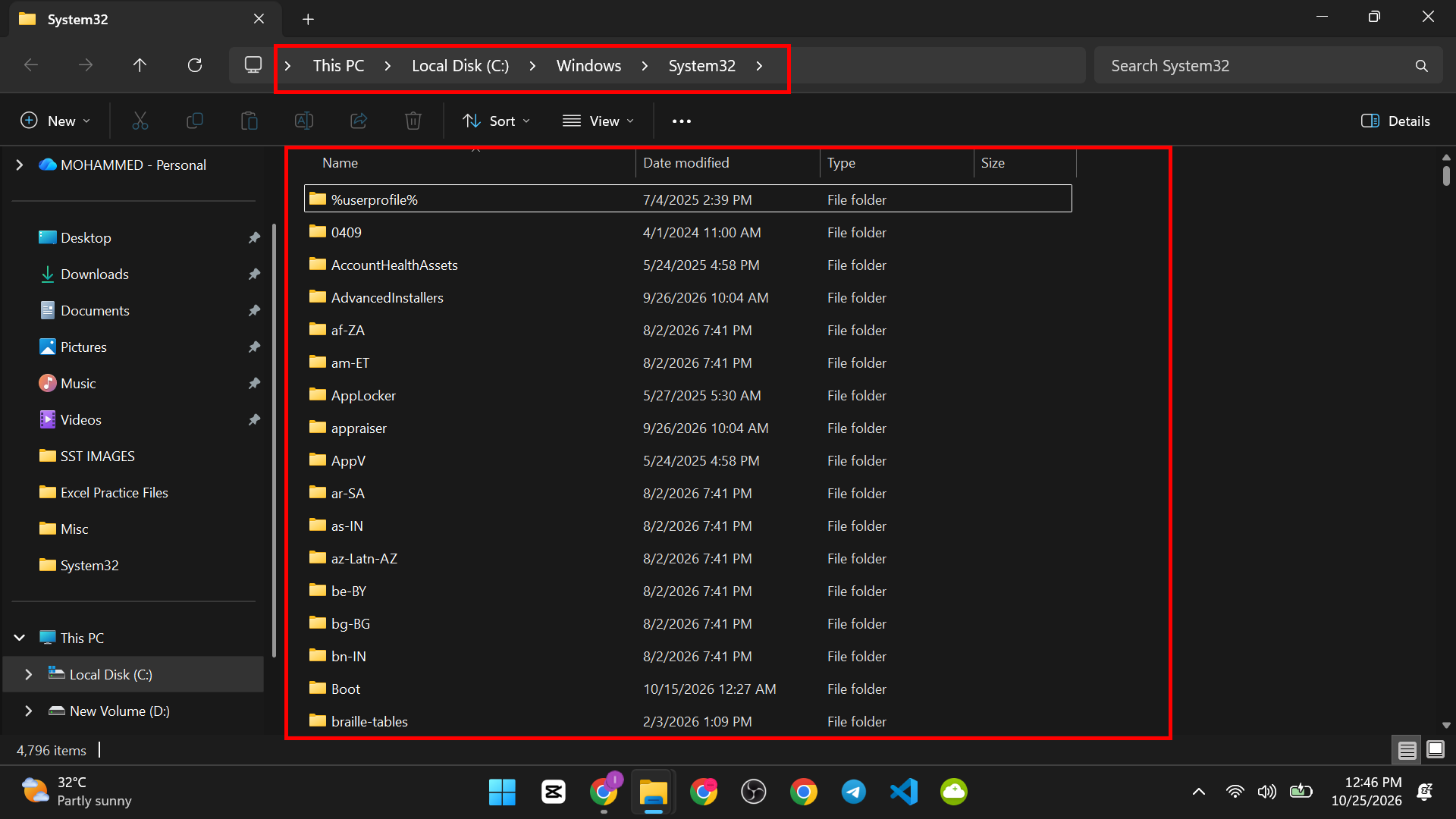
What it is: It holds core system programs and files, called DLL files. Many of them keep Windows running. The name is confusing. On modern 64-bit Windows, this folder holds 64-bit files.
Safe to delete? No. Never.
What about the “delete System32” joke? Online, people sometimes tell others to delete System32 “to make the PC faster”. This is a prank. It will break Windows. Do not follow it.
What to do instead: Leave it alone. If you think a system file is broken, use the repair tools in the last section of this guide.
Folder 3: Program Files and Program Files (x86)
Where: C:\Program Files and C:\Program Files (x86)
What they are: These hold the apps you install. Program Files is for 64-bit apps.

Program Files (x86) is for older 32-bit apps. Both are normal on 64-bit Windows.

Safe to delete? Not by hand. If you delete an app’s folder, the app disappears, but Windows still thinks it is installed. This can leave broken entries and error messages.
What to do instead: Uninstall the app the right way.
- Open Settings > Apps.

- On Windows 11, choose Installed apps. On Windows 10, choose Apps and features.
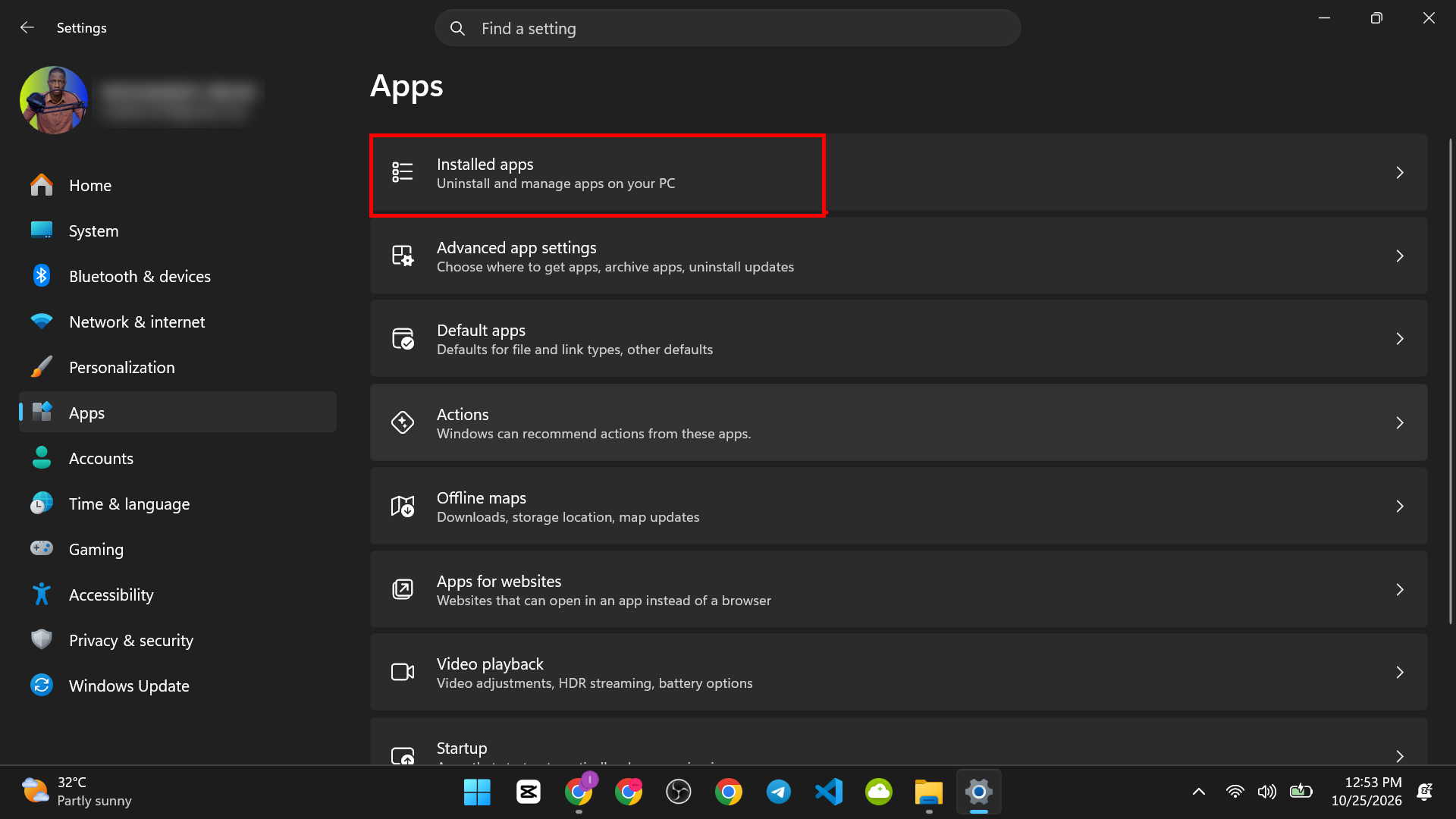
- Find the app, then click Uninstall.

Removing an app does not delete your personal files, and you can install it again later.
Folder 4: Users
Where: C:\Users
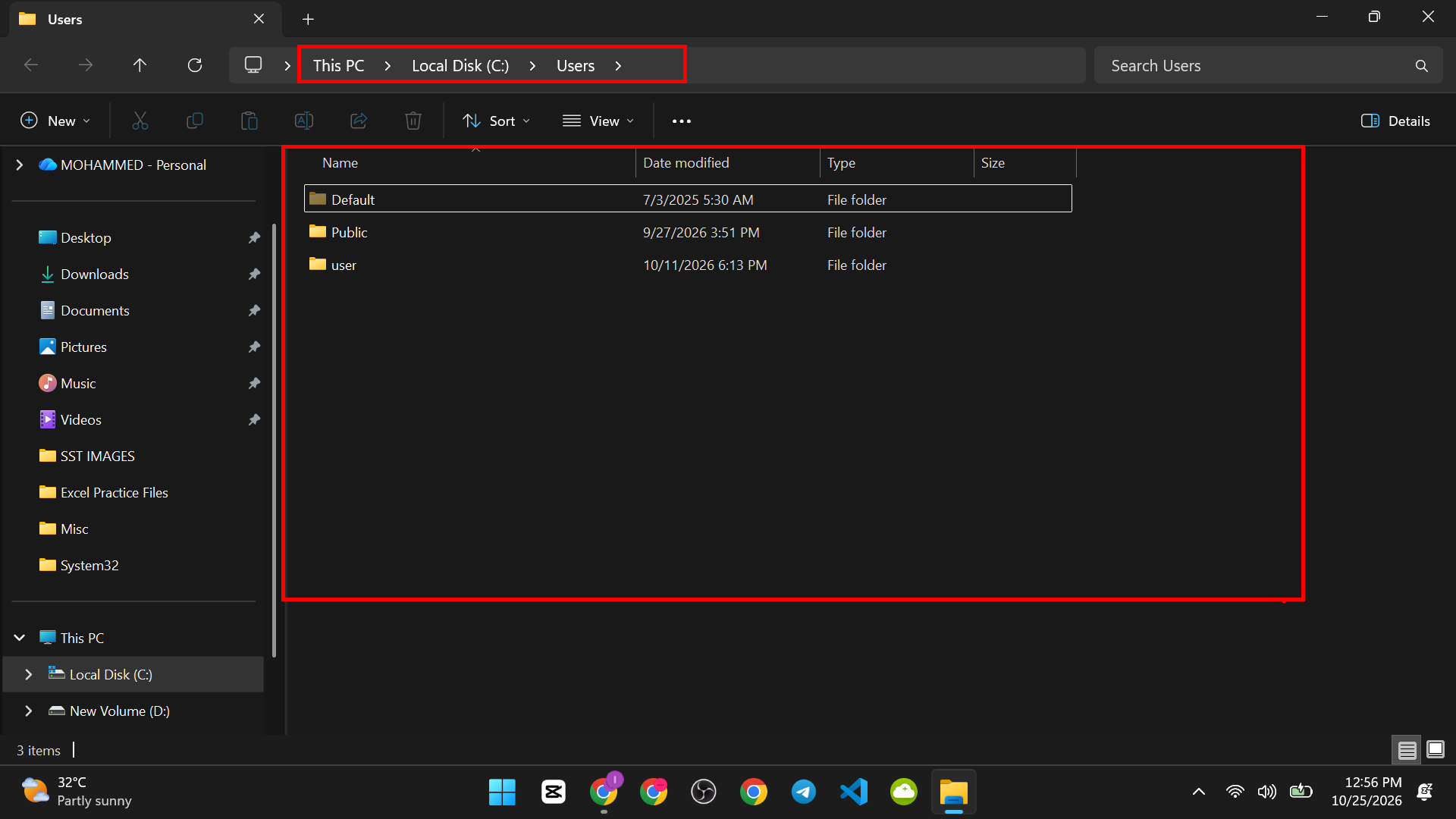
What it is: Every person who uses the PC gets a folder here, like C:\Users\Ama. Inside are Desktop, Documents, Downloads, Music, Pictures and Videos. There is also a Public folder that every user can see.
Safe to delete? No. These are your own files, and your photos, documents and projects may be here.
What happens if you delete it: You lose that person’s files and settings. Windows may also create a temporary profile at sign in.
What to do instead:
- To remove a user, go to Settings > Accounts
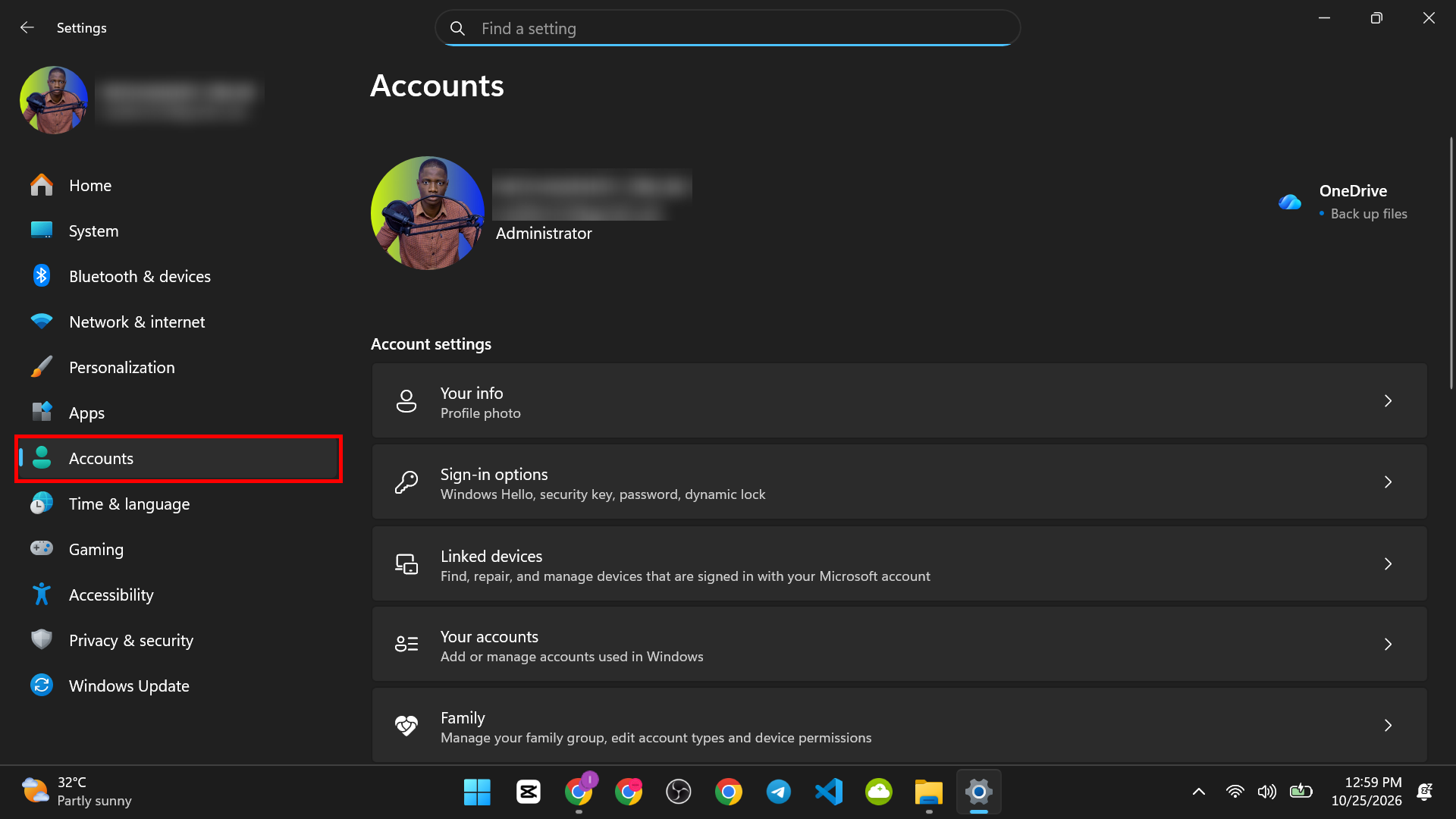
- Open Other users or Family & other users

- Find the other user’s account and use the Remove option. Windows asks you before it deletes their data.

- To free space, move large files out of Downloads, Videos and Pictures, or to an external drive. Back them up first.
Folder 5: AppData
Where: C:\Users\YourName\AppData (hidden)

What it is: Apps store their settings, saved logins and caches here. It has three folders inside:
- Local: data for this PC only, including caches.
- LocalLow: data for apps that run with extra limits, such as some browser parts.
- Roaming: settings that can follow you from one PC to another in some work setups.
Safe to delete? Careful. If you delete an app’s folder, the app goes back to its first-run state. You may lose settings and saved logins. If you delete everything, many apps may stop working.
What to do instead: Clear caches from inside the app, such as the browser’s Clear browsing data option. If an app stops working and a support team asks you to reset it, they may tell you to rename its AppData folder. Follow their steps only.
How to open it: Press Windows key + R, type %appdata%, and press Enter. That opens the Roaming folder. Go up one level to see Local and LocalLow.
Folder 6: ProgramData
Where: C:\ProgramData (hidden)

What it is: It is like AppData, but for all users on the PC. Apps keep shared settings, licenses and data here. Security software often keeps its files here.
Safe to delete? Careful. Deleting the wrong folder can break an app or lose a license. Leave it unless a trusted support guide tells you what to remove.
What to do instead: Uninstall apps you do not use. Uninstalling also cleans up their ProgramData files.
Folder 7: Temp
Where: C:\Windows\Temp and your own Temp folder at C:\Users\YourName\AppData\Local\Temp

What it is: Apps and Windows put short-term files here. Installers unpack here. These are not meant to stay for long.
Safe to delete? Mostly yes, with the right tool. Files that an app is using right now cannot be deleted, and Windows will tell you.
How to clean it safely:
- Open Settings > System > Storage.

- Click Temporary files.
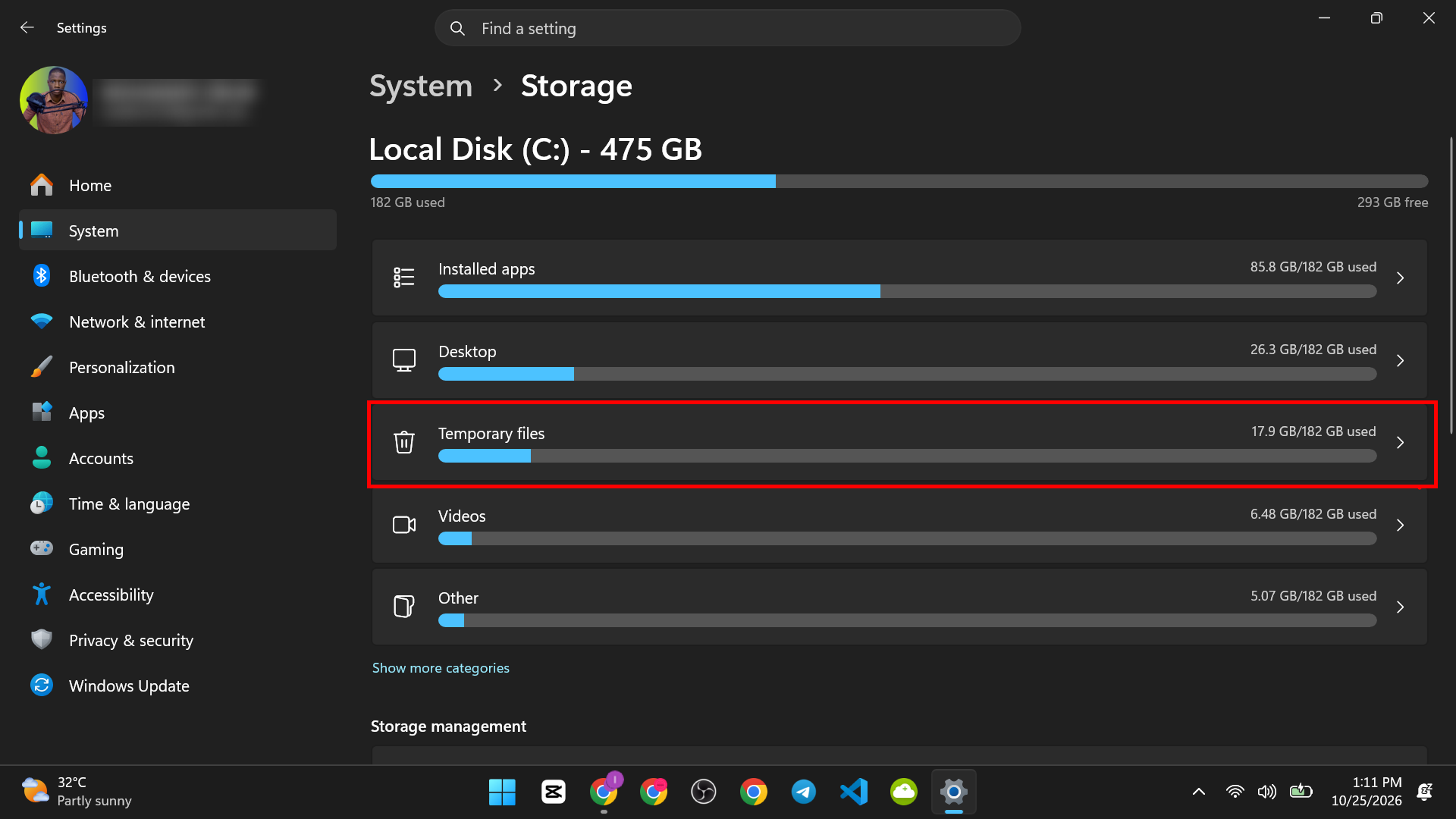
- Tick the items you want, such as Temporary files, and click Remove files.
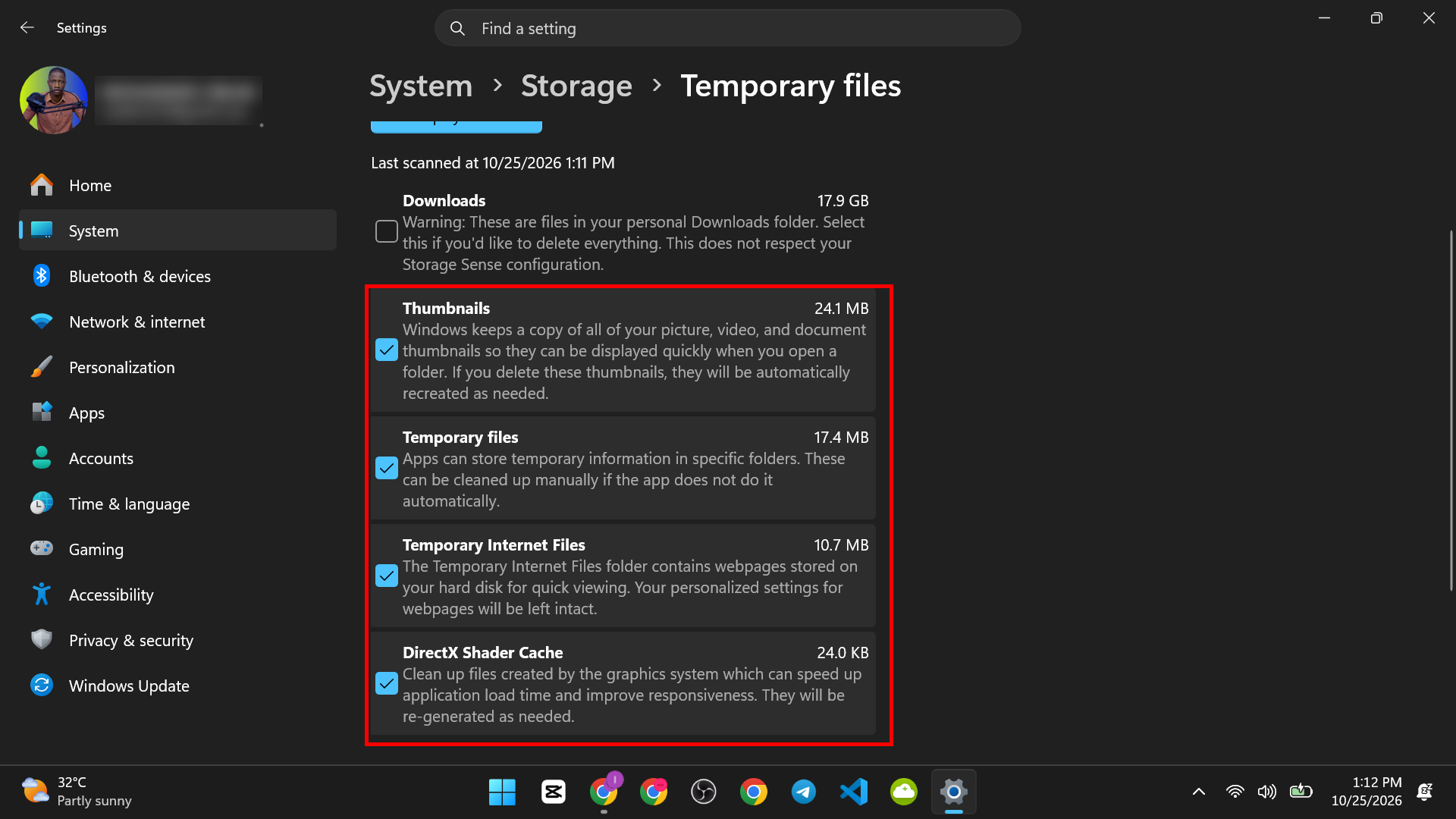
- Do not tick Downloads unless you are sure. It is a different folder that holds your own files.
A quick manual way: Press Windows key + R, type %temp%, and press Enter. Press Ctrl + A to select everything and press Delete. If Windows says a file is in use, click Skip. Restart your PC first to have fewer files in use. If you prefer a safe, hands-off way, use Storage Sense.
Folder 8: SoftwareDistribution
Where: C:\Windows\SoftwareDistribution
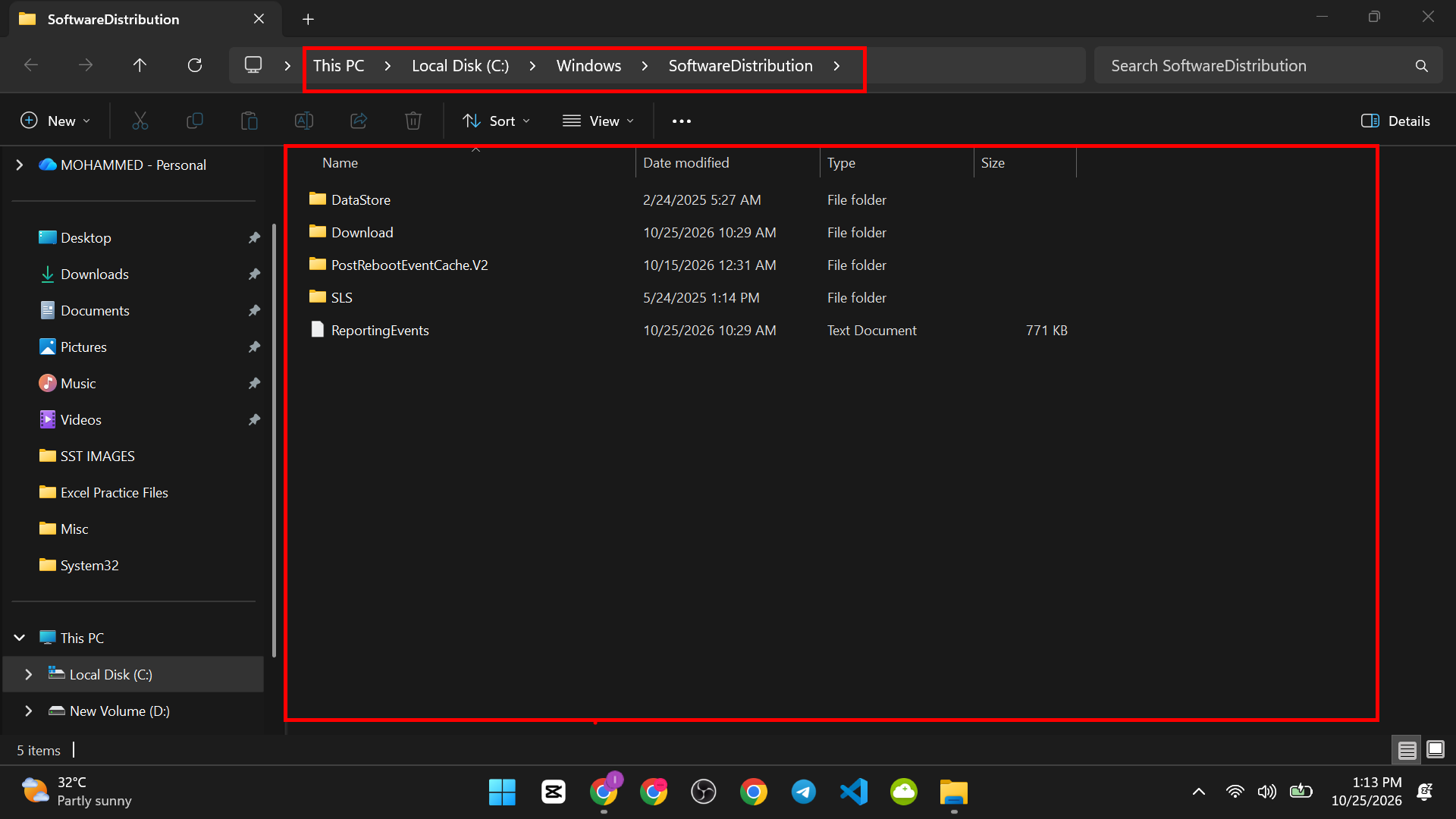
What it is: Windows Update downloads and prepares update files here. Its Download folder can grow large.
Safe to delete? Careful. Windows rebuilds this folder, so clearing it is a known fix for stuck updates. But it should be done with Windows Update paused or its services stopped, which is why we do not recommend deleting it by hand.
What to do instead:
- For stuck updates, run the Windows Update troubleshooter. On Windows 11, go to Settings > System > Troubleshoot > Other troubleshooters. On Windows 10, go to Settings > Update and Security > Troubleshoot > Additional troubleshooters.

- To remove old update files, use Disk Cleanup (press Windows key + R, type cleanmgr, press Enter, then choose Clean up system files and tick Windows Update Cleanup).
Folder 9: Windows.old
Where: C:\Windows.old
What it is: After a big Windows update or reinstall, Windows saves your old version here. It lets you go back if something goes wrong. It can be many gigabytes.
Safe to delete? Yes, with the right tool, if you are happy with your current Windows. After you remove it, you cannot go back to the old version. Windows may also remove it by itself after a while.
How to remove it safely:
- Check that your files are all in place and that Windows works well.
- Open Settings > System > Storage > Temporary files.
- Tick Previous Windows installation(s) if it is listed, and click Remove files.

You can also do this in Disk Cleanup under Clean up system files. Do not drag the folder to the Recycle Bin. It is protected, and the tools handle it correctly.
Folder 10: WinSxS
Where: C:\Windows\WinSxS
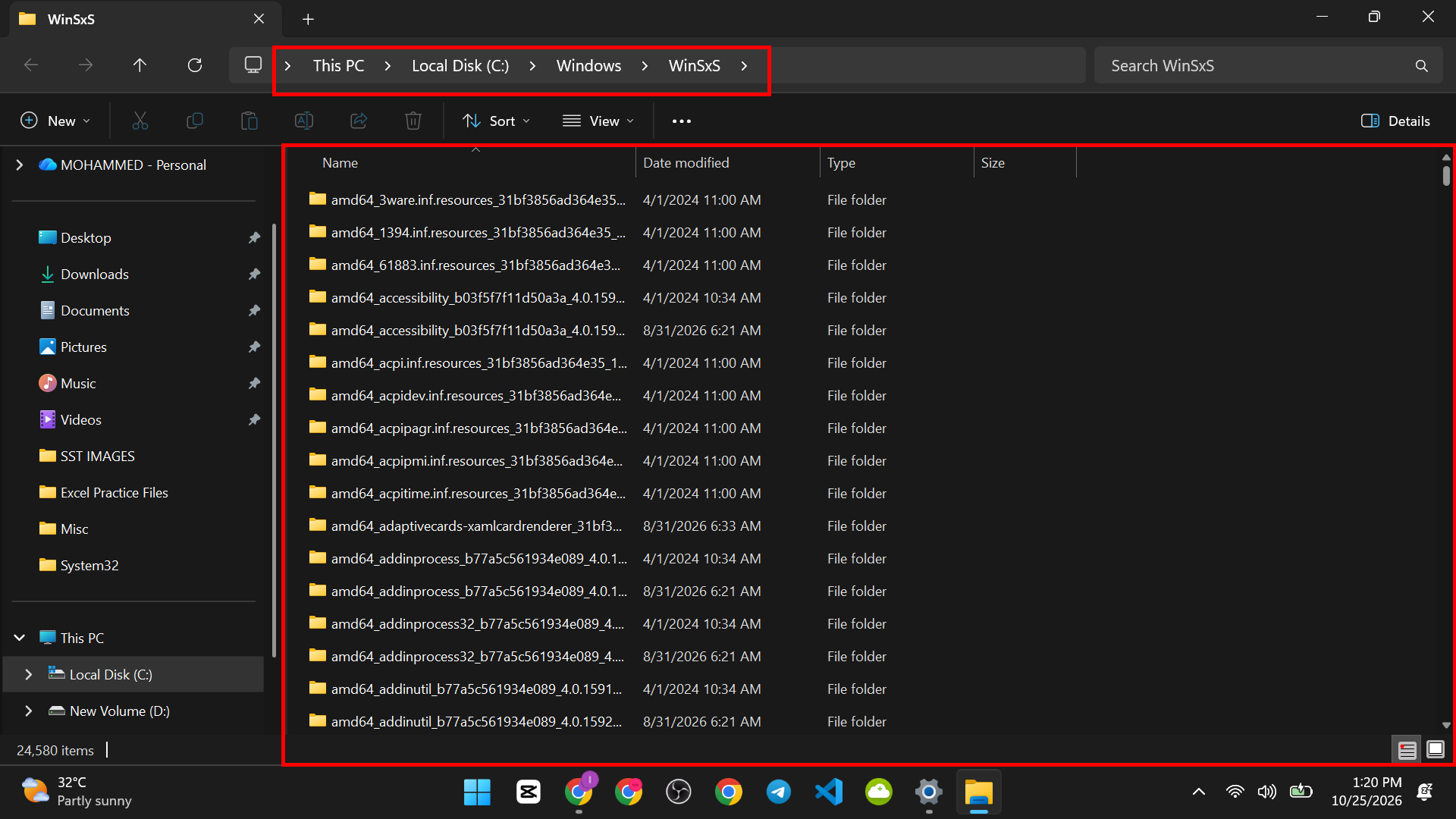
What it is: This is the Windows component store. It keeps the files Windows needs for updates, repairs and optional features. In File Explorer it looks huge. Part of that size is counted twice, because files are linked in more than one place. So its real size is smaller than it seems.
Safe to delete? No. Never delete it or its files by hand. This can break updates and repairs.
What to do instead:
- Use Disk Cleanup with Clean up system files, then Windows Update Cleanup.
- Or, for advanced users, open Command Prompt as administrator and type:
DISM /Online /Cleanup-Image /StartComponentCleanup
- Press Enter and wait for it to finish.
This is a Microsoft tool that cleans only old and unneeded parts.
Other Folders You May See
| Folder | What it is | What to do |
| $Recycle.Bin (hidden) | Where deleted files wait | Use the Recycle Bin icon instead |
| System Volume Information (hidden, protected) | Restore points and system data | Leave it. Change its size in System Protection settings if needed |
| Recovery (hidden) | Files used to repair Windows | Leave it |
| PerfLogs | Often empty. For performance logs | Leave it |
A Simple Checklist Before You Delete Any Folder
- Do I know what this is? If not, look it up first. Do not delete it.
- Is there an official tool for it? Use Settings, Storage Sense, Disk Cleanup or Uninstall.
- Do I have a backup? Back up personal files first.
- Is Windows asking for permission again and again? Stop. That is a warning sign.
- If I am not sure, leave it. An unused folder does little harm. A wrong deletion can cost a lot.
If you often open folders on your PC, you can make them faster to reach. Our guide on how to create a desktop shortcut for a file or folder shows you how. You can also work faster in File Explorer with our list of 200 Windows shortcuts.
If You Deleted Something by Mistake
Check these in order. Start with the simplest.
- Look in the Recycle Bin. If the file is there, right-click it and choose Restore.
- Restart your PC. Some problems go away after a restart.
- Use System Restore. Search for Create a restore point, click System Restore, and choose a point from before the problem.
- Repair system files. Open Command Prompt as administrator and type sfc /scannow, then press Enter. If that finds problems it cannot fix, run DISM /Online /Cleanup-Image /RestoreHealth.
- Reset Windows. As a last resort, go to Settings > System > Recovery and choose Reset this PC. Choose Keep my files if you want to keep your personal files. Apps will need to be installed again.
How to confirm it worked: Windows starts normally, and the apps you use open without errors.


