


Introduction
Most shortcut lists throw fifteen random combinations at you with no structure, so you memorize a few and forget the rest. This guide is organized the opposite way: by task. Want to manage windows faster? Jump to that section. Trying to work in File Explorer without touching the mouse? There’s a section for that too. Windows 10 and Windows 11 share most shortcuts, but a handful changed, got renamed, or only exist in one version, and those differences get called out clearly wherever they matter, instead of leaving you to find out the hard way that a shortcut you learned on Windows 10 does something different on Windows 11.
This guide works for keyboards on desktops and laptops running Windows 10 or Windows 11. No extra software is needed. Everything here uses keys already on a standard keyboard.
Quick Takeaway
- The single most useful shortcut for daily use is Alt+Tab, which switches between open windows instantly.
- The Windows key unlocks the largest category of shortcuts, combined with letters, numbers, and arrow keys.
- Windows 11’s biggest shortcut addition is Win+Z for Snap Layouts, which doesn’t exist on Windows 10.
- Windows 10’s Win+A opens Action Center; on Windows 11, Win+A opens Quick Settings instead, a genuinely different panel.
- Difficulty: beginner-friendly. Time to read: roughly 20-25 minutes for the full guide, or a few minutes per section if you’re just looking something up.
Why Keyboard Shortcuts Work the Way They Do
Almost every Windows shortcut is built from a modifier key (Ctrl, Alt, Shift, or the Windows key) combined with a letter, number, or another key. The modifier tells Windows “don’t type this letter normally, treat it as a command instead.” That’s why pressing C alone types the letter C, but Ctrl+C copies. The specific letter chosen for a command is usually the first letter of the action in English (C for Copy, V for Paste, historically from “insert” being nearby on old keyboards, P for Print), which is why shortcuts feel learnable instead of arbitrary once you notice the pattern.
The Windows key specifically acts as a system-level modifier, meaning it’s reserved for operating system commands rather than app commands. That’s why Win-based shortcuts (Win+E, Win+D, Win+L) work the same inside almost any app, while Ctrl-based shortcuts (Ctrl+C, Ctrl+S) can behave differently depending on which app currently has focus.

Essential Everyday Shortcuts
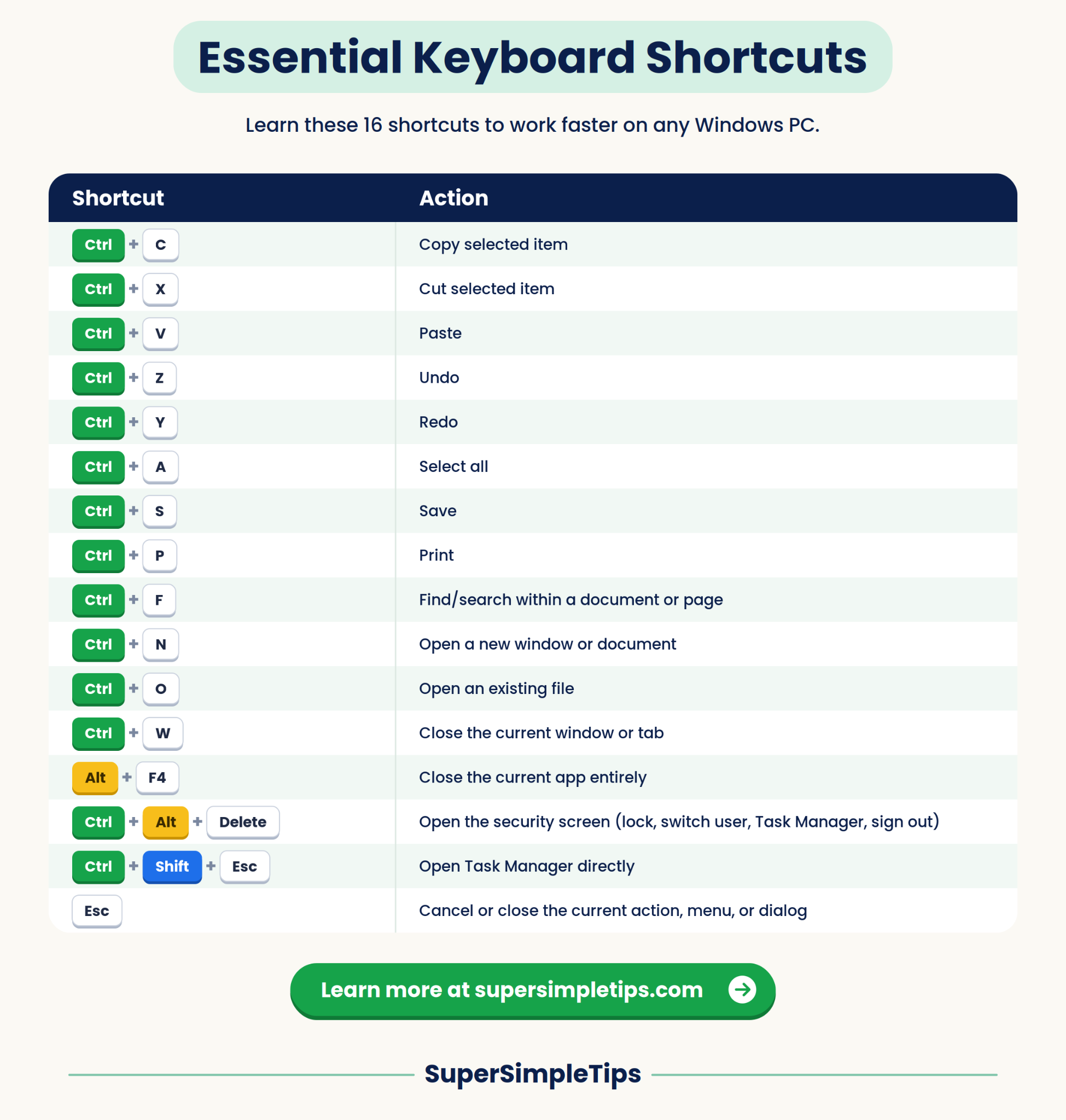
These work in almost every Windows app, not just File Explorer or the desktop.
| Shortcut | Action |
| Ctrl+C | Copy selected item |
| Ctrl+X | Cut selected item |
| Ctrl+V | Paste |
| Ctrl+Z | Undo |
| Ctrl+Y | Redo |
| Ctrl+A | Select all |
| Ctrl+S | Save |
| Ctrl+P | |
| Ctrl+F | Find/search within a document or page |
| Ctrl+N | Open a new window or document |
| Ctrl+O | Open an existing file |
| Ctrl+W | Close the current window or tab |
| Alt+F4 | Close the current app entirely |
| Ctrl+Alt+Delete | Open the security screen (lock, switch user, Task Manager, sign out) |
| Ctrl+Shift+Esc | Open Task Manager directly |
| Esc | Cancel or close the current action, menu, or dialog |
Common Mistake: Pressing Ctrl+Alt+Delete expecting Task Manager to open directly. It actually opens a menu first, and Task Manager is one of several options on it. Ctrl+Shift+Esc skips straight to Task Manager.
Window Management Shortcuts
These control the size, position, and arrangement of open windows.
| Shortcut | Action |
| Win+Left Arrow | Snap the current window to the left half of the screen |
| Win+Right Arrow | Snap the current window to the right half of the screen |
| Win+Up Arrow | Maximize the current window |
| Win+Down Arrow | Restore or minimize the current window |
| Win+Shift+Up Arrow | Stretch the window vertically to fill the screen |
| Win+Shift+Left/Right Arrow | Move the current window to the adjacent monitor (multi-monitor setups) |
| Win+Home | Minimize every window except the one you’re currently using |
| Win+D | Show the desktop, minimizing everything |
| Win+, (comma) | Temporarily peek at the desktop while held down |
| Win+M | Minimize all windows |
| Win+Shift+M | Restore windows that were minimized with Win+M |
| Alt+Space | Open the window’s control menu (move, size, minimize, maximize, close) |
| Alt+Spacebar, then M, then Arrow keys | Move a window using only the keyboard, useful when a window opens off-screen |
Pro Tip: After snapping a window with Win+Left, Windows shows thumbnails of your other open windows so you can pick one to fill the other half automatically, no dragging required.

Virtual Desktops and Task View
Virtual desktops let you create separate desktop spaces, useful for keeping work and personal apps visually separated without closing anything.
| Shortcut | Action |
| Win+Tab | Open Task View, showing all open windows and virtual desktops |
| Win+Ctrl+D | Create a new virtual desktop |
| Win+Ctrl+F4 | Close the current virtual desktop |
| Win+Ctrl+Left Arrow | Switch to the virtual desktop on the left |
| Win+Ctrl+Right Arrow | Switch to the virtual desktop on the right |
Windows 10 vs Windows 11 note: Task View itself looks different between versions. On Windows 10, Task View shows a timeline of recently used apps below the current windows. On Windows 11, that timeline feature was removed, and Task View shows only currently open windows and virtual desktops with no history.

File Explorer Shortcuts
| Shortcut | Action |
| Win+E | Open File Explorer |
| Ctrl+N | Open a new File Explorer window |
| Ctrl+Shift+N | Create a new folder |
| Alt+Up Arrow | Go up one folder level |
| Alt+Left Arrow | Go back |
| Alt+Right Arrow | Go forward |
| Backspace | Go back (works the same as Alt+Left in most folder views) |
| F2 | Rename the selected file or folder |
| Delete | Move the selected item to Recycle Bin |
| Shift+Delete | Permanently delete the selected item, skipping the Recycle Bin |
| Alt+Enter | Open Properties for the selected item |
| Ctrl+Shift+E | Expand the entire folder tree down to the selected folder |
| Numpad * | Expand all subfolders under the selected folder |
| Alt+D | Jump to the address bar |
| Ctrl+E or Ctrl+F | Jump to the search box |
| Ctrl+Scroll Wheel | Change icon size in the current folder view |
| End / Home | Jump to the bottom or top of a file list |
| Tab | Cycle focus between File Explorer’s panels (navigation pane, file list, address bar) |
Common Mistake: Pressing Delete when trying to permanently remove a file, then wondering why it’s still taking up space. Delete only moves items to the Recycle Bin. Shift+Delete is the one that skips it entirely, and there’s no undo for that one.
Warning: Shift+Delete cannot be undone through the Recycle Bin. Only use it when you’re certain you no longer need the file.

Taskbar and App Switching
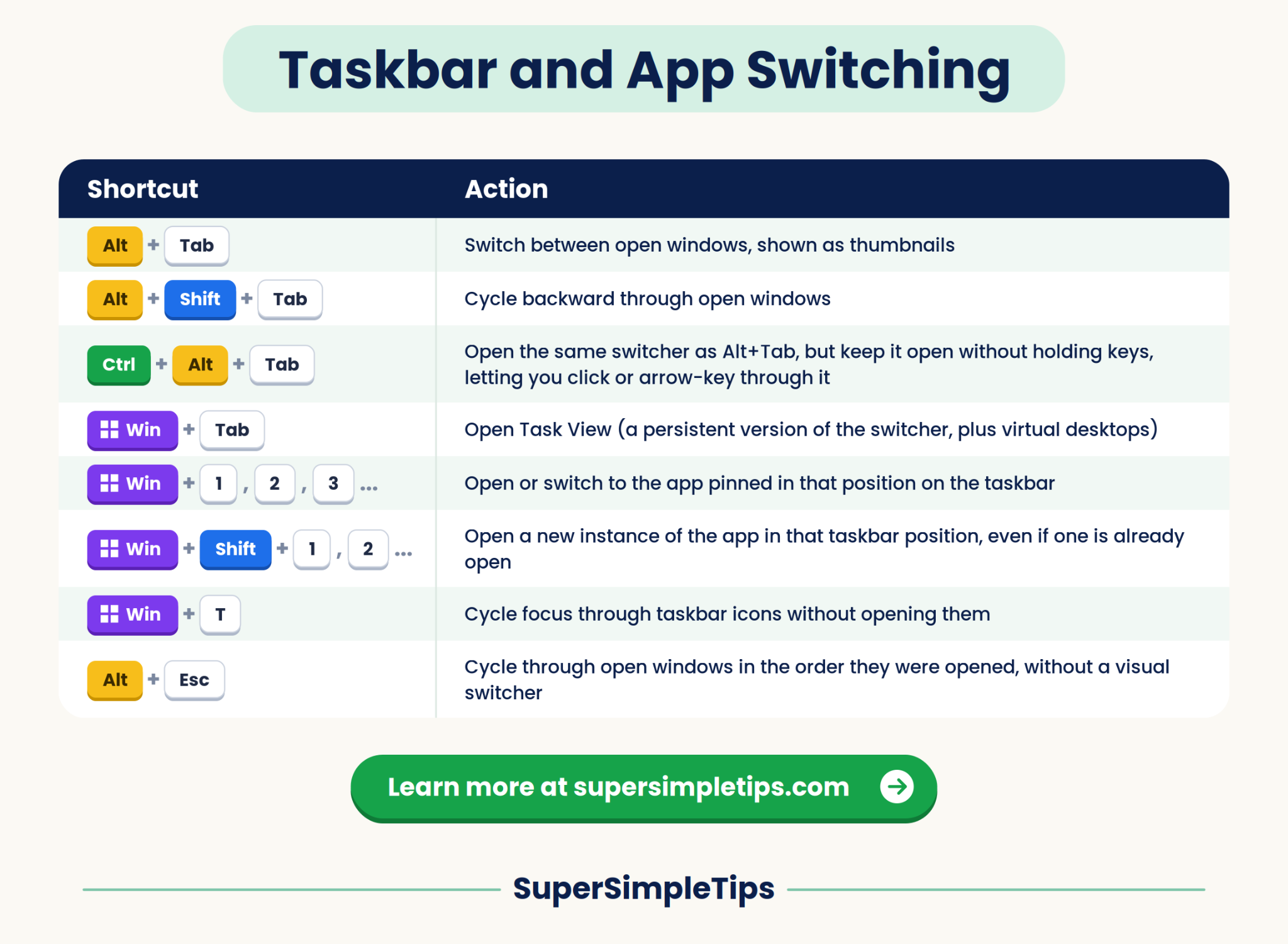
| Shortcut | Action |
| Alt+Tab | Switch between open windows, shown as thumbnails |
| Alt+Shift+Tab | Cycle backward through open windows |
| Ctrl+Alt+Tab | Open the same switcher as Alt+Tab, but keep it open without holding keys, letting you click or arrow-key through it |
| Win+Tab | Open Task View (a persistent version of the switcher, plus virtual desktops) |
| Win+1, Win+2, Win+3… | Open or switch to the app pinned in that position on the taskbar. |
| Win+Shift+1, Win+Shift+2… | Open a new instance of the app in that taskbar position, even if one is already open |
| Win+T | Cycle focus through taskbar icons without opening them |
| Alt+Esc | Cycle through open windows in the order they were opened, without a visual switcher |
Windows 10 vs Windows 11 note: Taskbar shortcuts by position (Win+1, Win+2, etc.) work the same way on both versions, but Windows 11’s centered taskbar icons don’t change which shortcut number applies. The numbering still goes left to right in pin order, not by visual position relative to center.
Text Editing Shortcuts
These work in nearly any app where you’re typing: Word, browsers, email, notepad.
| Shortcut | Action |
| Ctrl+B | Bold |
| Ctrl+I | Italic |
| Ctrl+U | Underline |
| Ctrl+Arrow Left/Right | Jump the cursor one word at a time |
| Ctrl+Shift+Arrow Left/Right | Select one word at a time |
| Home | Jump to the beginning of the current line |
| End | Jump to the end of the current line |
| Ctrl+Home | Jump to the very beginning of the document |
| Ctrl+End | Jump to the very end of the document |
| Shift+Arrow keys | Select text character by character |
| Ctrl+Backspace | Delete the previous word instead of one character |
| Ctrl+Delete | Delete the next word instead of one character |

Screenshot and Screen Recording Shortcuts
| Shortcut | Action |
| Win+Shift+S | Open Snipping Tool’s selection overlay, letting you capture a rectangle, window, or full screen, copied to clipboard |
| Win+PrtScn | Capture the full screen and save it automatically to Pictures > Screenshots. In some keywords, use Win + FN + PrtScn. |
| PrtScn (alone) | Capture the full screen to the clipboard only, without saving a file. Press FN + PrtScn if the first one is not working. |
| Alt+PrtScn | Capture only the currently active window to the clipboard |
| Win+Alt+PrtScn | Capture the active window and save it automatically to Videos > Captures |
| Win+Alt+R | Start or stop recording the active window using the built-in Game Bar recorder |
| Win+G | Open Xbox Game Bar, which includes screen recording tools beyond simple screenshots |
Alternative Methods: Use Win+Shift+S if you need to select a specific area or window and want the image copied instantly for pasting elsewhere. Use Win+PrtScn if you want a full-screen capture automatically saved as a file without an extra paste step. Use Win+Alt+PrtScn if you specifically need a saved file of just one window rather than the whole screen.

Settings, System, and Power User Shortcuts
| Shortcut | Action |
| Win+I | Open Settings |
| Win+X | Open the Power User menu (Device Manager, Disk Management, Task Manager, and more) |
| Win+L | Lock your PC immediately |
| Win+R | Open the Run dialog |
| Win+Pause/Break | Open the System properties page |
| Win+A | Open Quick Settings on Windows 11 (Wi-Fi, volume, brightness); opens Action Center on Windows 10 instead |
| Win+N | Open Notification Center and calendar (Windows 11 only) |
| Win+K | Open the Cast/Connect panel for wireless displays |
| Win+U | Open Accessibility settings |
| Win+V | Open Clipboard History (must be enabled first in Settings) |
| Win+. or Win+; | Open the emoji, symbols, and GIF picker |
Windows 10 vs Windows 11 note: This is one of the most confusing differences for people switching between versions. On Windows 10, Win+A opens Action Center, a single panel combining notifications and quick toggles together. On Windows 11, Microsoft split that panel into two: Win+A now opens Quick Settings (Wi-Fi, volume, brightness, Bluetooth) and Win+N opens Notification Center (notifications and calendar) separately. Win+N does nothing on Windows 10.

Search and Start Menu Shortcuts
| Shortcut | Action |
| Win (alone) | Open the Start menu |
| Win+S or Win+Q | Open Search |
| Win+X, then U, then S | Shut down the PC entirely using only the keyboard |
| Win+X, then U, then R | Restart the PC using only the keyboard |

Browser Shortcuts (Edge, Chrome, Firefox)
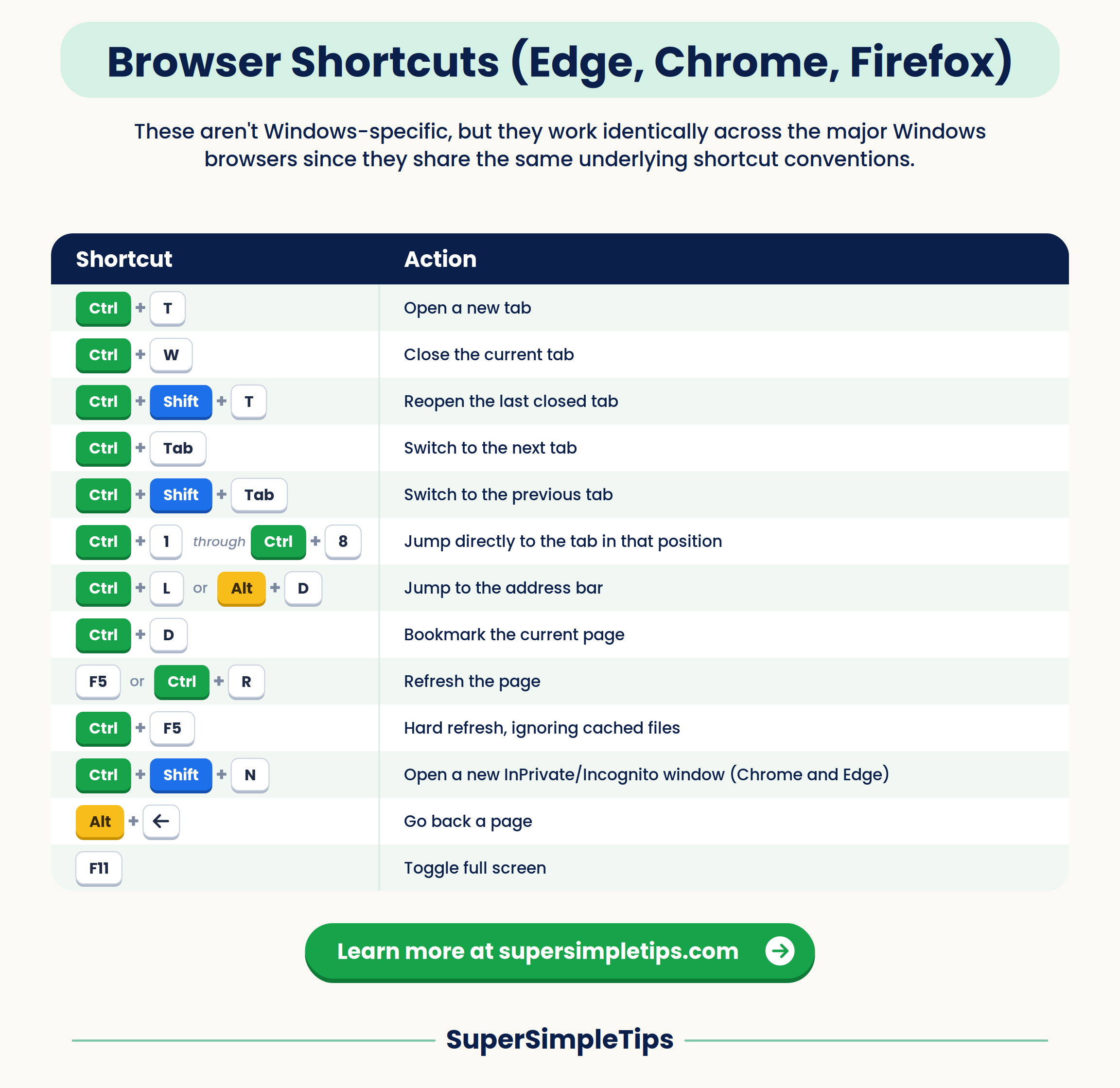
These aren’t Windows-specific, but they work identically across the major Windows browsers since they share the same underlying shortcut conventions.
| Shortcut | Action |
| Ctrl+T | Open a new tab |
| Ctrl+W | Close the current tab |
| Ctrl+Shift+T | Reopen the last closed tab |
| Ctrl+Tab | Switch to the next tab |
| Ctrl+Shift+Tab | Switch to the previous tab |
| Ctrl+1 through Ctrl+8 | Jump directly to the tab in that position |
| Ctrl+L or Alt+D | Jump to the address bar |
| Ctrl+D | Bookmark the current page |
| F5 or Ctrl+R | Refresh the page |
| Ctrl+F5 | Hard refresh, ignoring cached files |
| Ctrl+Shift+N | Open a new InPrivate/Incognito window (Chrome and Edge) |
| Alt+Left Arrow | Go back a page |
| F11 | Toggle full screen |
Accessibility Shortcuts
| Shortcut | Action |
| Win+U | Open Accessibility settings |
| Win+Plus (+) | Zoom in with Magnifier |
| Win+Minus (-) | Zoom out with Magnifier |
| Win+Esc | Exit Magnifier |
| Win+Ctrl+Enter | Turn Narrator on or off |
| Shift (press 5 times) | Turn Sticky Keys on or off |
| Left Alt+Left Shift+PrtScn | Turn High Contrast mode on or off |
| Right Shift (held 8 seconds) | Turn Filter Keys on or off |
| Win + Ctrl + O | Open On-Screen Keyboard |

Function Key Shortcuts (F1-F12)
| Shortcut | Action |
| F1 | Open Help for the current app |
| F2 | Rename the selected item |
| F3 | Open Search in many apps |
| F4 | Display the address bar list in File Explorer |
| F5 | Refresh the current window or page |
| F6 | Cycle through screen elements in a window or the desktop |
| F10 | Activate the menu bar in the currently open app |
| F11 | Toggle full screen mode |
| F12 | Open browser Developer Tools (in Edge, Chrome, Firefox) |
Warning: Some laptops require holding the Fn key alongside these (Fn+F5, for example) if the manufacturer sets the function row to control brightness or volume by default instead. Check your laptop’s settings if F-key shortcuts don’t respond as expected.

Windows 11-Only Shortcuts
These do nothing on Windows 10, since the features themselves don’t exist there.
| Shortcut | Action |
| Win+Z | Open Snap Layouts, showing multiple window arrangement options to snap into |
| Win+N | Open Notification Center and calendar |
| Win+W | Open Widgets panel |
| Win+C | Open the app assigned to this shortcut in your keyboard settings, this opens Copilot by default (early Windows 11 versions opened Teams Chat) |

Windows 10-Only
| Shortcut | Action on Windows 10 | Status on Windows 11 |
| Win+C | Opened Cortana | App assigned to it in your keyboard settings |
| Win+A | Opened Action Center (notifications + quick toggles combined) | Opens Quick Settings only (a different, smaller panel) |
Why This Works
Windows shortcuts stay consistent across most apps because Windows itself defines a small set of standard system messages (like “copy,” “paste,” and “undo”) that apps are built to listen for. When you press Ctrl+C, Windows sends a copy command to whatever app currently has focus, and any well-built app responds to that same command the same way. This is also why Windows-key shortcuts feel more reliable than Ctrl-based ones: the Windows key is intercepted by the operating system itself before any app even sees it, so it can’t be overridden by whatever program you happen to be using, while Ctrl-based shortcuts can occasionally be remapped or ignored by specific apps.
Troubleshooting: When Shortcuts Don’t Work
| Symptom | Likely Cause | Fix |
| Windows key shortcuts do nothing at all | Windows key is disabled, common on gaming keyboards with a physical “game mode” switch. | Check for a Windows key lock light or switch on the keyboard itself, usually near F12 or the top-right |
| F-key shortcuts control brightness/volume instead | Laptop’s function row defaults to media controls | Hold Fn while pressing the F-key, or change the default in the laptop manufacturer’s keyboard settings app |
| Alt+Tab shows a different style switcher than expected | A third-party app or older Windows setting changed the switcher style | Check Settings > System > Multitasking for Alt+Tab display options |
| Win+Shift+S doesn’t open the snip overlay | Snipping Tool background process isn’t running, or the shortcut was reassigned by another app | Restart the PC, or check Settings > Privacy & Security > Screenshots and apps for conflicts |
| A shortcut works in some apps but not others | The app itself intercepts and remaps that specific key combination | Check the app’s own keyboard shortcut settings, since some apps override system shortcuts intentionally |
| Ctrl+C/Ctrl+V stopped working entirely | Clipboard history service crashed or a background app is holding the clipboard locked | Restart the PC, or press Win+V to check if Clipboard History itself is responsive |
| Virtual desktop shortcuts (Win+Ctrl+Left/Right) do nothing | Only one virtual desktop currently exists | Create a second one first with Win+Ctrl+D, then the switching shortcuts will have something to switch between |
| Win+L doesn’t lock the PC | A remote desktop or virtual machine session is intercepting the Windows key | Use Ctrl+Alt+End instead within a Remote Desktop session, which sends Ctrl+Alt+Delete to the remote machine |
Tips for Actually Remembering Shortcuts
- Pick 3 to 5 shortcuts from this guide that match what you do most often, and only focus on those first instead of trying to memorize everything at once.
- Most shortcuts follow the first-letter pattern (Ctrl+P for Print, Ctrl+F for Find), so when you’re unsure, guessing the first letter of the action is a reasonable starting point.
- Keep this guide bookmarked rather than trying to memorize the full list in one sitting.
- Practice a new shortcut for a few days in place of the mouse action you’d normally use, since repetition is what actually builds the habit.
FAQs
Do Windows keyboard shortcuts work the same on a laptop as a desktop?
Yes, the shortcuts themselves are identical. The only difference is that some laptops require holding the Fn key for function-row shortcuts (F1 through F12), depending on how the manufacturer configured the keyboard.
Why does Win+A open something different on my friend’s PC?
It depends on which Windows version each of you is running. Win+A opens Quick Settings on Windows 11 and Action Center on Windows 10, which look and behave differently even though it’s the same shortcut.
Can I create my own custom keyboard shortcuts in Windows?
Yes, for desktop shortcuts specifically. Right-click any shortcut icon, choose Properties, click into the “Shortcut key” field, and press a key combination. Windows will assign Ctrl+Alt plus that key automatically.
Do these shortcuts work the same in Windows 11 24H2 and newer updates?
Most of them do, since core shortcuts rarely change. A few Windows 11-specific features, like the Win+C Teams Chat shortcut, have been added or removed across different Windows 11 updates, which is noted in the Windows 11-only section above.
Why doesn’t Alt+Tab show all my windows?
By default, Alt+Tab only shows windows from your current virtual desktop. If you have multiple virtual desktops open, switch to the correct one first with Win+Ctrl+Left/Right, or use Win+Tab to see everything across all desktops at once.
Is there a shortcut to shut down Windows without touching the Start menu?
Yes. Press Win+X, then U, then S in sequence. This works entirely from the keyboard without opening the Start menu or touching the mouse.
Do these shortcuts work in Windows 10 S mode or Windows 11 in S mode? Yes, S mode restricts which apps you can install, not which system-level keyboard shortcuts function. All shortcuts in this guide work normally in S mode.
What’s the difference between Win+D and Win+M?
Win+D toggles the desktop view on and off, meaning pressing it again brings your windows back. Win+M only minimizes and has no built-in toggle back; you’d need Win+Shift+M to restore those specific windows.
Conclusion
The shortcuts that actually save time are the handful matching what you do every day, not the full list memorized at once. Start with Alt+Tab, Win+D, and whichever Snap or File Explorer shortcuts fit your workflow from the sections above, and let the rest stay bookmarked here for whenever you need them.


Pingback: 10 Settings That Can Make Your Windows PC Slow - SuperSimpleTips
Pingback: 9 Ways to Make Your Windows Laptop Battery Last Longer - SuperSimpleTips