
A slow PC is annoying. Windows takes long to start. Apps open late. The mouse feels stuck. Before you think about buying a new computer, check your settings. Some settings use up your PC’s power without you knowing.
This guide covers 10 Windows settings that can slow your PC down. For each one, you will see how to check it, how to change it, and what to expect. The steps work on Windows 10 and Windows 11.
A fair warning: Settings can only do so much. If your PC is very old, or its drive is almost full, you may still need more storage, more memory or a new PC. But these changes are free, safe and often help a lot.
Before You Start
- Restart your PC first. A restart clears many small problems. Many people do not restart for weeks.
- Change one setting at a time. Then you know which one helped.
- Make a restore point. Search for Create a restore point, click Create, and name it. If something goes wrong, you can go back.
First, find out what is slow
Task Manager shows what is using your PC’s power right now.
- Press Ctrl + Shift + Esc to open Task Manager. (If you want more shortcuts, see our list of 200 Windows shortcuts.)

- On the Processes tab, click the CPU, Memory or Disk column to sort the list. The app at the top is using the most.
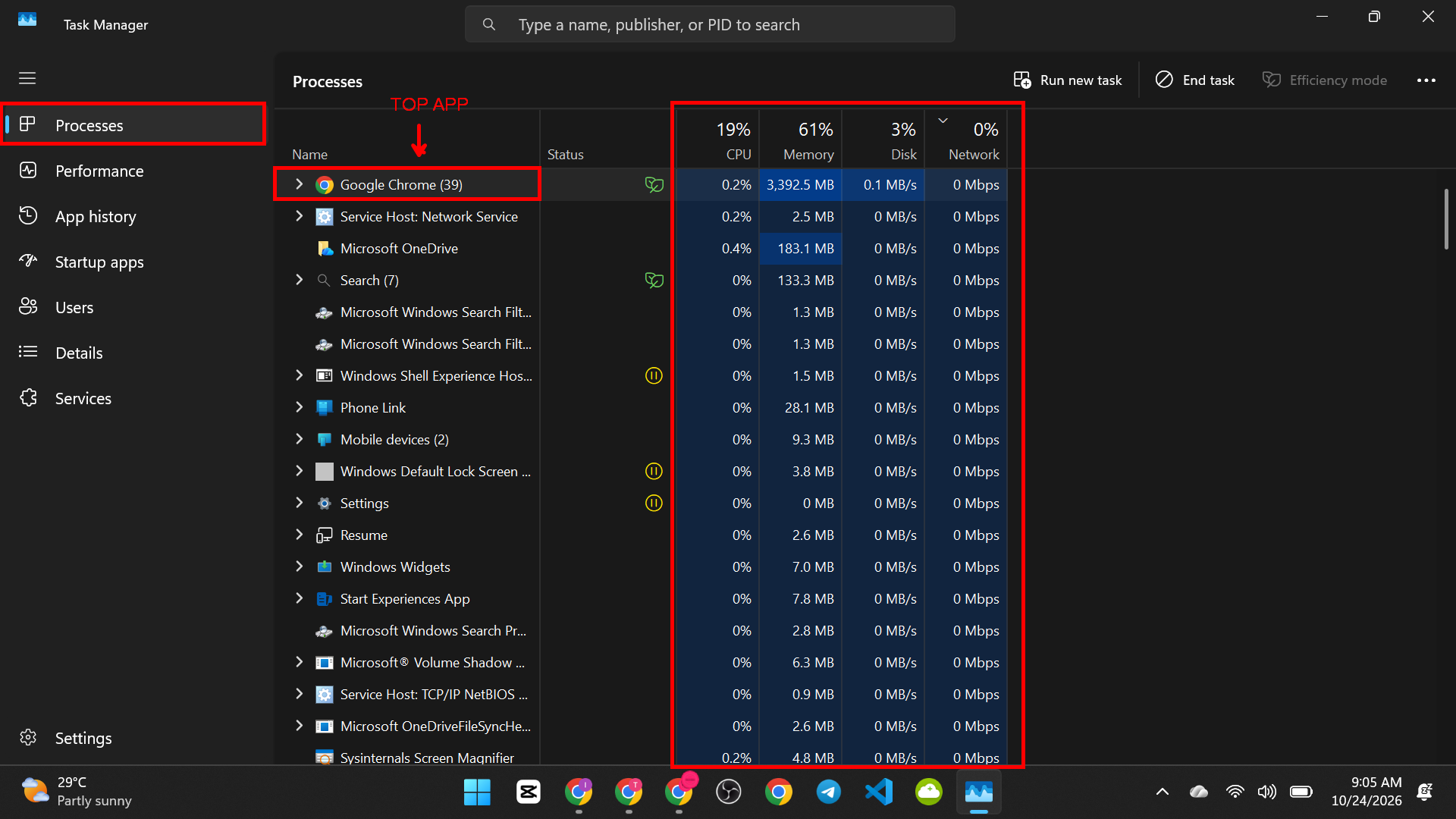
- Note which column is high. If Disk is always near 100 percent, storage may be the problem. If Memory is high, too many apps are open.

Now let us look at the settings.
| # | Setting | Slows your PC when… |
| 1 | Startup apps | Too many start with Windows |
| 2 | Power mode | It is on a power saving mode |
| 3 | Visual effects | Animations and transparency use power |
| 4 | Background apps | Apps keep running when you do not use them |
| 5 | Free storage | The drive is almost full |
| 6 | Search indexing | Windows scans many files at once |
| 7 | Virtual memory | The paging file is set too small |
| 8 | Game Bar recording | It records in the background |
| 9 | OneDrive sync | It syncs a lot of files while you work |
| 10 | Windows Update settings | Updates use your PC and internet at the wrong time |

1. Too Many Startup Apps
The problem: Every app that starts with Windows takes time and memory. When you turn on your PC, all of them load at once. This is the most common reason for a slow start.
How to check and fix it:
- Press Ctrl + Shift + Esc to open Task Manager.

- Click Startup apps on the left (Windows 11) or the Startup tab (Windows 10).

- Look at the Startup impact column. Apps marked High slow the start the most.
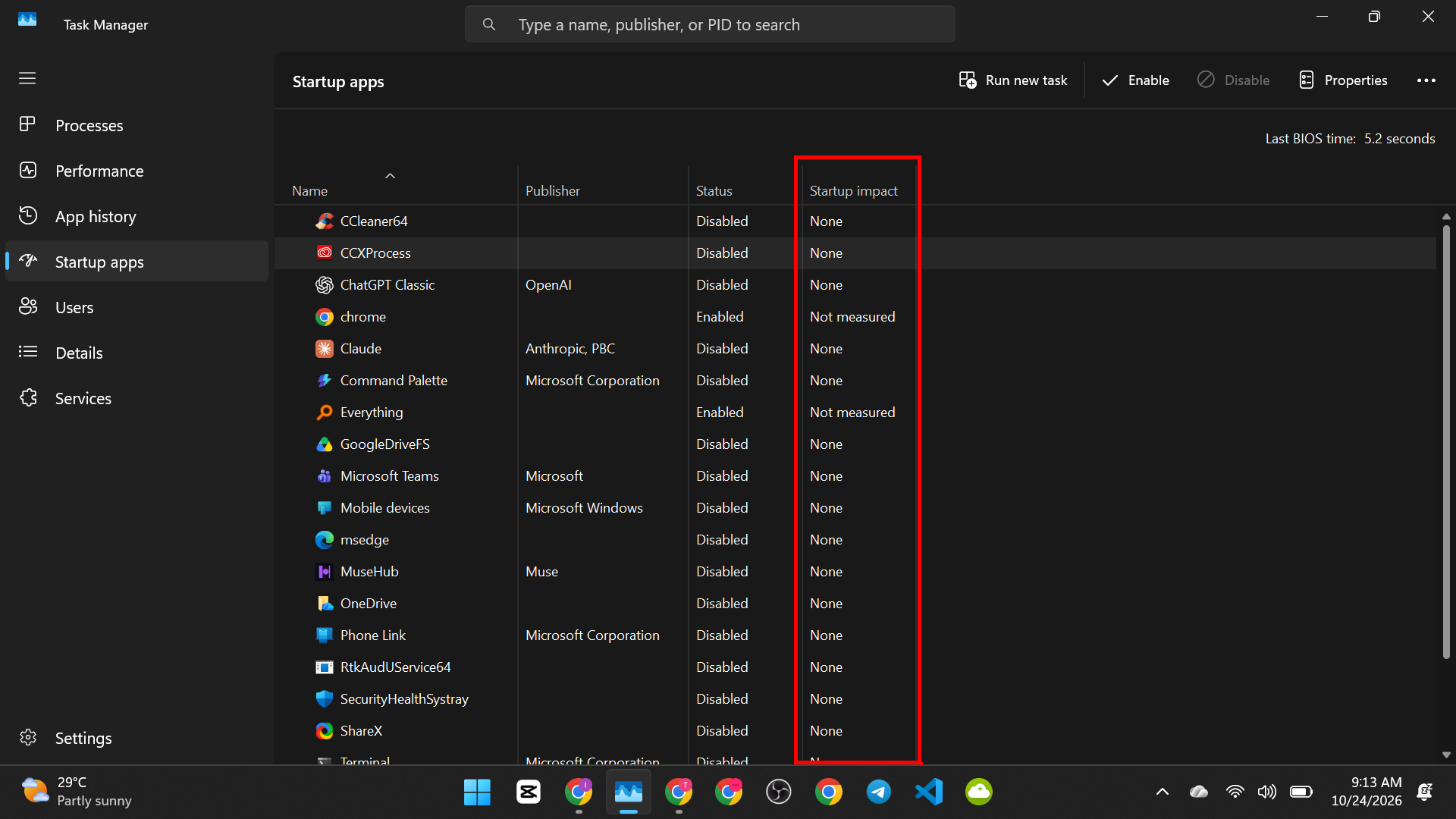
- Right-click an app you do not need at start, such as a chat app, a music app or an updater, and choose Disable.

You can also go to Settings > Apps > Startup and turn off the switches there.

Good to know: Disabling an app here does not uninstall it. It only stops it from starting by itself. You can open it yourself when you need it. Do not disable your antivirus, your touchpad or mouse software, or anything you do not recognize. Search for the name first.
2. Power Mode Set to Save Power
The problem: Windows can slow down your processor to save battery or electricity. If your PC is on a power saving mode, it may feel slow even when it is plugged in.
On Windows 11:
- Open Settings > System > Power & battery.

- Find Power mode.
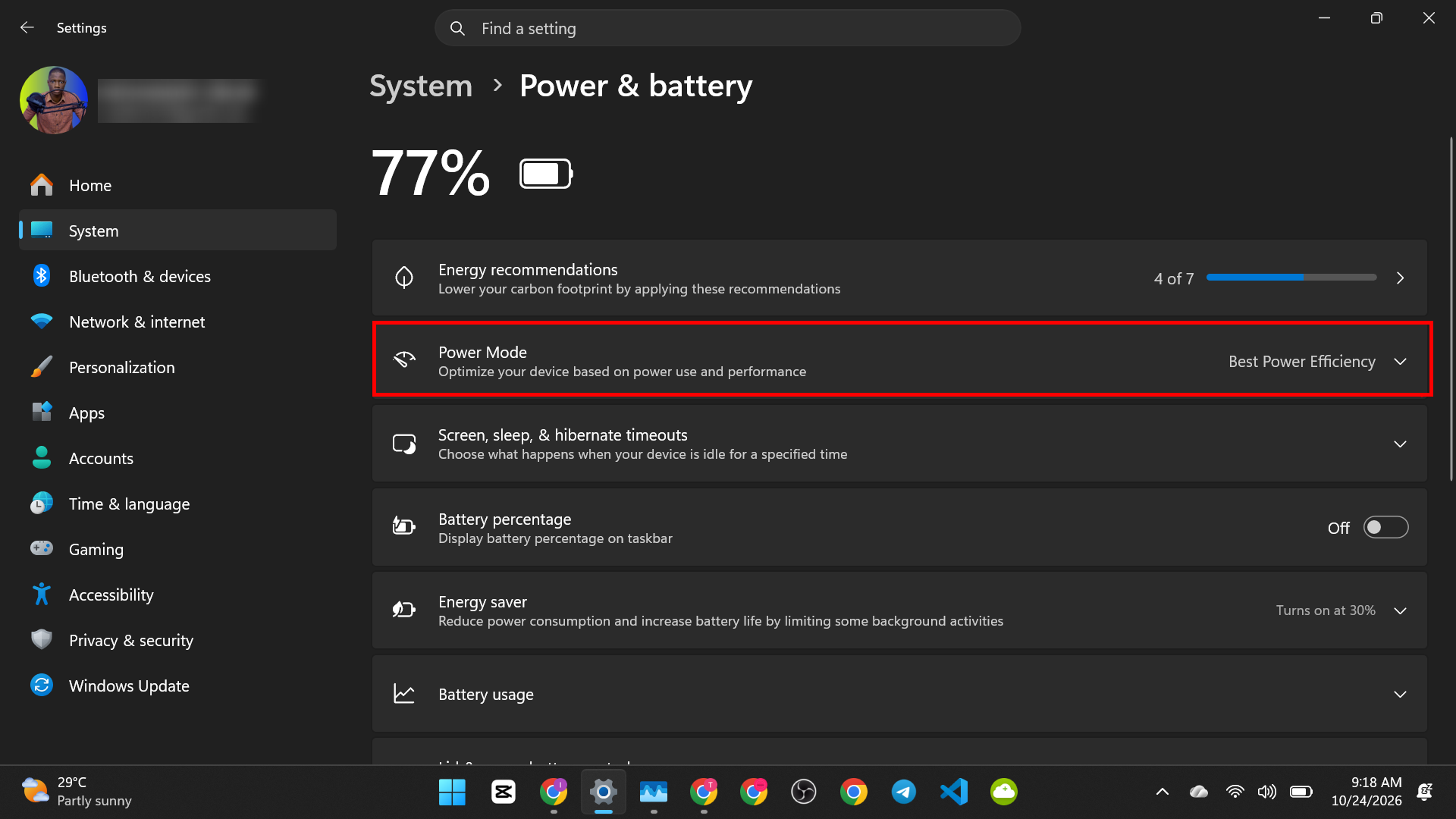
- Choose Balanced, or Best performance if you are plugged in and want more speed.

On Windows 10:
- Open Settings > System > Power & sleep.
- Click Additional power settings.
- Choose Balanced. If you see High performance, you can choose it when you need more speed.
The trade-off: A faster setting uses more power. On a laptop, your battery will not last as long. For best results, use a faster setting when plugged in, and Balanced when on battery.
3. Visual Effects and Animations
The problem: Windows has transparency, shadows and animations. On a new PC, you will not notice them. On an older PC, they use power and can make menus feel slow.
The easy way (both versions):
- On Windows 11, open Settings > Accessibility > Visual effects. On Windows 10, open Settings > Personalization > Colors for transparency and Settings > Ease of Access > Display for animations.

- Turn off Transparency effects.

- Turn off Animation effects (Windows 11) or Show animations in Windows (Windows 10).

The detailed way:
- Press Windows key + R, type sysdm.cpl and press Enter. (New to the Run box? See how to open the Run command in Windows. Our Run commands list has more.)

- Click the Advanced tab, then click Settings under Performance.

- Choose Adjust for best performance, or choose Custom and untick the effects you do not need.

- Click OK.

Tip: If text looks rough after this, open the same window again and tick Smooth edges of screen fonts.
The trade-off: Your PC looks a little plainer. It may feel quicker, especially on older PCs.
4. Background Apps That Never Stop
The problem: Some apps keep running in the background, even when you are not using them. They use memory and power.
On Windows 11:
- Open Settings > Apps > Installed apps.

- Click the three dots next to an app (Microsoft Store App) and choose Advanced options (This only appears for Microsoft Store Apps).

- Find Let this app run in the background.
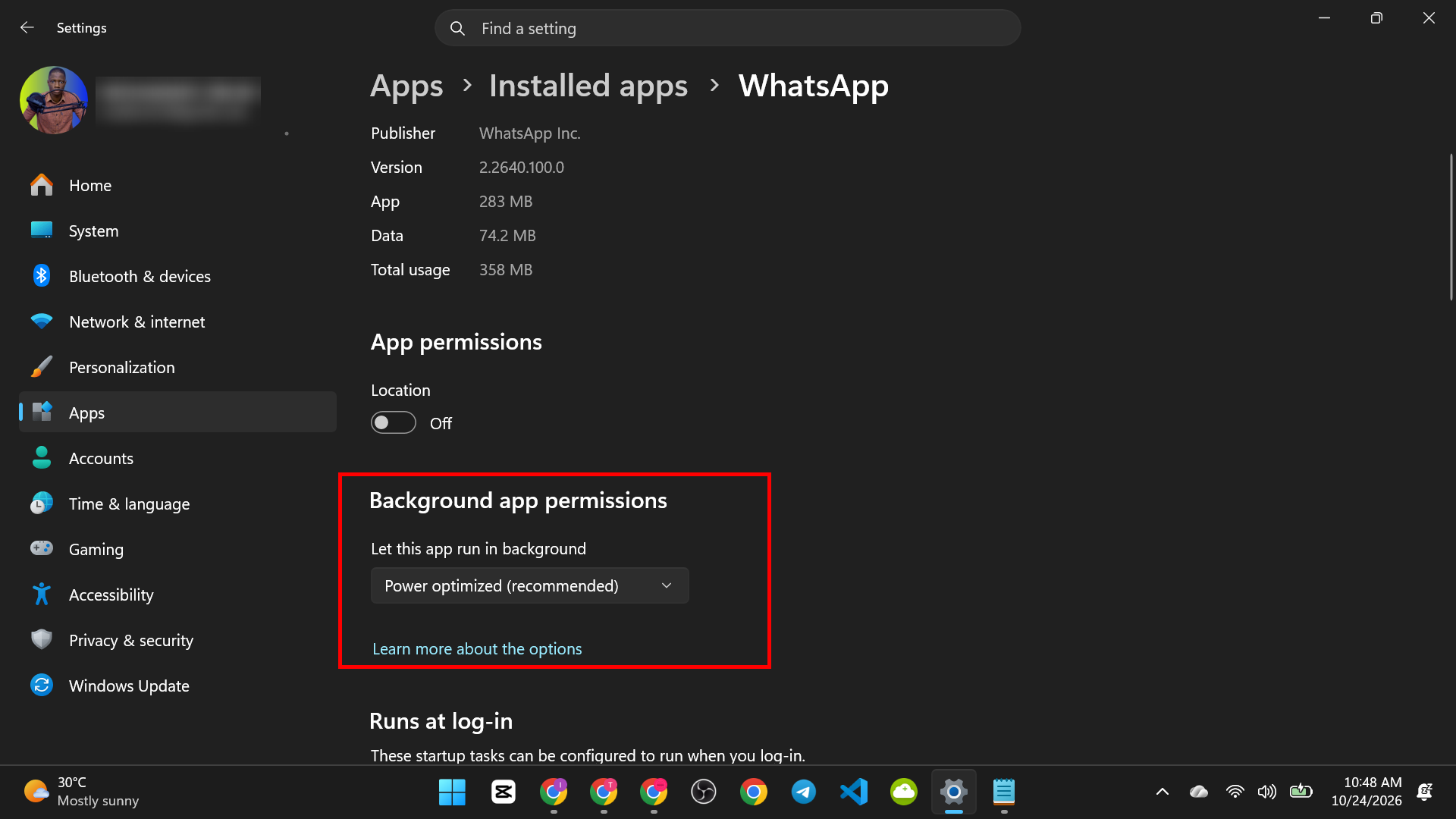
- Choose Never, or Power optimized to let Windows decide.

On Windows 10:
- Open Settings > Privacy > Background apps.
- Turn off background apps you do not need, or turn off the master switch at the top.
Limits: This works only for apps from the Microsoft Store. Regular desktop apps are not listed. To stop those, use the Startup apps steps above, or close them from the notification area near the clock.
Be careful: Do not turn off background activity for apps you rely on for alerts, like email or calendar apps. They may stop sending notifications.
5. A Drive That Is Almost Full
The problem: Windows needs free space to work. When a drive is nearly full, everything slows down. Updates may fail. This is a very common cause of a slow PC.
How to check:
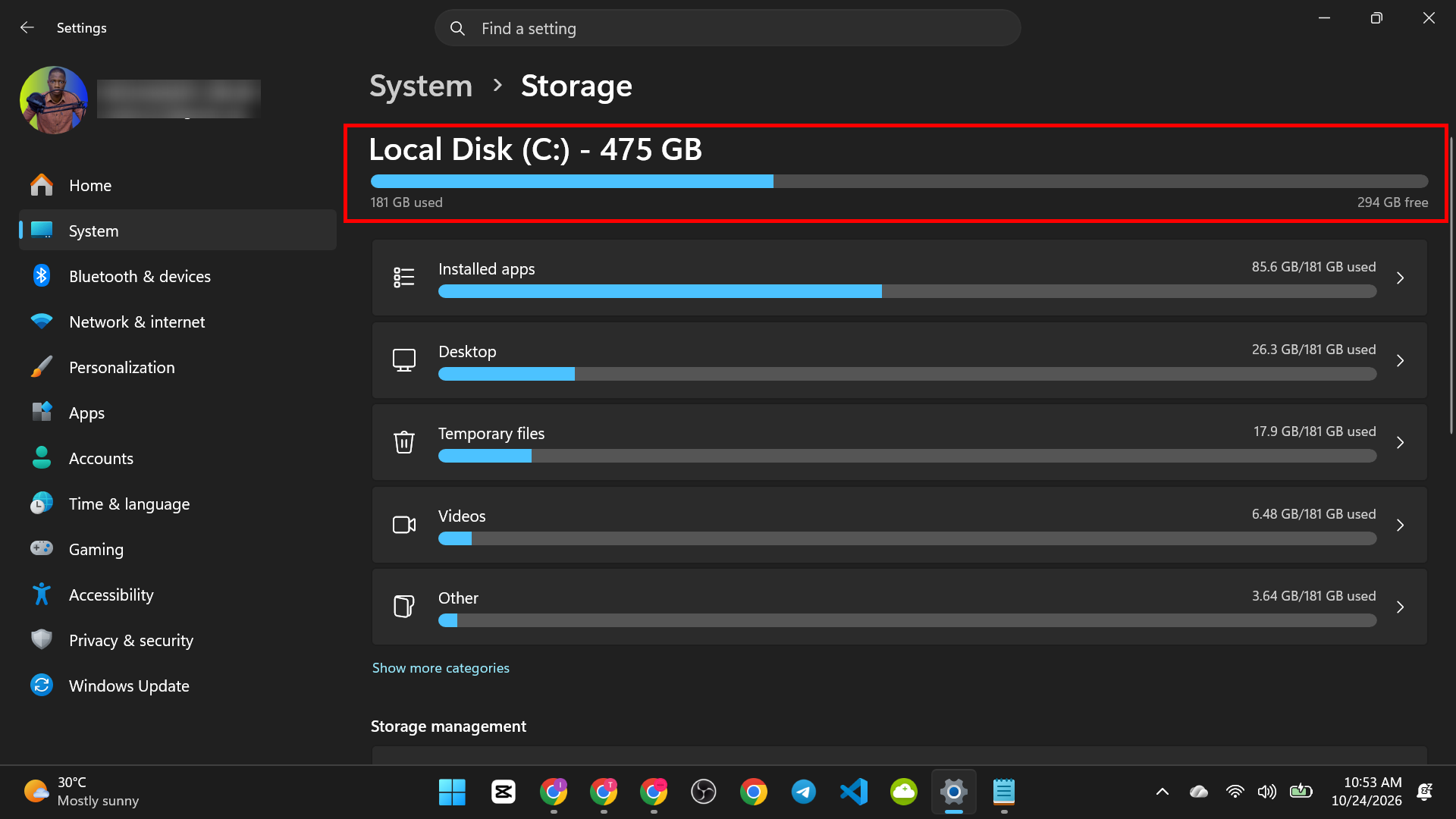
- Open Settings > System > Storage.
- Look at the bar. If it is almost full, this is the likely cause.
How to fix it:
- Turn on Storage Sense on the same page. It cleans temporary files for you.
- Click Temporary files and remove what you do not need. Do not tick Downloads unless you are sure. It holds your own files.
- Uninstall apps you do not use in Settings > Apps.
For full steps, read our guide on freeing up storage space in Windows.
6. Search Indexing
The problem: Windows builds an index of your files so search is fast. While it builds the index, it uses your processor and your drive. On older PCs with a regular hard drive, this can cause slow moments.
It is normal for indexing to use some power after a big update or when you add lots of files. If it never seems to stop, check these settings.
How to check and change it:
- On Windows 11, open Settings > Privacy and security > Search. On Windows 10, open Settings > Search > Searching Windows.

- Under Find my files, choose Classic instead of Enhanced. Classic searches only your main folders, such as Documents, Pictures and Music. Enhanced searches your whole PC and uses more power.

The trade-off: Searching for files outside the main folders may be slower. If you use search all the time, you may prefer to leave this on.
7. Virtual Memory Set Too Small
The problem: When your PC runs out of memory (RAM), Windows uses part of your drive instead. This is called virtual memory, or the paging file. If someone set it by hand to a small size, your PC can slow down or show “low memory” warnings.
How to check and fix it:
- Press Windows key + R, type sysdm.cpl and press Enter.

- Click the Advanced tab, then Settings under Performance.

- Click the Advanced tab, then click Change under Virtual memory.

- Tick Automatically manage paging file size for all drives.

- Click OK and restart if asked.

Do not turn the paging file off. Windows and many apps need it. If your memory is always full, the real fix is to close apps or add more RAM.
8. Game Bar Recording in the Background
The problem: The Xbox Game Bar can record your game or screen in the background. If this is on, it uses power all the time. You may not even use it.
How to check and fix it:
- Open Settings > Gaming > Captures.

- Turn off Record what happened (Windows 11) or Record in the background while I’m playing a game (Windows 10).

Good to know: Game Mode itself can help games run better, so leave it on. And if you use Game Bar to record your screen, you can still do that. Our guide on how to record your screen without installing software shows how. You only need to turn off the background recording.
9. OneDrive Syncing All Day
The problem: OneDrive uploads and downloads your files in the background. If you have many files, or you just added a big folder, it can use your processor, your drive and your internet for a long time.
How to pause it:
- Click the OneDrive cloud icon near the clock.

- Click the gear icon (Help & Settings).
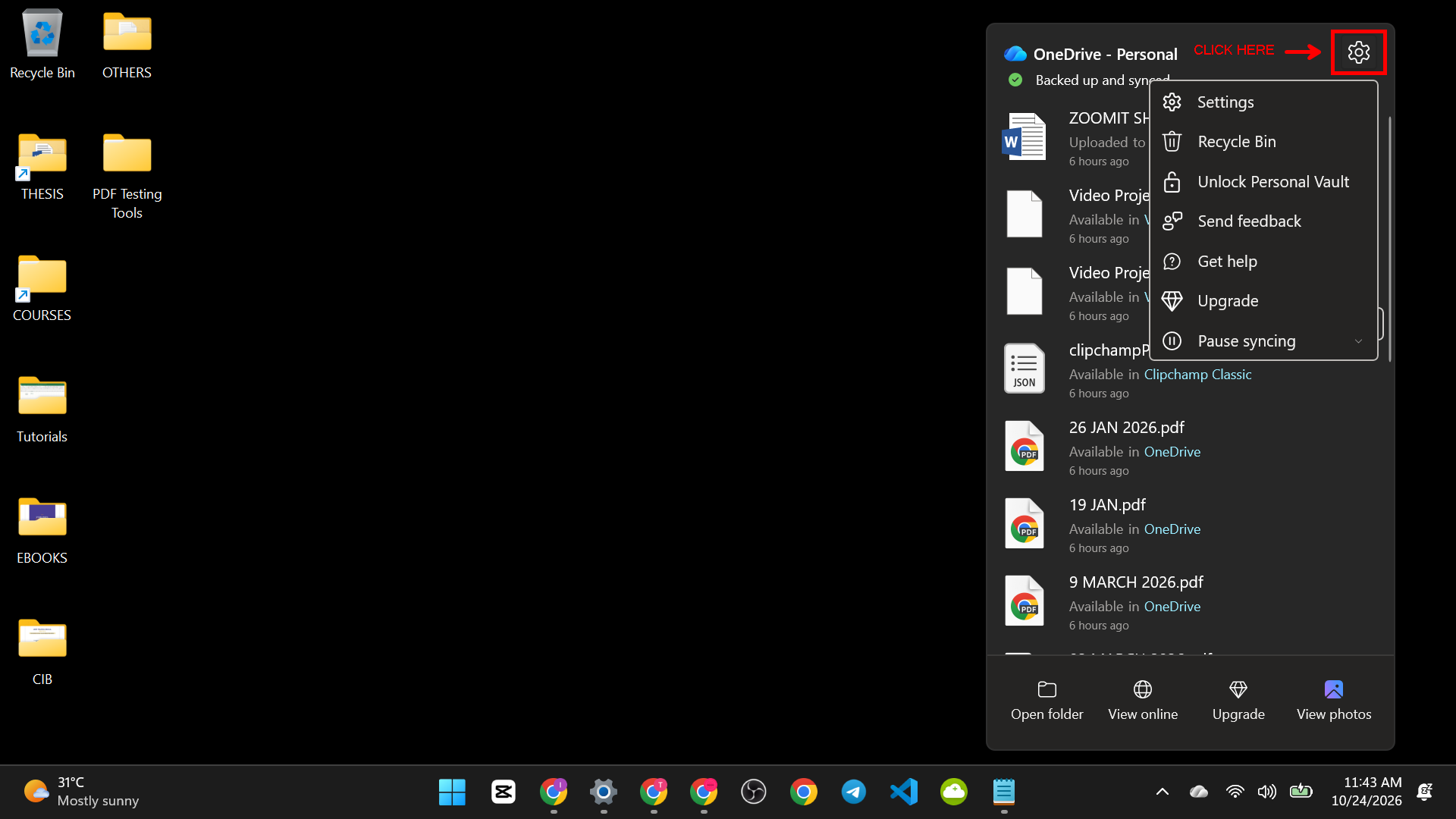
- Choose Pause syncing and pick 2 hours, 8 hours or 24 hours.

How to make it use less power over time:
- In the same menu, open Settings.
- Look for options that pause syncing when your PC is on battery saver or a metered connection, and turn them on.

- Open Manage backup or Choose folders and stop syncing big folders you do not need in the cloud.

Important: Pausing does not delete anything. Sync starts again when you resume. Do not turn off OneDrive if it is your only backup.
10. Windows Update Settings
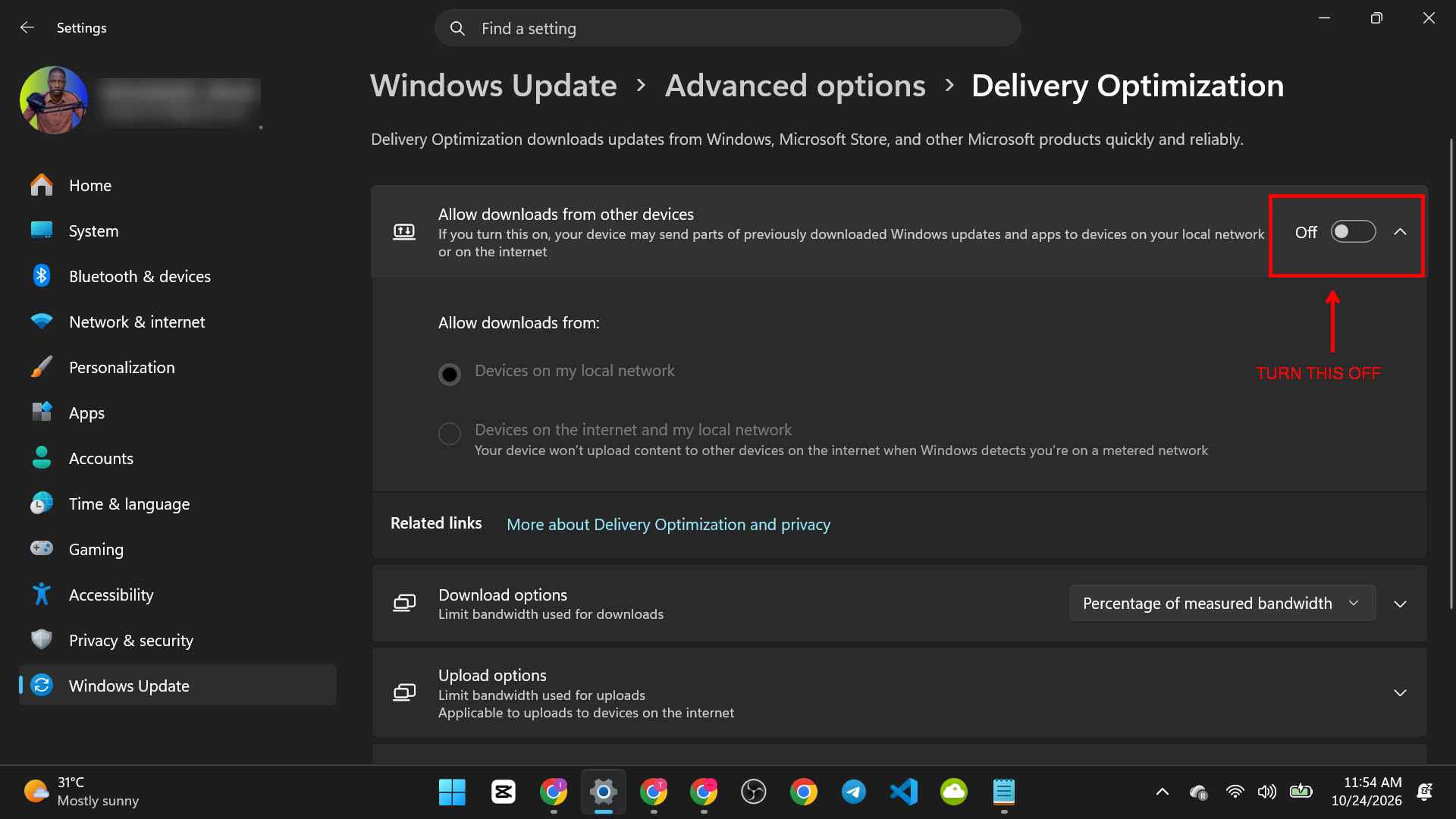
The problem: Windows Update downloads and installs files in the background. This can slow your PC and your internet while you work. A setting called Delivery Optimization can also send updates to other PCs from your connection.
Set active hours:
- Open Settings > Windows Update > Advanced options.

- Click Active hours (Windows 11) or Change active hours (Windows 10).

- Set the hours when you use your PC. Windows will avoid restarting during these times.

Check Delivery Optimization:
- In Windows Update > Advanced options, click Delivery Optimization.
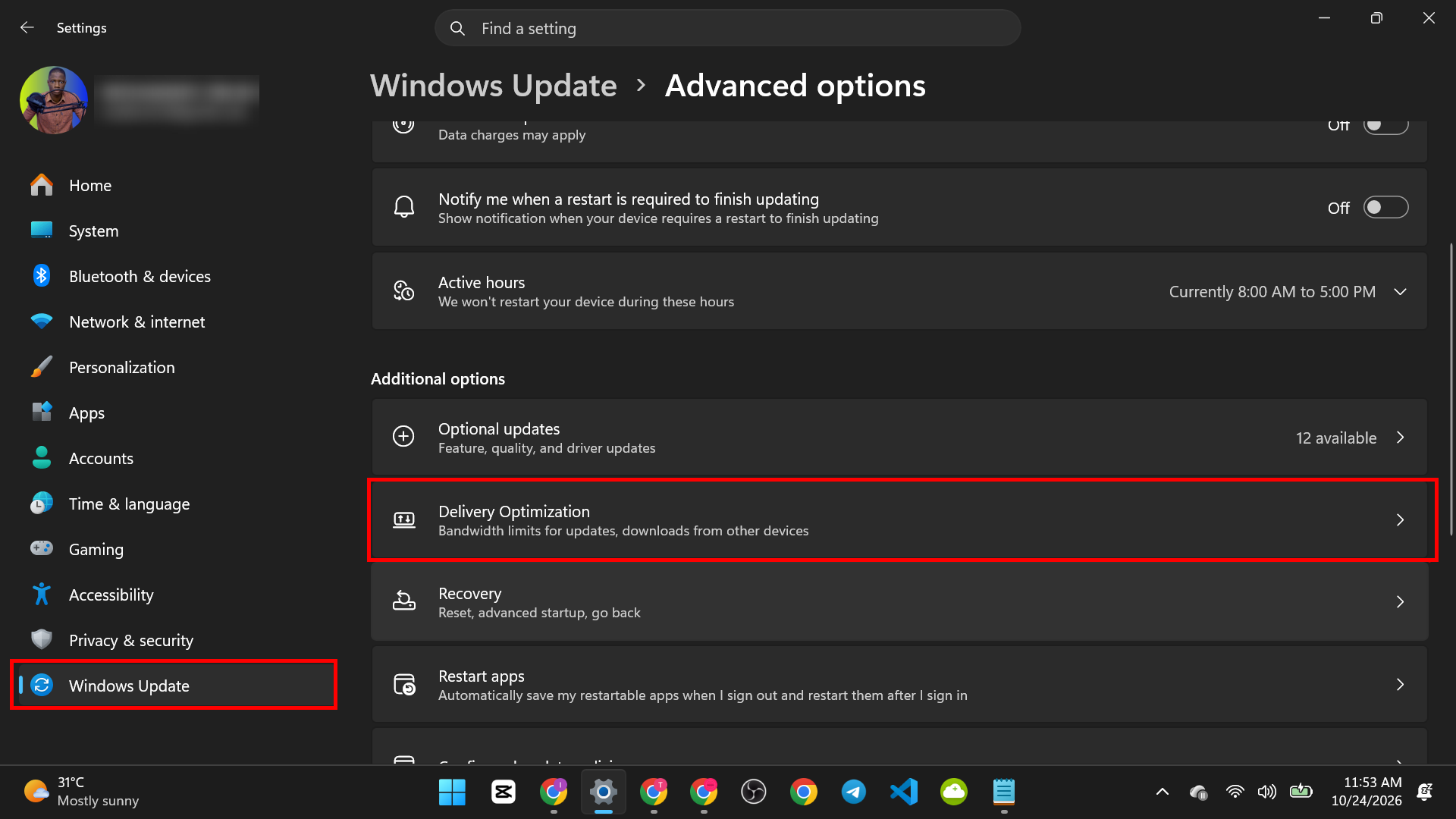
- Turn off Allow downloads from other PCs if you want to stop your PC sharing updates.
Do not turn off updates completely. Updates keep your PC safe and fix problems. You only want them to run at a better time. Check for updates now and then and install them when you are not busy.
What Not to Do
Some “speed up your PC” tips online can cause problems. Avoid these:
- Do not disable Windows services you do not understand. Some are needed to run Windows.
- Do not turn off your antivirus to make your PC faster.
- Do not use “PC booster” or “registry cleaner” programs. They rarely help and can cause harm.
- Do not delete files from system folders like Windows or Program Files.
If you are not sure about a setting, leave it as it is.