

Messy data gives wrong answers. A total that looks too small. A PivotTable with “North” and “north” as two different groups. A lookup that fails for no reason. Most of the time, the problem is not your formula. It is the data.
This guide shows you how to clean messy Excel data in a clear order. You will fix extra spaces, wrong capital letters, numbers and dates stored as text, duplicate rows, blank cells and columns that need to be split. Each step has simple instructions and a task in a free practice file.
If you are new to formulas, read 15 Excel functions every beginner should learn first. All steps work in Excel 2016 and beyond.
It has a messy list of 30 customer orders. Here is what is inside:
- Messy Data: the original messy list. You do not change this sheet. The formulas look at it.
- Work Copy: an exact copy of the messy list. You use the clean up tools on this sheet.
- Practice: 12 tasks. Tasks 1 to 10 are formulas. Tasks 11 and 12 are tools. The yellow cells are for your answers.
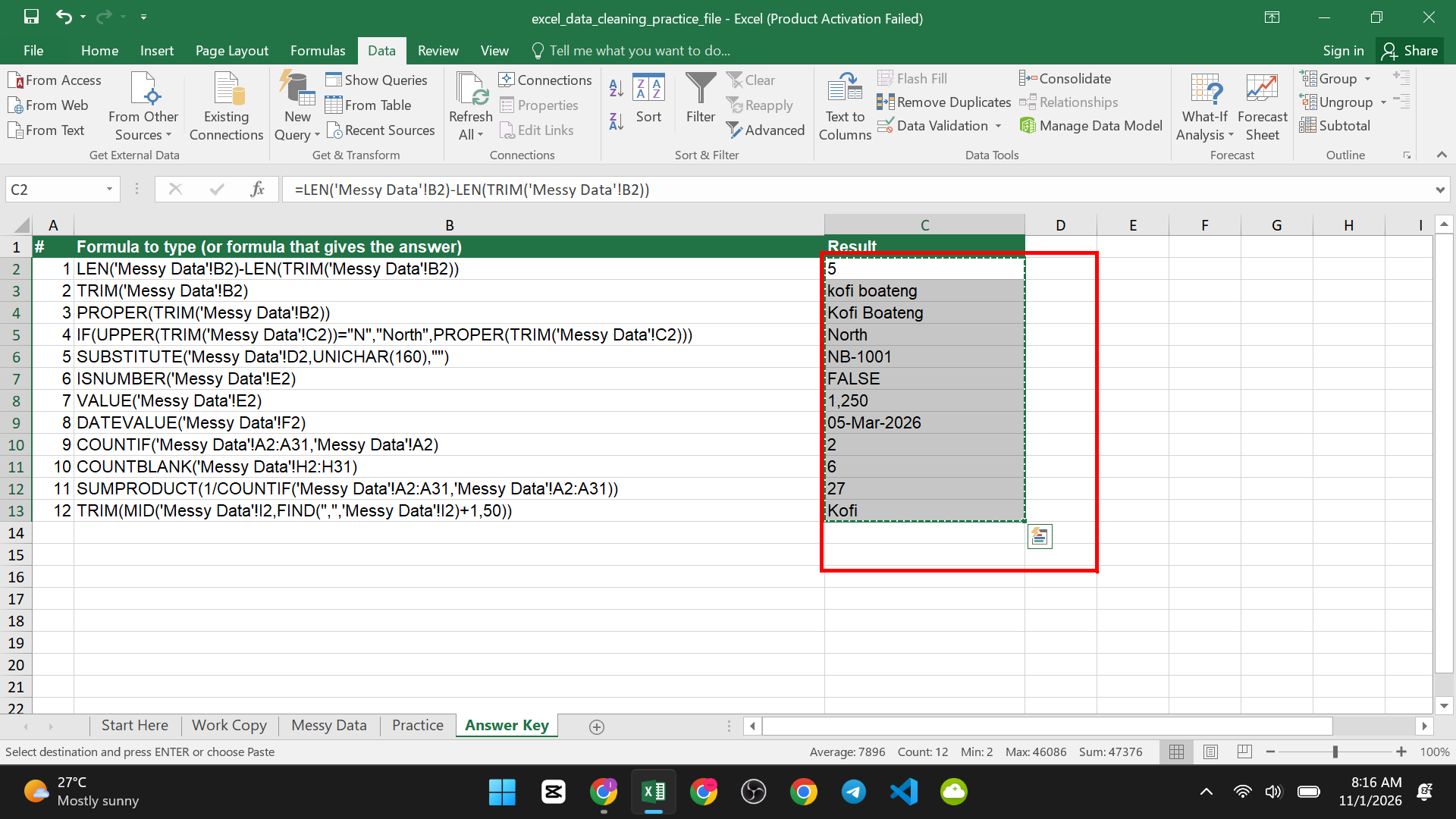
- Answer Key: the right formula or answer for each task.
What is messy in the file
| Column | The problem |
| Customer | Extra spaces and mixed capital letters |
| Region | Different spellings: North, north, NORTH and N |
| Product Code | Some codes have a hidden space at the end |
| Amount and Order Date | Stored as text, not as real numbers and dates |
| Status | Mixed capitals and extra spaces |
| Phone | 6 empty cells |
| Whole rows | 3 orders appear twice |
How to point a formula at another sheet
Your formulas go on the Practice sheet, but the data is on the Messy Data sheet. So the formula must say which sheet to look at. Write the sheet name, then an exclamation mark, then the cell. Because the name has a space, put it in single quotes.
For example, ‘Messy Data’!B2 means “cell B2 on the Messy Data sheet”.
You do not need to type it. Type =, click the Messy Data tab, then click the cell. Excel writes the name for you. See workbooks vs worksheets vs cells to learn more about sheets and cells.
Before You Start: Protect Your Original Data
- Never clean your only copy. Save a copy of the file, or copy the sheet. To copy a sheet, right-click its tab and choose Move or Copy, then tick Create a copy.
- Keep the original sheet as it is. You can always go back to it.
- Work on one problem at a time. Check the result after each step.
- Press Ctrl + Z right away if something looks wrong. Undo works for most steps in this guide.
Step 1: Look for Problems First
Before you fix anything, find out what is wrong. Use these quick checks.
Scan the data
- Click any cell in the data on the Work Copy sheet.
- Press Ctrl + Shift + L to turn on filters. (More shortcuts are in our list of 10 Excel keyboard shortcuts.)

- Click the filter arrow on Region. You will see North, north, NORTH and N as separate items. That shows the labels are not consistent.
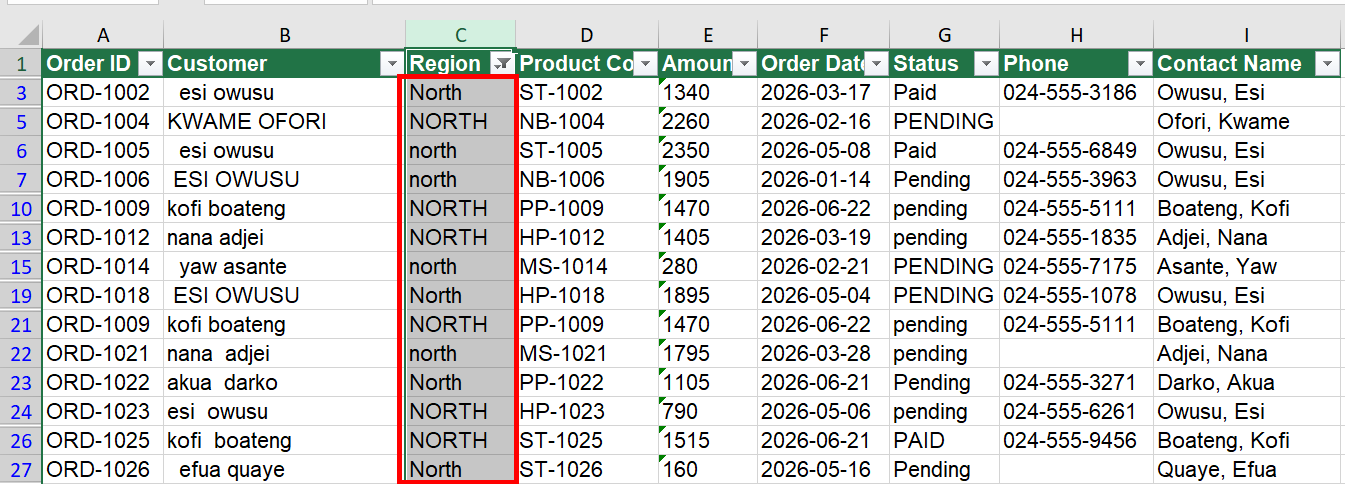
- Check the other columns the same way. Click the arrow on Status and Customer.
Remove the filter with Ctrl + Shift + L again when you are done.
Use small formulas to count the problems
Task 1 (LEN): How many extra spaces are in the customer name in B2? LEN counts the letters in text.
=LEN(‘Messy Data’!B2)-LEN(TRIM(‘Messy Data’!B2))
The answer is 5. The cell holds ” kofi boateng “. It is 5 characters longer than it needs to be.
Task 6 (ISNUMBER): Is the amount in E2 a real number? ISNUMBER answers TRUE or FALSE.
=ISNUMBER(‘Messy Data’!E2)
The answer is FALSE. The amount looks like a number but it is text.

Task 9 (COUNTIF): How many times does the Order ID in A2 appear in the list? A result of 2 or more means a duplicate.
=COUNTIF(‘Messy Data’!A2:A31,’Messy Data’!A2)
The answer is 2. ORD-1001 appears twice.

Task 10 (COUNTBLANK): How many Phone cells are empty?
=COUNTBLANK(‘Messy Data’!H2:H31)
The answer is 6.

See duplicates with a color
- Select the Order ID column on the Work Copy sheet.

- Go to Home > Conditional Formatting > Highlight Cells Rules > Duplicate Values.

- Click OK.
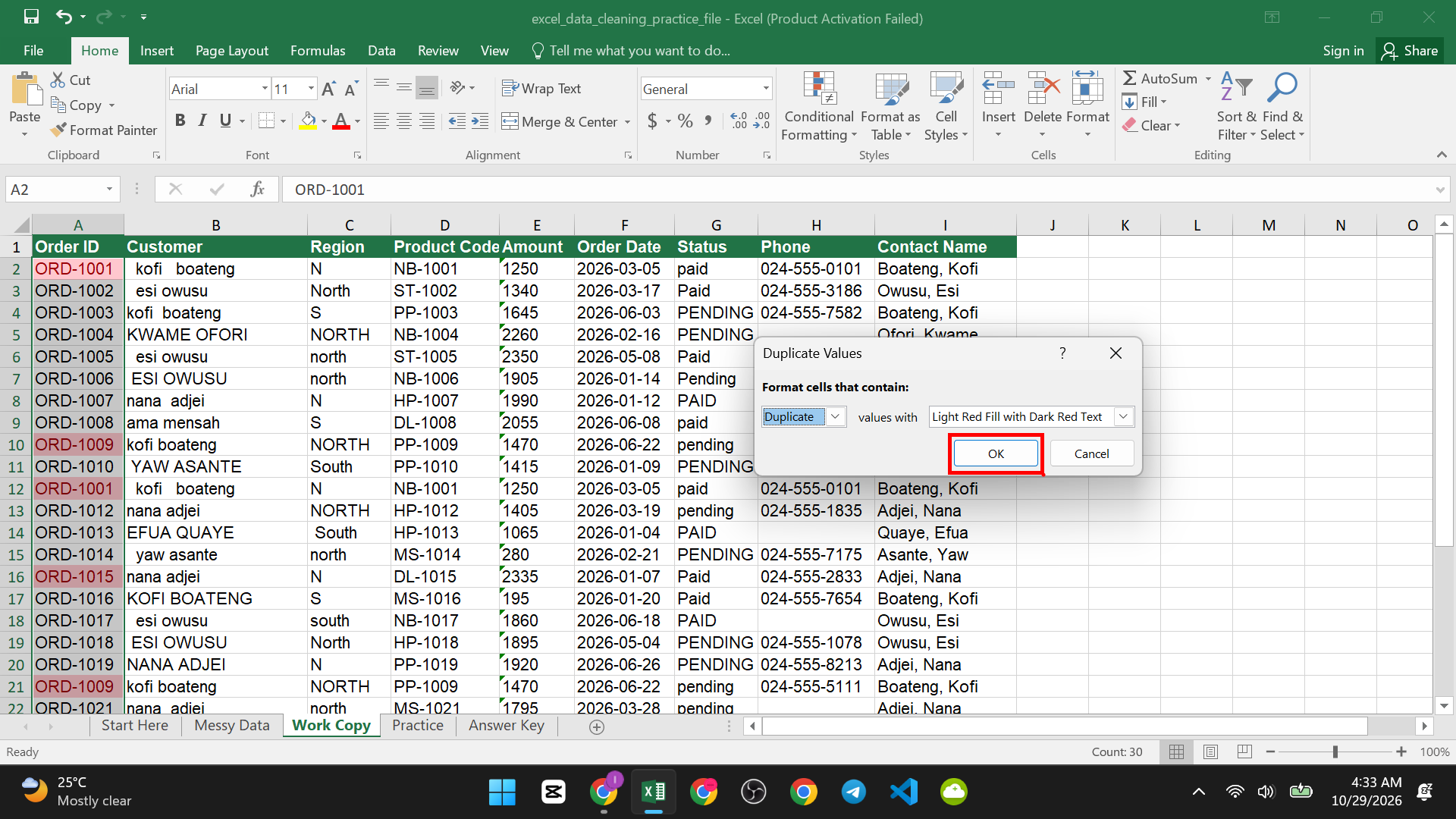
Repeated Order IDs turn pink. Our Home tab guide shows where the Conditional Formatting button is.

Step 2: Remove Extra Spaces and Hidden Characters
Extra spaces cause many problems. “Kofi” and “Kofi ” look the same, but Excel sees them as different. Lookups fail, and a PivotTable counts them as two groups.
TRIM removes normal extra spaces
What it does: It deletes spaces at the start and end of text, and leaves only one space between words.
Task 2 (TRIM):
=TRIM(‘Messy Data’!B2)
The answer is kofi boateng.

Remove a hidden space
Some spaces are not normal spaces. They come from web pages and other programs. They are called non-breaking spaces. TRIM cannot remove them. In the practice file, some Product Codes end with one.
Task 5 (SUBSTITUTE): Remove the hidden space from the product code in D2.
=SUBSTITUTE(‘Messy Data’!D2,UNICHAR(160),””)
The answer is NB-1001. SUBSTITUTE swaps one piece of text for another. UNICHAR(160) is the hidden space. The two quote marks with nothing between them (“”) mean “nothing”. So the hidden space is replaced with nothing.

Why UNICHAR? You may see CHAR(160) in other guides. UNICHAR(160) is better because it also works on a Mac. UNICHAR needs Excel 2013 or newer.
How to spot a hidden space: Compare the length with LEN. A code like NB-1001 has 7 characters. If LEN says 8, there is a hidden character.
Step 3: Fix the Capital Letters
What it does: PROPER makes the first letter of each word a capital and the rest small.
Task 3 (PROPER): Clean the name in B2. Use TRIM inside PROPER to do both jobs.
=PROPER(TRIM(‘Messy Data’!B2))
The answer is Kofi Boateng. TRIM runs first, and then PROPER fixes the letters.
Use UPPER for all capitals and LOWER for all small letters. PROPER does not always get names right. For example, “McDonald” becomes “Mcdonald”. Check your list after you use it.

Step 4: Make Labels the Same
Look at the Region column. It has North, north, NORTH and N. They all mean North, but Excel sees four labels.
Method 1: A formula
Task 4 (IF): Clean the region in C2. If it is the letter N, show North. Otherwise, clean it up with TRIM and PROPER.
=IF(UPPER(TRIM(‘Messy Data’!C2))=”N”,”North”,PROPER(TRIM(‘Messy Data’!C2)))
The answer is North. Read it in simple words: “If the cleaned text in capitals is N, show North. If not, show the cleaned text.”
The same formula pattern works for “S” and South. You can add one more IF for each short label.

Method 2: Find and Replace
- Select the Region column on the Work Copy sheet.

- Press Ctrl + H to open Find and Replace.
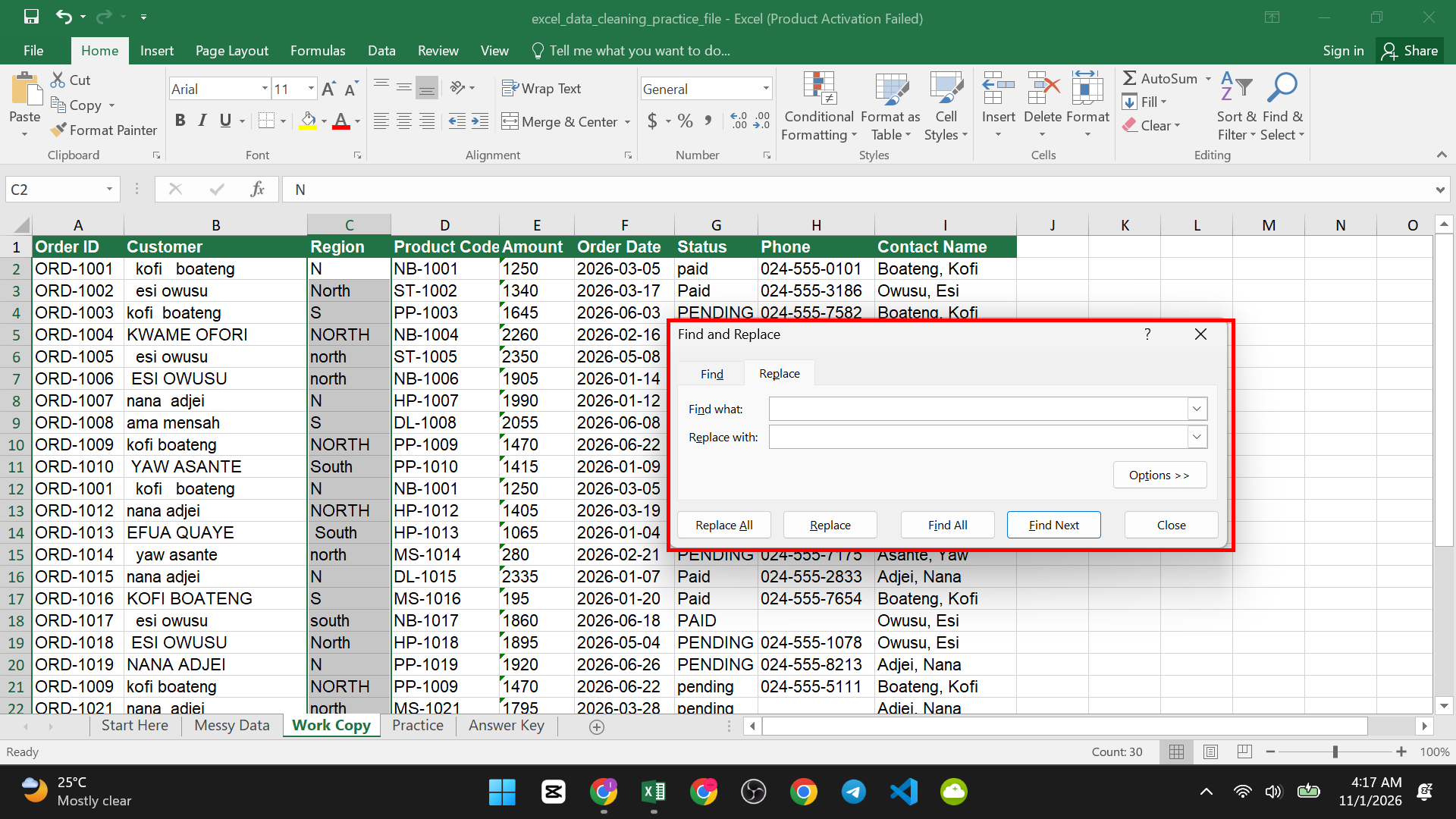
- In Find what, type N. In Replace with, type North.

- Click Options and tick Match entire cell contents. Without this, Excel changes every N inside other words.

- Click Replace All.

Find and Replace is fast for one-time fixes. Formulas are better when you will clean new data again.
Step 5: Turn Text Into Real Numbers
When numbers are stored as text, SUM and AVERAGE skip them, and sorting goes wrong. Clues are numbers aligned to the left and a small green triangle in the corner of the cell.
Method 1: Convert to Number
- Select the cells with the text numbers.

- Click the small yellow warning icon that appears.

- Choose Convert to Number.

Method 2: The VALUE function
Task 7 (VALUE): Turn the amount in E2 into a real number.
=VALUE(‘Messy Data’!E2)
The answer is 1,250. Now it is a real number. You can add it up and format it.

Method 3: Text to Columns
- Select the column.
- Go to Data > Text to Columns.
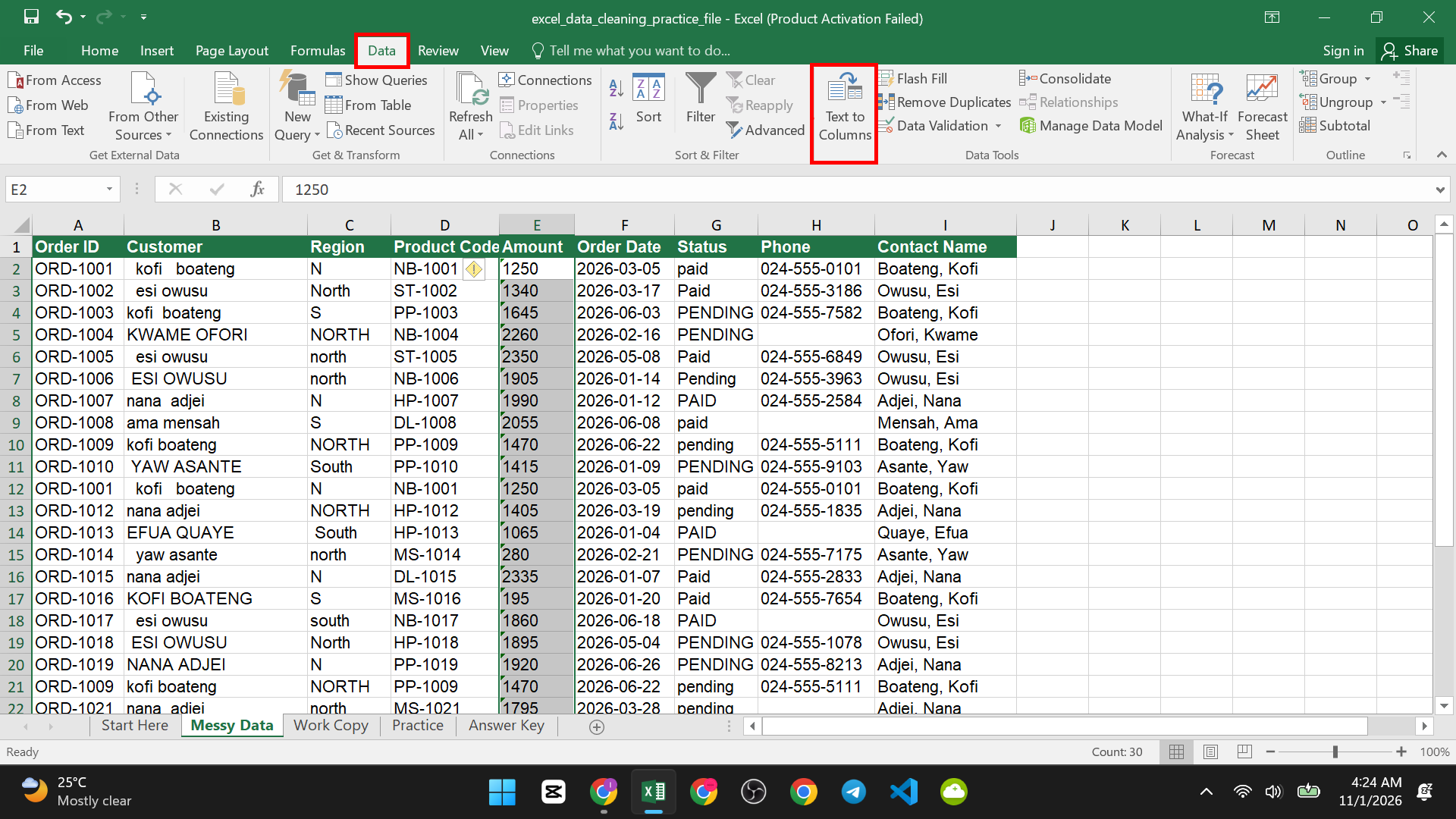
- Click Finish.

This converts the whole column at once, without a formula.
Be careful: Do not convert phone numbers, ZIP codes or IDs with leading zeros. Excel will remove the zeros. Keep those as text.
Step 6: Turn Text Into Real Dates
Dates stored as text will not sort or work in date math.
Task 8 (DATEVALUE): Turn the order date in F2 into a real date.
=DATEVALUE(‘Messy Data’!F2)
The answer is 05-Mar-2026. If you see a number like 46086 instead, click the cell, press Ctrl + 1, choose Date, and pick a date style.
Good to know: The year-month-day style, like 2026-03-05, works in most regions. Other styles, like 5/3/2026, depend on your regional settings. If DATEVALUE gives an error, your date style is not read in your region. Try Text to Columns: choose Date in step 3 of the wizard and pick the order of day, month and year.
For more on dates, read how to insert today’s date in Excel.
Step 7: Remove Duplicate Rows
Clean your spaces and letters first. Then remove duplicates. If you remove duplicates first, “Kofi” and “Kofi ” count as different and stay.
Task 11: On the Work Copy sheet, remove the duplicate rows.
- Click any cell in the data.
- Go to Data > Remove Duplicates.

- Make sure My data has headers is ticked.

- Leave all columns ticked, so only rows that are the same in every column are removed.
- Click OK.

Excel tells you how many duplicates it removed and how many unique values remain. Three rows are removed, and 27 data rows are left. Type 27 in your answer cell.
Warning: Remove Duplicates deletes rows for good. That is why you work on a copy. You can press Ctrl + Z to undo it right after.
Tip: To remove duplicates based on one column, such as Order ID, tick only that column. Two different orders with the same ID are then treated as duplicates. Be sure that is what you want.
Step 8: Handle Blank Cells
Blank cells can break formulas and charts. You have two choices. Leave them blank on purpose, or fill them.
Fill blanks with a word
- On the Work Copy sheet, select the Phone column (H2 to H31).

- Press Ctrl + G, then click Special.
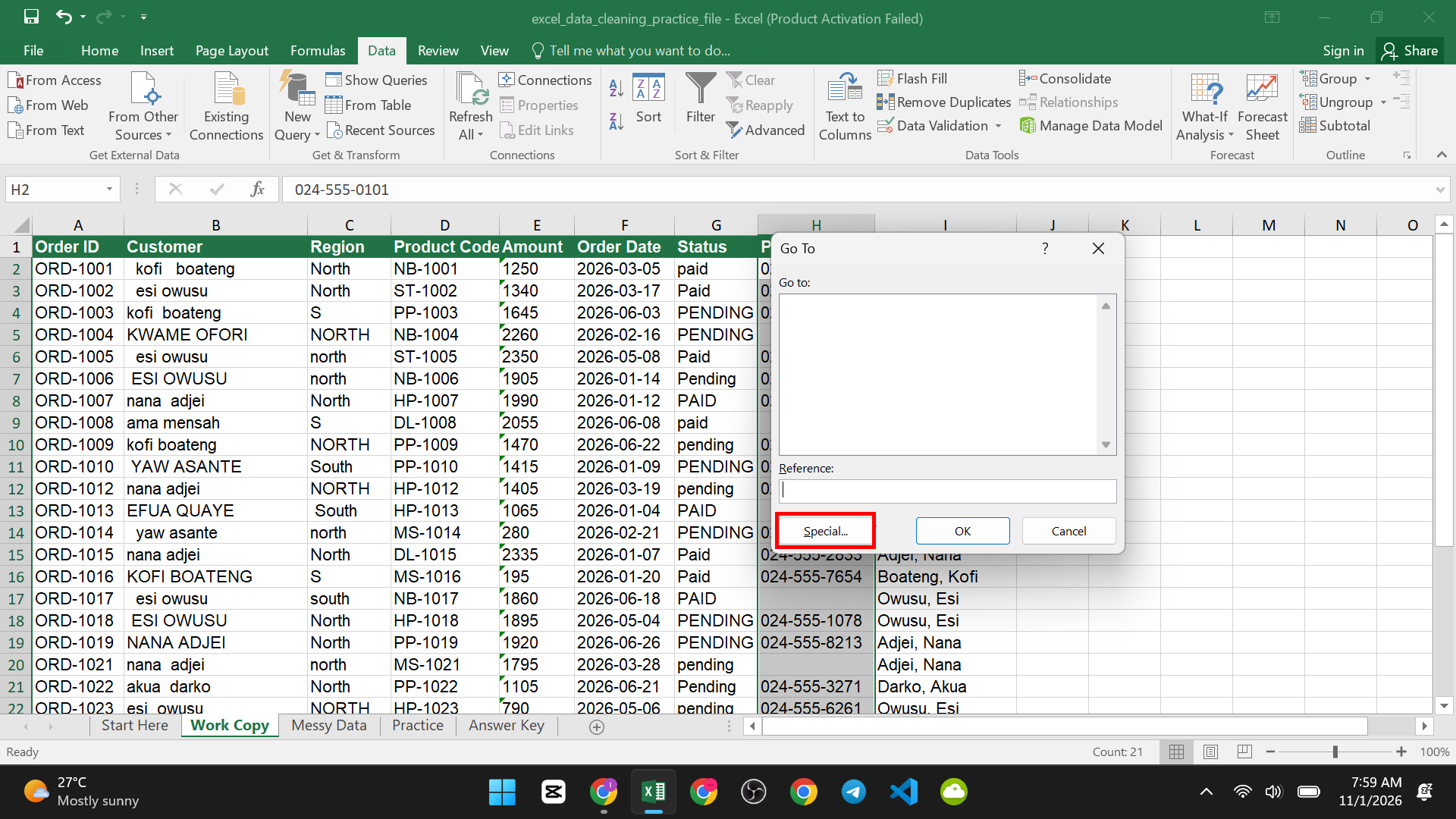
- Choose Blanks and click OK. Only the blank cells are selected.

- Type Unknown, then press Ctrl + Enter.
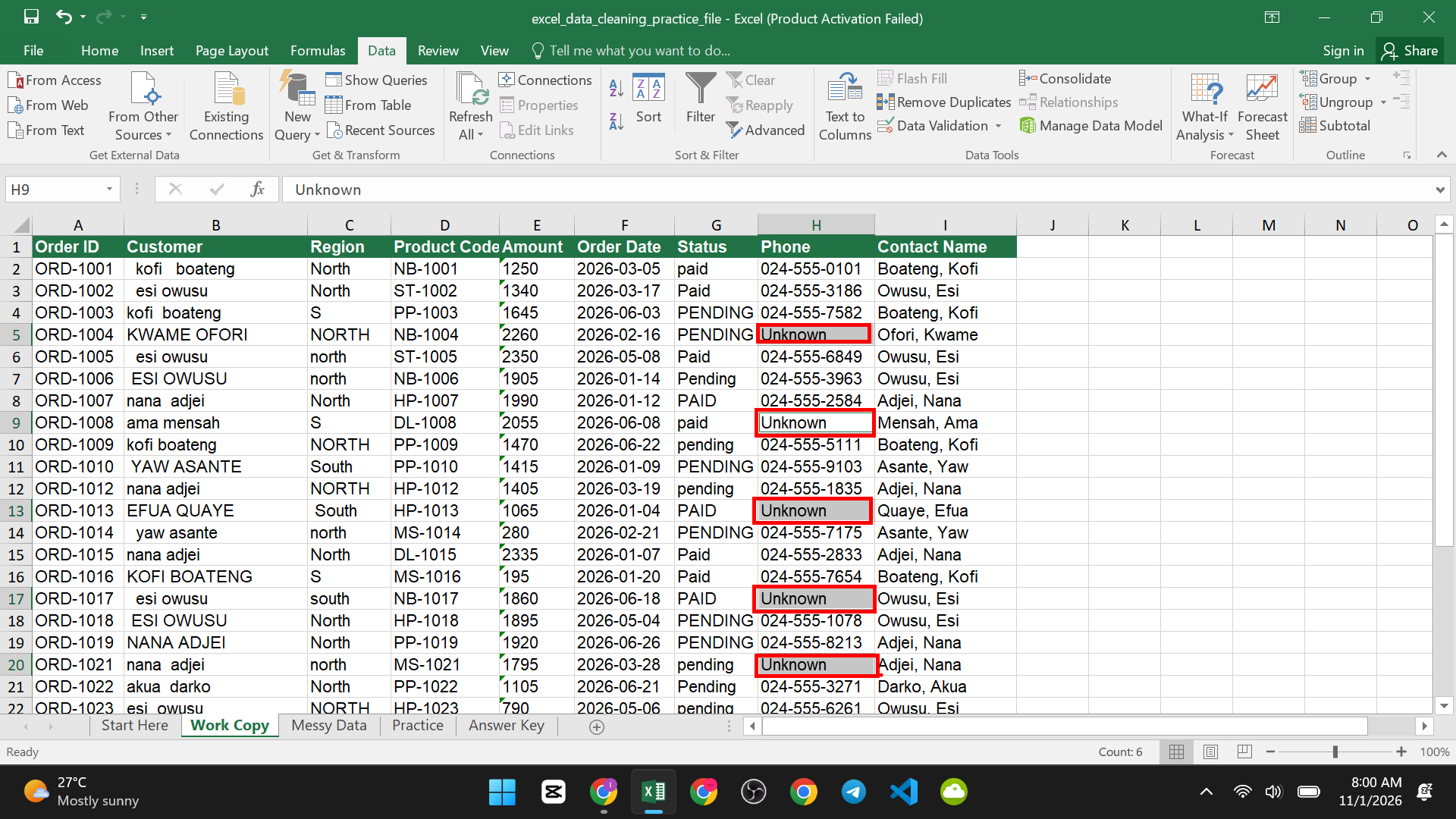
All 6 blank cells now say Unknown. Ctrl + Enter fills every selected cell at once. (This and other tricks are in our post on Excel shortcuts every user should know.
Do not delete blank rows blindly. A row can look empty but hold data far to the right. To remove rows that are truly empty, filter or sort first and check what you delete.
Step 9: Split One Column Into Two
The Contact Name column has “Boateng, Kofi”, with the last name and first name together. Text to Columns can split them.
Task 12: On the Work Copy sheet, split the Contact Name column.
- Make sure there are empty columns to the right of Contact Name. Excel will write into them.
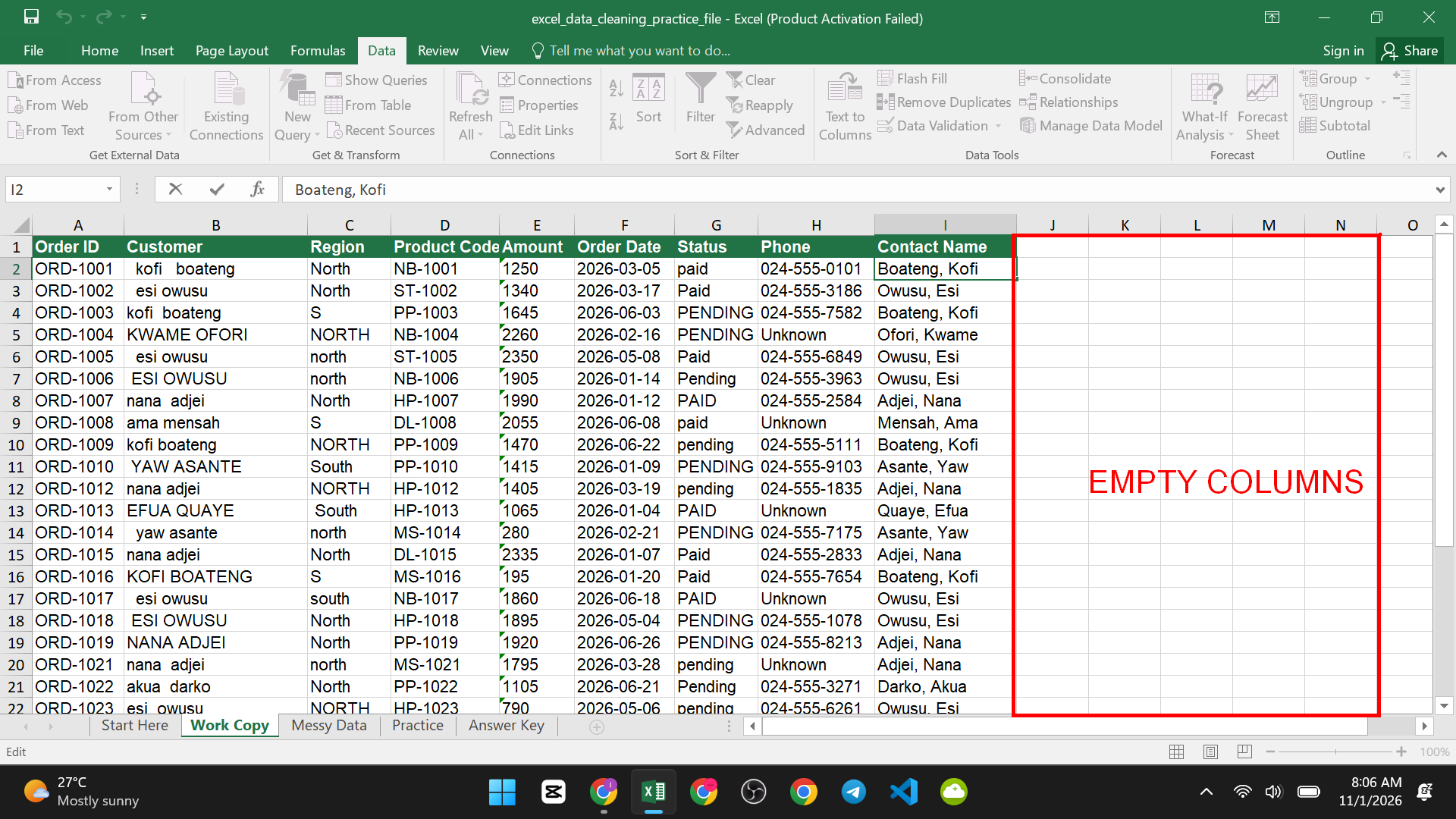
- Select the Contact Name column data.

- Go to Data > Text to Columns.
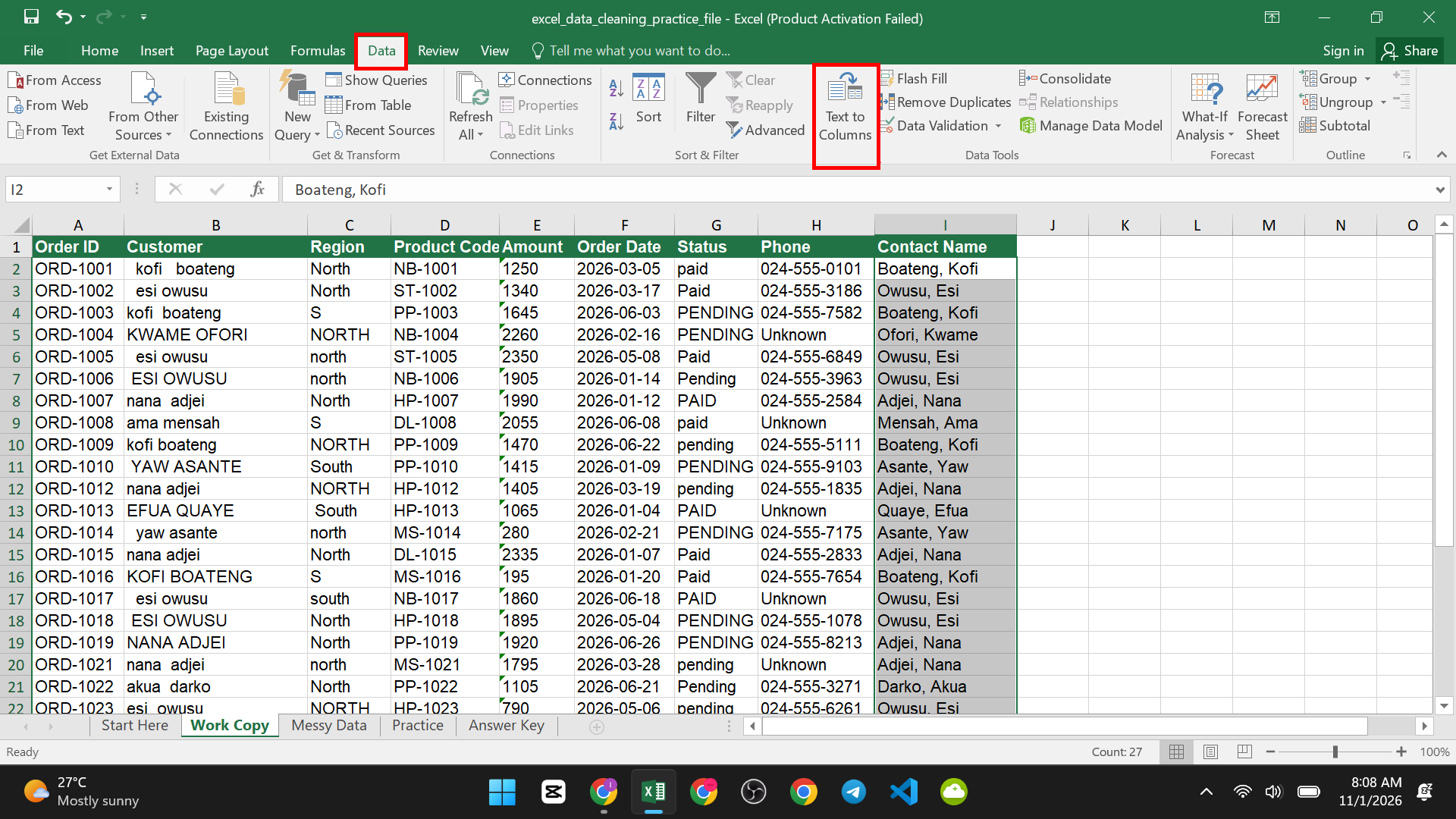
- Choose Delimited and click Next.

- Tick Comma, and click Next.
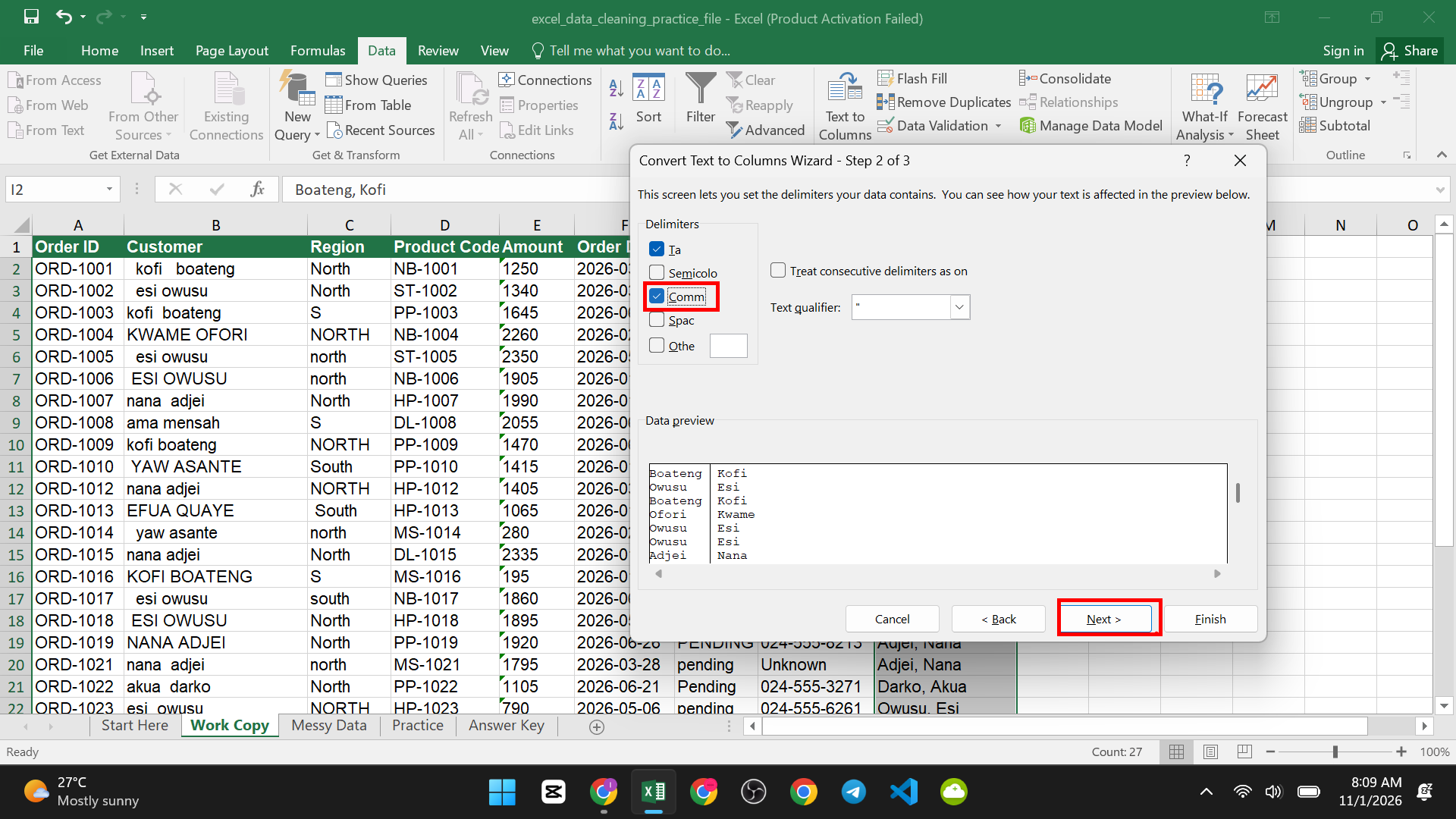
- Click Finish.
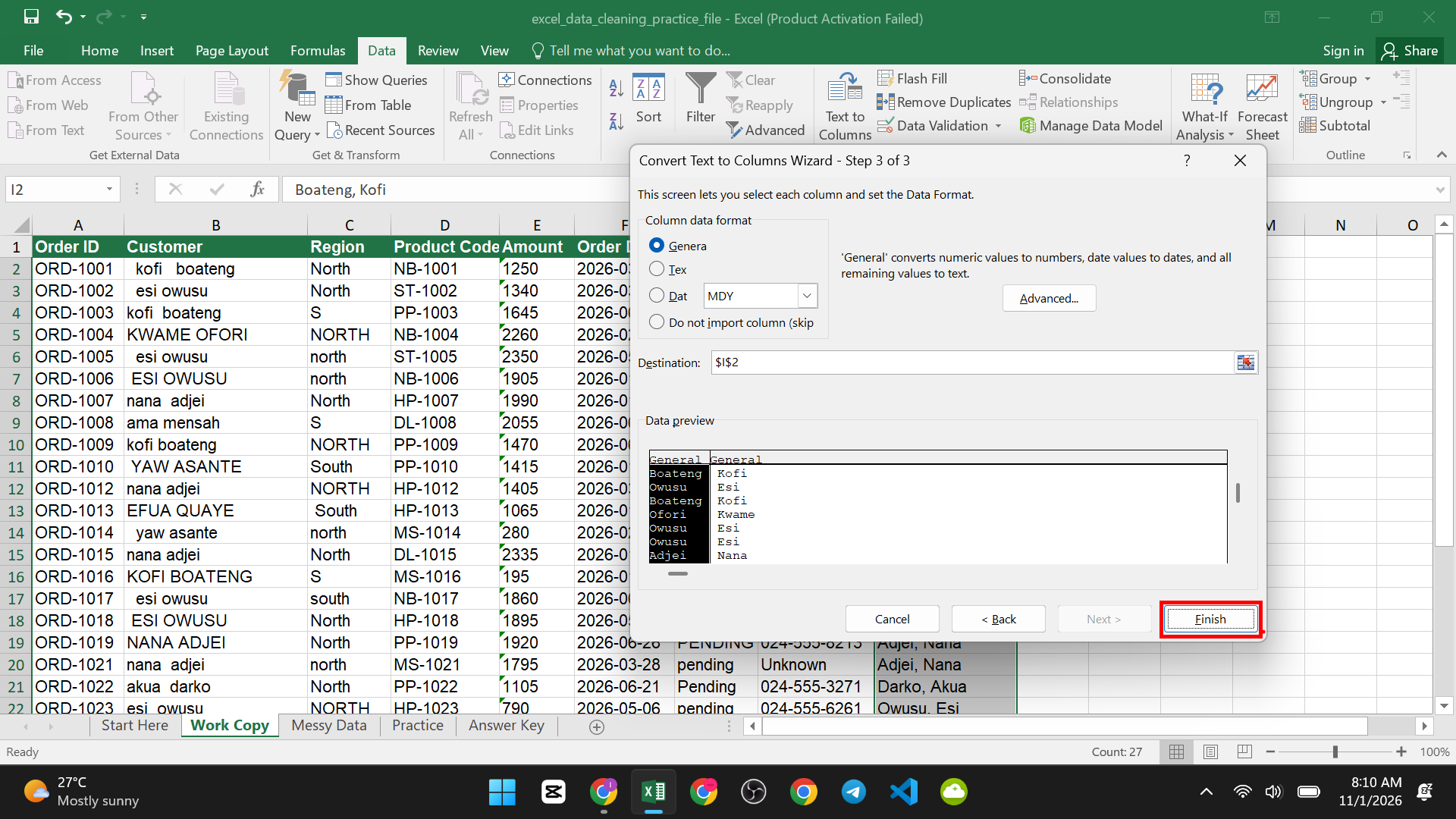
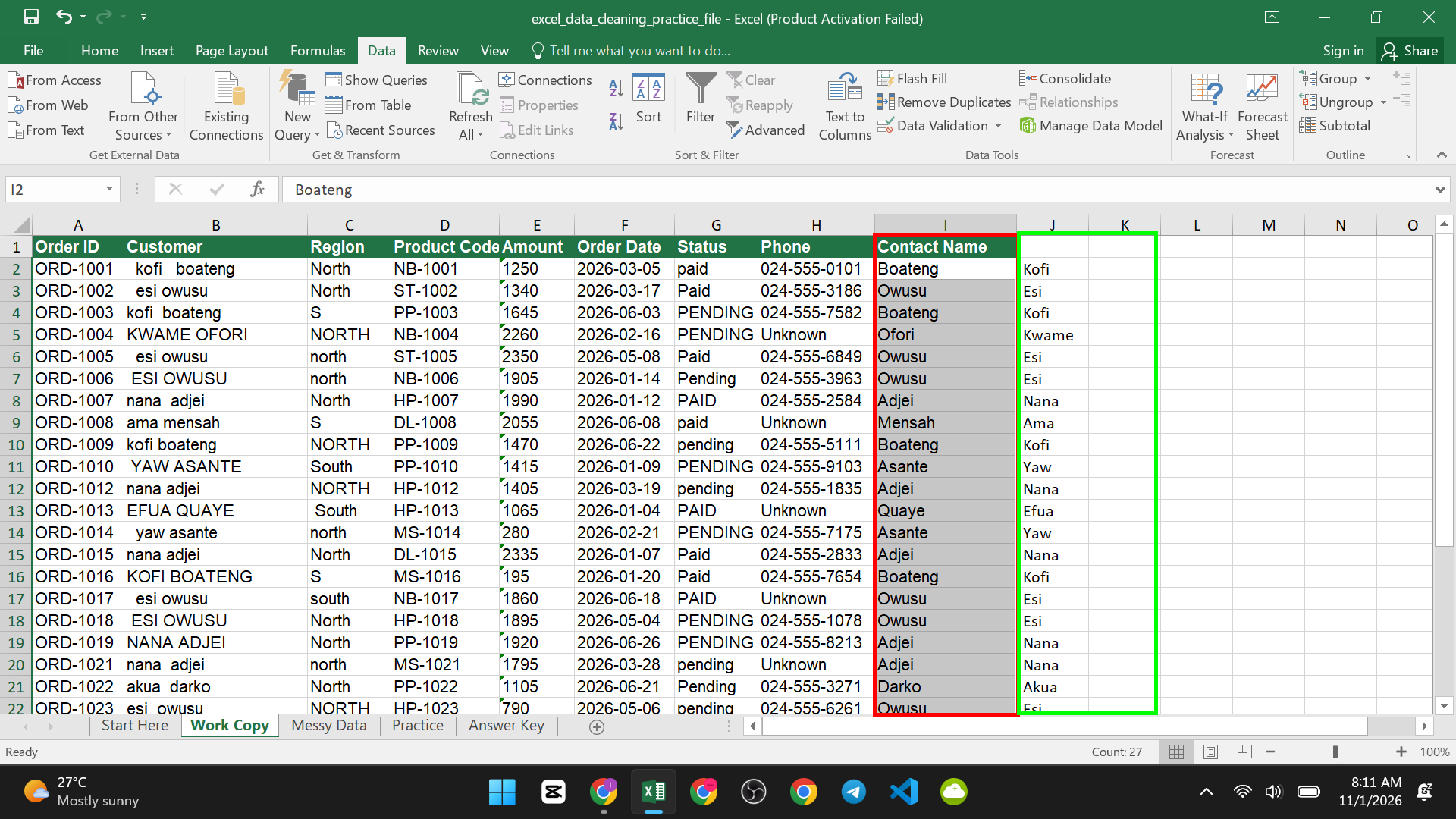
You now have the last name in one column and the first name in the next. The first name for the first order is Kofi. Type it in your answer cell. It may have a space in front. Use TRIM to remove it.
Flash Fill alternative:
- Type the first name next to the first row

- Then press Ctrl + E. Excel guesses the pattern and fills the rest. Flash Fill is available in Excel 2013 and newer.

Step 10: Turn Your Formulas Into Values
Your cleaned columns are formulas. They depend on the messy data. If you delete the messy column, the formulas break. So paste them as values.
- Select the cells with your clean formulas.
- Press Ctrl + C to copy.
- Press Ctrl + Alt + V to open Paste Special.

- Choose Values and click OK.

The formulas are now plain results. You can delete the old messy columns and keep the clean ones. Check first that the clean columns look right.
Step 11: Check Your Work
- Filter again. Check that each column now has a clean list of items. Region should show North, South and so on, with no repeats.
- Count again. Use COUNTIF and COUNTBLANK as in Step 1 to see that duplicates and blanks are gone.
- Test the numbers. Click an amount. It should be right-aligned. SUM should now include every row.
- Compare row counts. You should have 27 data rows, not 30.
- Save under a new name. Keep the original file.
Stop the Mess From Coming Back
- Make your list a Table. Click inside the data and press Ctrl + T. A Table keeps formulas and formats for new rows.
- Use a drop-down list. Select the Status column, go to Data > Data Validation, choose List and type Paid,Pending as the source. People can then only pick one of those words, so no more “PAID ” or “paid”.
- For data you clean again and again, look at Power Query. In Excel 2016 and newer, go to Data > From Table/Range. It records your cleaning steps so you can repeat them with one click. It is a bigger topic than this guide.
If Something Went Wrong
| Problem | Likely cause | Fix |
| A number still will not add up | It is still text, or has a hidden character | Use Convert to Number, or clean it with SUBSTITUTE and VALUE |
| TRIM did not remove the space | It is a non-breaking space | Use SUBSTITUTE with UNICHAR(160) |
| A date shows as a number | It is a real date with a number format | Press Ctrl + 1 and choose Date |
| DATEVALUE gives an error | The date style is not read in your region | Use Text to Columns and pick the date order |
| Remove Duplicates removed too much | Too few columns were ticked | Undo with Ctrl + Z and tick all columns |
| A column shows #### | The column is too narrow | See how to fix the #### error in Excel |
| Formulas break after deleting a column | They pointed at the deleted column | Paste your clean data as values first |
Your Practice Plan
- Do tasks 1, 6, 9 and 10. They find problems.
- Do tasks 2, 3 and 5. They clean spaces and letters.
- Do task 4. It makes labels the same.
- Do tasks 7 and 8. They fix numbers and dates.
- Do tasks 11 and 12 on the Work Copy sheet.
- Check each answer on the Answer Key sheet.
When your data is clean, protect it. See how to lock specific cells in Excel without locking the whole sheet.

