
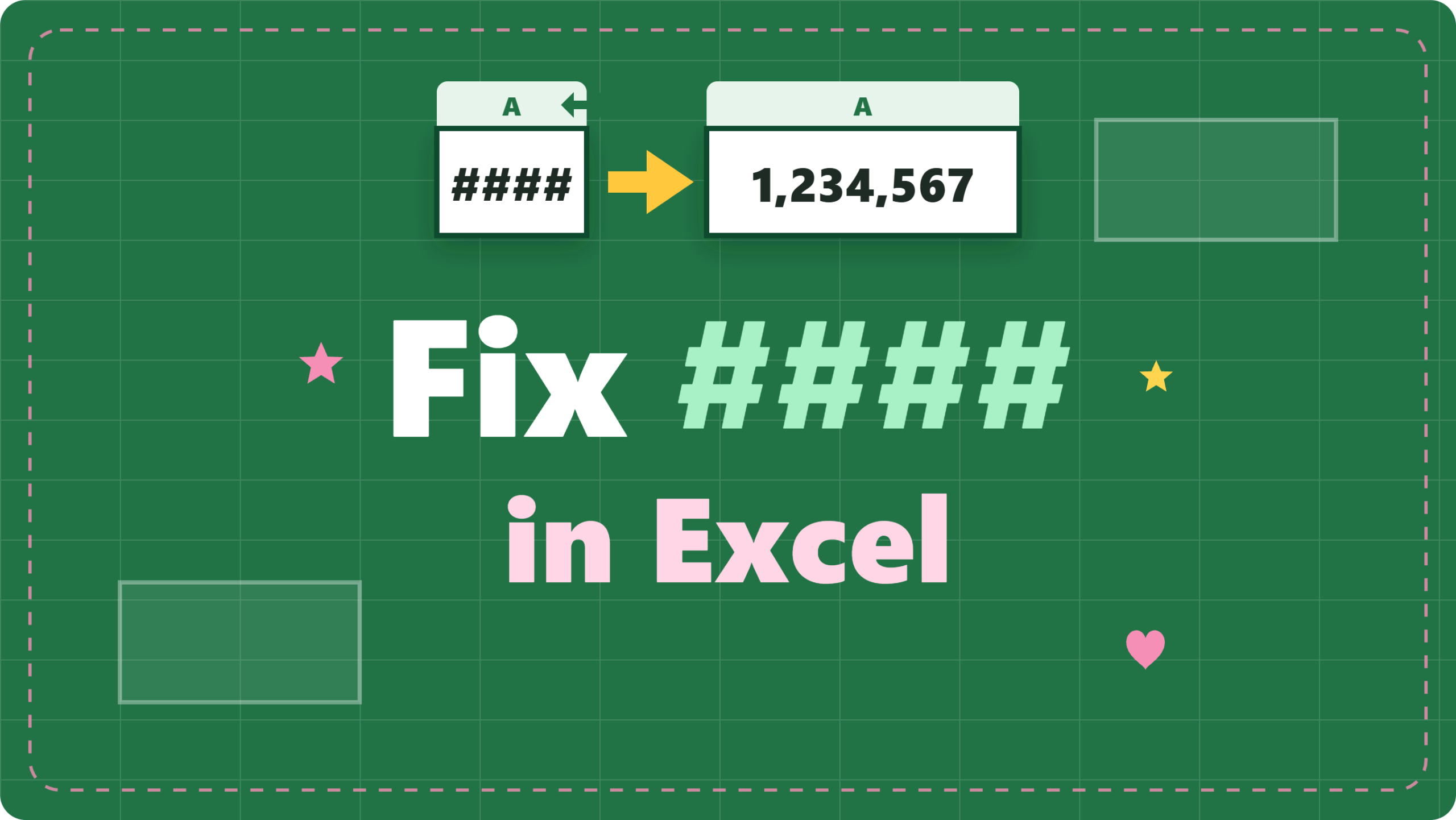

When a cell shows ####, Excel is not telling you the data is wrong. It is telling you the value does not fit, or cannot be shown in the current format. Your data is still there.
Quick fix: Double-click the line on the right edge of the column header. Excel widens the column to fit its contents, and in most cases the #### disappears.
If that does not work, the cause is something else. This guide covers the four common causes, with a fix for each. You can follow along with a free practice file that has #### on purpose.
It has four sheets, one for each cause:
| Sheet | Cause of #### | Fix |
| Narrow Columns | The column is too narrow | AutoFit or widen the column |
| Shift Times | A negative time | Use the MOD function |
| Days Late | A negative number formatted as a date | Change the format to Number |
| Delivery Codes | A number too big to be a date | Convert it with the DATE function |
Yellow cells are where you type your fixes. The Answer Key sheet shows the expected results.
What the #### Error Means
Excel shows #### (the number of hash signs varies) when a cell holds a number, date or time that cannot be displayed. This usually happens for two reasons:
- The column is too narrow to show the formatted value.
- The value is not valid for the format, for example a negative date or time, or a number too large to be a date.
Text does not cause ####. Long text spills into the next empty cell or gets cut off. Only numbers, dates and times show hash signs.
How to see the real value
- Click the cell that shows ####.
- Look at the formula bar above the sheet.
The formula bar shows the real value, for example 1250000.5.

If you see a normal number there, your data is safe. This also tells you which cause you have. A normal date or number points to a narrow column. A negative number or a huge number points to a format problem.
Cause 1: The Column Is Too Narrow
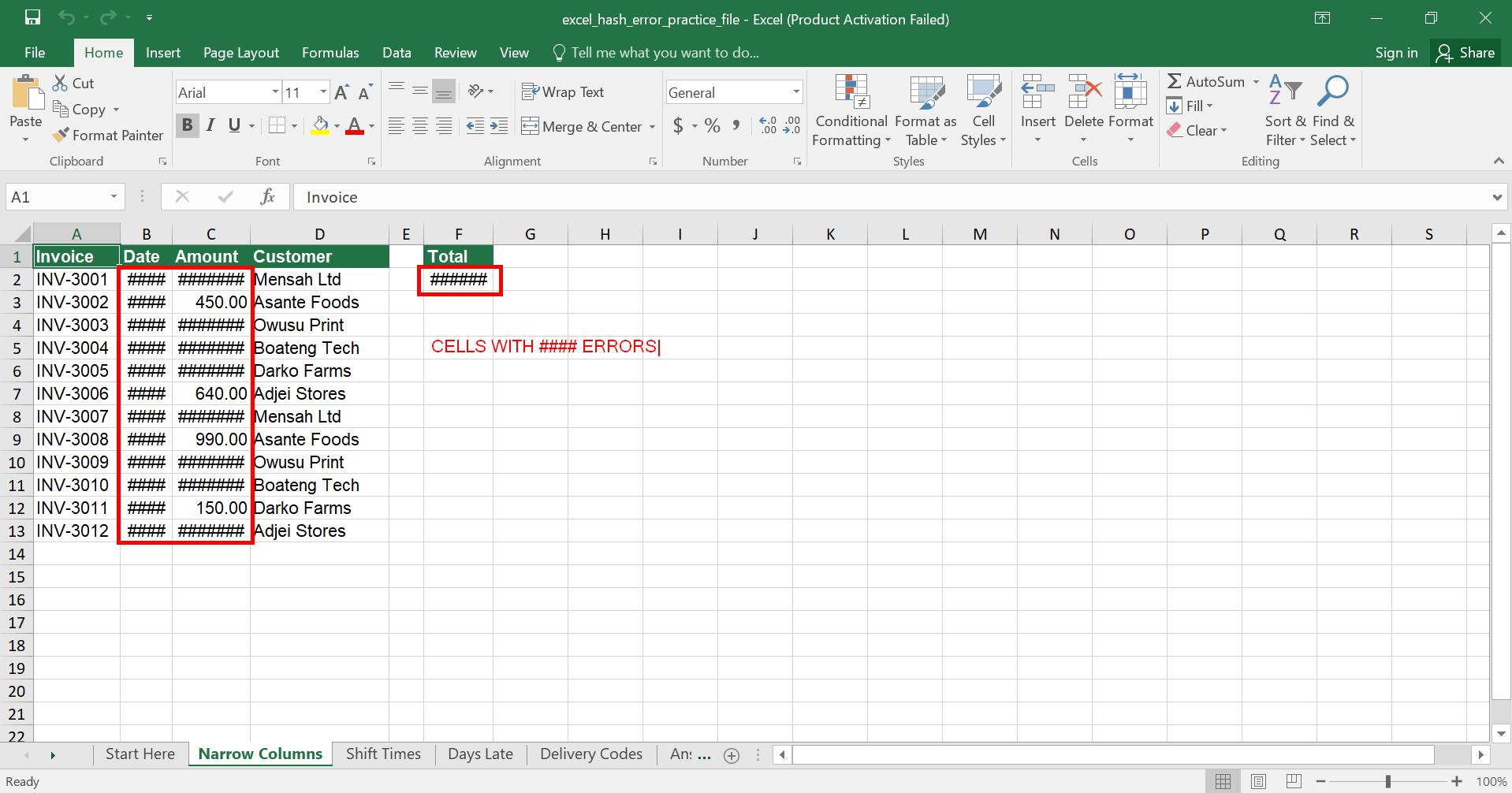
This is the most common cause. Open the Narrow Columns sheet. The Date column (B) shows #### in all 12 rows, and the Amount column (C) shows #### in 8 of 12 rows, such as the 1,250,000.50 for INV-3001. The smaller amounts, such as 450.00 and 640.00, fit and display fine.

In Excel, a number in the General format shrinks or switches to scientific notation when the column is narrow. A number or date with a set format, like these, shows #### instead.
Method 1: Double-click to AutoFit
- Move your mouse to the line between the headers for columns B and C.

- When the pointer turns into a double arrow, double-click.
- Repeat between columns C and D.
Excel sizes each column to fit its widest entry. The dates now read 10-Jan-2026 and the large amounts show in full.

Method 2: Drag the column border
- Hover over the right edge of the column header.
- Click and drag to the right until the value appears.
- Release the mouse.
Dragging gives you control over the exact width. It is good when you want a column slightly wider than the AutoFit size.
Method 3: Use the Ribbon to AutoFit
- Select the columns, or press Ctrl + A to select the whole sheet.
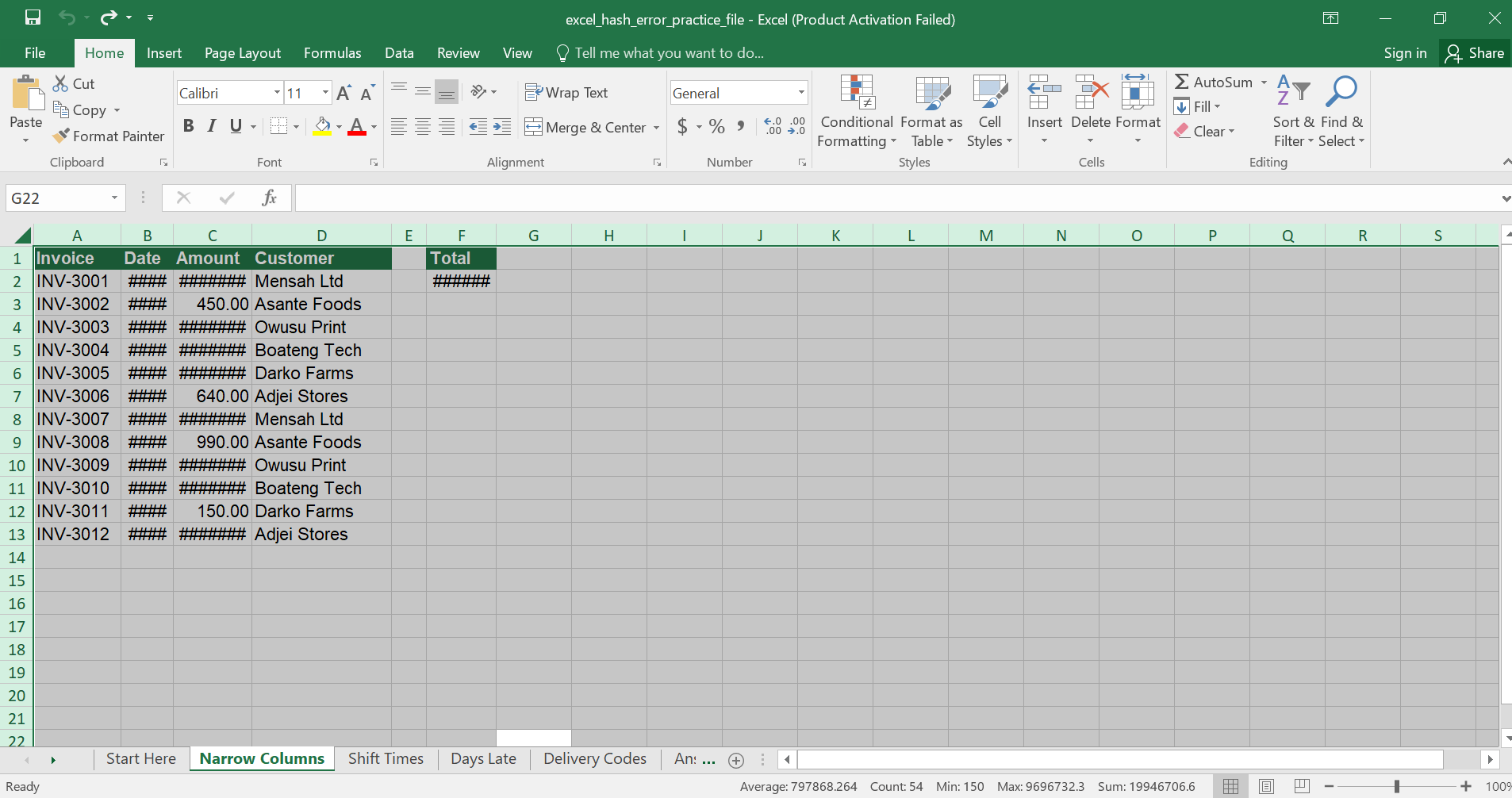
- Go to Home > Format (in the Cells group).

- Choose AutoFit Column Width.

The keyboard route is Alt, H, O, I (press the keys one after another). If you are not sure where the Home tab commands are, read the Excel Home tab explained guide.
Method 4: Shrink to fit
Use this when you cannot widen the column, for example in a printed layout.
- Select the cells that show ####.
- Press Ctrl + 1 to open Format Cells.
- Go to the Alignment tab and tick Shrink to fit.
- Click OK.

The text shrinks to fit the width. It can become too small to read, so use it only when it still looks readable.
Other ways to make a value fit
- Reduce the decimal places with Home > Decrease Decimal.
- Use a smaller font size.
- Change the number format, for example remove the 1000 separator.
To understand how columns, rows and cells relate, see workbooks vs worksheets vs cells.
Cause 2: A Negative Time
Time values cannot be negative in Excel’s default date system. When a formula subtracts a later time from an earlier one, the result is negative and shows ####.
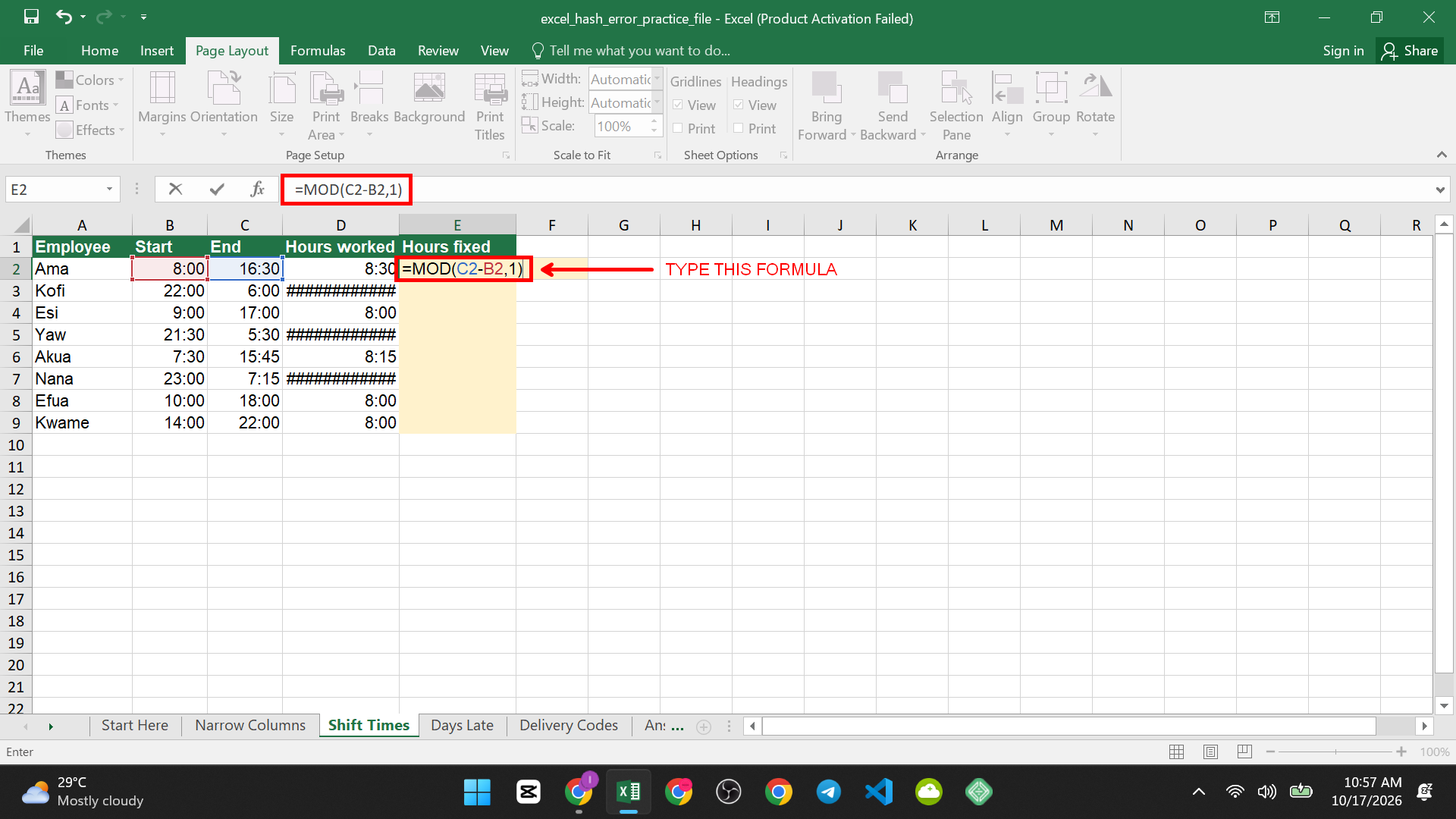
Open the Shift Times sheet. Column D has the formula =C2-B2 to work out hours. Most rows are fine: Ama works 8:00 to 16:30 and gets 8:30. But Kofi’s night shift runs from 22:00 to 06:00. Since 06:00 is smaller than 22:00, the formula gives a negative result and shows ####. Yaw and Nana have the same problem. Three of the eight rows show ####.

How to fix it with MOD
- Click E2 in the yellow Hours fixed column.
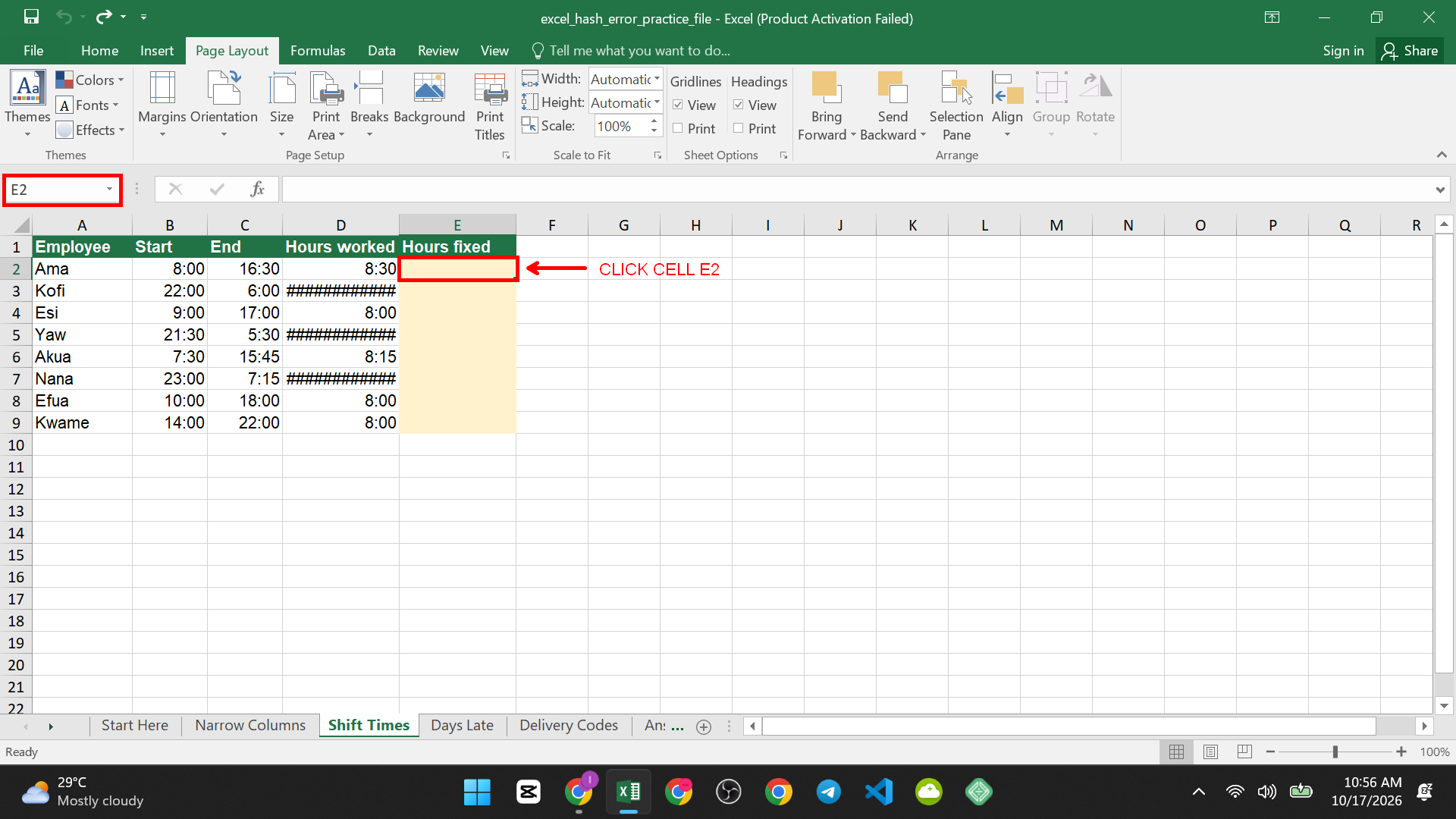
- Type =MOD(C2-B2,1)
- Press Enter and copy the formula down to E9.

MOD returns the remainder after dividing by 1, which wraps a negative time around 24 hours. Kofi’s shift now shows 8:00, and Nana’s shows 8:15. Ama’s shows 8:30, the same as before.
If the cells show a decimal instead of a time, press Ctrl + 1, choose Time, and pick the 13:30 style. For more on dates and times, read how to insert today’s date in Excel.
The 1904 date system (use with caution)
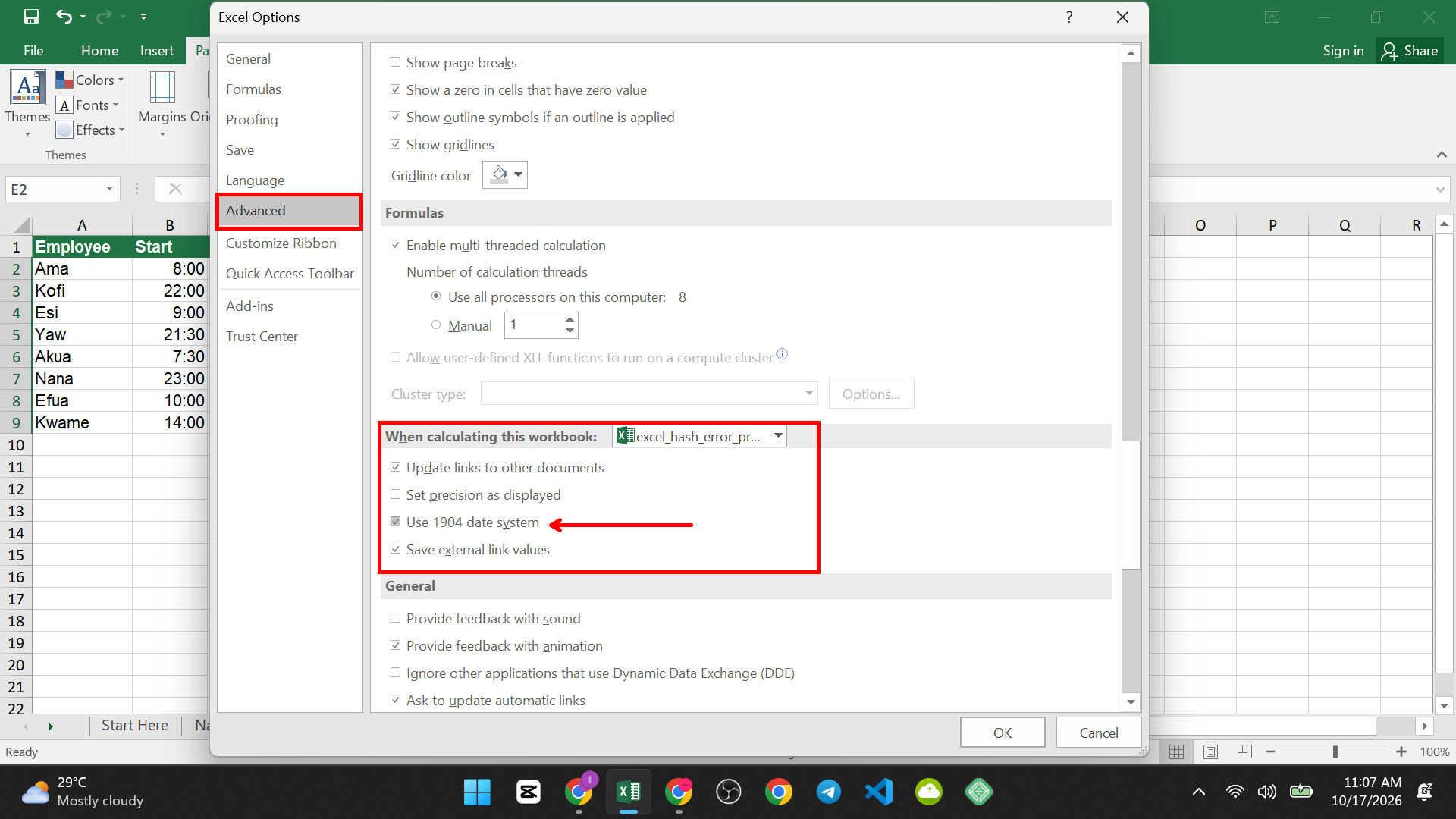
Excel has a setting that allows negative times, found in File > Options > Advanced, under When calculating this workbook, by ticking Use 1904 date system. It moves every date in the workbook forward by about four years, so it can silently break existing dates. Prefer the MOD fix.
Cause 3: A Negative Number Formatted as a Date
Sometimes Excel formats a subtraction of two dates as a date, even though the result is a number of days. A negative number cannot be a date, so you see ####.
Open the Days Late sheet. Column D uses =C2-B2 (Paid date minus Due date) but the cells are formatted as dates. Look at the results:
- INV-4003 was paid 5 days early, so the result is -5 and shows ####.
- INV-4004 was paid 3 days late, so it shows a date in January 1900.
- INV-4005 was paid on the due date, so it shows 00-Jan-1900.
Three invoices were paid early, so three cells show ####. The other numbers look wrong too, because 3 days late is shown as 03-Jan-1900.
How to fix it
- Select the cells in column D, or the yellow Days late (fixed) column after you copy the formula there.

- Press Ctrl + 1 to open Format Cells.
- On the Number tab, choose Number and set Decimal places to 0. Click OK.

Now INV-4003 shows -5, and INV-4004 shows 3. A negative number of days late makes sense: it means the invoice was paid early.
Cause 4: A Number Too Big to Be a Date
Excel’s last valid date is 31 December 9999, which is serial number 2,958,465. If a number is larger than that and has a date format, Excel shows ####.
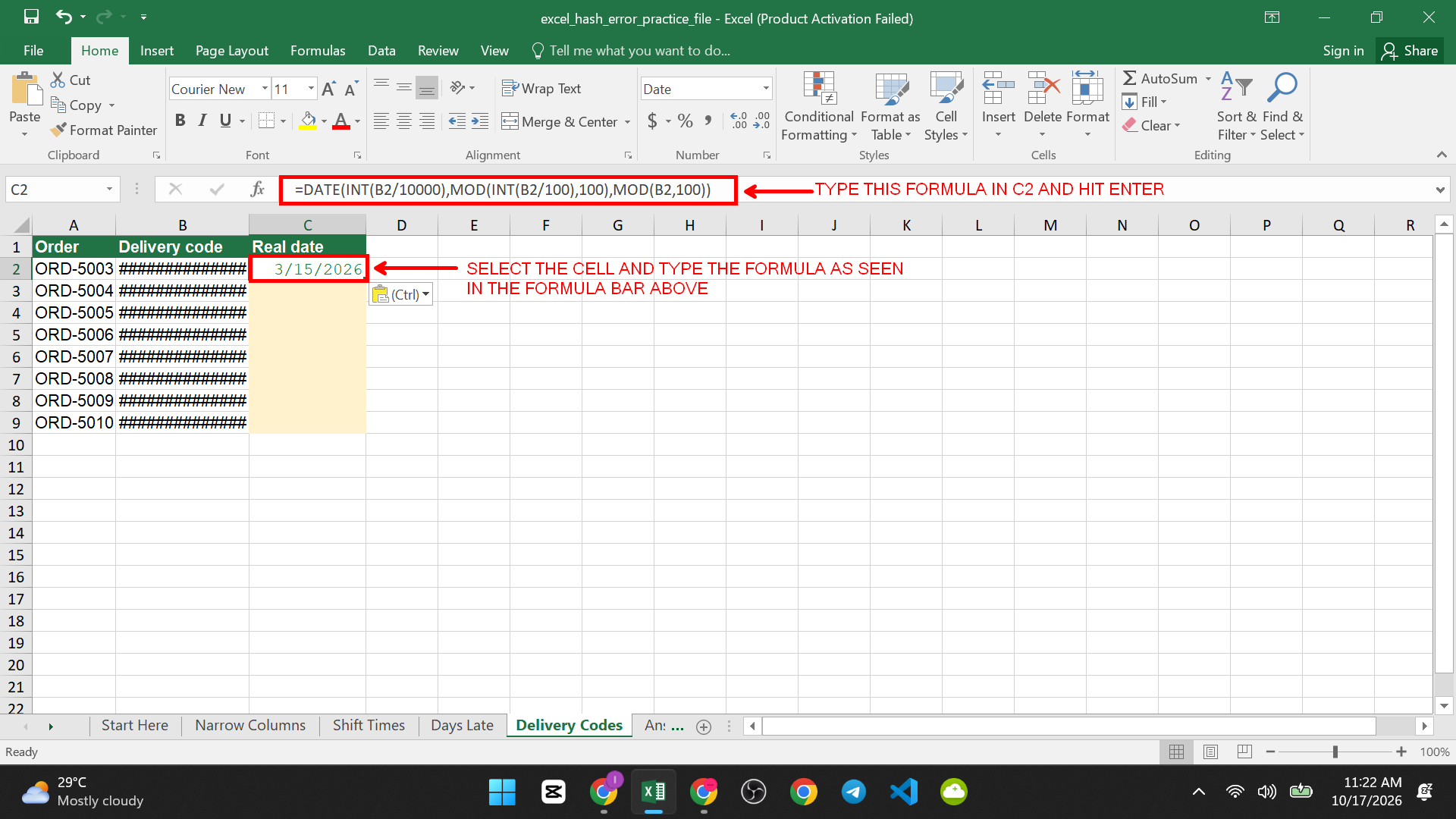
Open the Delivery Codes sheet. The Delivery code column holds numbers like 20260315 (year, month and day typed together as one number). The cells are formatted as dates, so Excel tries to read 20,260,315 as a date serial number. That is far beyond the limit, so every row shows ####.

How to fix it with the DATE function
- Click C2 in the yellow Real date column.
- Type this formula and press Enter:
=DATE(INT(B2/10000),MOD(INT(B2/100),100),MOD(B2,100))
- Copy it down to C9.
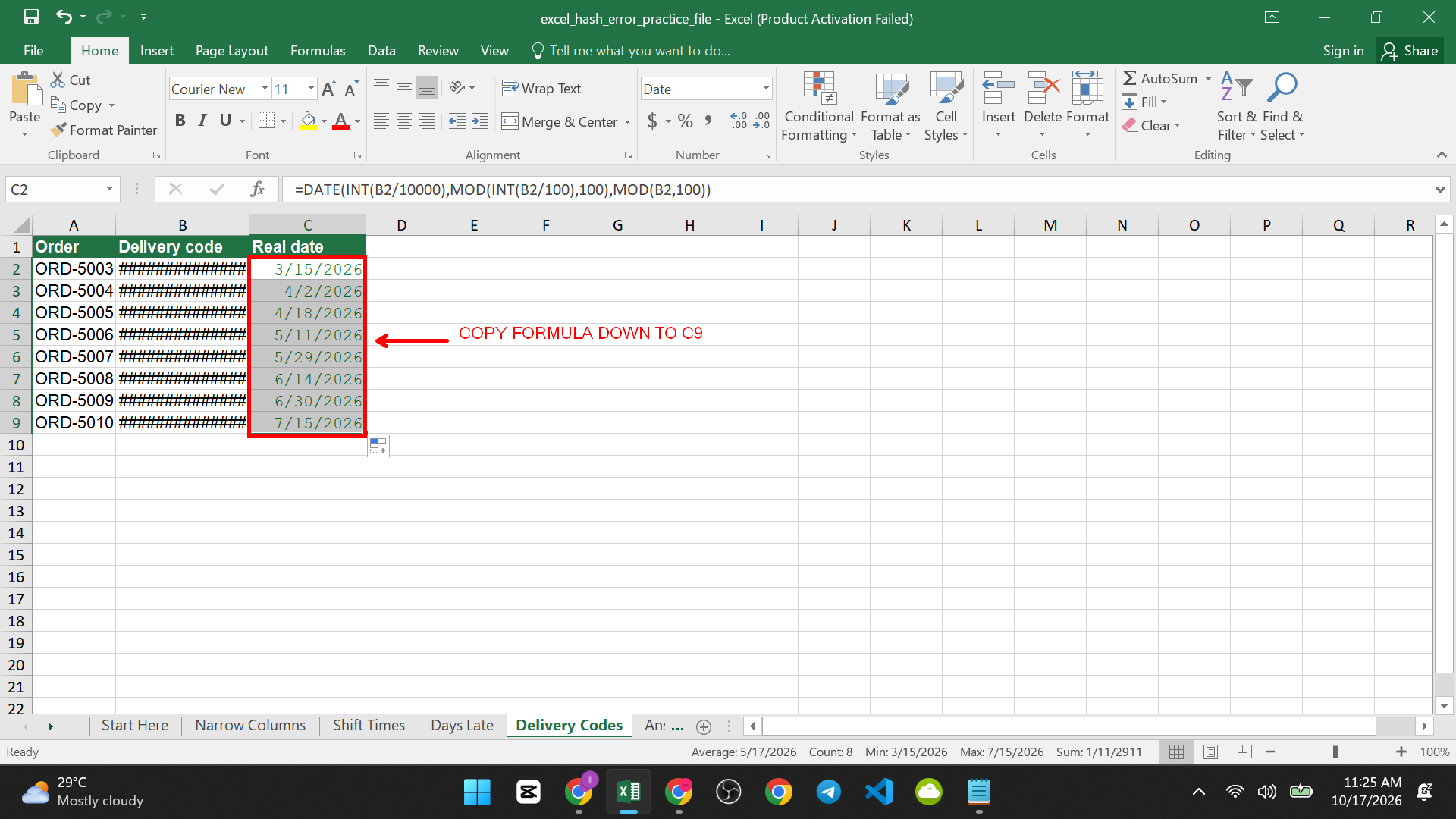
The formula splits 20260315 into year (2026), month (3) and day (15), then builds a real date. C2 shows 15-Mar-2026.
You can also use the Data tab to do that.
Select B2:B9, Data > Text to Columns, choose Delimited, click Next twice, select Date and pick YMD in step 3, then click Finish. This converts the numbers in place.


Both methods need the column to be wide enough to display the date, so AutoFit it afterward.
How to Confirm the Fix Worked
- The cells show a normal number, date or time, not hash signs.
- The values match the formula bar.
- Compare with the Answer Key sheet. For example, the total of all amounts in Narrow Columns is 9,696,732.30, Kofi’s fixed hours are 8:00, and the Days Late value for INV-4003 is -5.
If You Still See
- Check the zoom level. Very low zoom can make columns look too narrow. Reset it to 100% on the View tab.
- Look for a very large font. Select the cell and check the font size on the Home tab.
- Check merged cells. Merged cells can be narrower than they look. AutoFit may not work on them, so widen the columns manually.
- Check the number format. A custom format with many characters can need a wider column.
- Test with a new cell. Type a small number in a blank cell. If it shows normally, the issue is the format or width of the original cell.
To find your way around the Ribbon while troubleshooting, see the Excel interface explained guide.


Pingback: How to Fix the #VALUE! Error in Excel - SuperSimpleTips
Pingback: 15 Excel Functions Every Office Worker Should Know - SuperSimpleTips