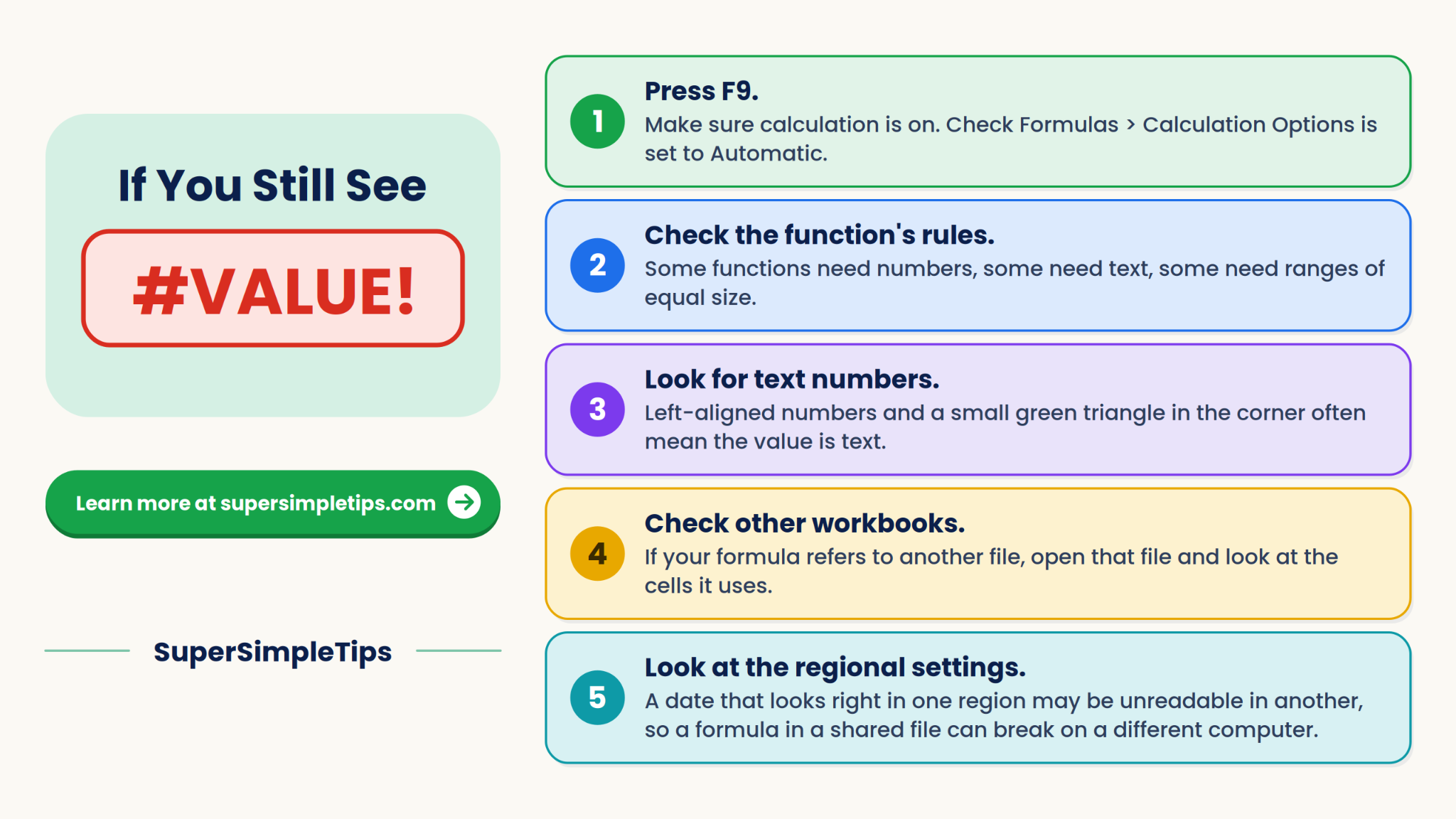


The #VALUE! error means a formula is using the wrong type of data. Most often, a formula expects a number and finds text instead, such as “TBD”, a dash or a space that looks like an empty cell.
Quick fix: Click the cell with the error, press F2 to see which cells the formula uses, and look for text or a hidden space in one of them. Fix that cell, or change the formula so it skips it.
This guide covers four common causes with fixes. You can follow along with a free practice file that has these errors built in.
Seeing hash signs instead? Read our guide on How to fix the #### error in Excel.
| Sheet | Cause of #VALUE! | Fix |
| Order Totals | Text or a space inside a multiplication | Test with ISNUMBER and rebuild the formula |
| Hidden Spaces | Non-breaking spaces that make numbers behave like text | Clean with SUBSTITUTE and VALUE |
| Date Math | Dates stored as text | Use real dates, or IF with ISNUMBER |
| Mismatched Ranges | Two ranges of different sizes | Make the ranges the same size |

How to Find the Cause of #VALUE!
Do these checks first. They work for every cause below.
- Look at the cells the formula uses. Click the error cell and press F2. Excel outlines each referenced cell in color. Check each of them for text.
- Use Evaluate Formula. Select the error cell, go to Formulas > Evaluate Formula, and click Evaluate repeatedly. Excel shows the formula step by step, so you can see exactly where it breaks.
- Test the cells. In a spare cell, type =ISNUMBER(Cell number). TRUE means a real number. FALSE means text.
- Check the error button. A yellow diamond with an exclamation mark may appear beside the cell. Clicking it offers help, including Show Calculation Steps.

If you are not sure where the Formulas tab is, see the Excel interface explained guide.
Cause 1: Text or a Space in a Calculation
Open the Order Totals sheet. Column D multiplies Qty by Unit Price with =B2*C2. Most rows work. Four rows show #VALUE!:

| Row | Item | Problem |
| 4 | Stapler | Qty is the text “TBD” |
| 6 | Marker Set | Unit Price is the text “N/A” |
| 8 | Mouse | Unit Price is a single space, so the cell looks empty |
| 11 | Monitor Stand | Qty is “5 units”, which is text, not a number |
Plus (+), minus, multiply and divide cannot work with text. The result is #VALUE!. The Grand total in D12 also shows #VALUE!, because SUM passes along errors from the cells it adds up.
Step 1: Find the real problem
- Click D8 (Mouse). The formula bar shows =B8*C8.

- Click C8. The cell looks empty, but the formula bar may show a space before the cursor.

- In a spare cell, type =LEN(C8). It returns 1, which means there is a one-character space in the cell. A truly empty cell would return 0.

Step 2: Fix the data when you can
Replace the text with real numbers. For example, type 5 into B11 and write the unit “units” in the column header instead. For the Mouse price, type 18.9 in C8. Where you do not yet have the data (the “TBD” Stapler quantity), you can leave the row incomplete, as shown next.
Step 3: Make the formula skip incomplete rows
- Click E2 in the yellow Total (fixed) column.

- Type this formula and press Enter:
=IF(AND(ISNUMBER(B2),ISNUMBER(C2)),B2*C2,””)

- Copy it down to E11.

The formula multiplies only when both cells are numbers. Otherwise it shows a blank. The Notebook row still returns 70, and the four problem rows are blank instead of showing an error.
Step 4: Fix the Grand total
In E12, type =SUM(E2:E11). Blank text from the IF formula is ignored, so the total is 553.75.

If you cannot change the formulas, use AGGREGATE to add everything except the errors:
=AGGREGATE(9,6,D2:D11)
The 9 means SUM, and the 6 means ignore error values. It returns 553.75 too. AGGREGATE is available in Excel 2010 and later.

What about IFERROR?
You can wrap the formula in IFERROR: =IFERROR(B2*C2,””). It hides the error, but it also hides real mistakes you should know about. Use it only after you understand why the error appears.
Cause 2: Hidden Spaces That Look Like Normal Text
Data copied from websites, PDFs or other programs often has non-breaking spaces. They look like ordinary spaces, but Excel does not treat them as spaces. A number followed by one is text to Excel, and TRIM does not remove it.
Open the Hidden Spaces sheet. The Price column holds values such as 4.25 for Pen Pack, 28 for Desk Lamp and 45 for Headphones, each with a hidden non-breaking space at the end. In Excel, the Total formula =B3*C3 shows #VALUE! for those three rows.

How to confirm it
- In a spare cell, type =ISNUMBER(C3).

- The result is FALSE, even though the cell looks like a number.

- Type =LEN(C3). It returns 5, though “4.25” has only four characters.
How to clean it with a formula
- Click E2 in the yellow Price (clean) column.

- Type this formula and press Enter:
=VALUE(SUBSTITUTE(C2,CHAR(160),””))

- Copy it down to E7.

CHAR(160) is the non-breaking space. SUBSTITUTE removes it, and VALUE turns the text into a real number. Pen Pack’s clean price is 4.25. Multiplying Qty by the clean prices for all six rows and adding them gives 694.45.
How to clean it with Find and Replace
- Select the Price column, C2:C7.

- Press Ctrl + H to open Find and Replace.
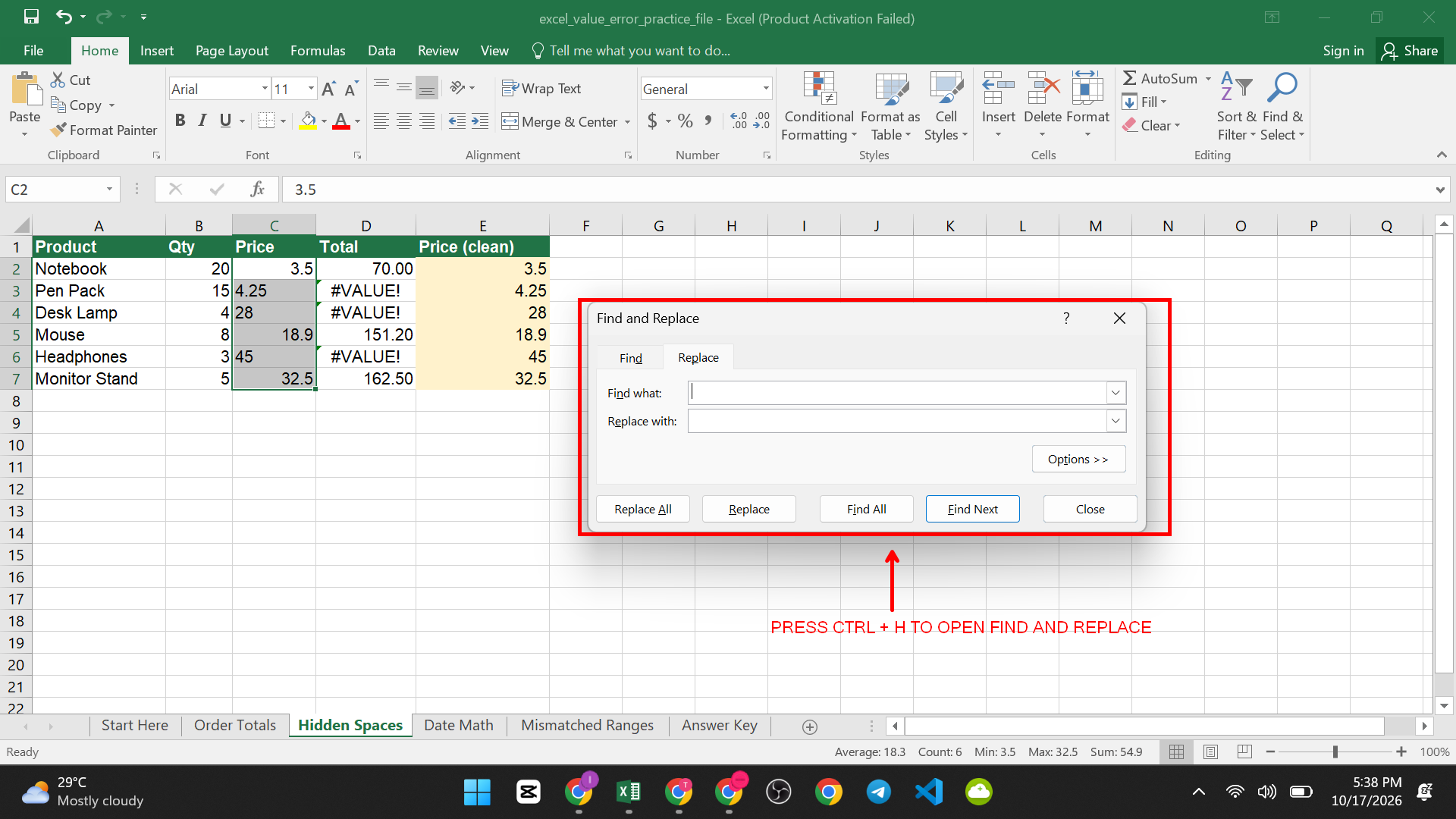
- Click in Find what, hold Alt, type 0160 on the numeric keypad, then release.
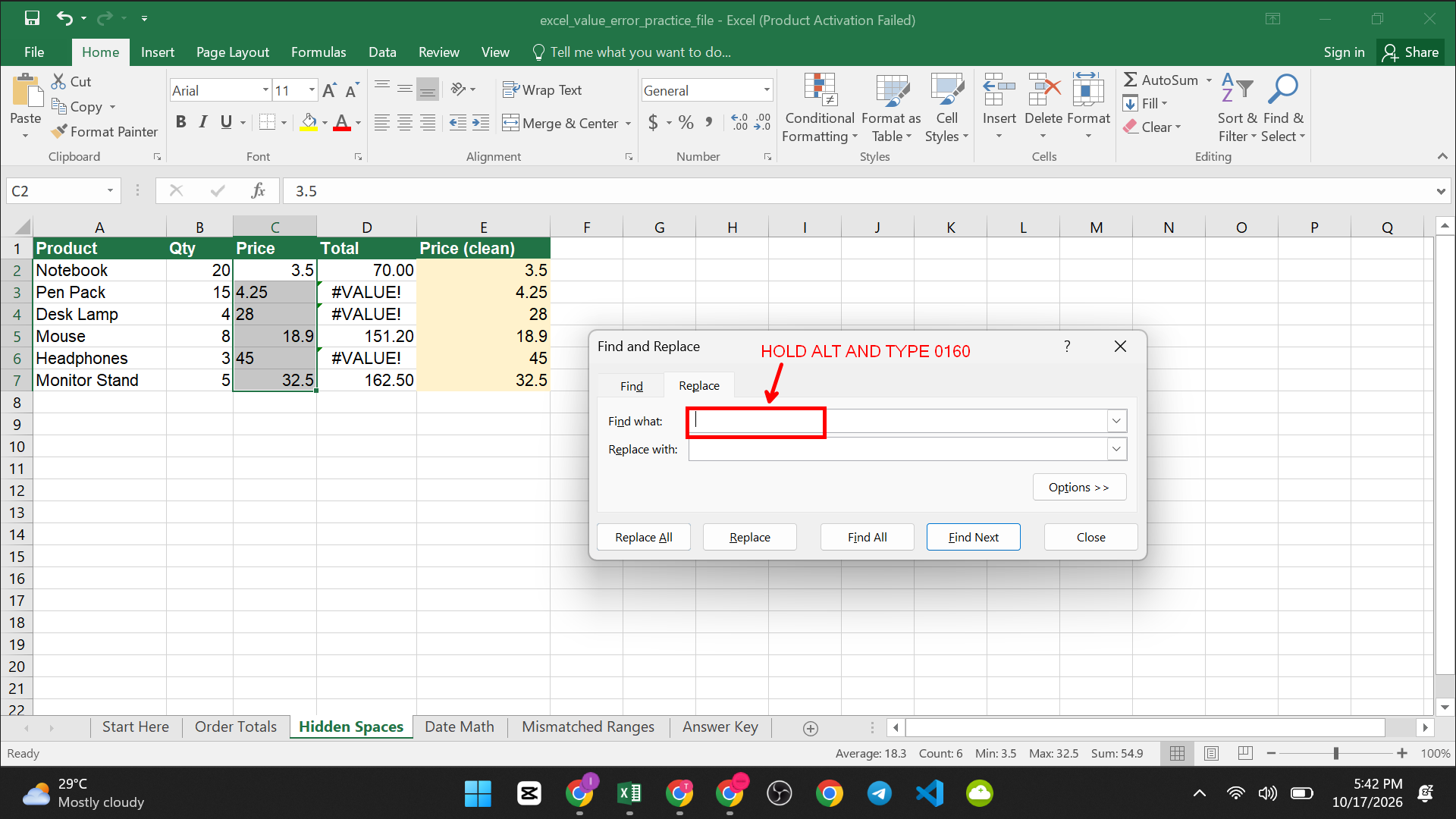
- Leave Replace with empty and click Replace All.

If the numbers still behave like text, select them and use Data > Text to Columns > Finish to convert them. For more on the Home tab’s Find and Replace, see the Excel Home tab explained guide.
Cause 3: Dates Stored as Text
Date math only works with real dates. When a date is text, subtracting it gives #VALUE!.
Open the Date Math sheet. Column D uses =C2-B2 (Due minus Start) to count days. Four rows work. Design page is 18 days. Two show #VALUE!:
- Write copy: the Start is typed as “5th March 2026”. Excel does not read ordinals like “5th” as dates, so it stays text.
- Launch: the Start is the text “TBC”.

How to tell a real date from text
Real dates align to the right by default and show a date format. Text dates align to the left. You can also check with =ISNUMBER(B3). It returns FALSE for the Write copy start.
How to fix it
- Replace the text with a real date. Click B3 and type 05-Mar-2026. Excel converts it to a date, and D3 returns 13.
- For dates you do not know yet, such as “TBC”, use a formula that checks first. In the yellow E2 cell, type:
=IF(ISNUMBER(B2),C2-B2,”Check start date”)
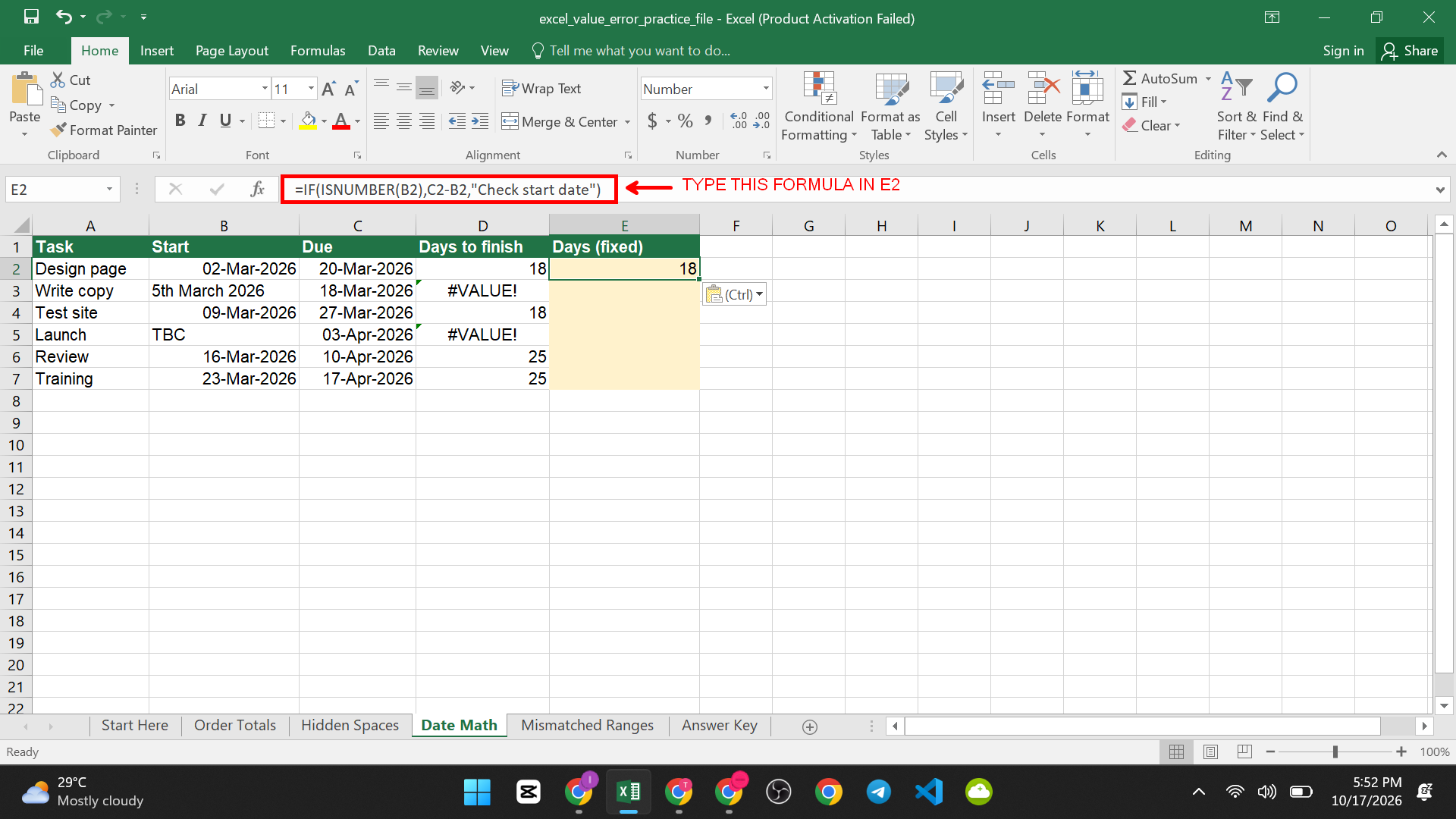
- Copy it down to E7.

Launch now shows “Check start date” instead of an error. To learn how to enter real dates quickly, read how to insert today’s date in Excel.
Cause 4: Ranges of Different Sizes
Some functions need ranges that are the same size. SUMPRODUCT is a good example, because it multiplies matching cells in each range and adds the results.
Open the Mismatched Ranges sheet. Cell E2 holds =SUMPRODUCT(B2:B9,C2:C8). The Units range has 8 cells (B2 to B9) but the Price range has only 7 (C2 to C8), because Item 8 has no price. SUMPRODUCT cannot match them up, so it returns #VALUE!.

How to fix it
- Decide what is correct. Either add the missing price for Item 8, or leave Item 8 out of the calculation.
- In the yellow cell E3, type =SUMPRODUCT(B2:B8,C2:C8) and press Enter.
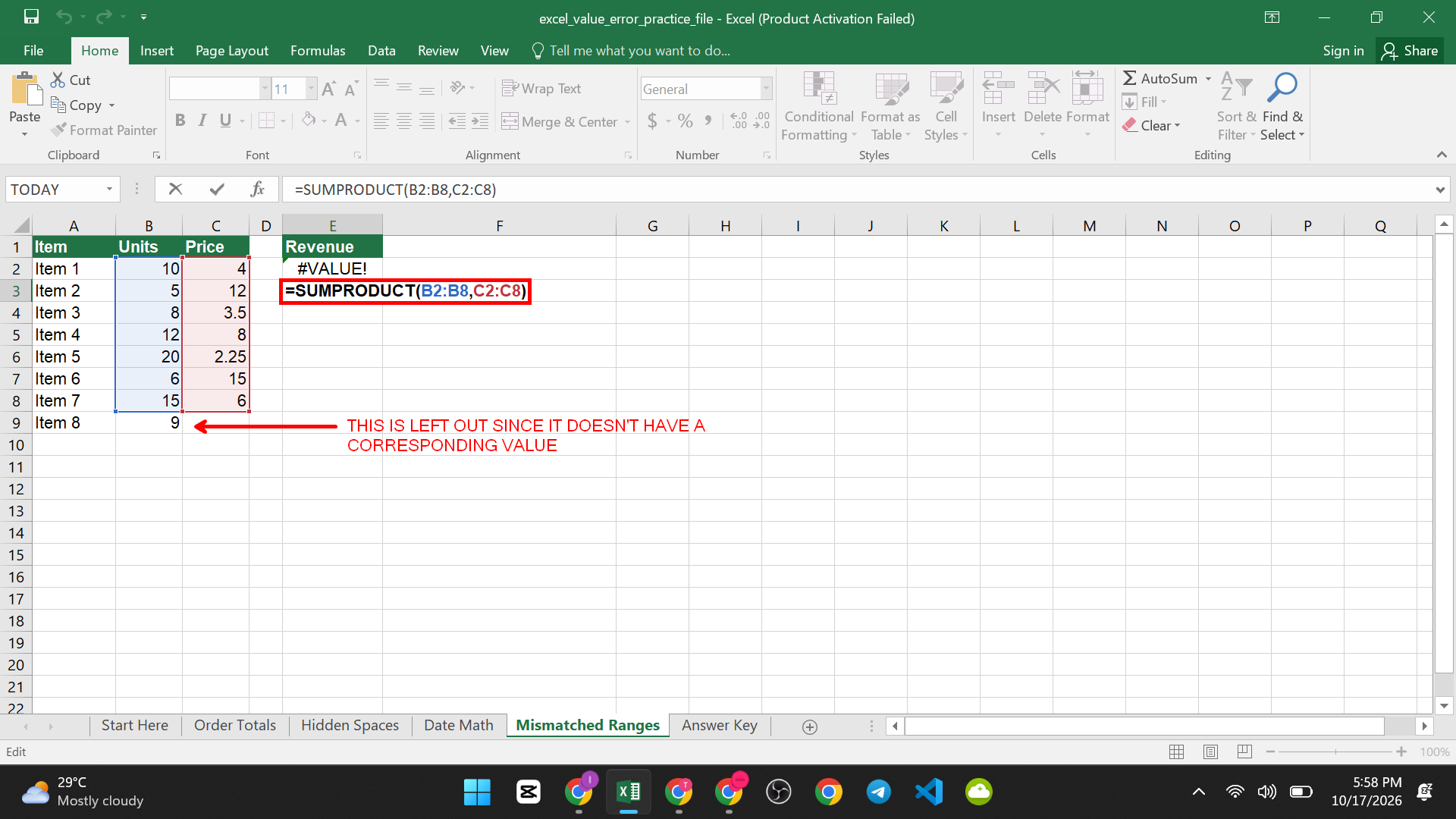
Both ranges now cover 7 cells, and the result is 449. If you add Item 8’s price in C9, use B2:B9 and C2:C9 instead. To see how cell references and ranges work, read workbooks vs worksheets vs cells.
How to Confirm the Fix Worked
- The cells show numbers, blanks you chose, or your own message, not #VALUE!.
- Compare your results with the Answer Key sheet. For example, the Order Totals grand total should be 553.75, the Hidden Spaces total 694.45, Design page 18 days and the corrected SUMPRODUCT 449.
If You Still See #VALUE!
- Press F9. Make sure calculation is on. Check Formulas > Calculation Options is set to Automatic.
- Check the function’s rules. Some functions need numbers, some need text, some need ranges of equal size.
- Look for text numbers. Left-aligned numbers and a small green triangle in the corner often mean the value is text.
- Check other workbooks. If your formula refers to another file, open that file and look at the cells it uses.
- Look at the regional settings. A date that looks right in one region may be unreadable in another, so a formula in a shared file can break on a different computer.