


Excel doesn’t show page numbers on your worksheet while you’re working in Normal view, they only appear once you switch to Page Layout view or print the sheet.
If you’re preparing a worksheet for printing and want numbered pages, here’s exactly how to add them.
WATCH QUICK TUTORIAL HERE:
Quick takeaway: Go to Insert > Header & Footer, click inside the footer (or header), then click Page Number on the Header & Footer ribbon tab.
Step-by-step: adding page numbers
- Open the worksheet you want to add page numbers to.

- Go to the Insert tab and click Header & Footer, in the Text group. Excel automatically switches the sheet to Page Layout view.

- Click inside the header or footer area at the top or bottom of the page (it will say “Click to add header” or “Click to add footer”). This opens a new Header & Footer tab on the ribbon.
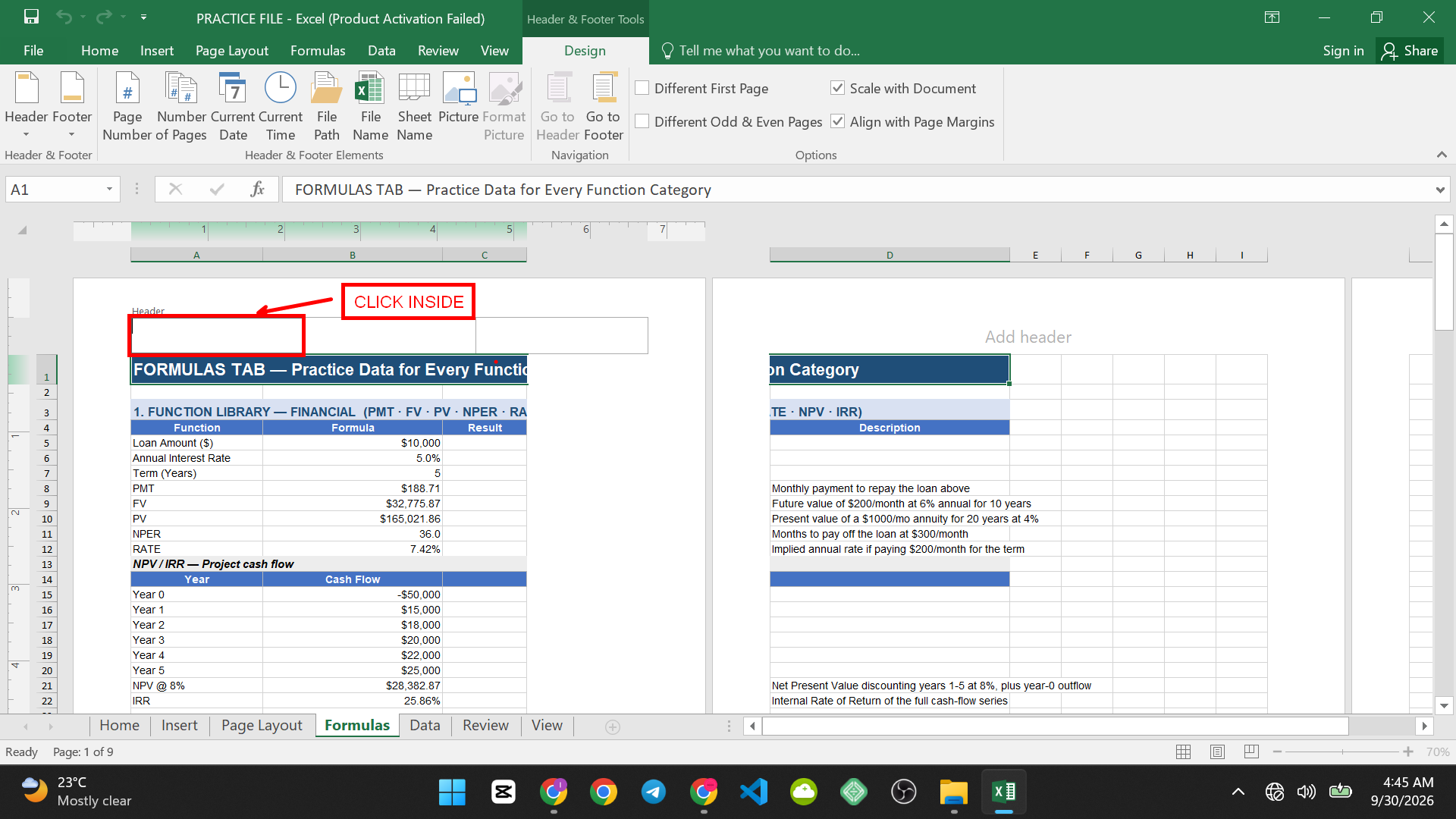
- In the Header & Footer Elements group, click Page Number. A placeholder code, &[Page], appears in the section you clicked.

- Click anywhere outside the header or footer box to see the actual page number replace the code.
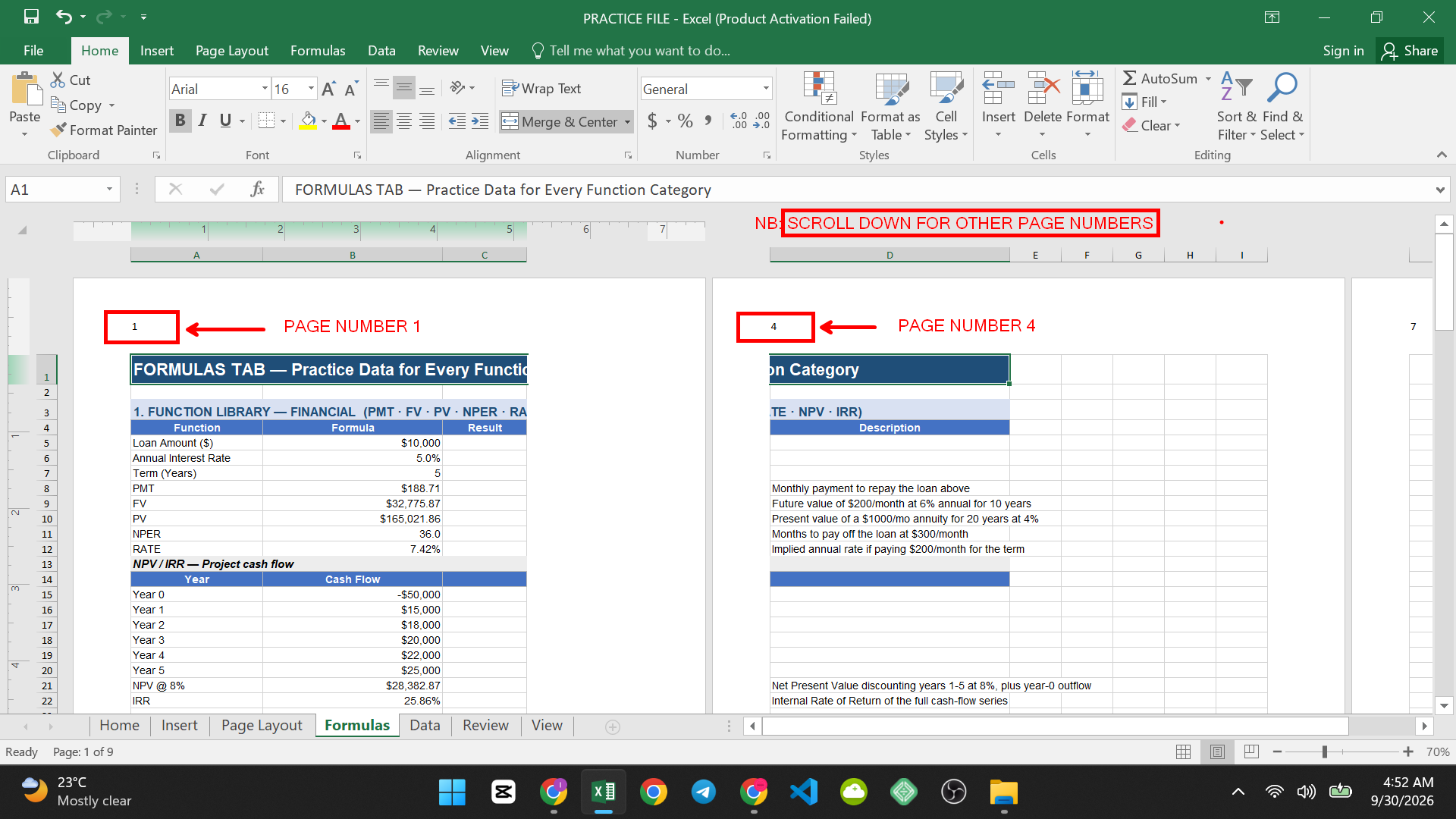
Showing “Page 1 of 5” instead of just the number
If you want the total page count alongside the current page, build the footer text manually:
- Click inside the footer section and type Page, followed by a space.

- Click the Page Number button. The footer now reads Page &[Page].
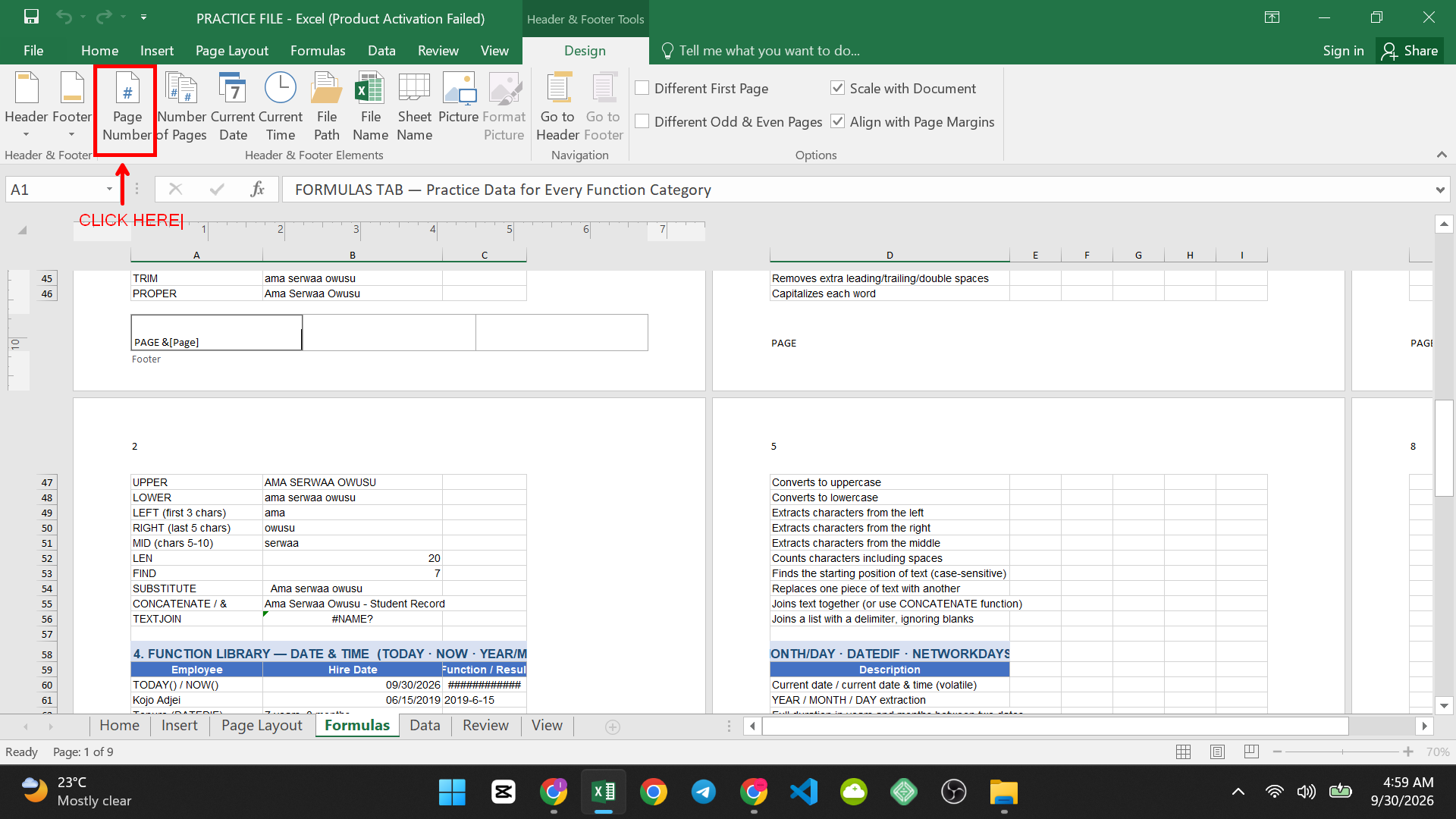
- Type a space, then of, then another space.

- Click the Number of Pages button, also in the Header & Footer Elements group. The footer now reads Page &[Page] of &[Pages].

- Click outside the box to see it displayed as, for example, “Page 1 of 5.”

Alternative Method: Page Setup dialog
If you’d rather not switch to Page Layout view, you can add page numbers directly through Page Setup:
- Go to the Page Layout tab, then click the small arrow in the bottom-right corner of the Page Setup group to open the full dialog box.

- Click the Header/Footer tab.

- Click Custom Header or Custom Footer.

- Click inside the Left, Center, or Right section, then click the Insert Page Number icon (it looks like a small #).

- Click OK twice to close both dialogs


This method is useful if you’re already in Normal view and don’t want the sheet to jump into Page Layout view.
Common Problems and Solutions
Problem: I don’t see the page number anywhere on my worksheet.
This is expected in Normal view. Page numbers only display in Page Layout view, Print Preview, or on the printed page itself. Switch views using the Page Layout icon on the status bar (bottom-right) to confirm it’s there.
Problem: The footer shows &[Page] instead of an actual number.
You’re still inside the header/footer edit box. Click anywhere else on the worksheet to exit editing mode and see the real number.
Problem: I want the pages to start at a number other than 1.
Open the Page Setup dialog (Page Layout tab > Page Setup group arrow), go to the Page tab, and enter your starting number in the First page number box.

Problem: Page numbers don’t continue sequentially across multiple worksheets.
Excel numbers each worksheet’s pages independently by default. To make numbering continue across sheets, set each subsequent sheet’s “First page number” manually to pick up where the previous sheet’s last page left off, since Excel doesn’t do this automatically.
Quick Tip
Use Print Preview (File > Print) to check how your page numbers actually look before printing, it shows the header/footer exactly as it will appear on paper, including how many total pages your data will span.

Frequently Asked Questions
Do page numbers work the same in Excel for Mac?
Yes. The Insert tab’s Header & Footer option and the Page Number button work identically on Windows and Mac.
Can I remove page numbers once added?
Yes. Click into the header or footer box, select the &[Page] code, and delete it, or open the Page Setup dialog’s Header/Footer tab and choose (none) from the dropdown.
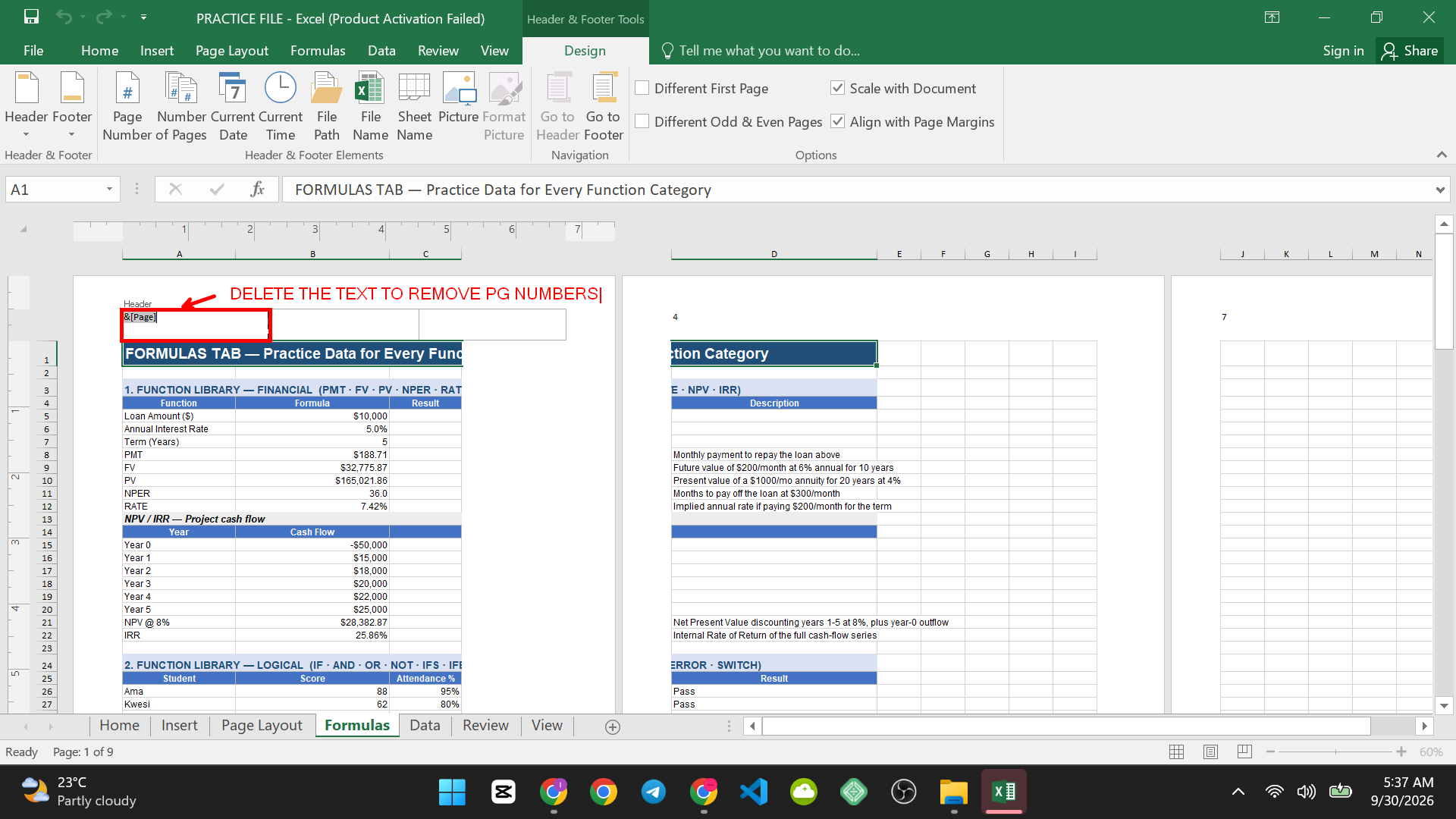
Can I put page numbers only on some pages, not all?
Not selectively by page, but you can set a different header/footer for the first page, or for odd and even pages, using the Different First Page and Different Odd & Even Pages checkboxes in the Options group of the Header & Footer tab.
Will page numbers appear if I export the sheet to PDF?
Yes, since PDF export uses the same print layout, any page numbers in your header or footer will carry over to the PDF.
Conclusion
Page numbers in Excel live in the header or footer, not on the worksheet itself, which is why they only show up in Page Layout view or on a printed page. Once you’ve added them, the TODAY() date-insertion method is a natural next step if you also want a printed date stamp alongside your page numbers.


Pingback: 15 Excel Functions Every Office Worker Should Know - SuperSimpleTips