

Every marketing report asks the same kinds of questions. “How many people clicked?” “What did each lead cost?” “Which channel earned the most?” “Which campaign should we stop?”
Excel can answer all of these. You only need a small set of formulas. This guide shows you 16 of them, in very simple words. You do not need to be good at math. Most of the time, you just divide one number by another.
Each formula has one task in a free practice file. You will do the tasks yourself, so you remember them.
All formulas work in Excel 2016 and newer. If you are new to formulas, read 15 Excel functions every beginner should learn first. If you want to know where Excel fits in your work, see what Excel is used for.
How the practice file is organized
The file has four sheets:
- Start Here: how to use the file.
- Campaigns: the data. There are 20 marketing campaigns, with the channel, month, spend, impressions, clicks, leads, sales and revenue.
- Practice: 16 tasks. Each task has a yellow cell where you type your formula.
- Answer Key: the right formula for each task, and the live answer.

How to point a formula at another sheet
The data is on the Campaigns sheet, but you type your answers on the Practice sheet. So each formula needs to tell Excel where to look. You do this by writing the sheet name, then an exclamation mark, then the cell.
For example, Campaigns!F2 means “cell F2 on the Campaigns sheet”.
You do not need to type the sheet name by hand. Do this instead:
- Type = in the yellow cell.
- Click the Campaigns tab at the bottom.
- Click the cell you want, such as F2. Excel writes Campaigns!F2 for you.
- Type the next sign, go back to the Campaigns sheet if you need another cell, and finish the formula.
- Press Enter.
To understand how sheets and cells work together, see workbooks vs worksheets vs cells.
What the columns mean
| Column | Meaning |
| Spend | Money spent on the campaign |
| Impressions | How many times people saw the ad |
| Clicks | How many times people clicked the ad |
| Leads | People who gave their contact details |
| Sales | People who bought |
| Revenue | Money the campaign brought in |
Money in the file is shown as plain numbers, with no currency sign.
Quick Setup: How to Type a Formula
- Open the Practice sheet and click the yellow cell next to the task.
- Type an equals sign (=). This tells Excel you are writing a formula.
- Type the formula, or click the cells with your mouse.
- Press Enter.
To fix a formula, click the cell and press F2. For a rate, such as 2%, click the cell and press Ctrl + Shift + % to show it as a percent. Our 10 Excel keyboard shortcuts post has more tips. For more number formatting, see the Excel Home tab guide.
The Six Marketing Rate Formulas
These six formulas are used in almost every marketing report. They look different but work the same way: you divide one number by another. The tasks use row 2 of the Campaigns sheet, Spring Sale Launch.
| Task | Name | In plain words | Formula |
| 1 | CTR | Clicks divided by impressions | =Campaigns!F2/Campaigns!E2 |
| 2 | Conversion rate | Leads divided by clicks | =Campaigns!G2/Campaigns!F2 |
| 3 | CPC | Spend divided by clicks | =Campaigns!D2/Campaigns!F2 |
| 4 | Cost per lead | Spend divided by leads | =Campaigns!D2/Campaigns!G2 |
| 5 | ROAS | Revenue divided by spend | =Campaigns!I2/Campaigns!D2 |
| 6 | ROI | (Revenue minus spend) divided by spend | =(Campaigns!I2-Campaigns!D2)/Campaigns!D2 |
Now let us look at each one.
CTR (Click-Through Rate)
What it tells you: Out of everyone who saw your ad, how many clicked?
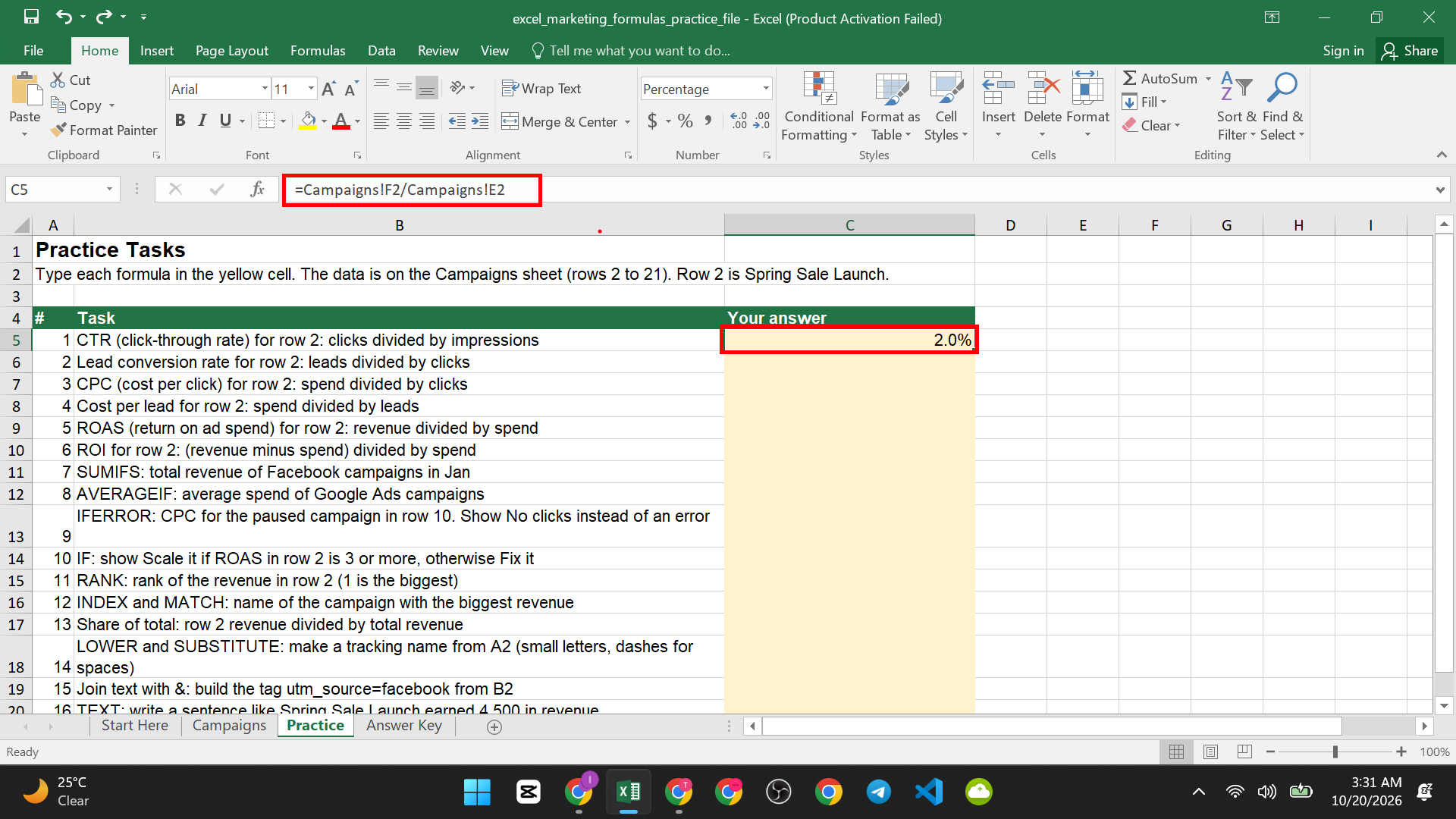
Task 1: Click the yellow cell for task 1 and type:
=Campaigns!F2/Campaigns!E2
The answer is 0.02. Press Ctrl + Shift + % and it shows 2.0%. The ad was seen 80,000 times and clicked 1,600 times.
Easy way to remember: Clicks over views.
Conversion Rate
What it tells you: Out of the people who clicked, how many became leads?
Task 2:
=Campaigns!G2/Campaigns!F2
The answer is 7.5%. Out of 1,600 clicks, 120 people became leads.
Note: Different teams define “conversion” in different ways. Some use sales divided by clicks. In this guide, we use leads divided by clicks. Pick one meaning and use it every time, so your reports can be compared.

CPC (Cost Per Click)
What it tells you: How much did you pay for each click?
Task 3:
=Campaigns!D2/Campaigns!F2
The answer is 0.75. Each click cost 0.75.

Cost Per Lead
What it tells you: How much did you pay for each lead?
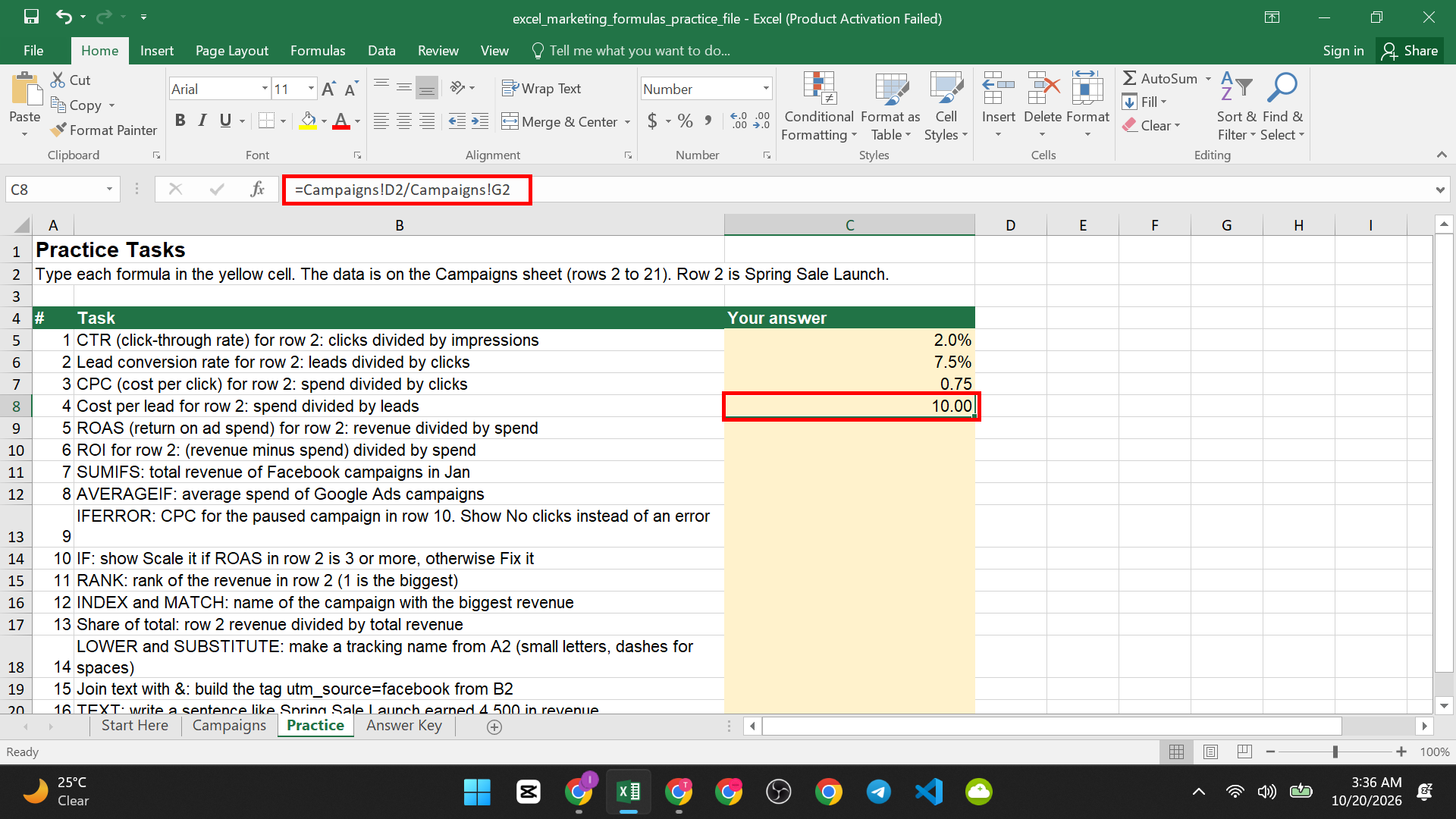
Task 4:
=Campaigns!D2/Campaigns!G2
The answer is 10. Each lead cost 10.
ROAS (Return on Ad Spend)
What it tells you: For each 1 you spent on ads, how much revenue did you get back?
Task 5:
=Campaigns!I2/Campaigns!D2
The answer is 3.75. For each 1 spent, the campaign brought back 3.75 in revenue.

ROI (Return on Investment)
What it tells you: How much did you gain compared to what you spent? It is shown as a percent.
Task 6:
=(Campaigns!I2-Campaigns!D2)/Campaigns!D2
The answer is 2.75, which shows as 275% when you press Ctrl + Shift + %.

Why the brackets? Excel does the part in brackets first. So it takes revenue minus spend (4,500 minus 1,200 is 3,300), then divides by the spend (1,200). Without brackets, Excel would divide first and give a wrong answer.
ROAS or ROI? ROAS compares revenue to spend. ROI compares the gain to spend. In this file, we use revenue for both, to keep it simple. In real life, many teams use profit (revenue minus all costs) for ROI. Ask your team which one they use.
Add Up and Average by Channel
SUMIFS: Add Numbers That Match Your Rules
What it tells you: The total of a column, but only for rows that match your rules.
The pattern:
SUMIFS( numbers to add, where to check rule 1, rule 1, where to check rule 2, rule 2 )
Task 7: Find the total revenue of Facebook campaigns in January.
=SUMIFS(Campaigns!I2:I21,Campaigns!B2:B21,”Facebook”,Campaigns!C2:C21,”Jan”)
The answer is 6,020.
What each part means:
- Campaigns!I2:I21 is the Revenue column (the numbers to add).
- Campaigns!B2:B21 is the Channel column. The rule is “Facebook”.
- Campaigns!C2:C21 is the Month column. The rule is “Jan”.

Words go in double quotes. Excel adds only the rows where both rules are true. This is the best formula for “how much did channel X make in month Y?” reports. You can learn the one-rule version in our beginner functions guide.
Common mistake: All the ranges must be the same size (here, rows 2 to 21).
AVERAGEIF: Find the Average for One Group
What it tells you: The average of a column, only for rows that match one rule.
The pattern:
AVERAGEIF( where to check, rule, numbers to average )
Task 8: Find the average spend of Google Ads campaigns.
=AVERAGEIF(Campaigns!B2:B21,”Google Ads”,Campaigns!D2:D21)
The answer is 3,600. Three Google Ads campaigns are in the data, and their spend averages 3,600.

Handle Errors and Make Decisions
IFERROR: Hide an Error and Show Your Own Message
What it tells you: If a formula has an error, show a clear message instead.
The pattern:
IFERROR( the formula, what to show if there is an error )
Look at row 10 of the Campaigns sheet. The campaign Winter Promo Paused has 0 clicks and 0 spend. If you divide 0 by 0 for CPC, Excel shows the error #DIV/0!. That means “you cannot divide by zero”.
Task 9: Show “No clicks” instead of the error.
=IFERROR(Campaigns!D10/Campaigns!F10,”No clicks”)
The answer is No clicks.

Be careful: IFERROR hides every kind of error, even real mistakes. Use it only when you know why the error happens, like a paused campaign.
IF: Make Excel Decide
What it tells you: It shows one answer if a rule is true and another if it is false.
The pattern:
IF( rule, answer if true, answer if false )
Task 10: Show “Scale it” if ROAS in row 2 is 3 or more. Otherwise show “Fix it”.
=IF(Campaigns!I2/Campaigns!D2>=3,”Scale it”,”Fix it”)
The answer is Scale it. The ROAS is 3.75, which is 3 or more.
The sign >= means “is more than or equal to”. The number 3 is only an example. Use the goal your team has set.
Copy it down to label every campaign in seconds.

Find Your Best Campaign
RANK: Find the Place of One Number
What it tells you: Where a number sits in a list, with 1 being the biggest.
The pattern:
RANK( the number, the list of numbers )
Task 11: Find the rank of Spring Sale Launch’s revenue.
=RANK(Campaigns!I2,Campaigns!I2:I21)
The answer is 12. It is the 12th best of 20 campaigns by revenue.

To copy this formula down, lock the list with dollar signs by pressing F4 inside it:
=RANK(Campaigns!I2,Campaigns!I2:I21)
INDEX and MATCH With MAX: Get the Name of the Winner
What it tells you: The name of the campaign with the biggest number.
You need three small tools working together:
- MAX finds the biggest revenue.
- MATCH finds the position of that revenue in the list.
- INDEX takes the campaign name from that same position.
The pattern:
INDEX( the names, MATCH( the biggest number, the list of numbers, 0 ) )
Task 12: Find the name of the campaign with the biggest revenue.
=INDEX(Campaigns!A2:A21,MATCH(MAX(Campaigns!I2:I21),Campaigns!I2:I21,0))
The answer is Brand Awareness Push. Its revenue is 17,990, the biggest in the list.
Tip: Type the 0 at the end of MATCH. It means “find an exact match”.

Share of Total
What it tells you: What part of the whole does one item make up?
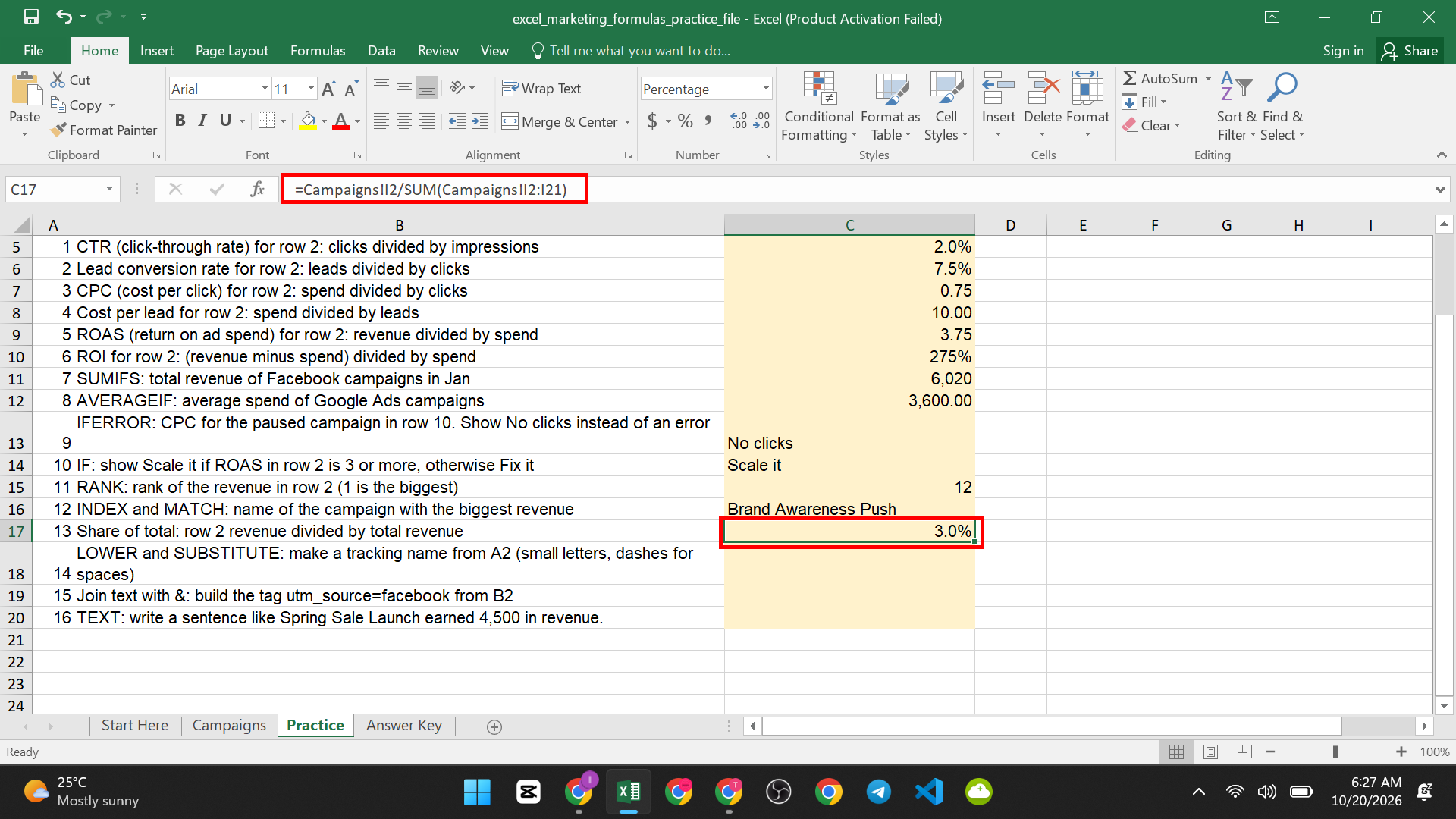
Task 13: Find what share of total revenue Spring Sale Launch earned.
=Campaigns!I2/SUM(Campaigns!I2:I21)
The answer is 0.0305, or about 3.0% as a percent. SUM adds all the revenue (147,740). Then you divide row 2’s revenue (4,500) by it.
If you want to copy this formula down, you must lock the total range with dollar signs. Click inside the range and press F4. The formula then looks like this:
=Campaigns!I2/SUM(Campaigns!I2:I21)
Keep the dollar signs exactly as shown. Without them, the range moves as you copy the formula, and the answers are wrong.
Build Tracking Links and Report Sentences
What are UTM tags?
UTM tags are short labels you add to the end of a web link. They tell your analytics tool where a visitor came from. Two common ones are utm_source (for example “facebook”) and utm_campaign (the name of the campaign). Good names are in small letters, with dashes instead of spaces. Excel can make these names for you, so they are always the same.
LOWER and SUBSTITUTE: Make a Clean Tracking Name
- LOWER changes all letters to small letters.
- SUBSTITUTE swaps one piece of text for another.
Task 14: Turn the campaign name in A2 into small letters, with dashes instead of spaces.
=LOWER(SUBSTITUTE(Campaigns!A2,” “,”-“))
The answer is spring-sale-launch. SUBSTITUTE swaps each space (” “) for a dash (“-“). Then LOWER makes the letters small.

Join Text With &
The & sign joins text together.
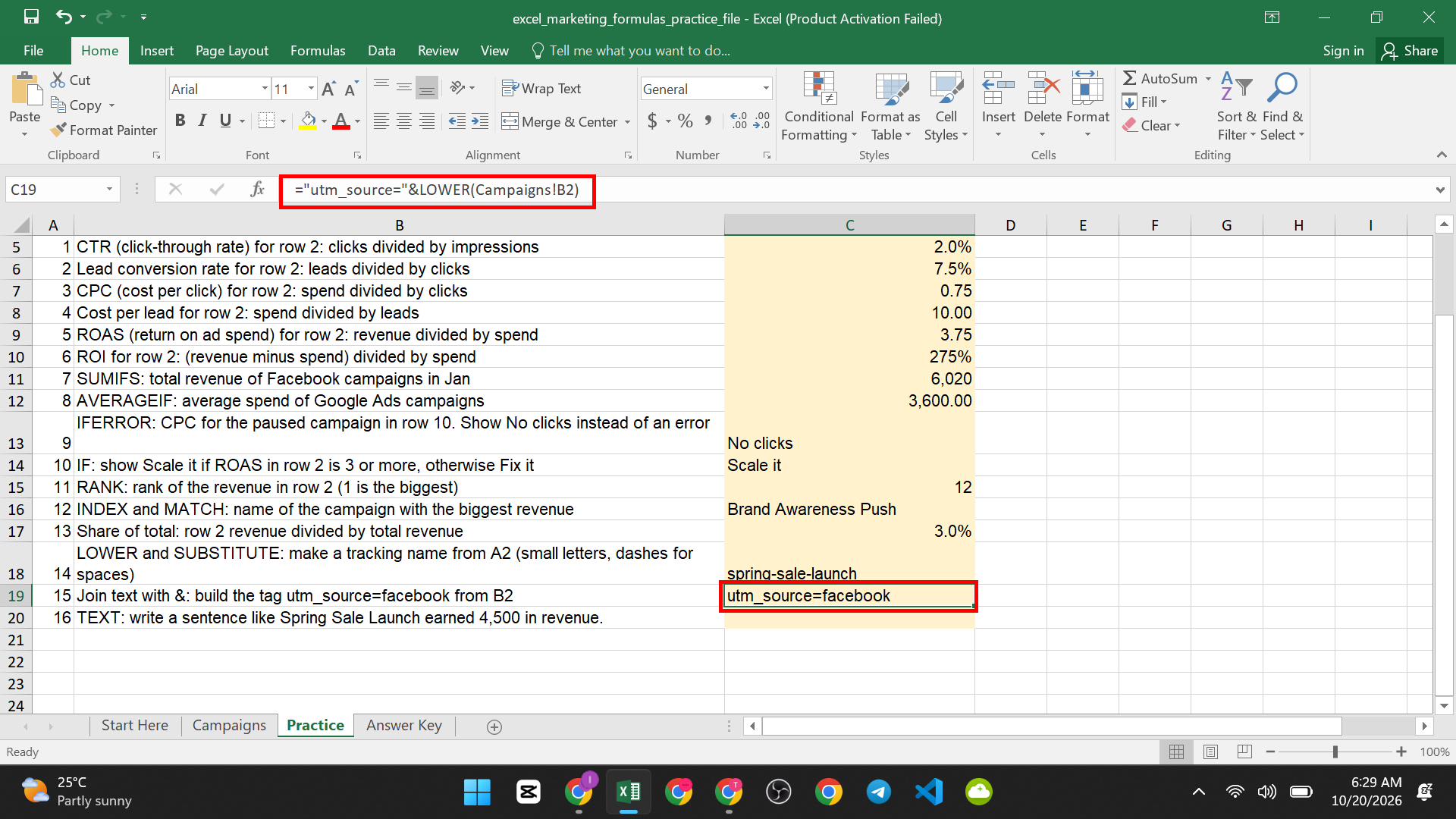
Task 15: Build the tag for the channel in B2.
=”utm_source=”&LOWER(Campaigns!B2)
The answer is utm_source=facebook. The part in quotes stays the same. The part from the cell changes with each row.
Tip: Once you can join text, you can build a whole tracking link. Join the web address, ?utm_source=, the source, &utm_campaign=, and the campaign name.
TEXT: Write a Sentence With a Neat Number
What it tells you: It lets you put a number in a sentence and control how it looks.
The pattern:
TEXT( the number, “how it should look” )
Task 16: Write a sentence for the report.
=Campaigns!A2&” earned “&TEXT(Campaigns!I2,”#,##0″)&” in revenue.”
The answer is Spring Sale Launch earned 4,500 in revenue.

The look “#,##0” means “show a comma for thousands, and no decimals”. Copy the formula down and you have a sentence for every campaign.
Good to know: The result of TEXT is text, so you cannot use it in more math. Use it only for sentences and labels.
Common Mistakes in Marketing Reports
| Mistake | What goes wrong | How to fix it |
| Dividing by zero | Excel shows #DIV/0! | Use IFERROR, but only when you know why |
| Forgetting the percent format | A rate shows as 0.02 | Press Ctrl + Shift + % |
| Comparing different time periods | The numbers cannot be compared | Use the same months for every channel |
| Mixing up ROAS and ROI | Teams argue about results | Agree on one meaning |
| Typing words without quotes | Excel shows #NAME? | Put words in double quotes |
| Ranges of different sizes | SUMIFS gives an error | Make every range cover the same rows |
| A rate shows #### | The column is too narrow | See how to fix the #### error in Excel |
When your report is ready, protect the formulas from accidental changes. Read how to lock specific cells in Excel without locking the whole sheet. Before printing, add page numbers with how to insert page numbers in Excel.