


An Excel function is a ready-made tool that does a job for you. Instead of adding 30 numbers one by one, you use one function and Excel does it in a second.
Excel has hundreds of functions. You only need a few to get started. This guide covers 15 Microsoft Excel functions that beginners use all the time. Each one has a simple example. If you are new to the program, you may also like our guide on what Excel is used for.
All 15 functions work in Excel 2016 and newer on Windows and Mac.
Open it and follow along. It holds the sales of a small shop. Here is what is inside:
- Sales: 30 orders with a date, customer, region, product, quantity, price, total, paid status and notes.
- Price List: 10 products and their prices.
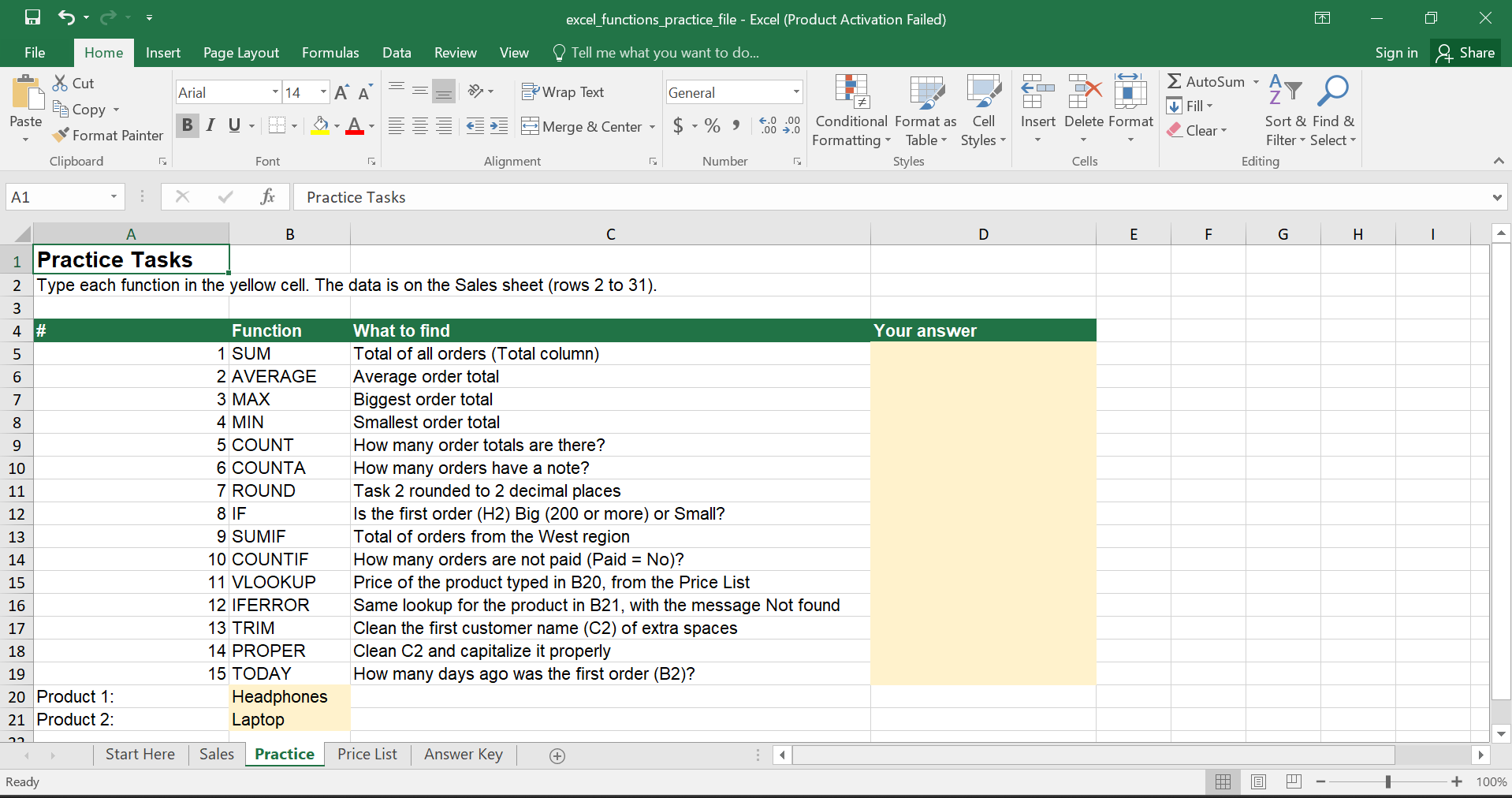
- Practice: 15 tasks, one for each function. Type your answer in the yellow cells.
- Answer Key: the right formulas and answers, so you can check your work.
All the examples in this post use this file.
How an Excel Function Works
Every function follows the same pattern:
=FUNCTIONNAME(argument1, argument2, …)
- The equals sign (=) tells Excel you are typing a formula.
- The function name says what to do, like SUM or AVERAGE.
- The arguments are the information the function needs. They go inside brackets and are separated by commas.
- A range is a group of cells, like H2:H31. The colon means “from H2 to H31”. To understand cells and sheets better, read workbooks vs worksheets vs cells.
In some countries, Excel uses a semicolon (;) instead of a comma between arguments. If a formula does not work, try a semicolon.
Two easy ways to type a function
- Type it. Click a cell, type =SUM(, select the cells with your mouse, type ) and press Enter.
- Use the Ribbon. Go to the Formulas tab and open Function Library to pick a function from a list. Not sure where things are? Read our Excel interface guide.
When you type a function name, Excel shows a list of matching functions. Press Tab to pick the one you want.
The best order to learn them
| Group | Functions |
| Add and measure | SUM, AVERAGE, MAX, MIN, ROUND |
| Count | COUNT, COUNTA, COUNTIF |
| Make decisions | IF, IFERROR, SUMIF |
| Look things up | VLOOKUP |
| Clean text and dates | TRIM, PROPER, TODAY |
Functions That Add and Measure
These five work on numbers. In the practice file, they use the Total column on the Sales sheet (H2:H31).
SUM: Add Numbers Together
SUM adds up all the numbers in a range. It is the most used function in Excel.
Syntax: =SUM(range)
- Open the Practice sheet and click the yellow cell next to task 1.

- Type =SUM(Sales!H2:H31) and press Enter.
The answer is 2,775.75. That is the total of all 30 orders. The word “Sales!” tells Excel to look at the Sales sheet.

Shortcut: Click the cell under a column of numbers and press Alt + =. Excel writes the SUM for you. See our list of 10 Excel keyboard shortcuts for more. You can also use the AutoSum button on the Home tab. Our Home tab guide shows where it is.
AVERAGE: Find the Middle Value
AVERAGE adds the numbers and divides by how many there are.
Syntax: =AVERAGE(range)
Type =AVERAGE(Sales!H2:H31) for task 2. The answer is 92.525. A typical order in this shop is about 92.53.
AVERAGE skips empty cells and text. Be careful, though. A cell with 0 counts, and an empty cell does not.
MAX and MIN: Find the Biggest and Smallest
MAX gives the largest number. MIN gives the smallest.
Syntax: =MAX(range) and =MIN(range)
- Task 3: =MAX(Sales!H2:H31) gives 378, the biggest order.

- Task 4: =MIN(Sales!H2:H31) gives 8.5, the smallest order.

Use these to spot your best and worst numbers fast.
ROUND: Cut Down Long Decimals
ROUND shortens a number to the number of decimal places you choose.
Syntax: =ROUND(number, digits)
- number: the number or formula to round.
- digits: how many decimal places to keep.
For task 7, type =ROUND(AVERAGE(Sales!H2:H31),2). The average 92.525 becomes 92.53.

Here is a trick. Using 0 for digits rounds to a whole number. A negative number, like -1, rounds to the nearest ten.
Important: Changing the number format only changes how a number looks. ROUND changes the real value. Use ROUND when you want the actual number to change.
If a rounded number looks like ####, the column is too narrow. See how to fix the #### error in Excel.
Functions That Count
COUNT: Count Numbers
COUNT counts the cells that hold numbers. It ignores text and empty cells.
Syntax: =COUNT(range)
Task 5: =COUNT(Sales!H2:H31) gives 30. There are 30 orders.

COUNTA: Count Cells That Are Not Empty
COUNTA counts every cell that has something in it, whether it is a number or text.
Syntax: =COUNTA(range)
Task 6: =COUNTA(Sales!J2:J31) counts the Notes column. The answer is 8. Only 8 orders have a note. The other 22 cells are empty.

Here is the difference in one table:
| Function | What it counts | Example from the file |
| COUNT | Cells with numbers | 30 order totals |
| COUNTA | Cells with anything in them | 8 notes |
COUNTIF: Count Only What Matches
COUNTIF counts the cells that match a rule.
Syntax: =COUNTIF(range, criteria)
- range: where to look.
- criteria: what to match.
Task 10: =COUNTIF(Sales!I2:I31,”No”) counts the orders that are not paid. The answer is 9.
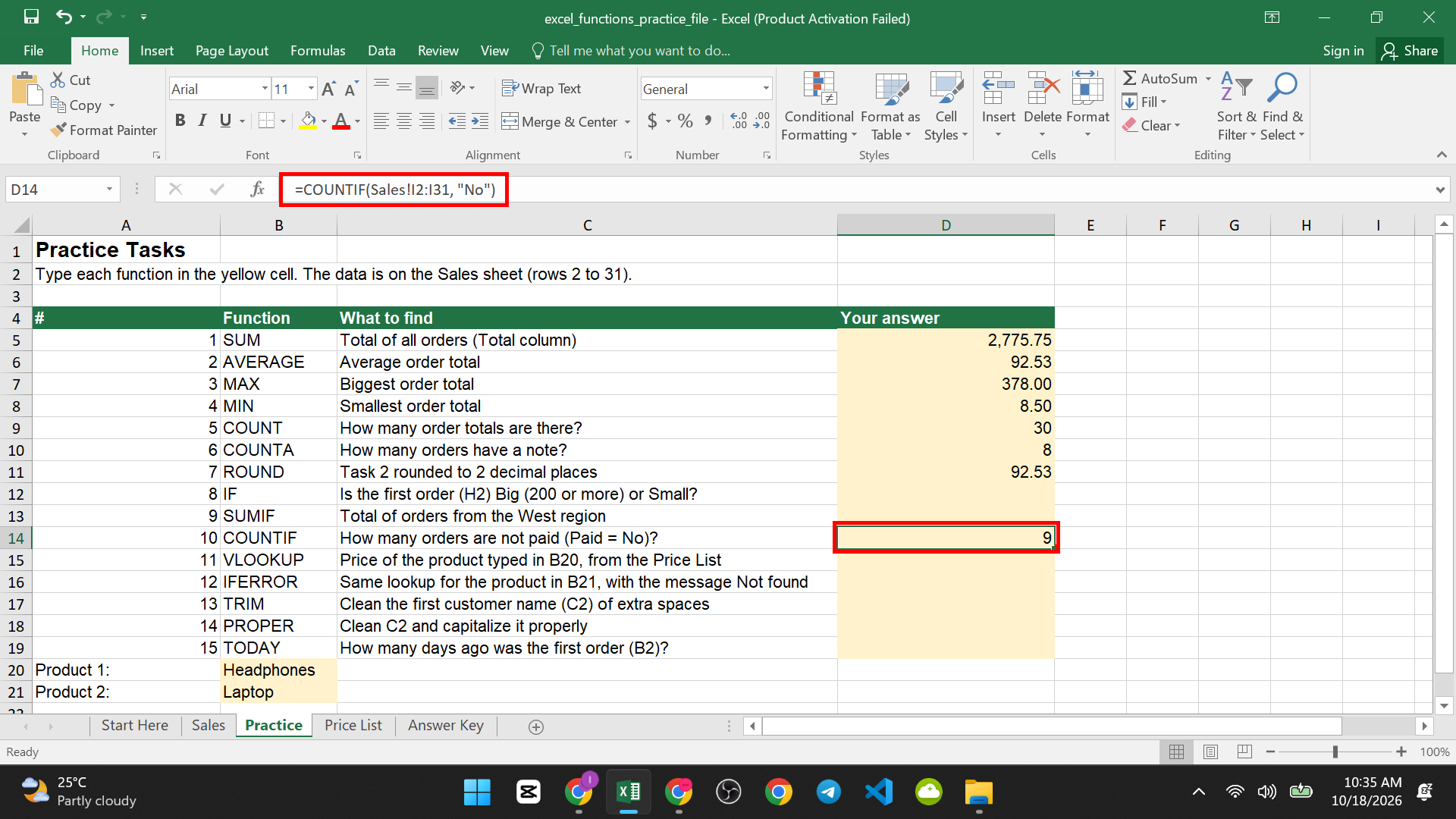
Put text in double quotes. For numbers with a rule, you can write something like “>100”.
Functions That Make Decisions
IF: Give Different Answers for Different Cases
IF checks something. If it is true, it gives one answer. If it is false, it gives another.
Syntax: =IF(test, value_if_true, value_if_false)
Task 8: =IF(Sales!H2>=200,”Big”,”Small”)
The first order has a total of 17.5. That is not 200 or more, so the answer is Small.
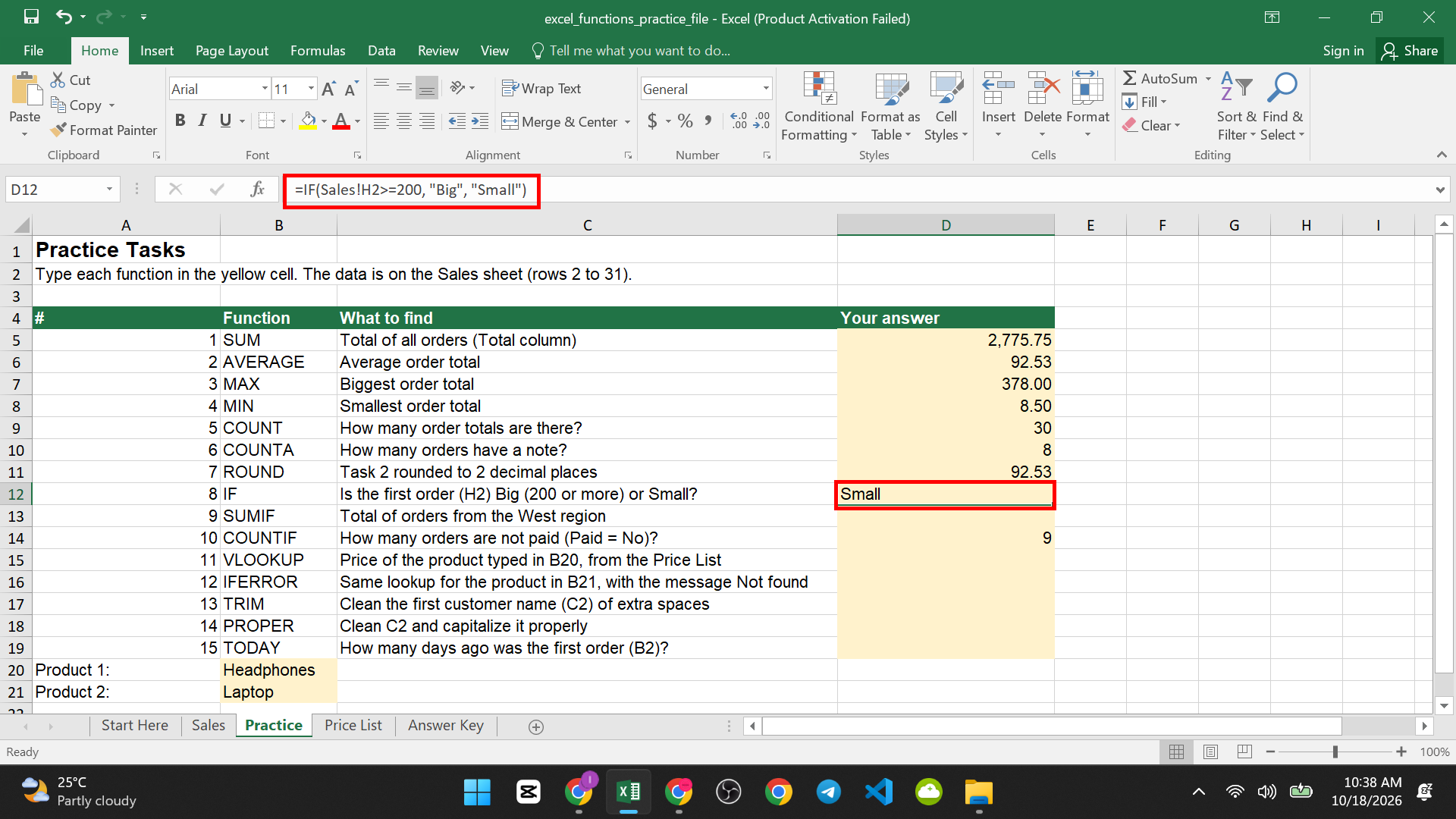
Change the test to >=10, and it becomes Big.
Copy the formula down and IF checks every row. These signs help: > (more than), < (less than), >= (more than or equal to), = (equal to).
SUMIF: Add Only What Matches
SUMIF adds numbers when a rule is met.
Syntax: =SUMIF(range, criteria, sum_range)
- range: the cells to check.
- criteria: the rule.
- sum_range: the cells to add.
Task 9: =SUMIF(Sales!D2:D31,”West”,Sales!H2:H31) checks the Region column (D) for “West” and adds the matching Totals (H). The answer is 973.45.
IFERROR: Hide an Error and Show Your Own Message
Some formulas return an error when they cannot find an answer. IFERROR lets you show a friendly message instead.
Syntax: =IFERROR(formula, value_if_error)
You will see it in the VLOOKUP part below. Use it with care. It hides every kind of error, even real mistakes. If you want to learn what errors mean, read how to fix the #VALUE! error in Excel.
VLOOKUP: Look Up Information in a Table
VLOOKUP finds a value in the first column of a table and gives you something from the same row. Think of finding a name in a phone book and reading the number next to it.
Syntax: =VLOOKUP(lookup_value, table_array, col_index_num, range_lookup)
- lookup_value: what you are looking for.
- table_array: the table to search.
- col_index_num: which column to take the answer from (1 is the first column).
- range_lookup: type FALSE to find an exact match.
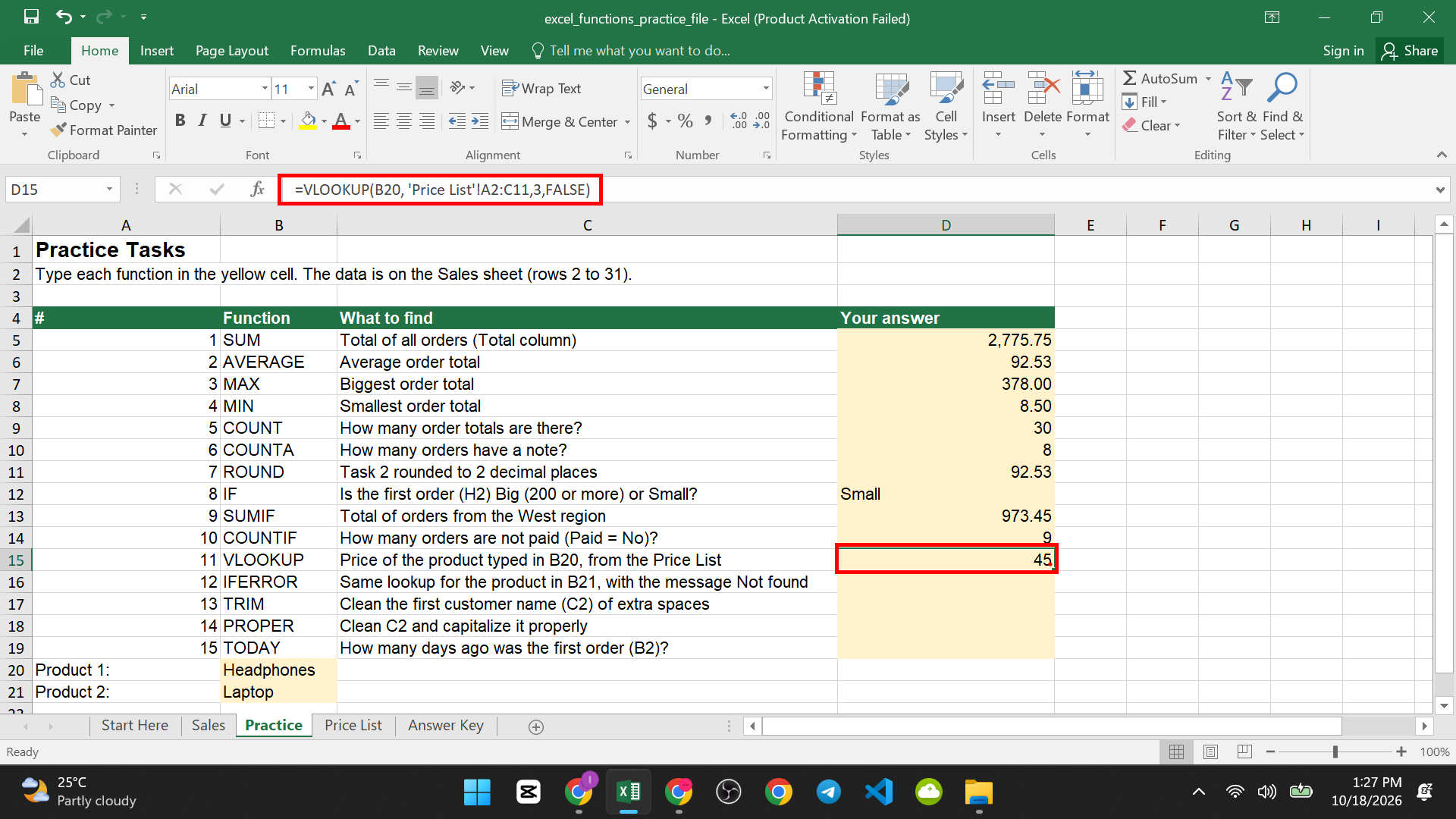
On the Practice sheet, cell B20 says Headphones. Task 11 asks for its price from the Price List:
=VLOOKUP(B20,’Price List’!A2:C11,3,FALSE)
The answer is 45. Excel found Headphones in column A and took the value from the 3rd column, Unit Price.
Handle a missing item with IFERROR
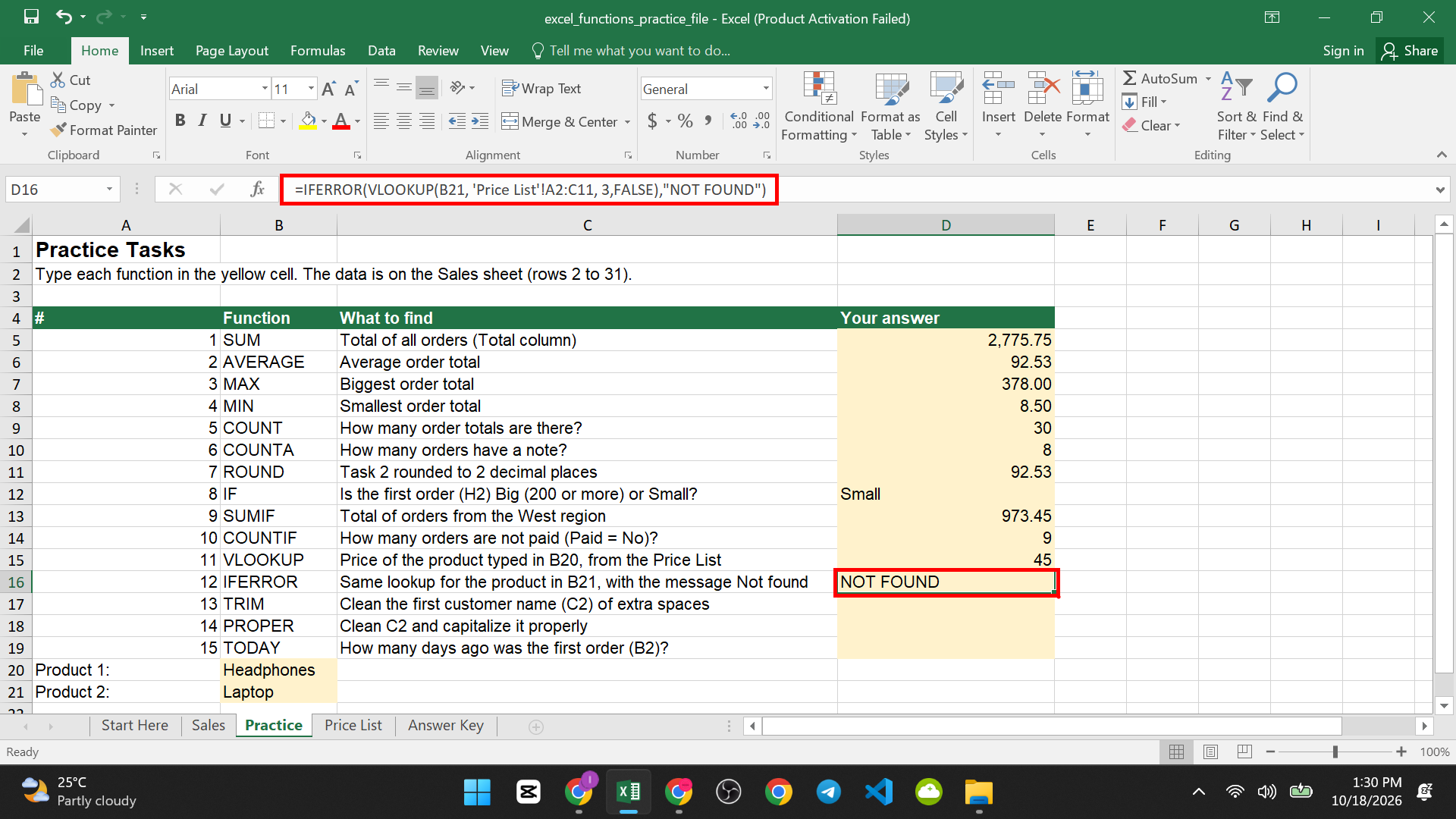
Cell B21 says Laptop. There is no Laptop on the Price List, so VLOOKUP would return #N/A. For task 12, wrap it in IFERROR:
=IFERROR(VLOOKUP(B21,’Price List’!A2:C11,3,FALSE),”Not found”)
The answer is Not found.
VLOOKUP only looks to the right. It also returns #N/A when it cannot find an exact match.
If you have Excel 2021 or Microsoft 365, you can also use XLOOKUP, which is easier. VLOOKUP works in every version, so it is the safe one to learn first.
Functions That Clean Text and Dates
TRIM: Remove Extra Spaces
TRIM deletes extra spaces at the start and end of text. It also removes extra spaces between words, leaving one.
Syntax: =TRIM(text)
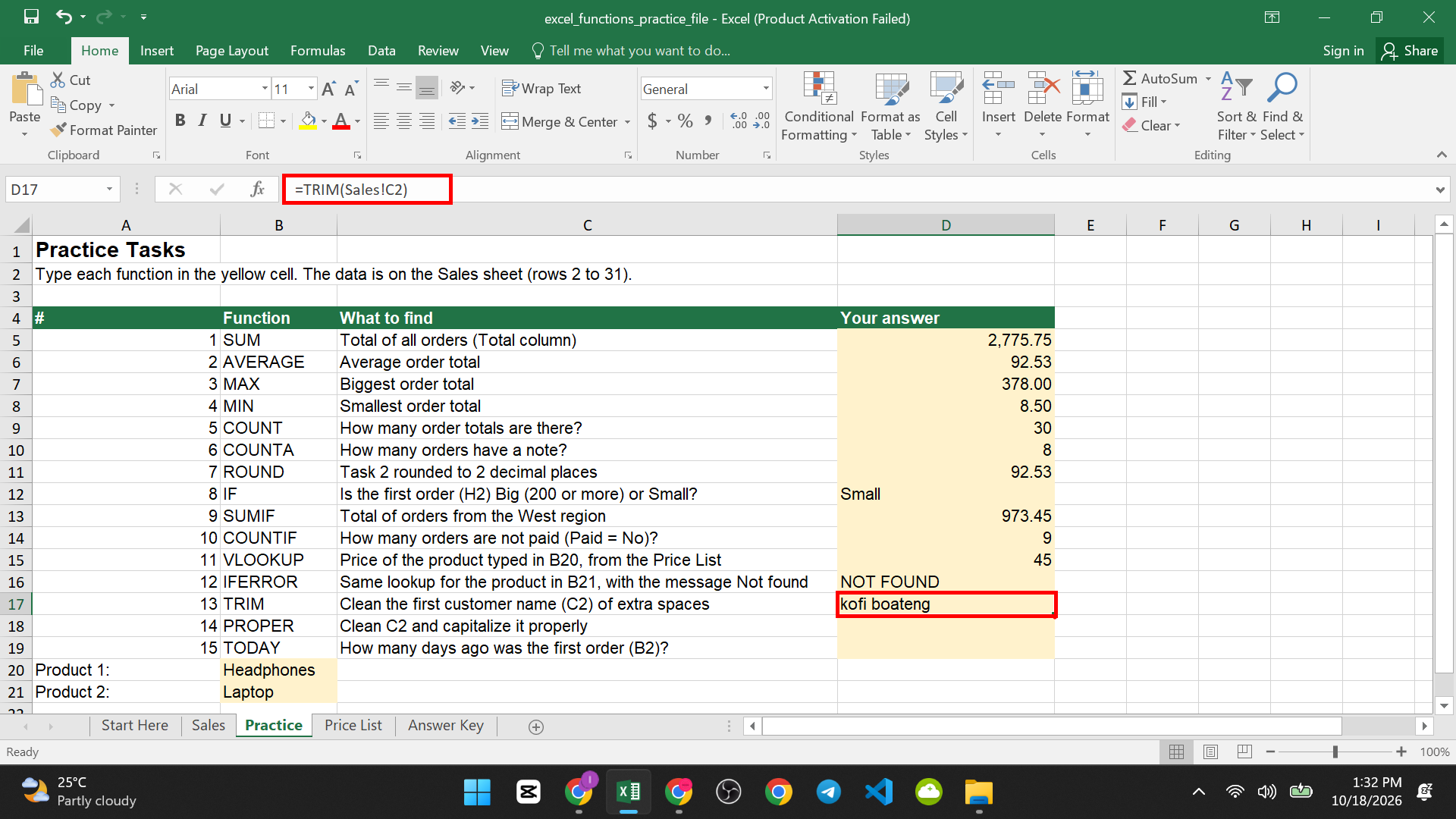
Task 13: =TRIM(Sales!C2). Cell C2 holds ” kofi boateng” with spaces before it. TRIM gives kofi boateng.
PROPER: Fix Capital Letters
PROPER makes the first letter of each word a capital and the rest small.
Syntax: =PROPER(text)
You can use two functions together. Task 14: =PROPER(TRIM(Sales!C2)). TRIM runs first. Then PROPER fixes the capitals. The answer is Kofi Boateng.

Other customers in the file are in capitals, like “AMA MENSAH”. PROPER fixes them too.
TODAY: Use Today’s Date
TODAY gives you the date of the day you open the file. It updates by itself every day.
Syntax: =TODAY()
TODAY has nothing inside its brackets. For task 15, type =TODAY()-Sales!B2. It counts the days since the first order on 7 January 2026. The answer grows by 1 each day, so yours will be different from mine. Format the cell as Number if it shows a date.

If you want a date that does not change, use Ctrl + ; instead. Our guide on how to insert today’s date in Excel explains the difference.
Common Mistakes When Using Functions
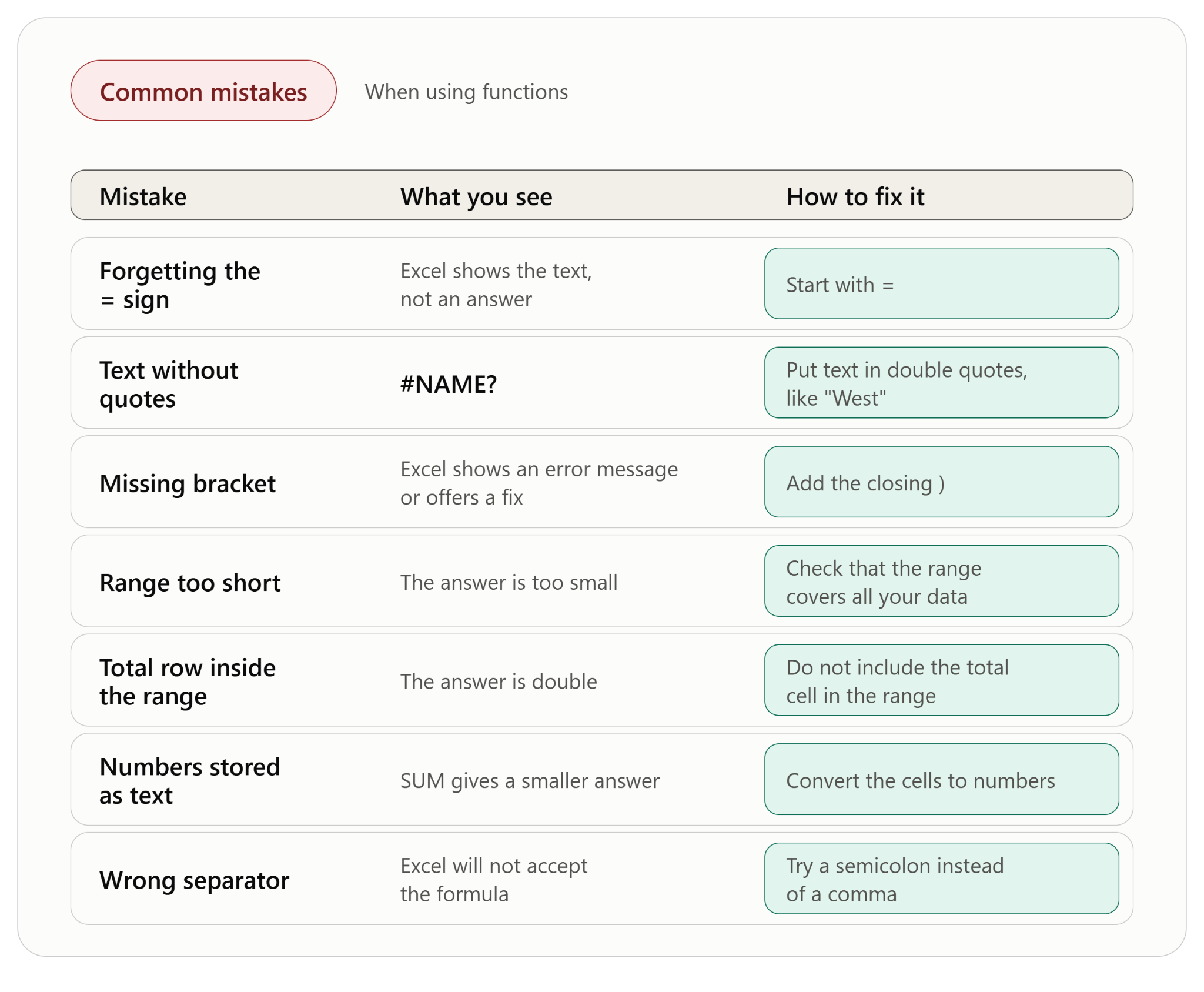
| Mistake | What you see | How to fix it |
| Forgetting the = sign | Excel shows the text, not an answer | Start with = |
| Text without quotes | #NAME? | Put text in double quotes, like “West” |
| Missing bracket | Excel shows an error message or offers a fix | Add the closing ) |
| Range too short | The answer is too small | Check that the range covers all your data |
| Total row inside the range | The answer is double | Do not include the total cell in the range |
| Numbers stored as text | SUM gives a smaller answer | Convert the cells to numbers |
| Wrong separator | Excel will not accept the formula | Try a semicolon instead of a comma |
If your formulas change when you copy them, or you do not want others to change them, read how to lock specific cells in Excel without locking the whole sheet.
When you can do all 15 without looking, you know more Excel than many people.


Pingback: 15 Excel Functions Every Office Worker Should Know - SuperSimpleTips
Pingback: The Most Useful Excel Formulas for Marketing Professionals - SuperSimpleTips
Pingback: How to Clean Messy Excel Data Before Analysis - SuperSimpleTips