
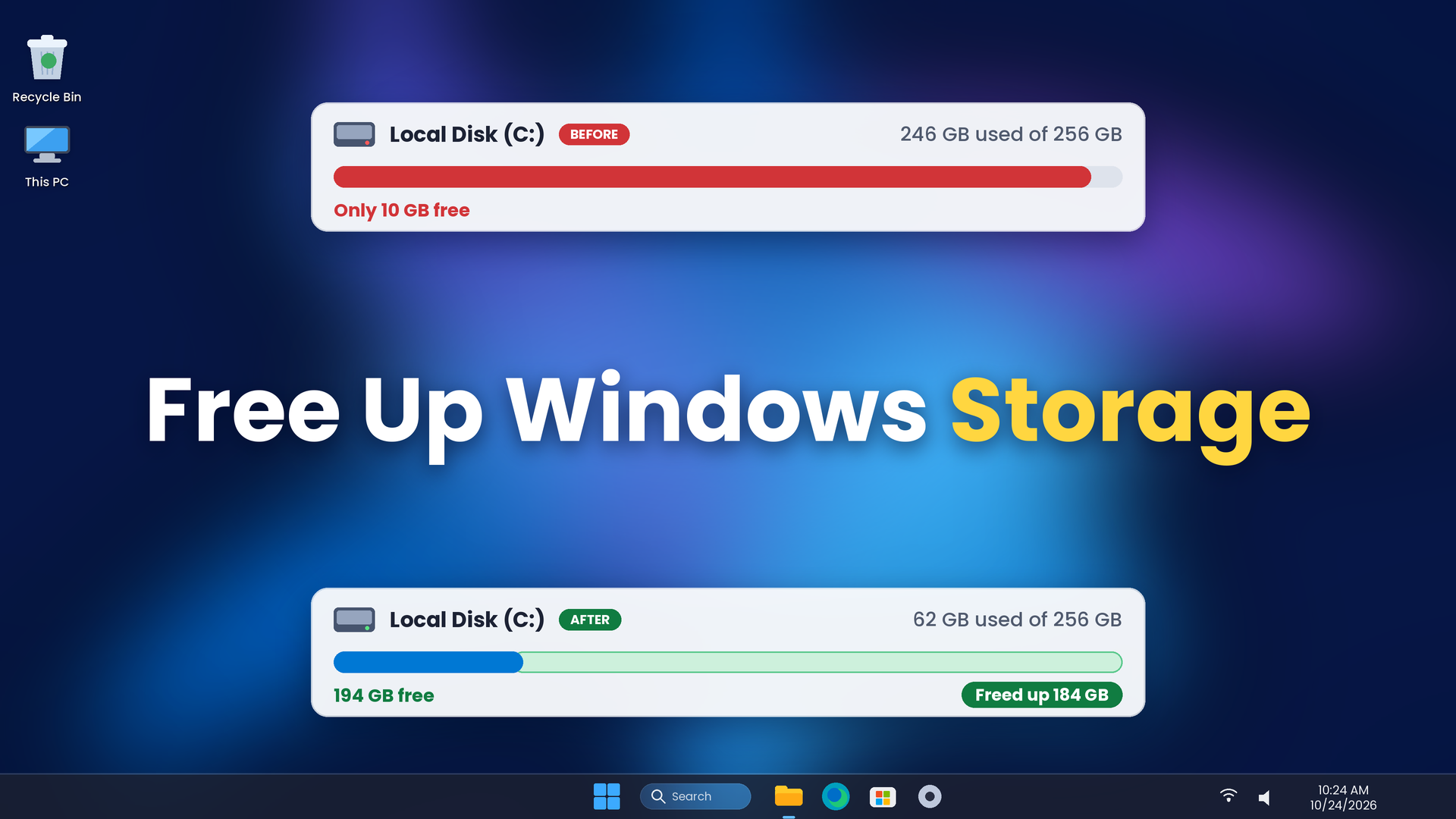

When your Windows storage is almost full, your PC gets slow, updates fail, and you cannot save new files. The good news is that you can often get lots of space back without deleting a single photo, document or video.
Most of the space is taken by things you do not need: temporary files, old update files, apps you never use, and copies of files that can live somewhere else. This guide shows 10 safe ways to clear that space on Windows 10 and Windows 11.
Before You Start: Three Safety Rules
- Back up what matters. Copy your important files to an external drive or cloud storage first. Then you can try any step without worry.
- Read before you click. Some cleanup boxes can delete real files, such as the Downloads folder.
- Never delete system folders by hand. Do not delete anything inside C:\Windows or C:\Program Files. Use the tools in this guide instead.
The 10 Ways at a Glance
| # | Way | Removes your personal files? | Good for |
| 1 | Check what is using space | No | Finding the problem |
| 2 | Turn on Storage Sense | No (if set up as shown) | Automatic cleanup |
| 3 | Remove temporary files | No (skip the Downloads box) | Quick space |
| 4 | Use Disk Cleanup | No | Old update files |
| 5 | Uninstall unused apps | No | Big programs and games |
| 6 | Use OneDrive Files On-Demand | No, files stay in the cloud | Photos and documents |
| 7 | Find and move the biggest files | No, you move them | Videos and big downloads |
| 8 | Save new files to another drive | No | Stopping the problem |
| 9 | Compress files and folders | No | Old projects |
| 10 | Clear recordings, installers and browser cache | Only what you choose | Extra space |

1. Check What Is Using Your Space
Start here. You cannot fix the problem until you know what causes it.
- Press Windows key + I to open Settings.Go to System and then Storage.
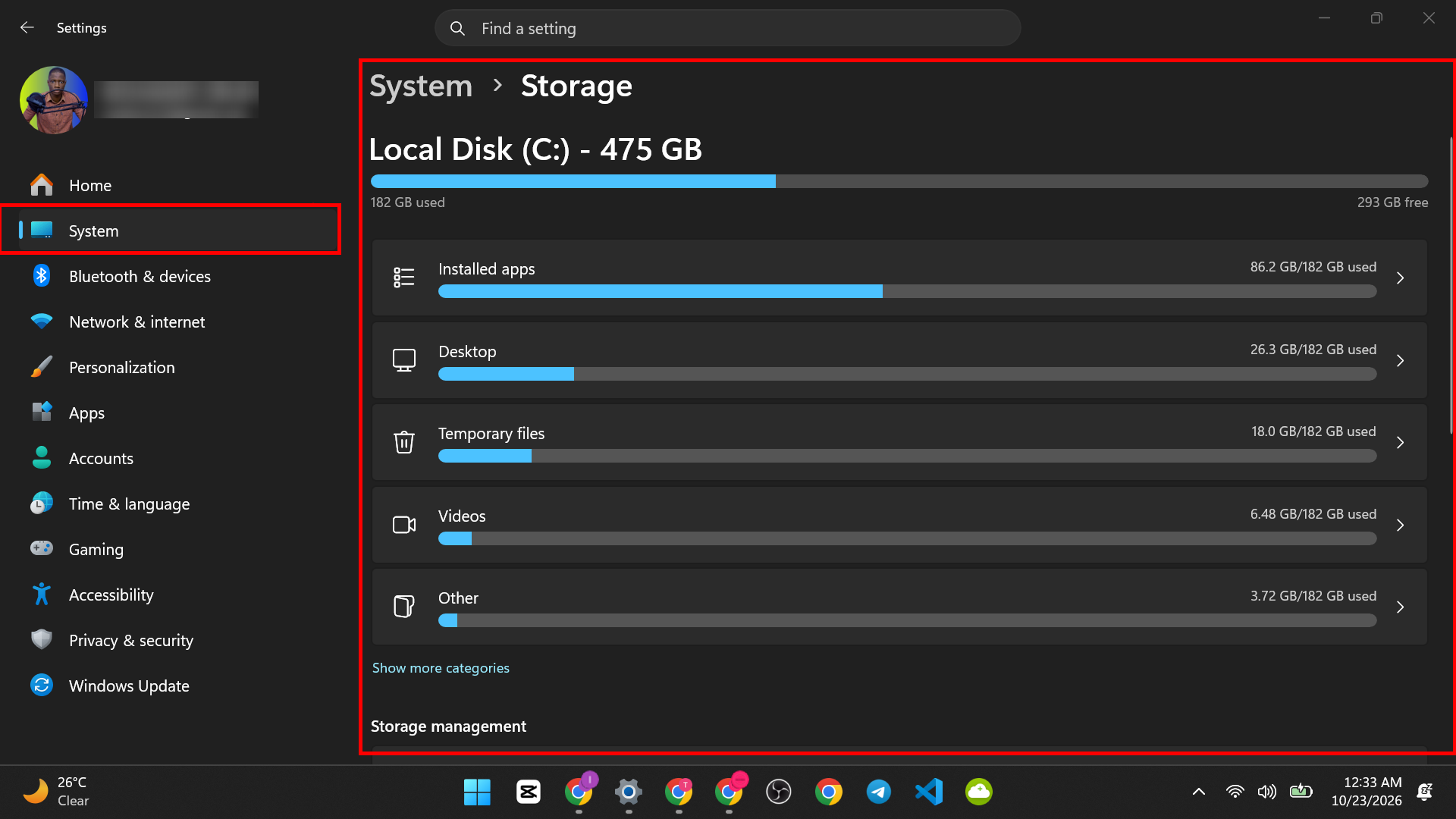
- Wait a moment while Windows counts. You will see a bar and a list of categories, such as Apps and features, Temporary files, Documents, Pictures and Videos.
- Click Show more categories if you see it, to see the full list.

The biggest category tells you where to look first. Click a category to see more details and clean it.

2. Turn On Storage Sense
Storage Sense is a built-in tool that cleans up for you. It removes temporary files and old Recycle Bin items on a schedule. You set it once, and it keeps working.
- Open Settings > System > Storage.
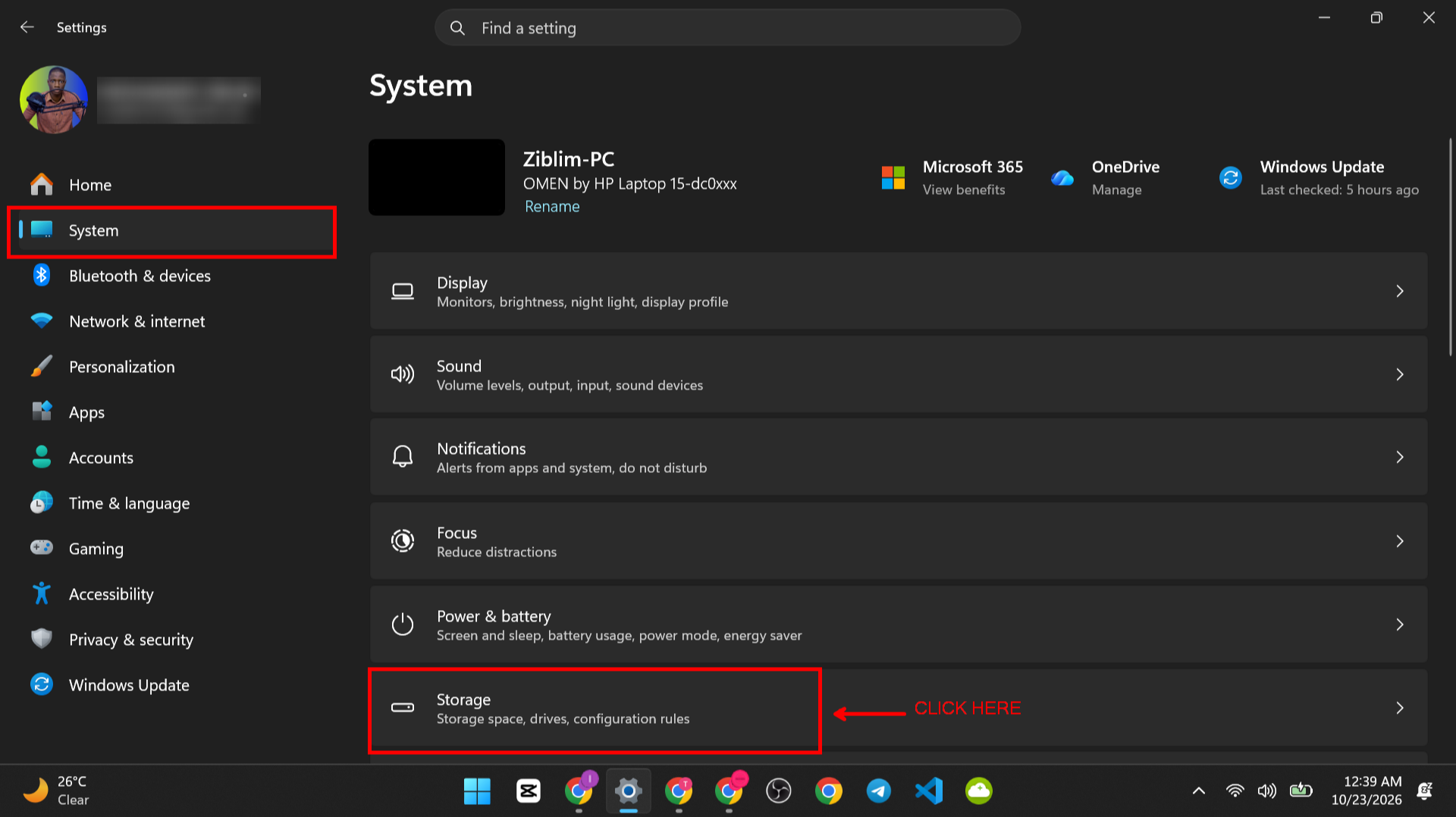
- Turn the Storage Sense switch On.

- Click Storage Sense (or Configure Storage Sense or run it now) to open its settings.
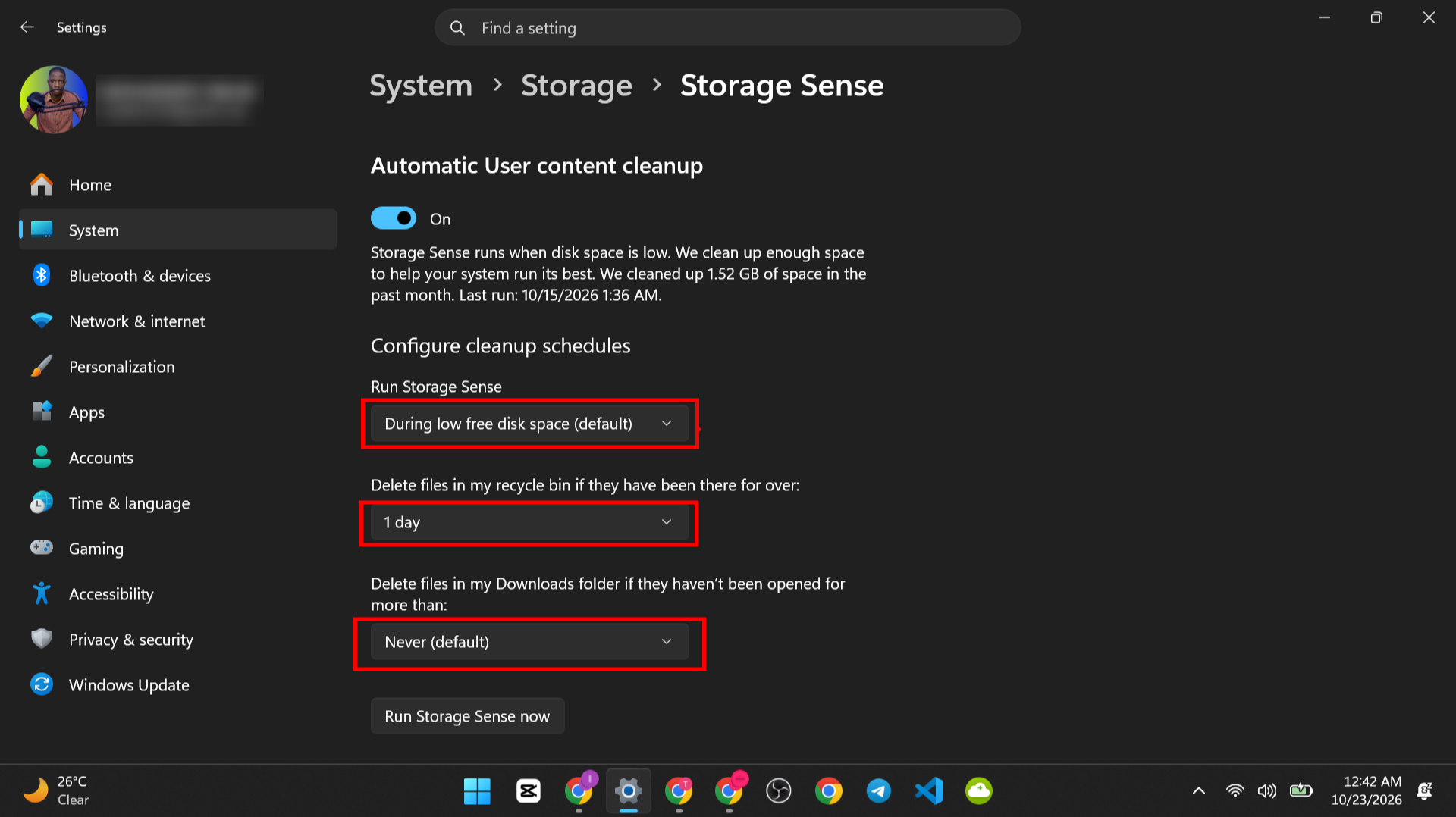
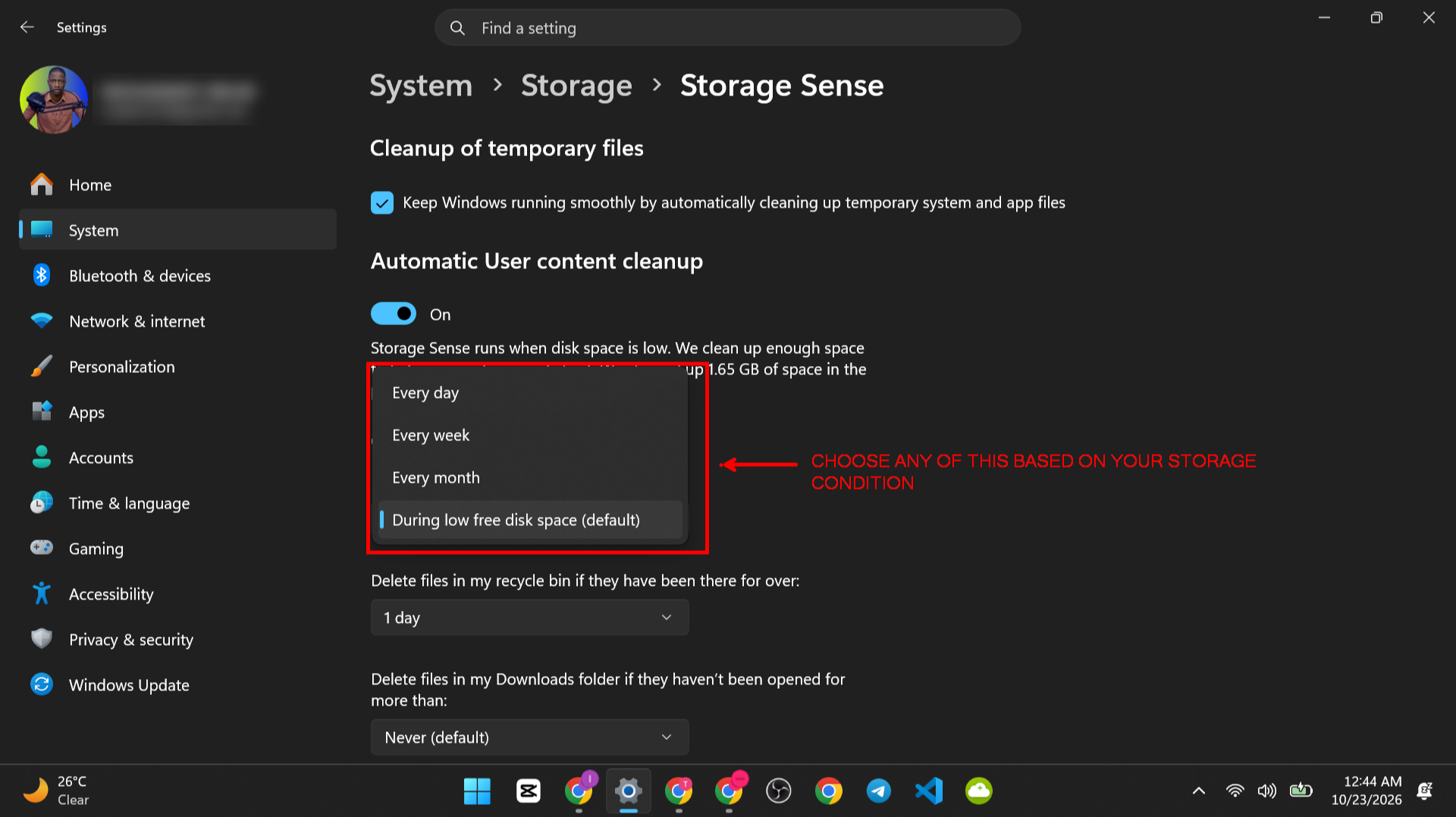
- Under Run Storage Sense, choose how often it runs, for example Every week, or During low free disk space.
- Set the Recycle Bin option to something like 30 days.
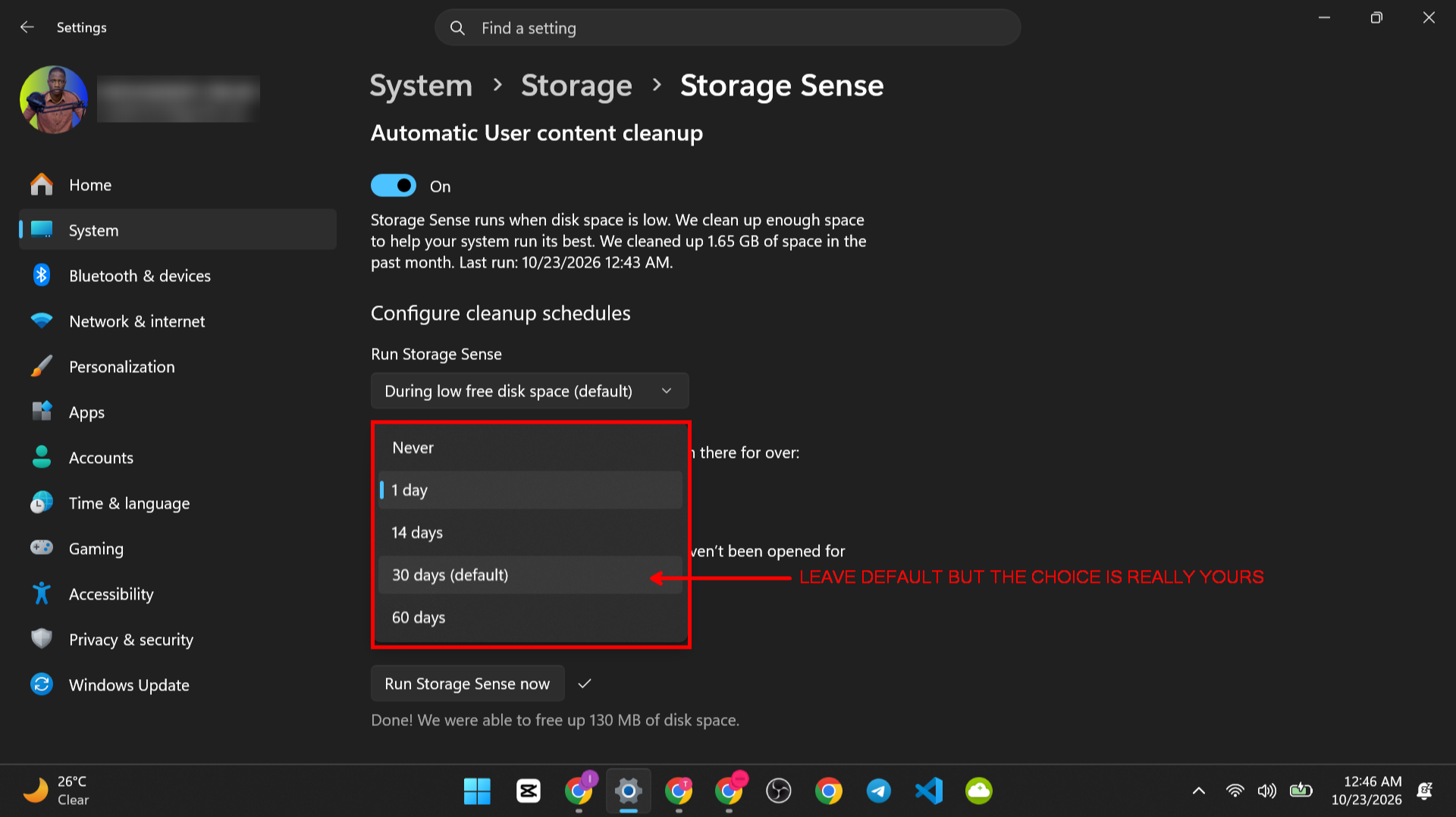
- Look at the Downloads folder option. Leave it on Never unless you are sure you do not need old downloads. If you choose a time, Storage Sense deletes files from Downloads that you have not opened for that many days.

- Click Run Storage Sense now to clean right away.

How to confirm it worked: After it runs, the Storage page shows more free space.
Storage Sense can also turn unused cloud files into online-only files. That saves space and keeps your files safe in the cloud. We cover that in the OneDrive section. You can also read about Storage Sense in our guide to hidden Windows features.
3. Remove Temporary Files
Temporary files are leftovers from apps, updates and Windows itself. They are safe to remove.
- Open Settings > System > Storage.
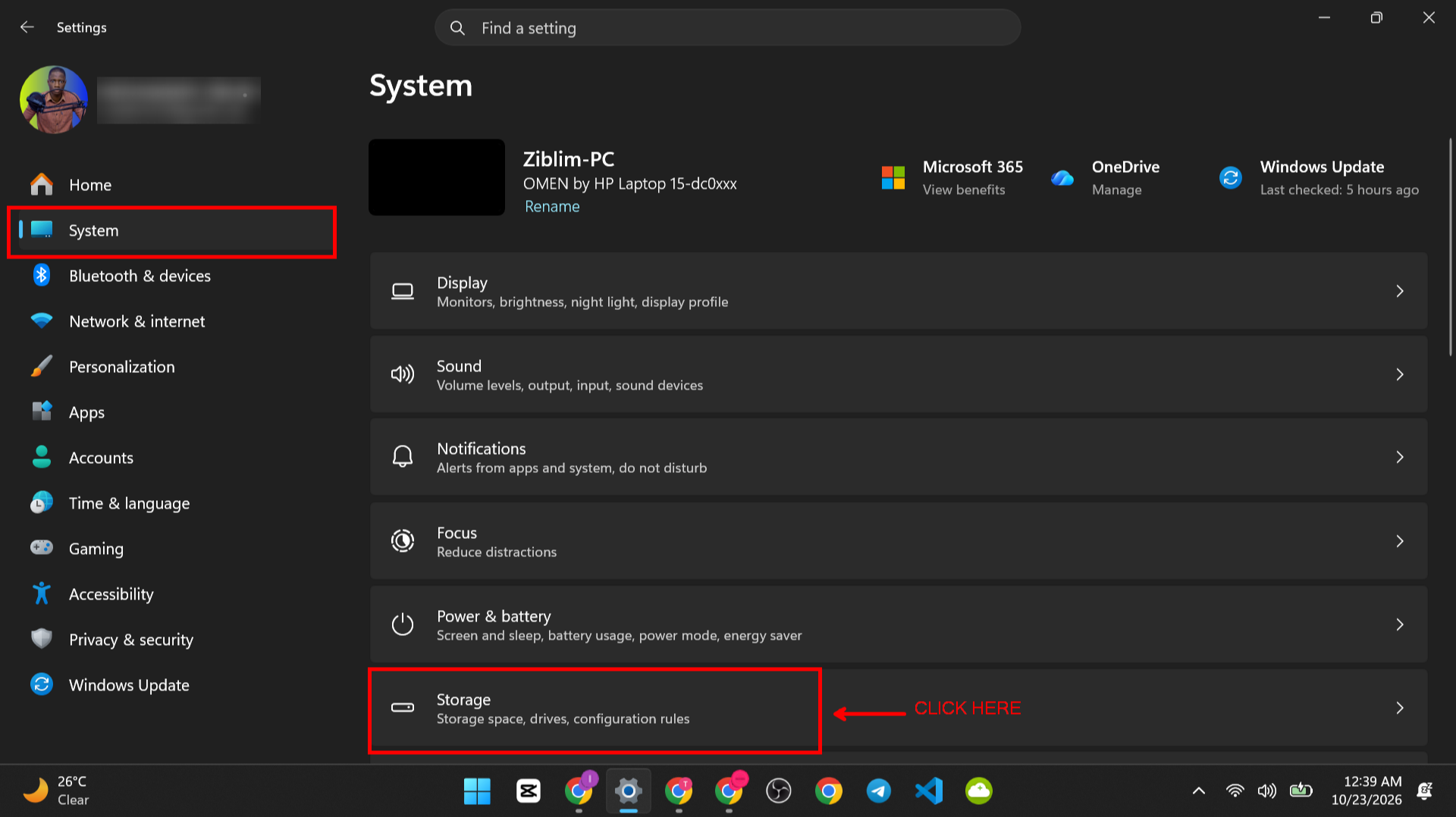
- Click Temporary files. Windows scans and shows a list.

- Tick the items you want to remove. Common safe items are Windows Update Cleanup, Delivery Optimization Files, Thumbnails, Temporary files and the Recycle Bin.

- Check the Downloads item carefully. Do not tick Downloads unless you are sure you no longer need the files in that folder. This is the one box that can remove personal files.
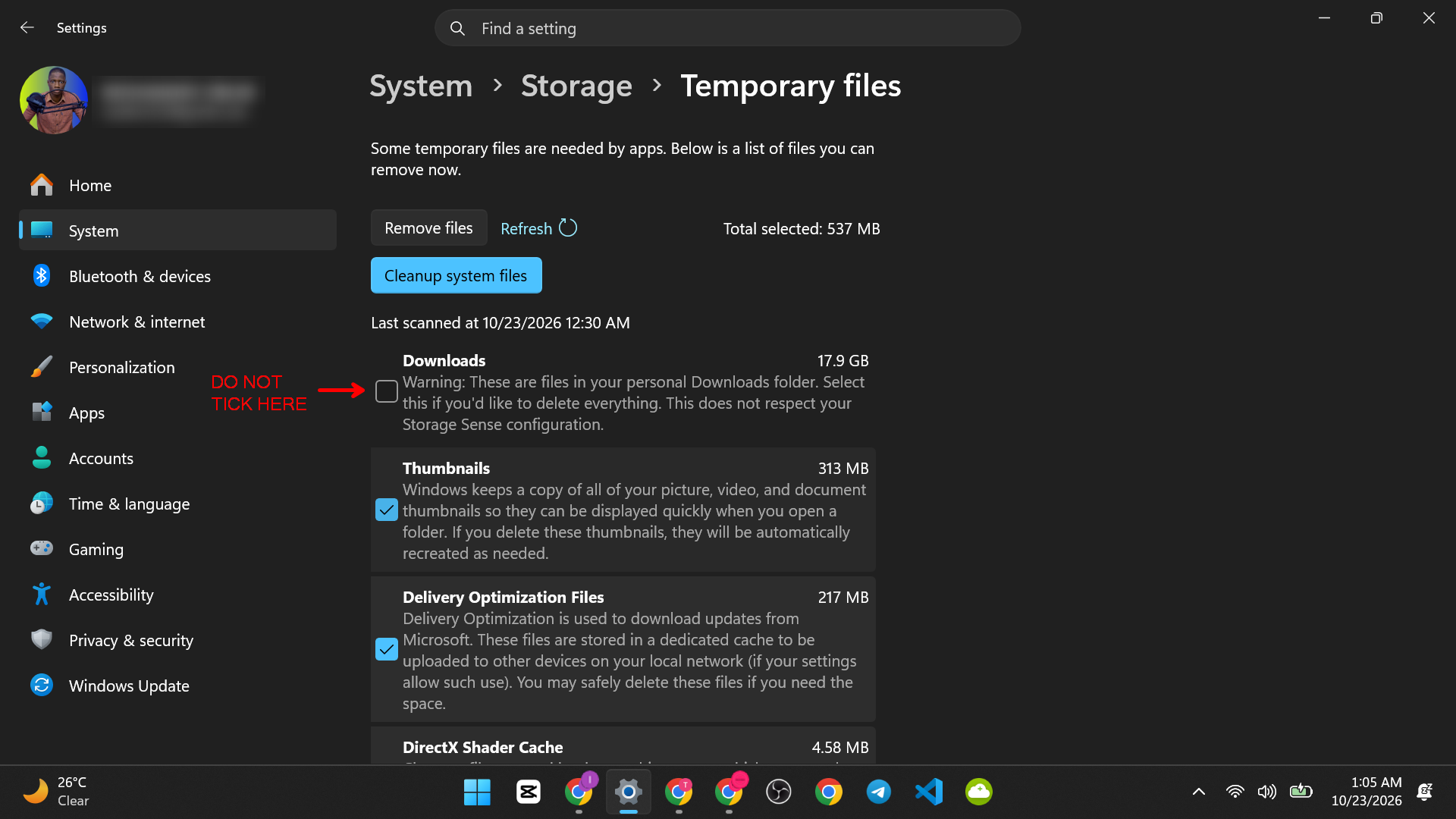
- Click Remove files and confirm. The page shows how much space you will get back before you click. Some items can take a few minutes.

4. Use Disk Cleanup for System Files
Disk Cleanup is an older tool. It is still in Windows 10 and Windows 11 and can remove files the Storage page does not show.
- Press Windows key + R, type cleanmgr and press Enter. (If you do not know the Run box, see how to open the Run command in Windows. Our list of Windows Run commands has more like it.)

- Pick your Windows drive, usually C:, and click OK.

- Tick the items you want, such as Windows Update Cleanup, Temporary Internet Files and Thumbnails.Click Clean up system files. Pick the drive again and click OK.

- Click OK, then Delete Files.

Be careful with one item: If you see Previous Windows installation(s), removing it deletes the files that let you go back to an older version of Windows. Remove it only when you are happy with your current version.
5. Uninstall Apps and Games You Do Not Use
Apps and games can use many gigabytes each. Removing a program does not delete your personal files, and you can install it again later.
- Open Settings > Apps.
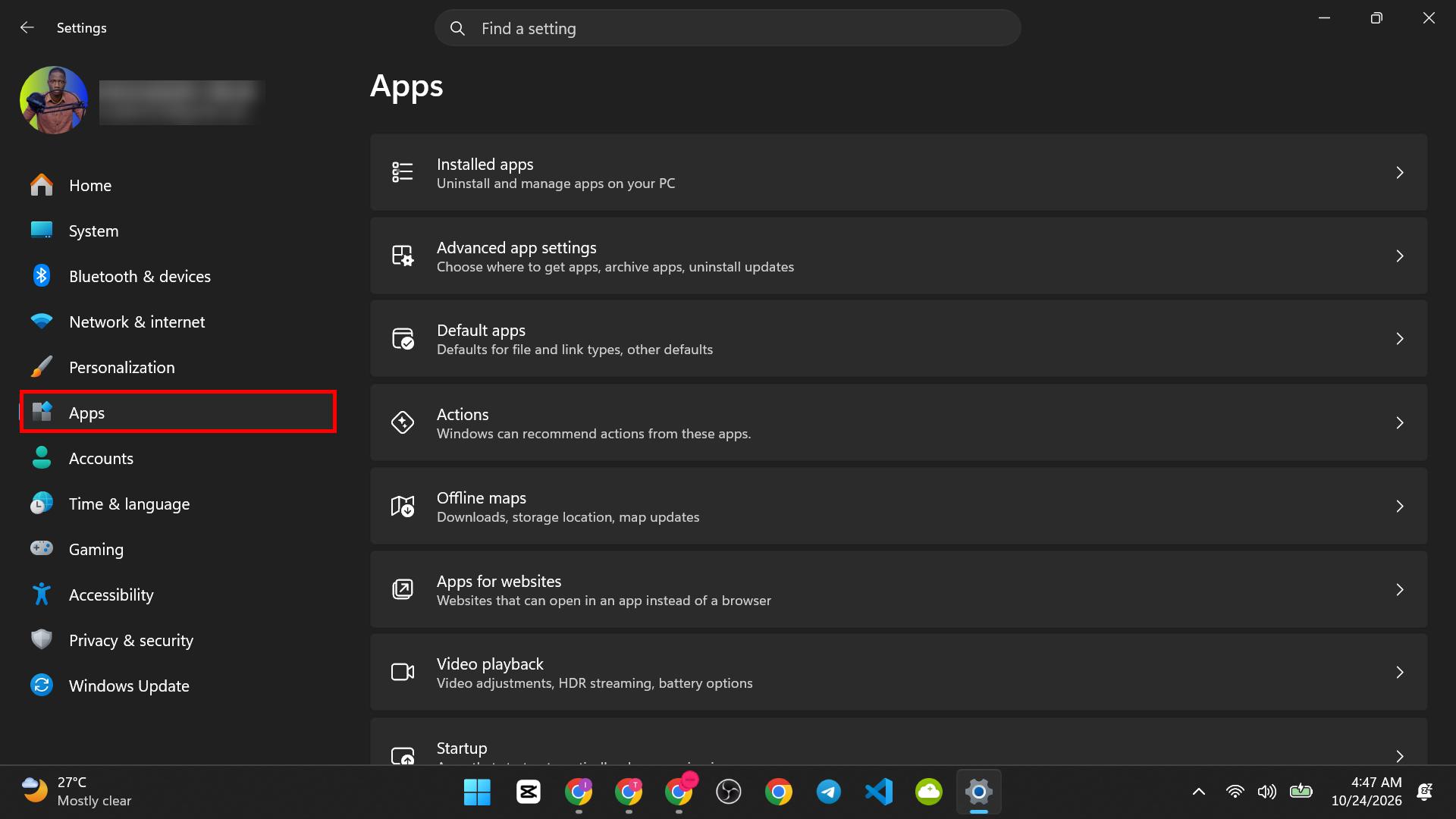
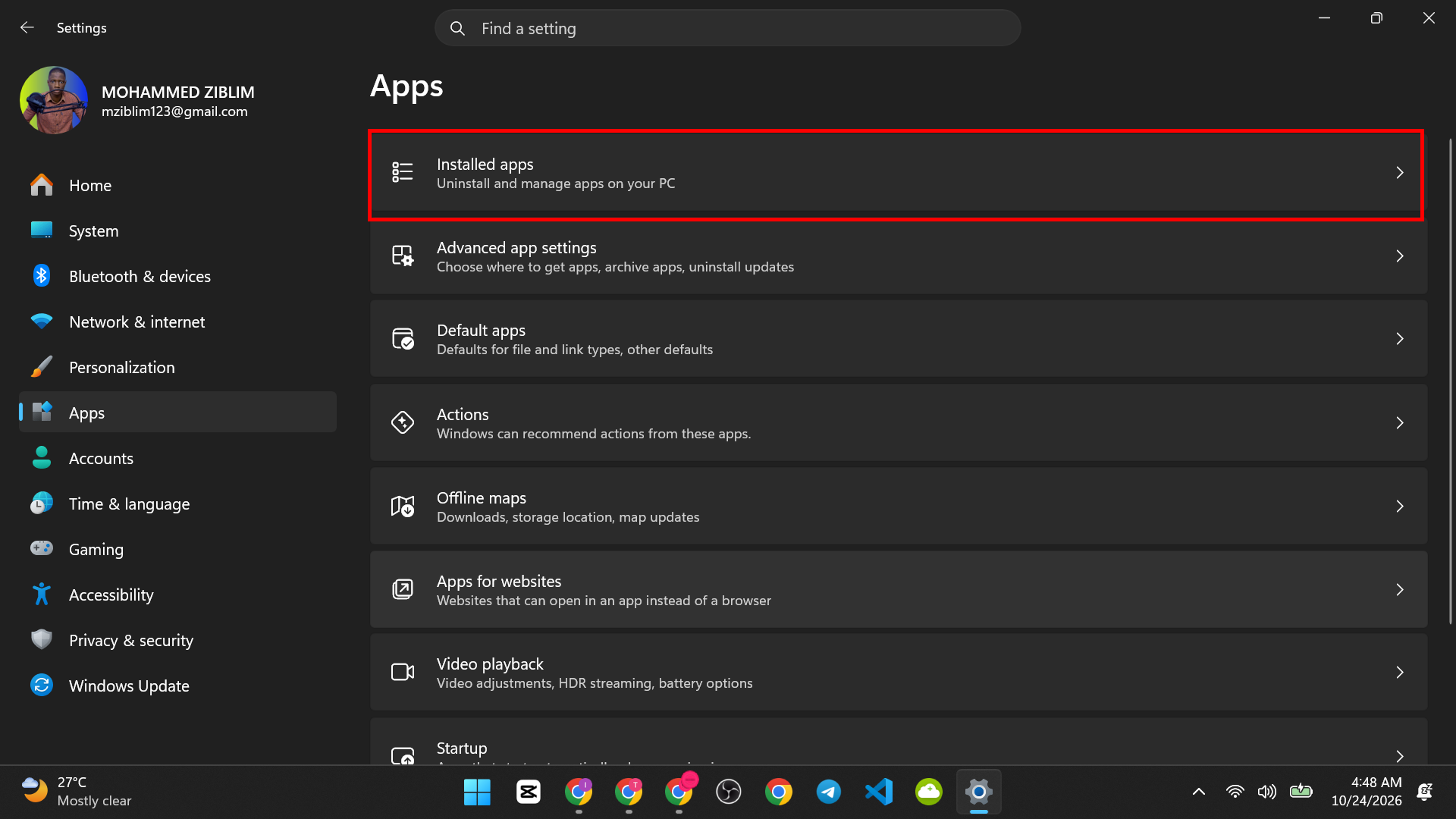
- On Windows 11, choose Installed apps. On Windows 10, choose Apps and features.
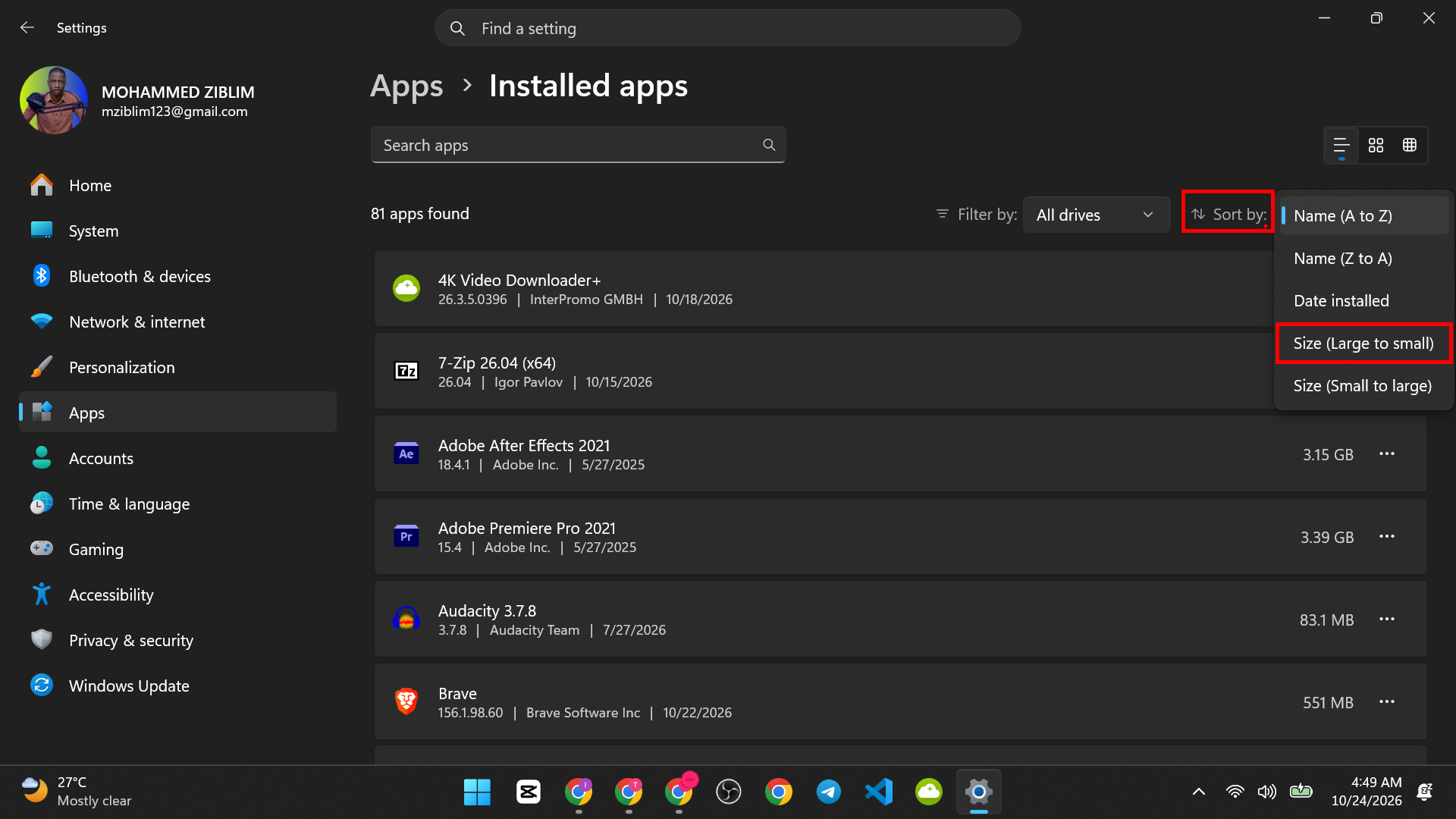
- Sort the list by Size. On Windows 11, use the sort menu at the top of the list. On Windows 10, use the Sort by menu.
- Click an app you do not use, then click Uninstall (on Windows 11, click the three dots first).

- Follow the steps on the screen.
Start with big games and old software. Do not remove apps you do not recognize. Search for the name first.
A quick way: Press Windows key + R, type appwiz.cpl and press Enter. This opens the classic list of programs.

6. Use OneDrive Files On-Demand
OneDrive can keep a file in the cloud and show only a small placeholder on your PC. The file is not deleted. You open it, and it downloads again. This works for people who already use OneDrive.
Requirements: A Microsoft account with OneDrive, enough cloud space, and an internet connection when you open the files.
Turn on Files On-Demand
- Click the OneDrive cloud icon in the notification area near the clock. If it is not available, search for it on the startup menu. Once its opened, look back at the notification area and you will find the icon right there.

- Click the Settings (gear) icon, then Settings.
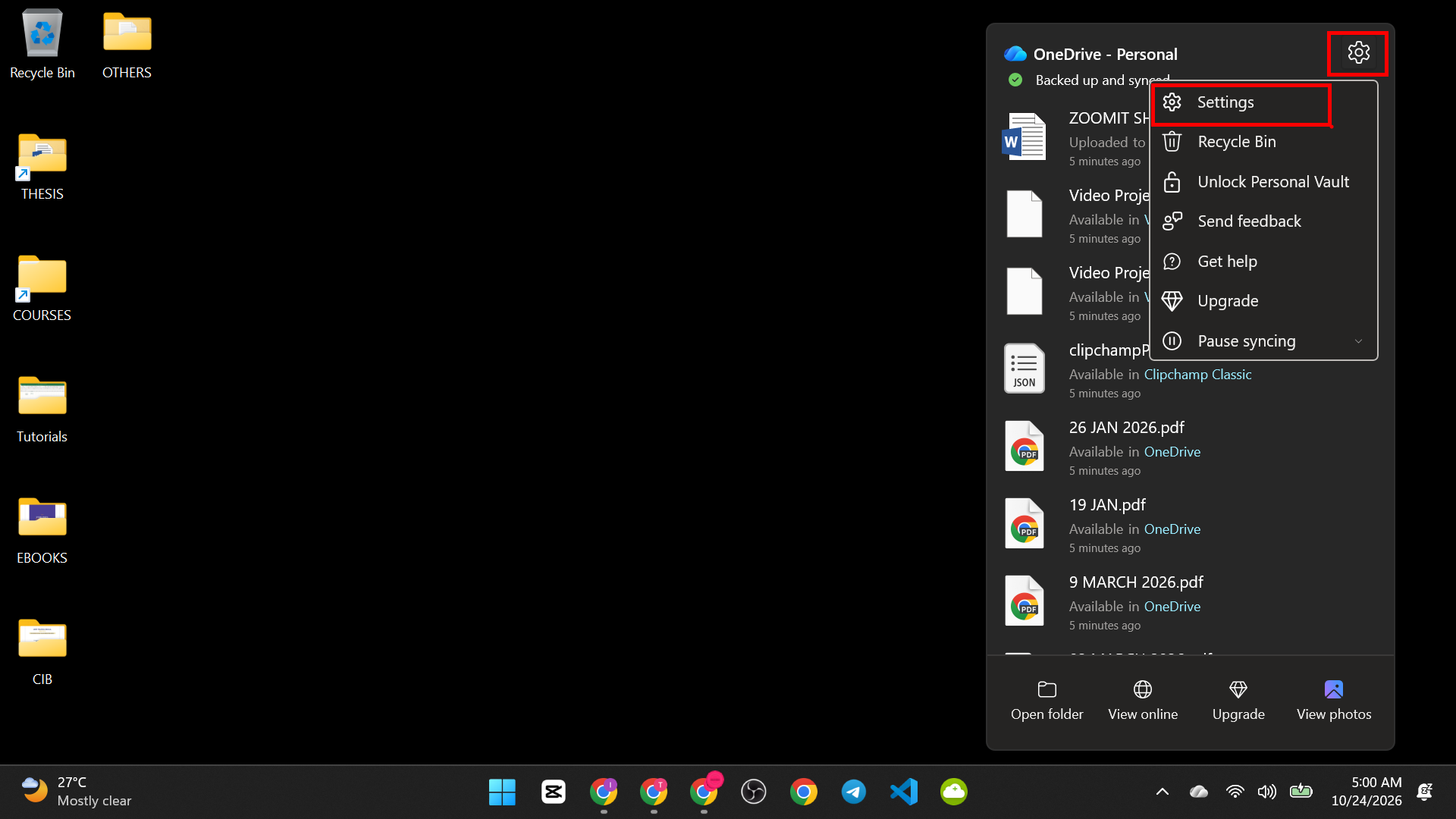
- On the Sync and backup or Settings tab, turn on the necessary options

7. Find and Move Your Biggest Files
A few large files, like videos and old installers, often use more space than thousands of small ones. File Explorer can find them.
- Open File Explorer and click This PC (or a folder like Videos).

- Click the search box at the top right.

- Type size:>1GB and press Enter. Windows lists files bigger than 1 gigabyte.
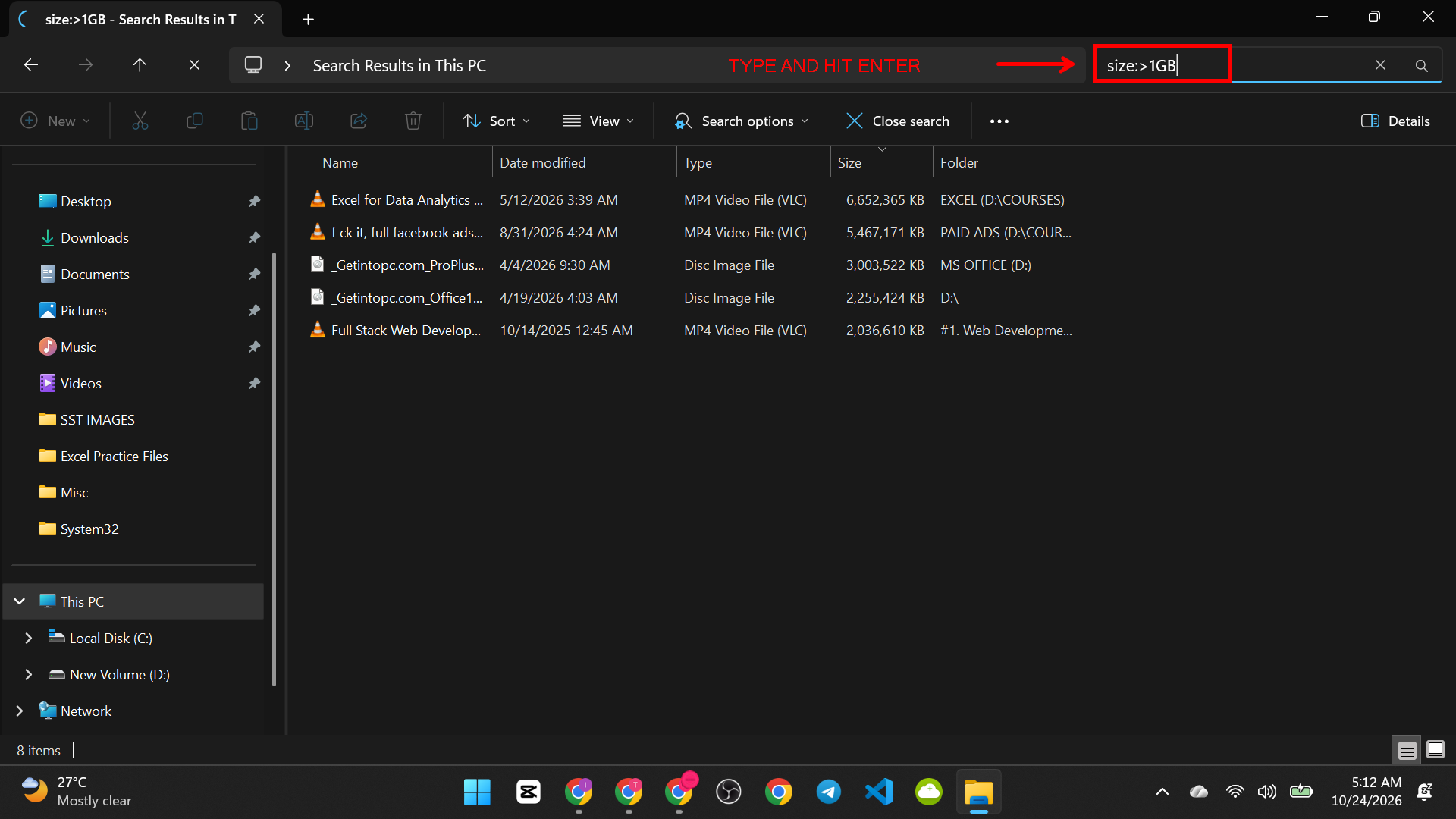
- Right-click in the results and choose Sort by > Size, or use View > Details.

- Look through the list. Decide which files you need on this drive.
- To move a file, right-click it, choose Cut, open another drive or an external drive, and press Ctrl + V.
Moving does not delete a file. It puts it somewhere else. If you use an external drive, keep it safe and do not rely on only one copy.
Tip: Try size:>100MB to find smaller but still large files. Do not move files that belong to apps or Windows. Stick to your own videos, photos, backups and downloads.
8. Save New Files to Another Drive
If your PC has a second drive, or you plug in a large external drive, you can tell Windows to save new things there. This stops the main drive from filling up again.
- Open Settings > System > Storage.
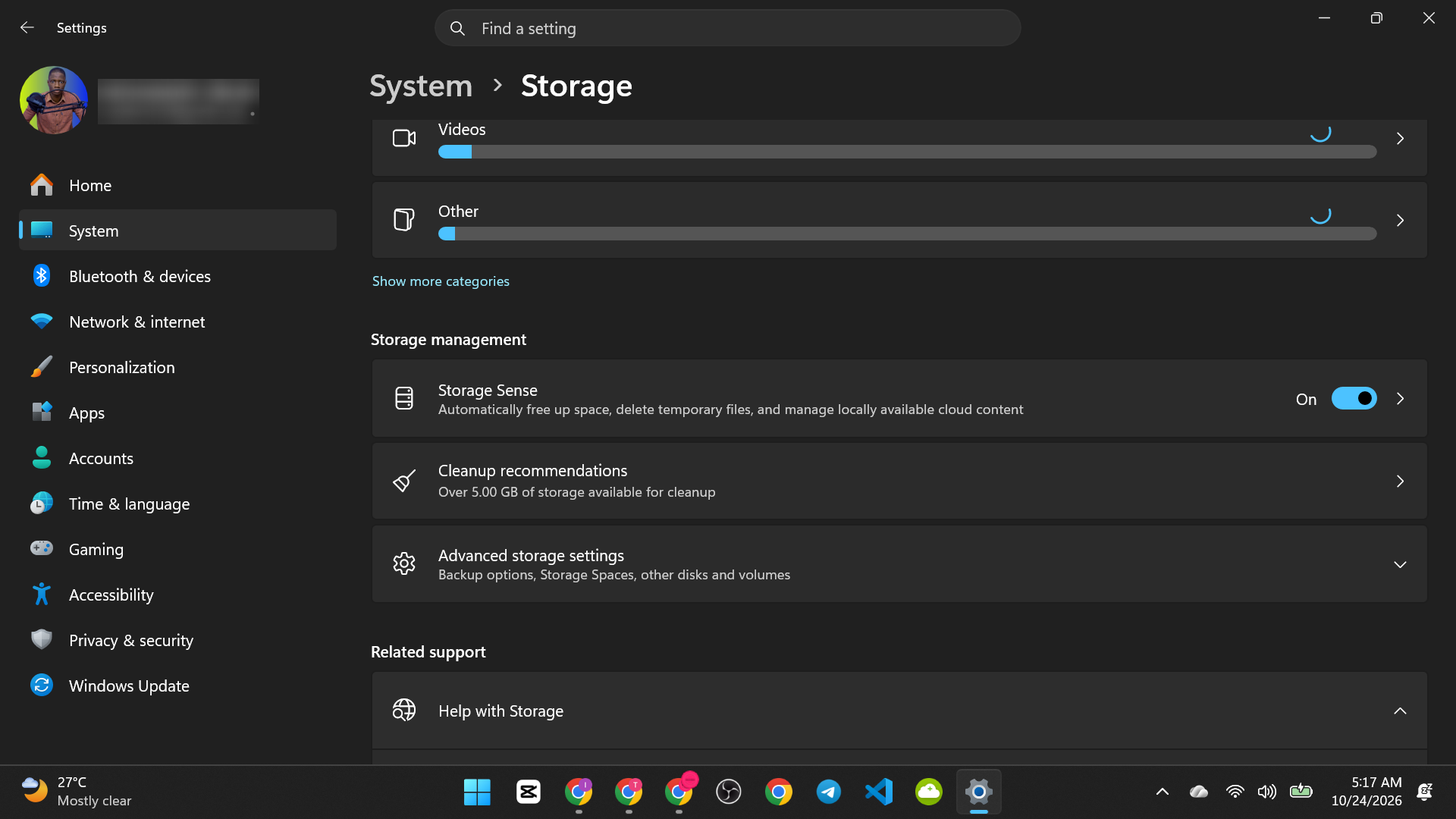
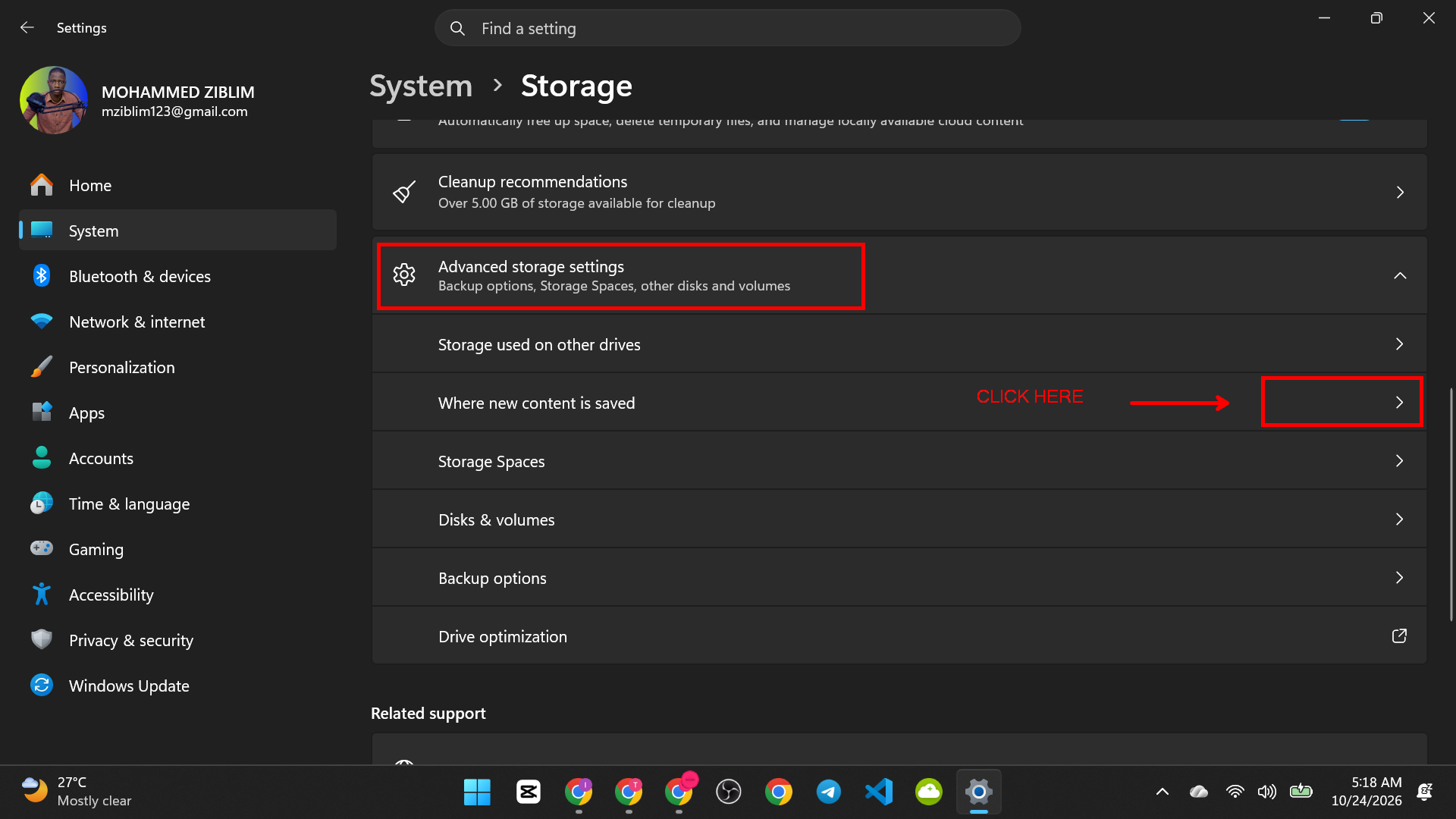
- Click Advanced storage settings and then Where new content is saved. (On Windows 10, look for Change where new content is saved on the Storage page.)
- Choose a different drive for New apps will save to, New documents will save to, New photos and videos will save to, and so on.

- Click Apply for each one.

This changes only where new items go. Your old files stay where they are.
Limit: This works only if you have a second drive available. If you use an external drive, it must be plugged in to open the files saved on it.
9. Compress Files and Folders
Compressing makes files smaller. This is good for old projects and documents that you rarely open. It does not help much with photos, videos and music, which are already compressed.
Make a ZIP file
- Select the files or folder.
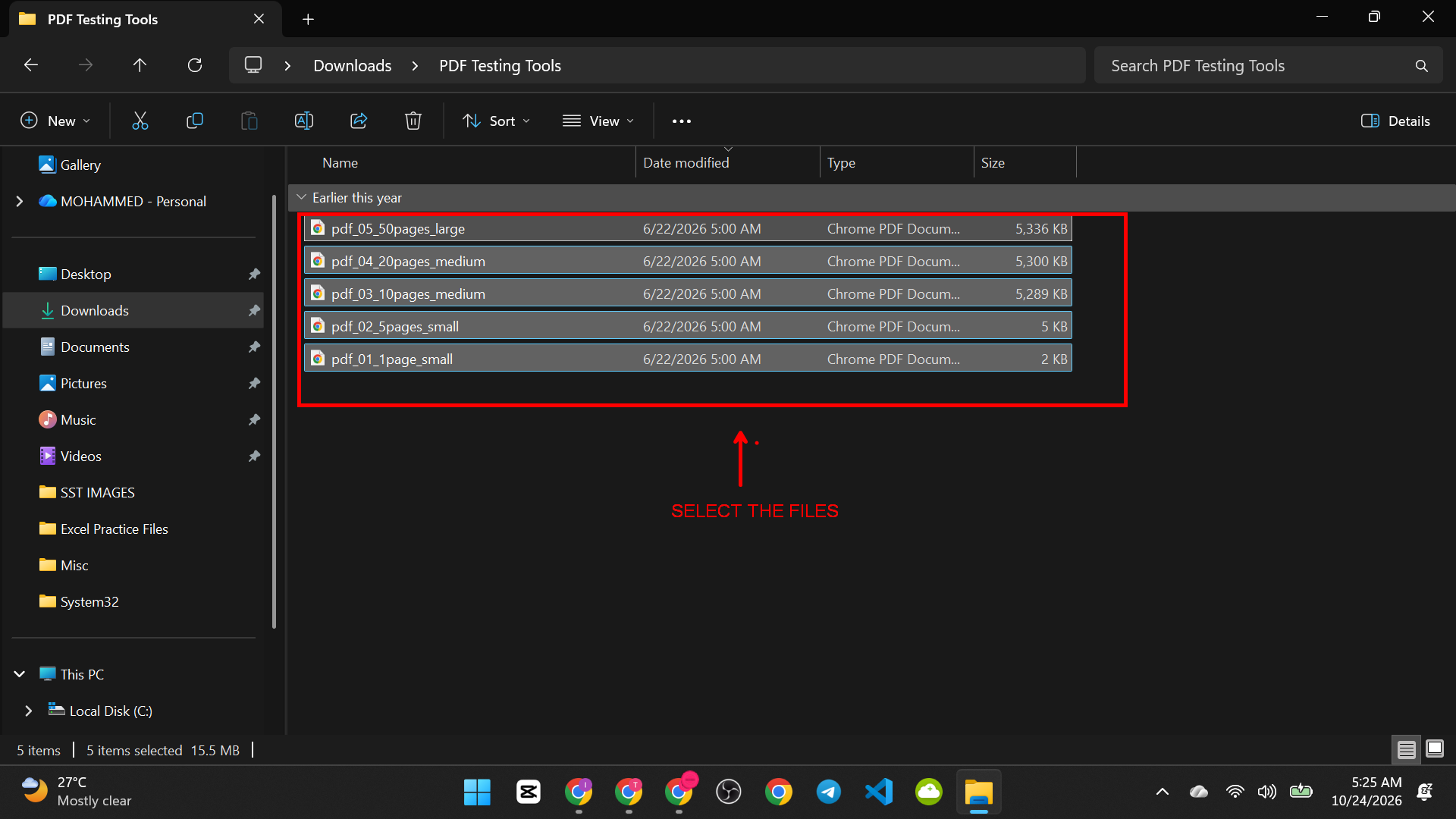
- Right-click and choose Compress to ZIP file (Windows 11) or Send to > Compressed (zipped) folder (Windows 10).

- Check the new ZIP file works. Then you can move the ZIP to another drive or keep it.
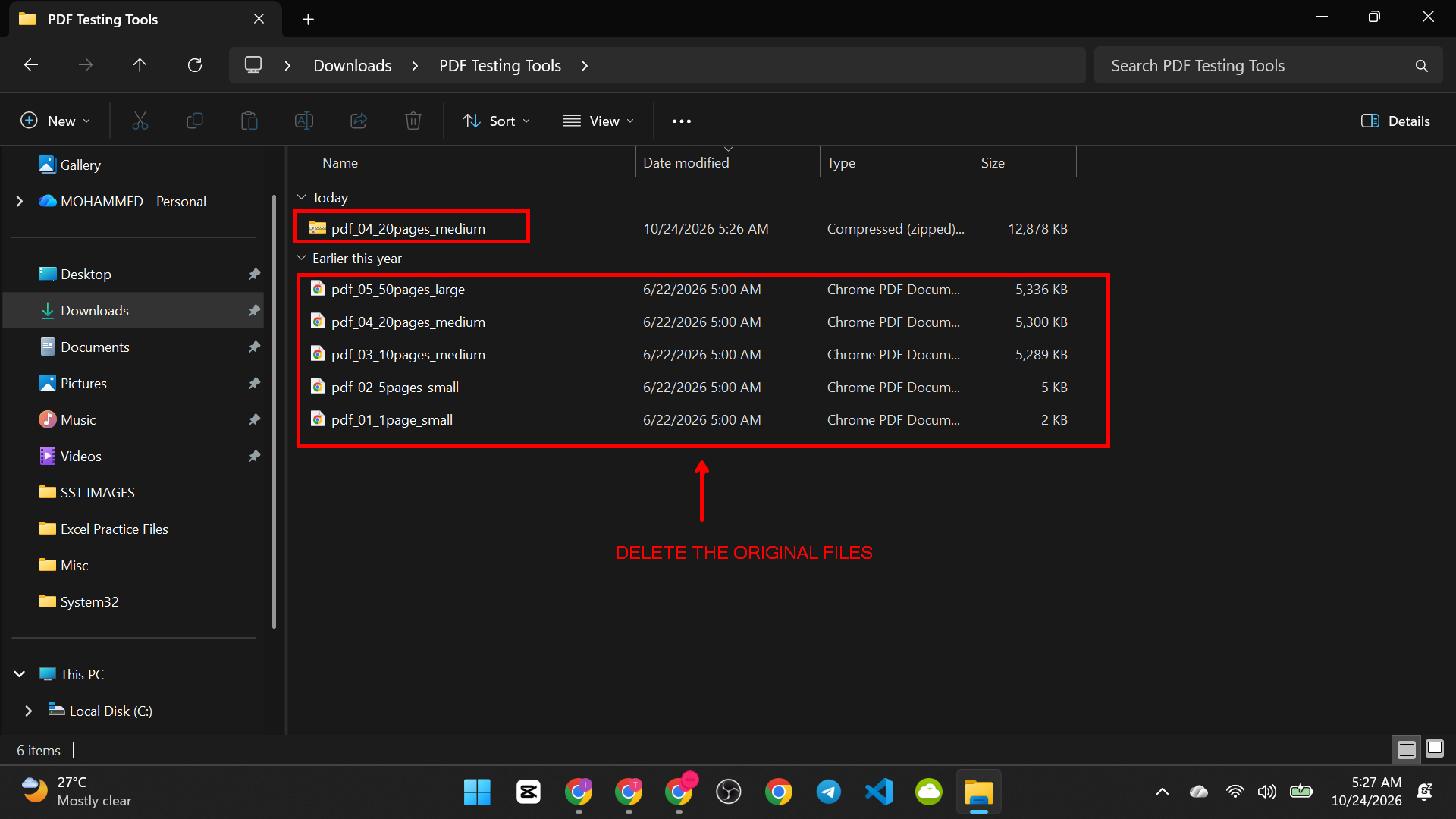
The original files are still there. Delete them only after you check the ZIP and have a backup.
NTFS compression for a folder
Windows can also compress a folder while keeping it usable.
- Right-click the folder and choose Properties.

- Click Advanced.

- Tick Compress contents to save disk space and click OK, then OK again.

This works only on drives formatted as NTFS. It can make opening large files slightly slower. Do not use it on Windows system folders. For tools that open more archive types, see our post on free Windows apps every computer user should have.
10. Clear Recordings, Installers and Browser Cache
Some of the biggest space users are things you made or downloaded once and forgot.
Screen recordings and videos
Videos are large. If you record your screen, check the folder where recordings go. In Windows, game and screen recordings from Xbox Game Bar are saved in Videos > Captures. Keep the ones you need and move the rest to another drive. Our guide to recording your screen without installing software explains where recordings are saved.
Old installers
- Open your Downloads folder.
- Click the View menu and choose Details.
- Click the Size column to sort.
- Look for installer files (they end in .exe or .msi) for programs you already installed. They are safe to move or delete, and you can download them again.
Browser cache
Your browser stores copies of web pages to load them faster. These can grow large.
- In your browser, open Settings and search for Clear browsing data.
- Choose Cached images and files only.
- Pick a time range, such as All time, and click Clear now.
All use Ctrl + Shift + Delete to reach the same setting
Leave Passwords and Autofill unticked, so you do not lose saved logins. The browser may load pages a little slower at first, while the cache fills again.

What You Should Not Delete
- Anything inside C:\Windows or C:\Program Files.
- The pagefile.sys and swapfile.sys files. Windows needs them.
- Files you do not recognize in system or app folders.
- Your Documents, Pictures and Desktop folders unless you have checked and backed them up.
To work faster while you clean, learn a few keys from our list of 200 Windows shortcuts.


Pingback: 10 Settings That Can Make Your Windows PC Slow - SuperSimpleTips
Pingback: 10 Windows Folders You Should Understand Before Deleting Anything - SuperSimpleTips