
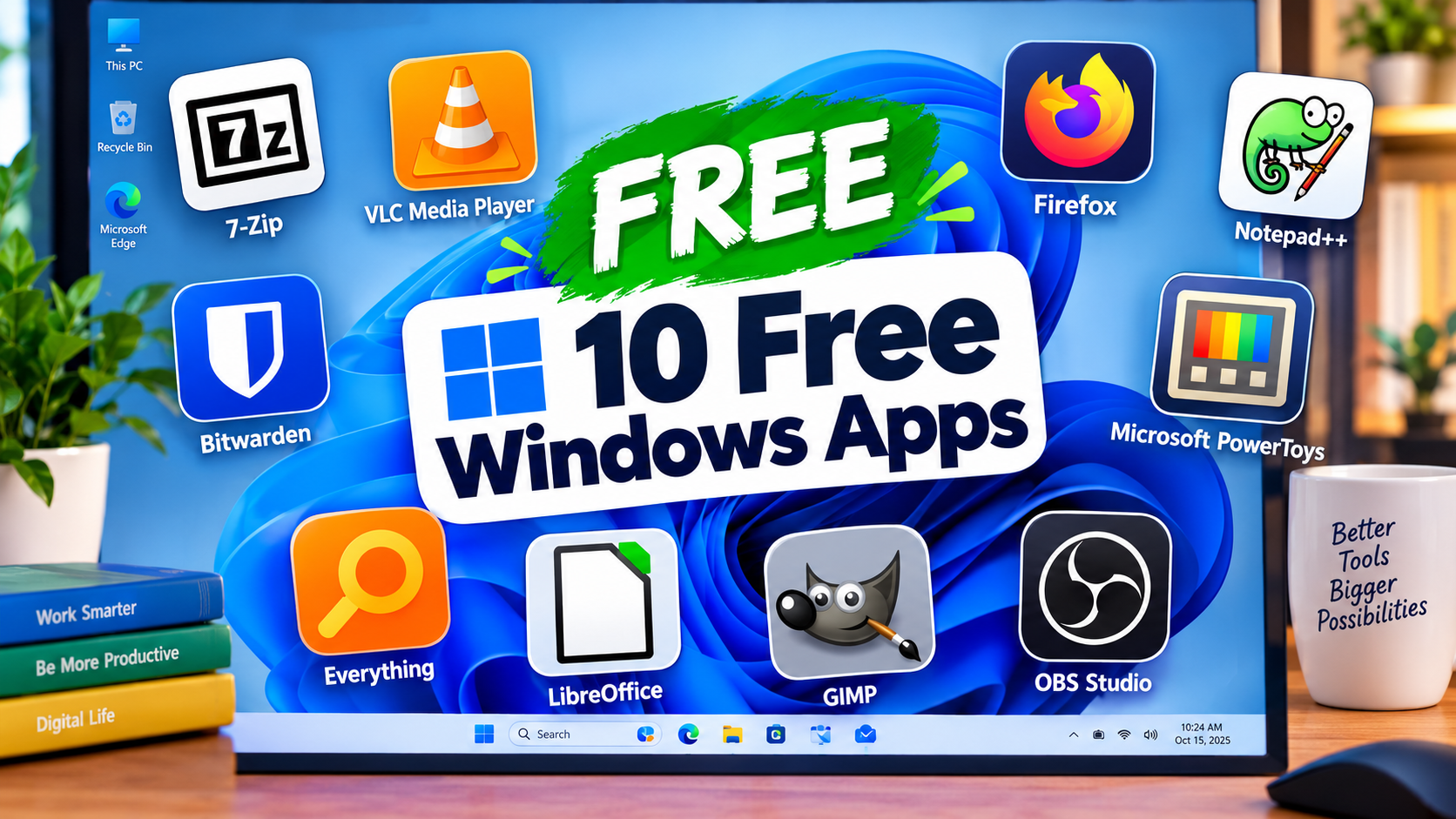

Windows 10 and 11 come with a good set of built-in tools, but a few free Microsoft Windows apps from third party fill real gaps. They open more file types, protect your passwords, find files instantly and give you tools you would otherwise pay for.
Each app below is free to use, works on Windows 10 and 11, and solves one clear problem. Start with the quick guide, then read the sections that match your needs.
| Your problem | App to try |
| Opening or making ZIP and other compressed files | 7-Zip |
| Playing any video or audio file | VLC media player |
| A fast, privacy-focused web browser | Mozilla Firefox |
| Editing plain text, code and notes | Notepad++ |
| Remembering strong passwords | Bitwarden |
| Word, Excel and PowerPoint style documents without paying | LibreOffice |
| Finding any file in seconds | Everything |
| Extra Windows tools (renaming, window layouts) | Microsoft PowerToys |
| Editing photos and images | GIMP |
| Recording or streaming your screen with more control | OBS Studio |

How to Install Free Apps Safely
Free software is only a good deal if it is safe. Follow these steps for every app in this guide.
- Go to the official website. Type the app’s name into your browser and open the official site or the Microsoft Store listing. Avoid “download” pages from ad-filled sites, which sometimes bundle extra software.
- Read each installer screen. Some installers offer optional extras. Untick anything you did not ask for before clicking Next.
- Check what you installed. After installing, press Windows key + R, type appwiz.cpl and press Enter. This opens the list of installed programs, where you can remove anything you do not want. If you have never used the Run box, see how to open the Run command in Windows.
- Keep apps updated. Most of these apps tell you when an update is available. Install updates to get security fixes.
Optional: install with Winget
Windows includes a command line tool called Winget that installs apps from a trusted catalog. Open Terminal or Command Prompt and run a command such as:
winget install 7zip.7zip
Winget comes with Windows 11 and with current updates of Windows 10. If the command is not recognized, use the website method above.
1. 7-Zip: Open and Create Compressed Files
Compressed files (ZIP, 7z and others) shrink many files into one for easier sharing. Windows opens ZIP files by itself, but 7-Zip handles more formats and gives you more control.
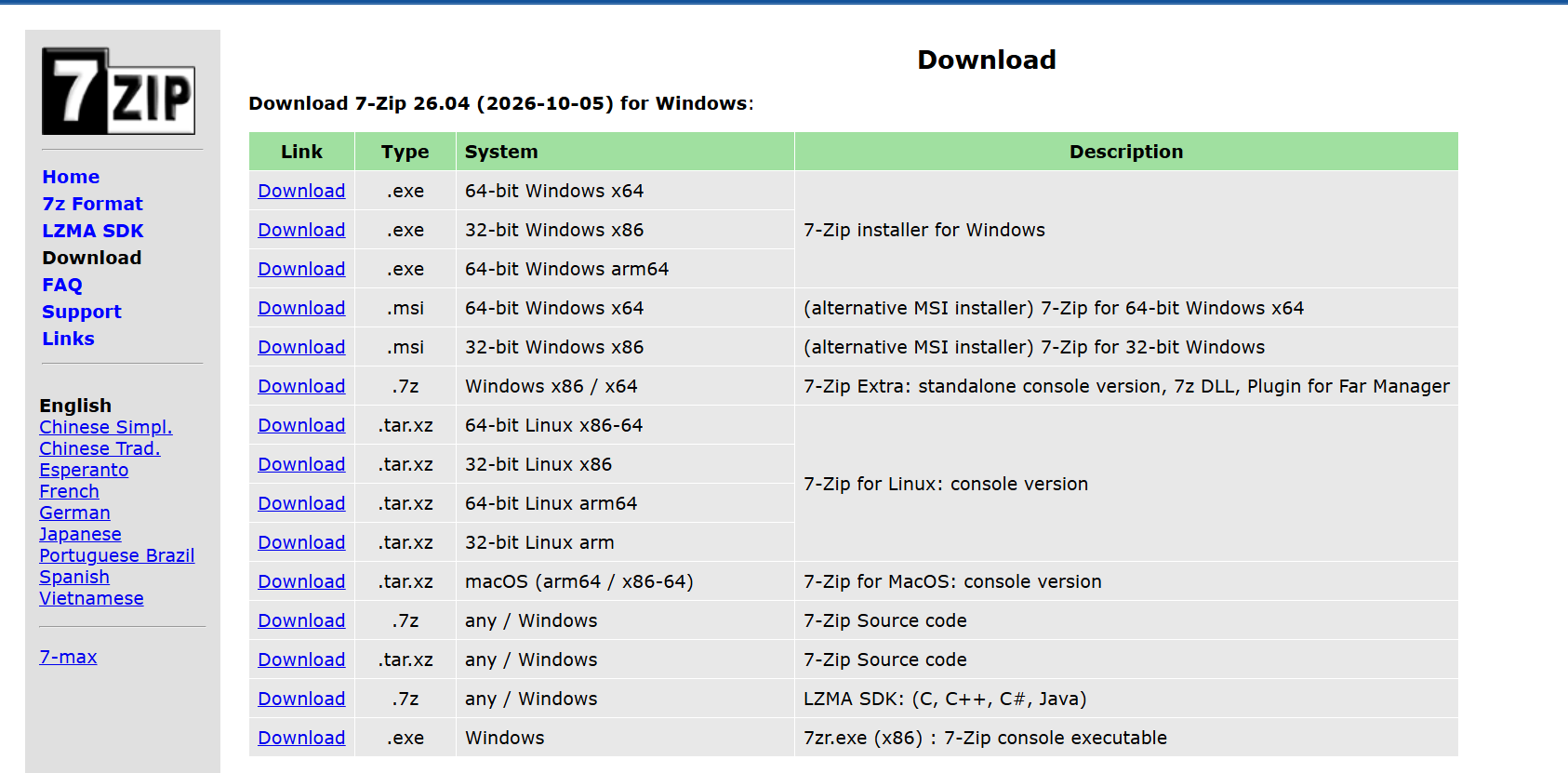
- Download 7-Zip from its official website and install it.
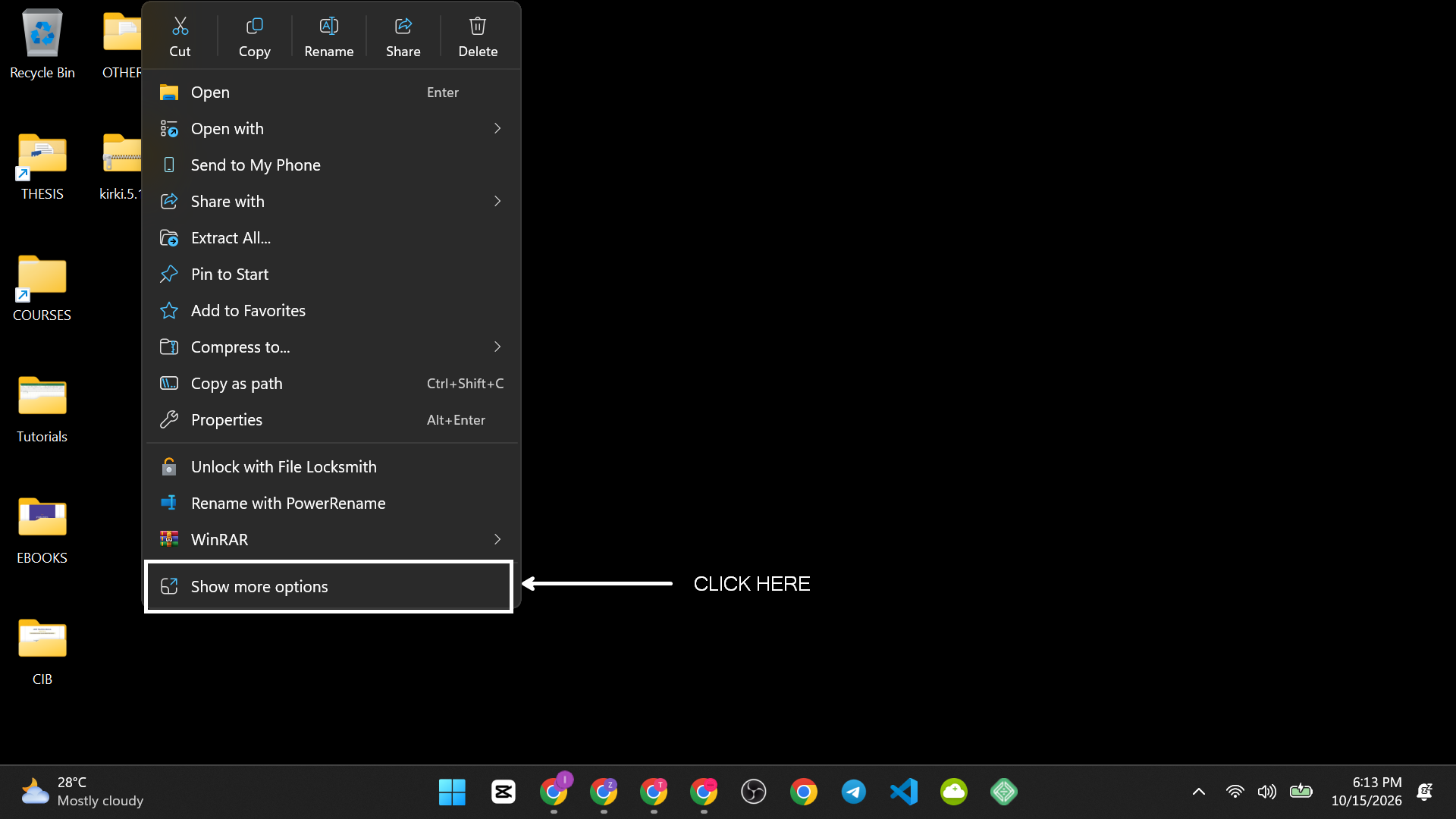
- Right-click a compressed file and click Show more options (on Windows 11) to see the 7-Zip menu.
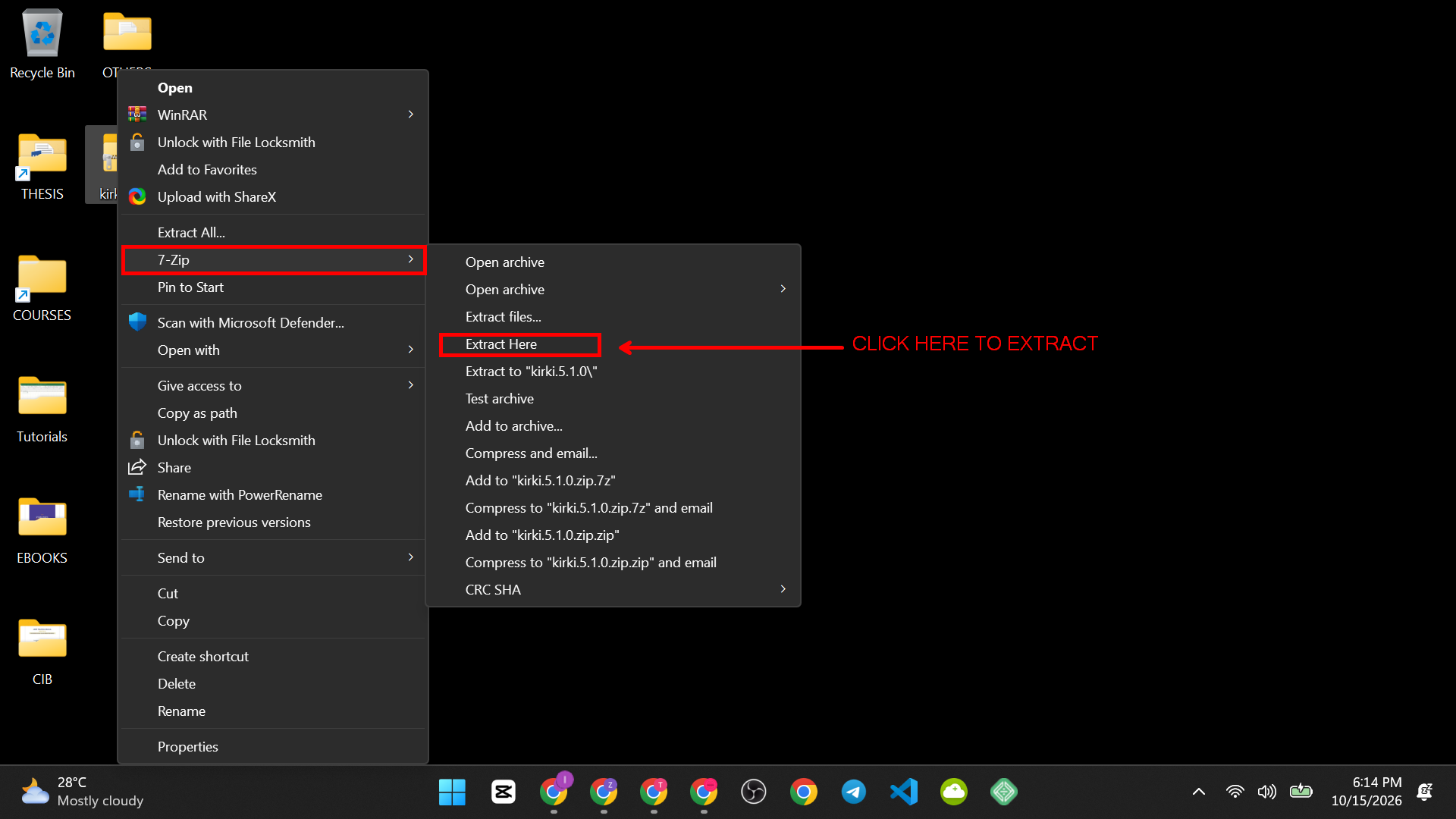
- Then Choose 7-Zip > Extract Here to unpack it.
- To make an archive choose 7-Zip > Add to archive.

7-Zip is open source and free for personal and commercial use.
2. VLC Media Player: Play Almost Any Video or Audio File
VLC plays most video and audio formats without extra codec packs. It also lets you change playback speed and subtitles and can convert files.

- Install VLC from its official site.
- Right-click a video file and choose Open with > VLC media player.

- To change speed, open the Playback menu and choose Speed.

3. Mozilla Firefox: A Second Browser Worth Having

Windows comes with Microsoft Edge, which is a capable browser. A second browser is still useful: one for work, one for personal use, or a backup when a site does not load properly. Firefox is free, open source and has built-in tracking protection options. Install it from the official Mozilla website, and you can import bookmarks from your current browser during setup.
4. Notepad++: A Better Text Editor
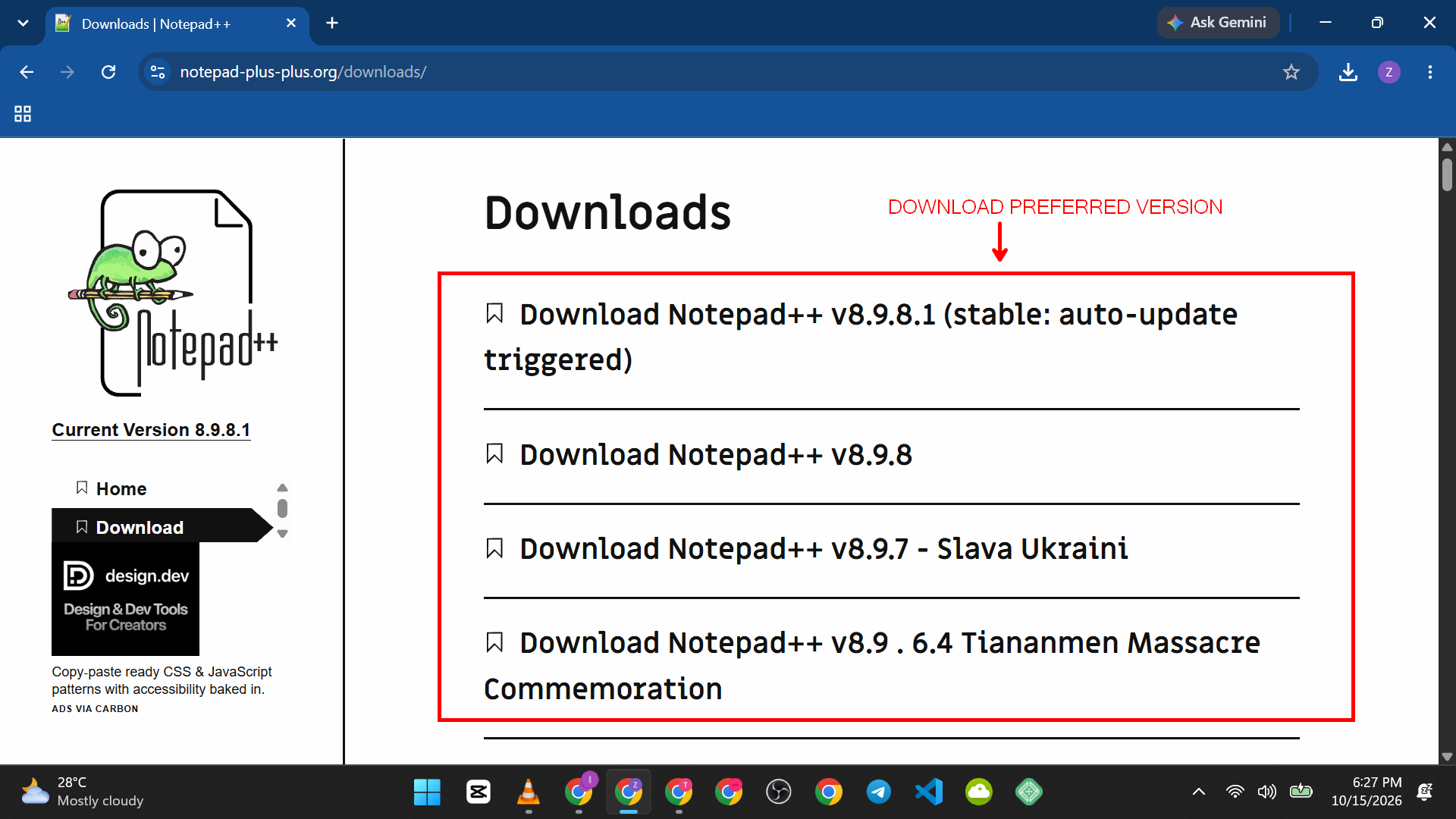
Notepad++ is a free text and code editor for Windows. It supports tabs, syntax highlighting, find and replace across many files, and automatic recovery of unsaved work in many cases.
Use it for:
- Cleaning up text copied from websites.
- Editing configuration files or web code.
- Comparing and searching through many text files.
It is Windows-only. Windows 11’s built-in Notepad also has tabs now, so Notepad++ matters most if you need its extra tools.
5. Bitwarden: Create and Store Strong Passwords

Reusing the same password across sites is risky. A password manager creates a different strong password for each account and fills it in for you.
- Create a free account on the Bitwarden website.
- Choose a long, unique master password that you do not use anywhere else, and write it down somewhere safe offline.
- Install the Bitwarden browser extension.
- When you next log in to a site, let Bitwarden save the login.
Bitwarden’s free plan has limits that can change, so check what it includes before you rely on it.
6. LibreOffice: A Free Office Suite

LibreOffice includes a word processor (Writer), a spreadsheet app (Calc) and a presentation app (Impress). It can open and save Microsoft Word, Excel and PowerPoint files, and export to PDF.
Formatting can occasionally shift when you open complex Microsoft files, so check important documents before sending them. If you write in Writer and need special punctuation, how to type an em dash on Windows covers methods that work in most apps.
7. Everything: Find Files Instantly
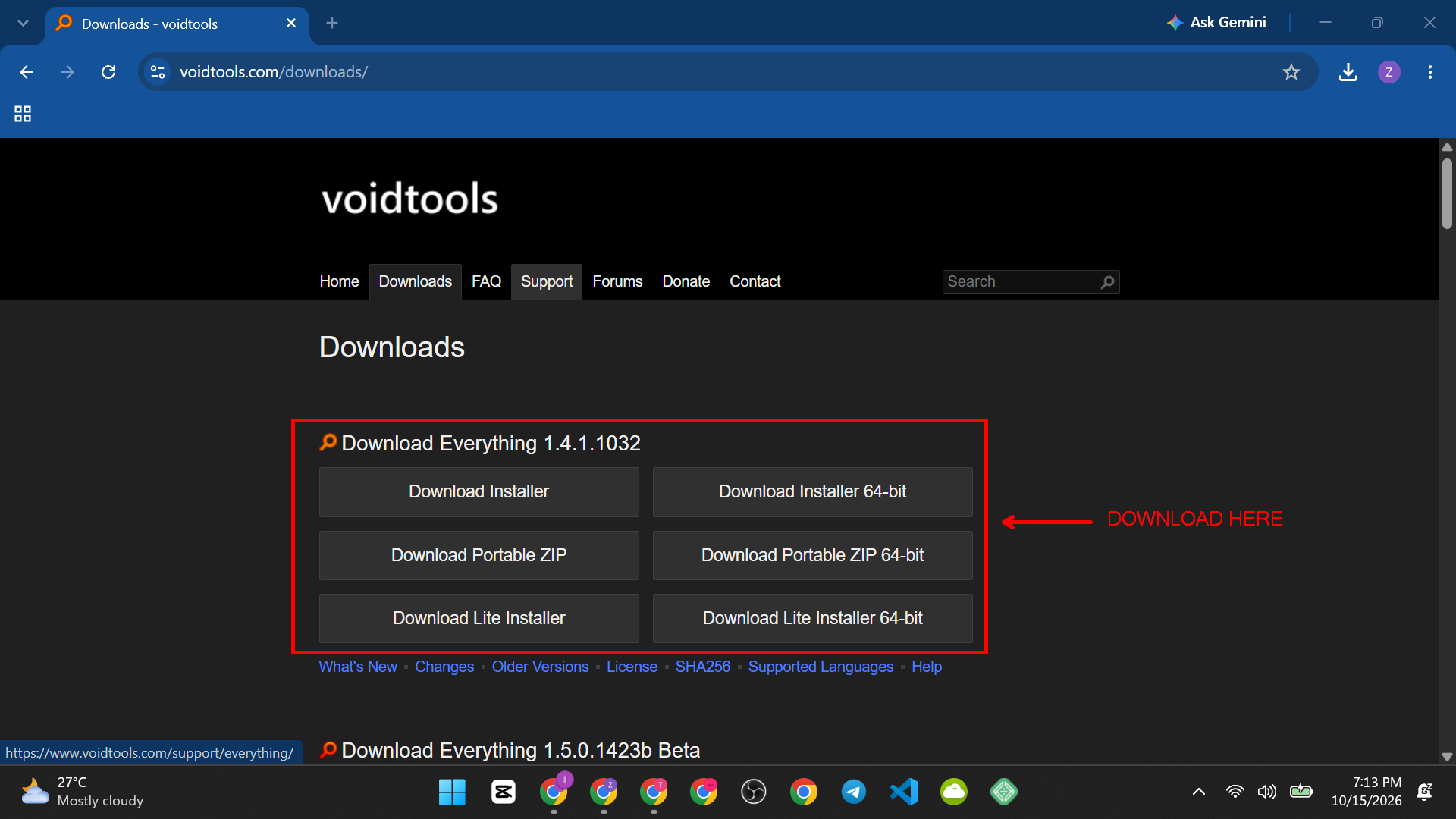
Windows search can feel slow. Everything, from voidtools, finds files and folders by name almost instantly by reading your drive’s file list.
- Install Everything from the official site.
- Open it and wait a moment while it builds its list.

- Start typing part of a file name. Results update as you type.
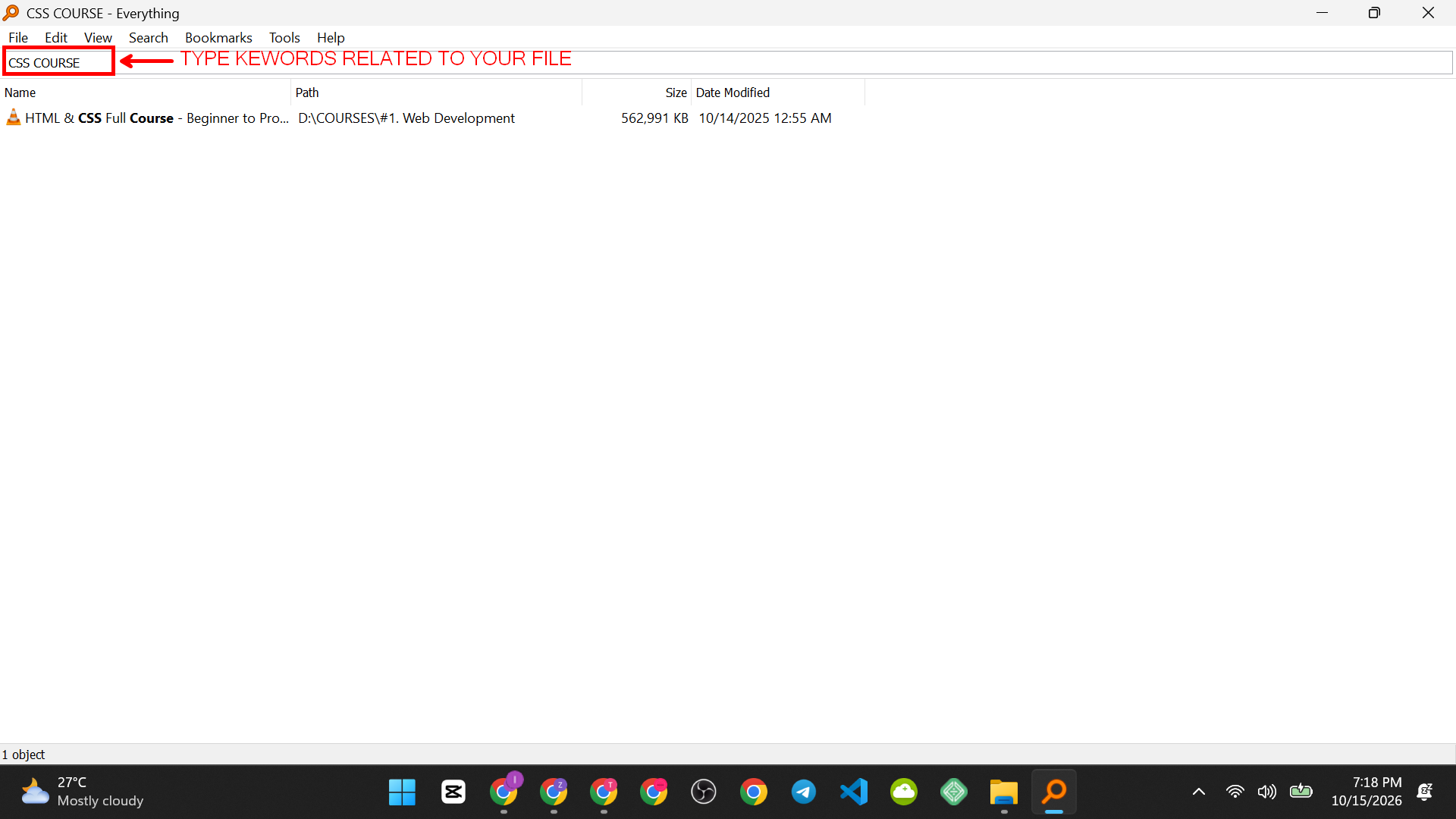
- Double-click a result to open it, or right-click to open its folder.

It searches names, not file contents, by default. Once you find a file you use a lot, make a shortcut for it. How to create a desktop shortcut for a URL or file in Windows explains how.
8. Microsoft PowerToys: Extra Tools From Microsoft
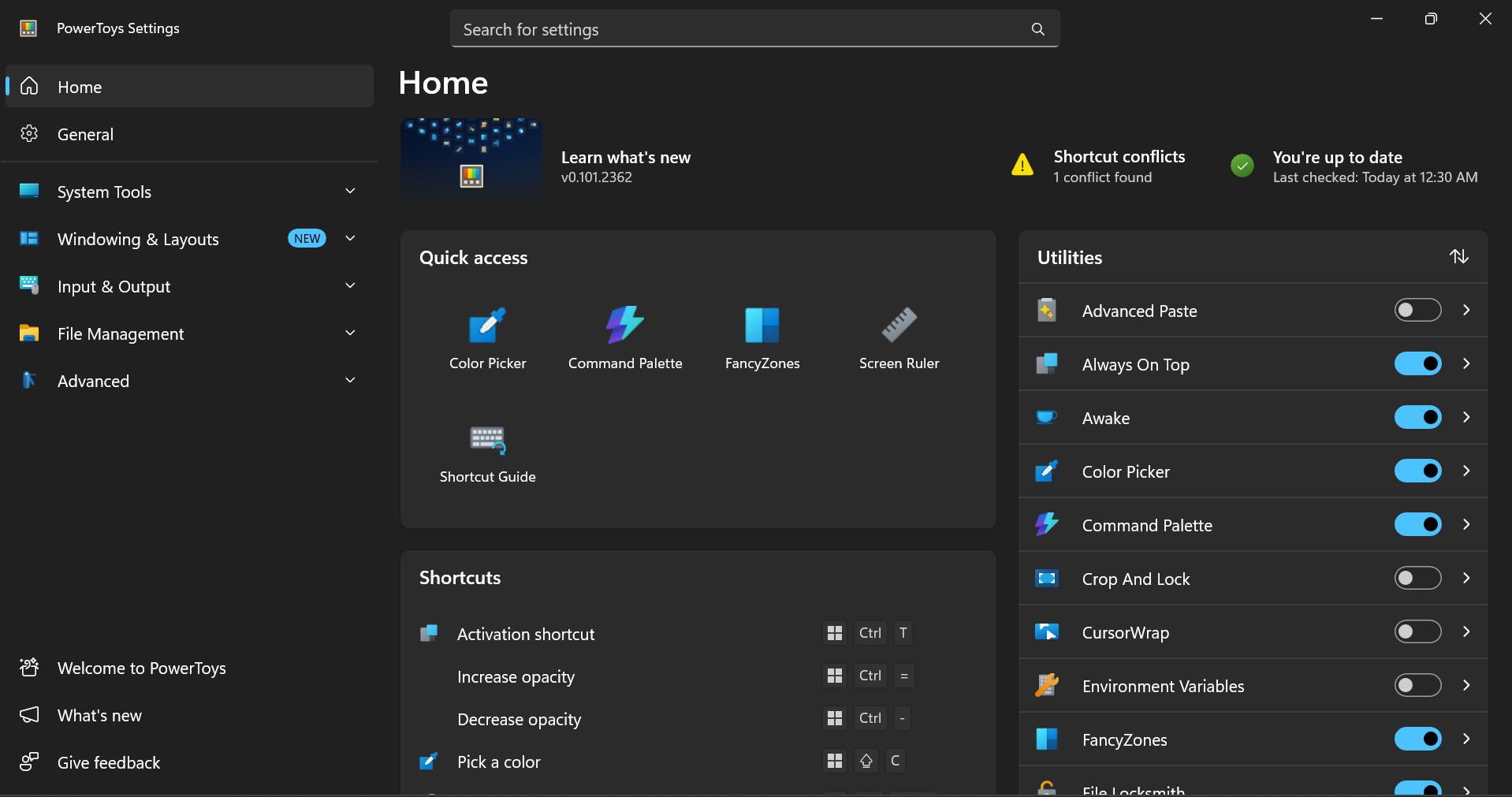
PowerToys is a free collection of utilities made by Microsoft for Windows power users. It includes tools such as PowerRename (rename many files with rules), FancyZones (custom window layouts) and Keyboard Manager (remap keys and shortcuts).
Our guide shows how to download PowerToys for Windows step by step. Windows can already rename groups of files on its own, and how to rename multiple files at once in Windows compares those methods.
9. GIMP: A Powerful Free Photo Editor

GIMP is a free image editor that handles retouching, cropping, layers, text and file conversion. It has more tools than Windows Photos or Paint, and it takes some time to learn. If you only need simple edits, Windows’ built-in tools are faster. If you want something between the two, Paint.NET is another free option.
10. OBS Studio: Record Your Screen Your Way
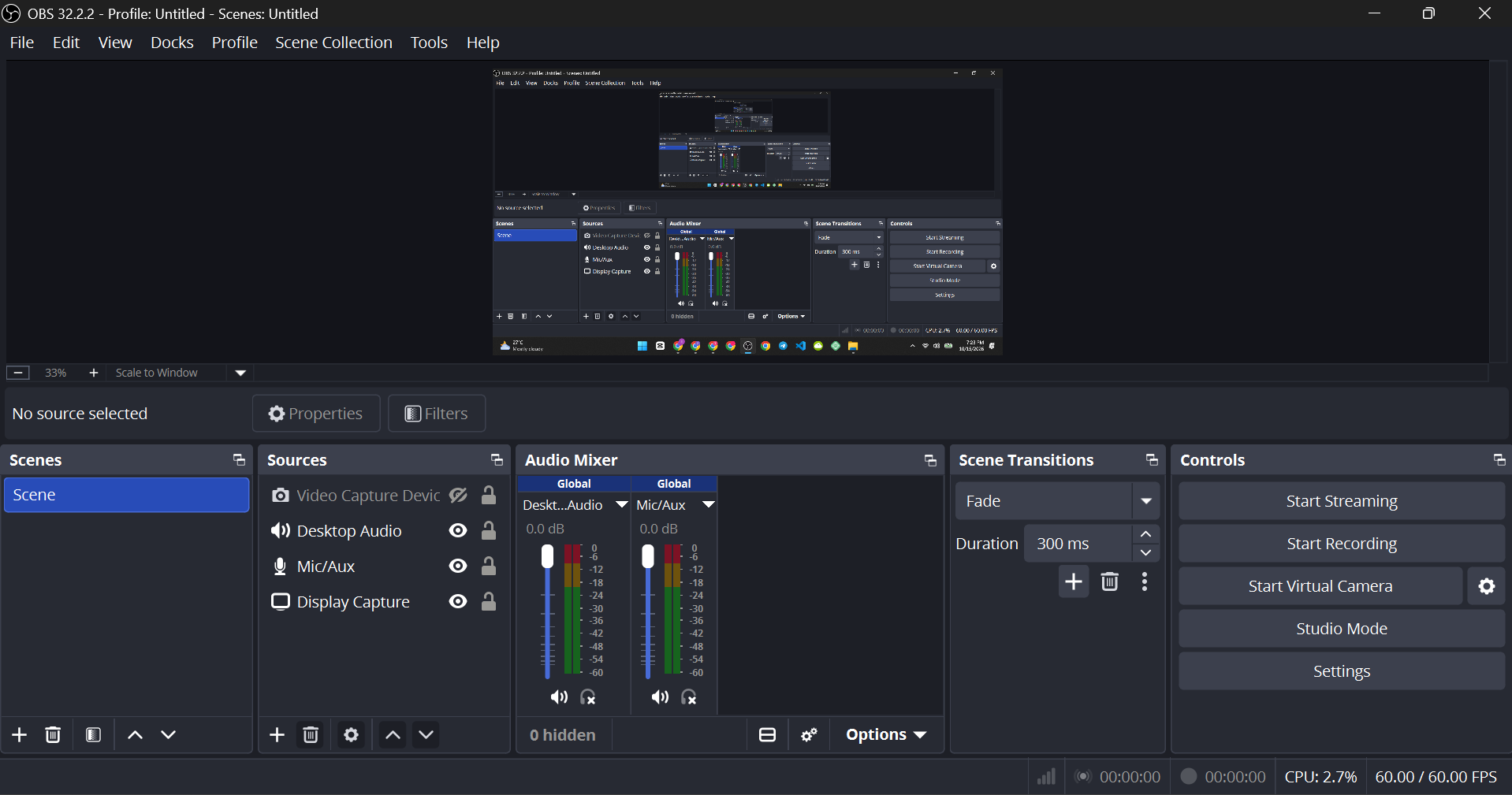
OBS Studio is free, open-source software for recording and live streaming. You add “sources” such as your screen, a window or a webcam, and choose what to record.
Before installing it, check whether you need it. For a quick clip, Windows can record without extra software, as explained in how to record your screen without installing software. OBS makes sense when you want to record your whole desktop, add a webcam, or stream.
Common Problems After Installing Free Apps
- The installer says it is blocked. Windows may show a “Windows protected your PC” message. Confirm that you downloaded from the official website before choosing to continue.
- The app does not appear. Search for it in the Start menu, or check the installed programs list with Windows key + R and appwiz.cpl.
- The PC feels slower. Some apps start with Windows. Open Task Manager (Ctrl + Shift + Esc), go to Startup apps and disable items you do not need.
- A feature is missing. Check that you downloaded the correct 32-bit or 64-bit version for your PC. Most modern PCs use 64-bit.
Where to Go Next
Pick two or three apps that fit your daily work and learn them well. Then speed up your whole routine with the list of 200 Windows shortcuts every user should know. When you want to open tools directly, the Windows Run commands list with 150 commands explained is a useful reference.


