
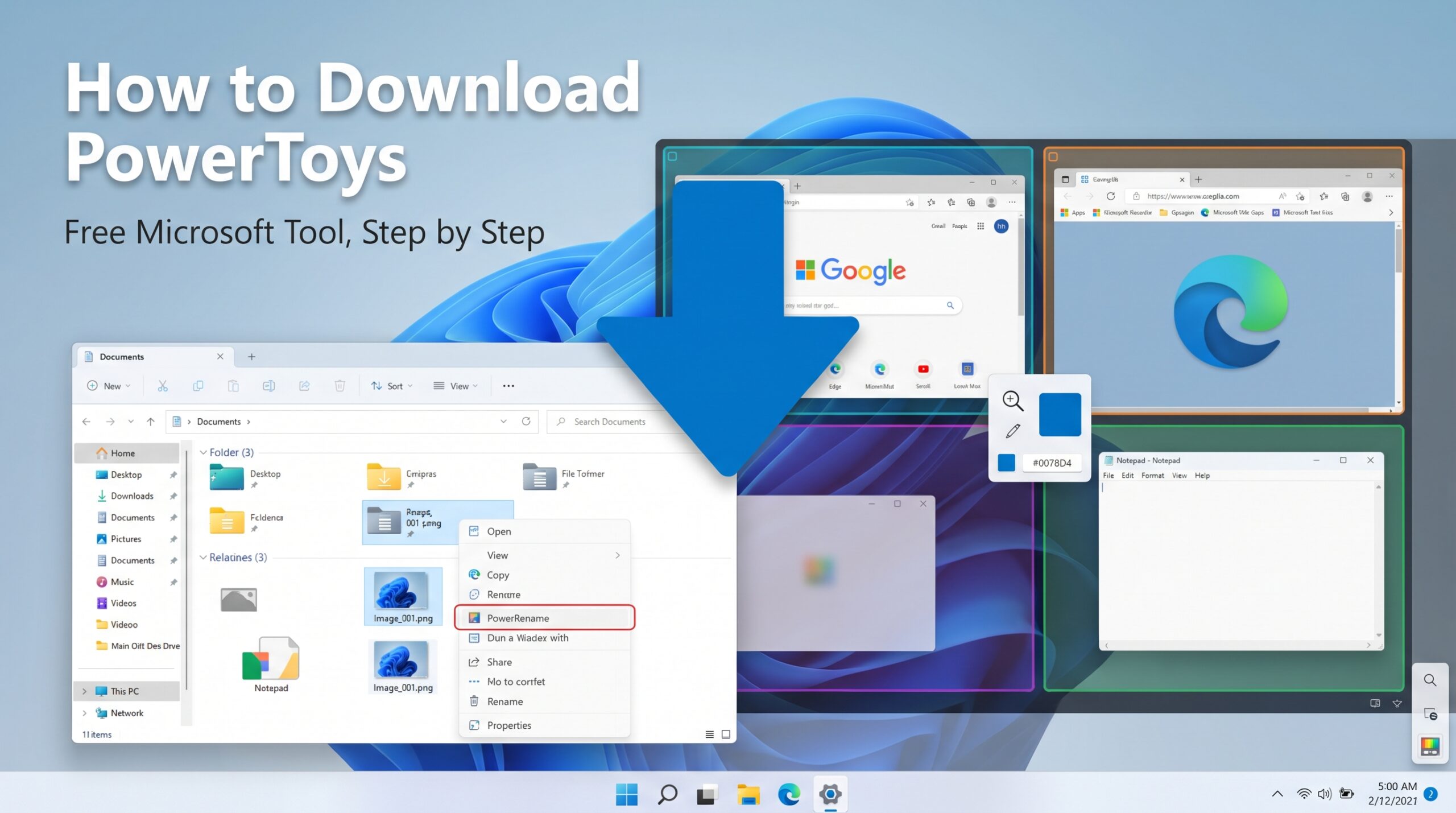

PowerToys is a free set of utilities from Microsoft that adds handy features Windows doesn’t include by default, like bulk file renaming, a better window-snapping tool, and a quick color picker. If you’ve come across a tutorial (like renaming multiple files at once) that mentions installing it, here’s exactly how to get it safely and get it running.
Quick Takeaway
There are two official ways to get PowerToys: the Microsoft Store, or a direct download from Microsoft’s GitHub page. Both are completely safe and free. If you’re not especially technical, use the Microsoft Store method below. It’s fewer steps, skips a security warning the other method shows, and updates itself automatically afterward.
Method 1: Microsoft Store (Recommended, Simplest)
This is the easiest method, and the one most people should use.
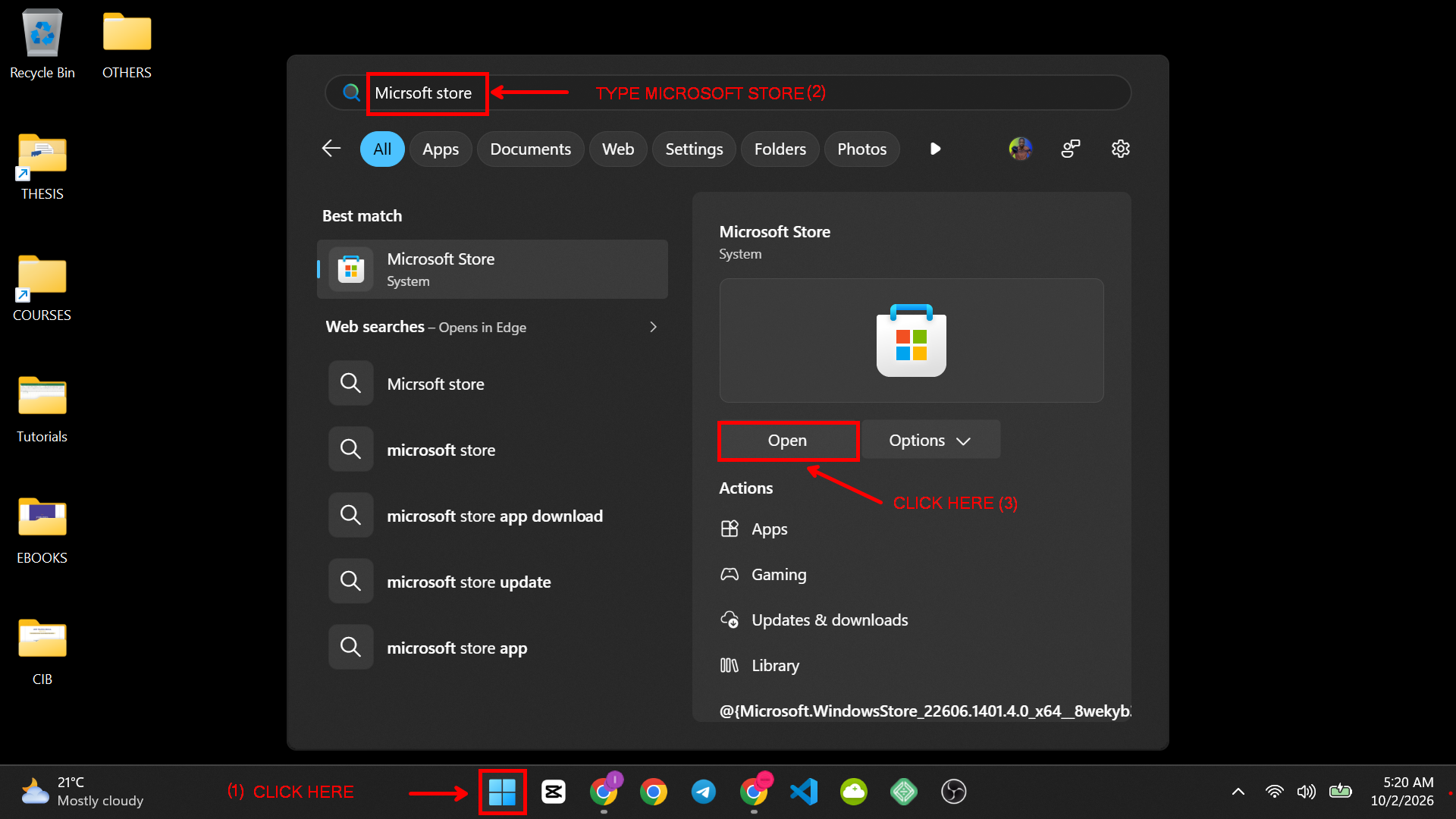
- Open the Microsoft Store app on your PC (search for “Microsoft Store” in the Start menu if you don’t have it pinned).
- Click the search bar and type “PowerToys.”
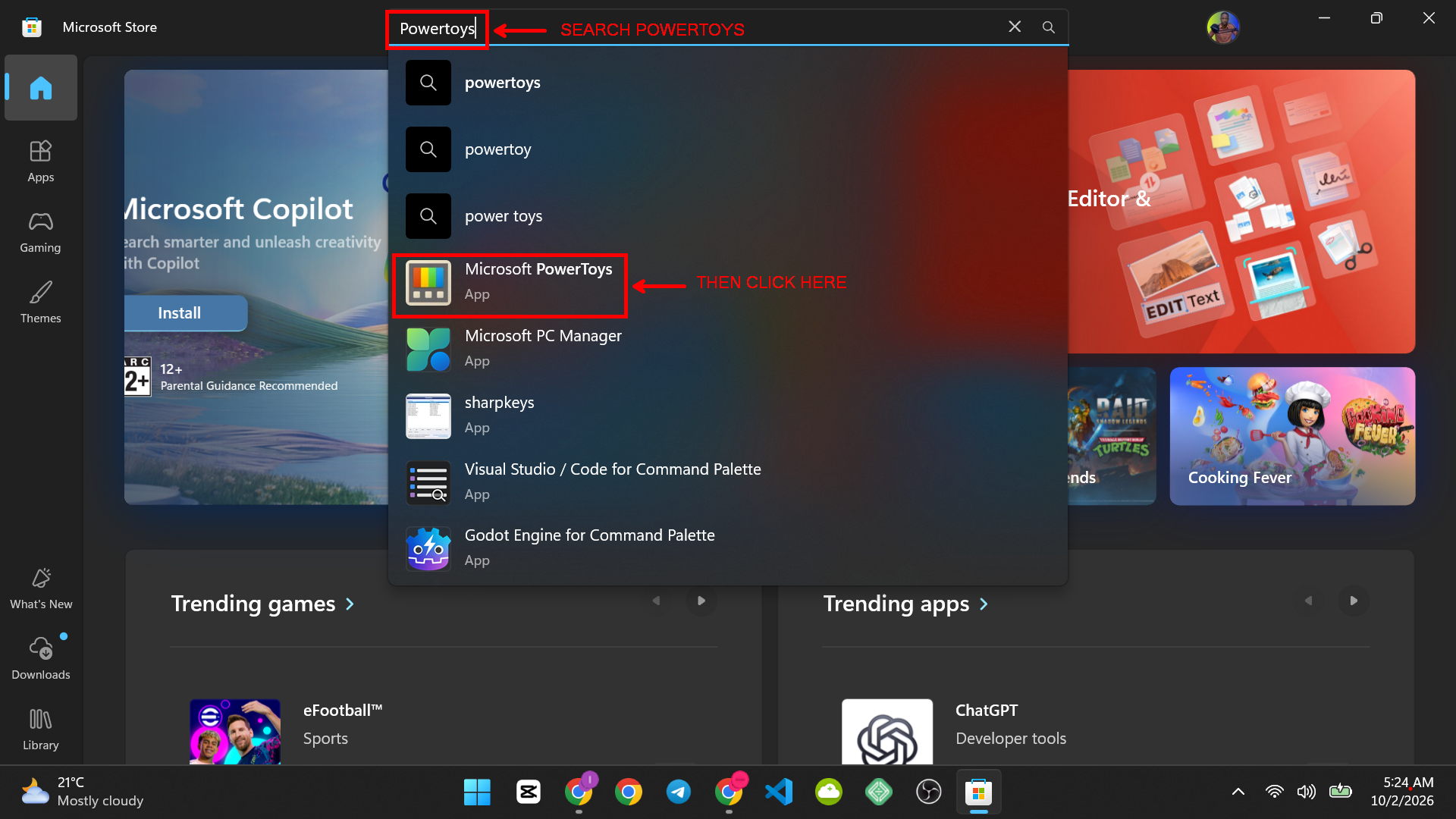
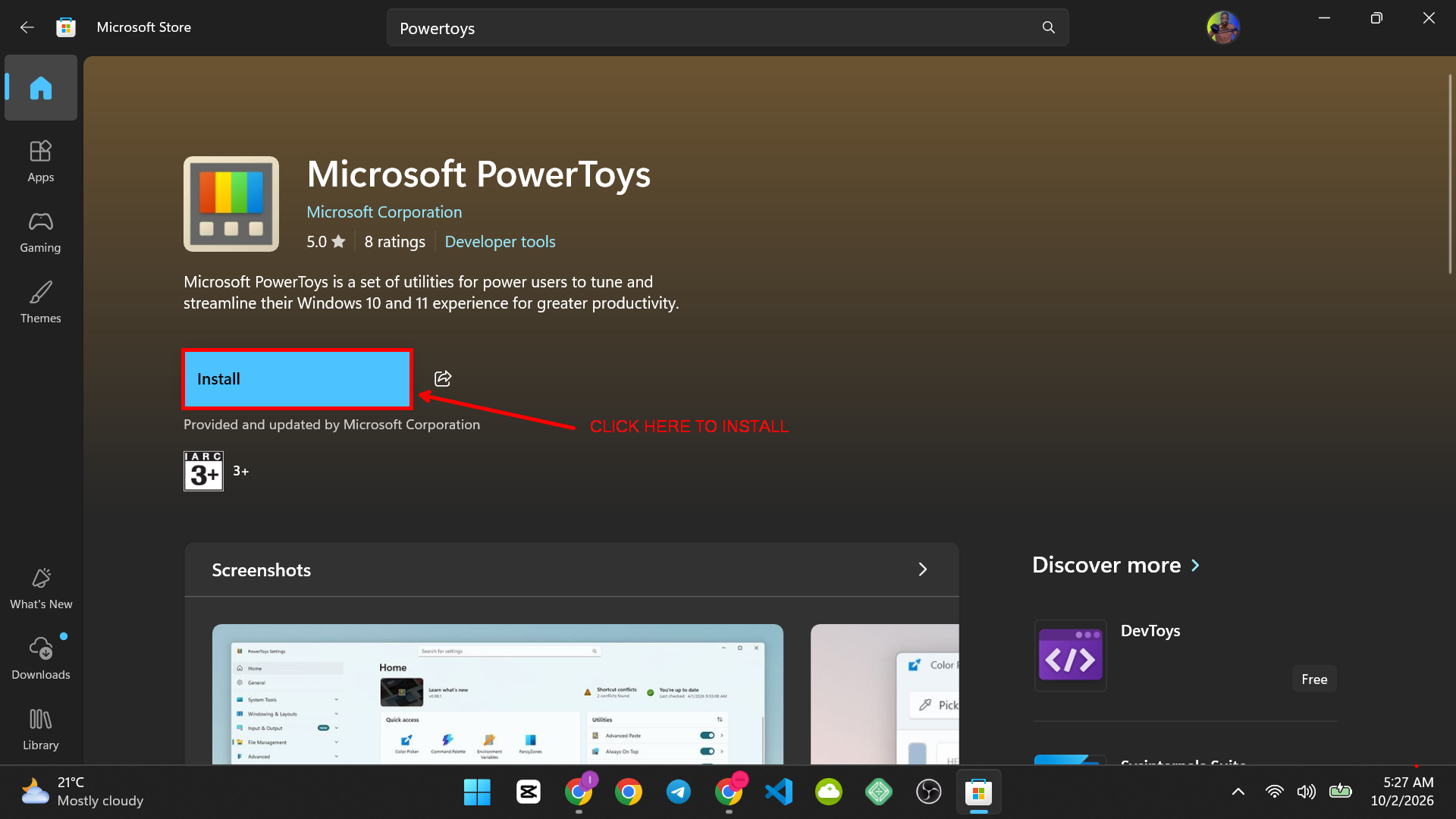
- Click the official listing titled “PowerToys (Preview),” published by Microsoft Corporation. You can also skip the search entirely and open the official PowerToys Store listing directly in your browser, which opens the same page inside the Store app.
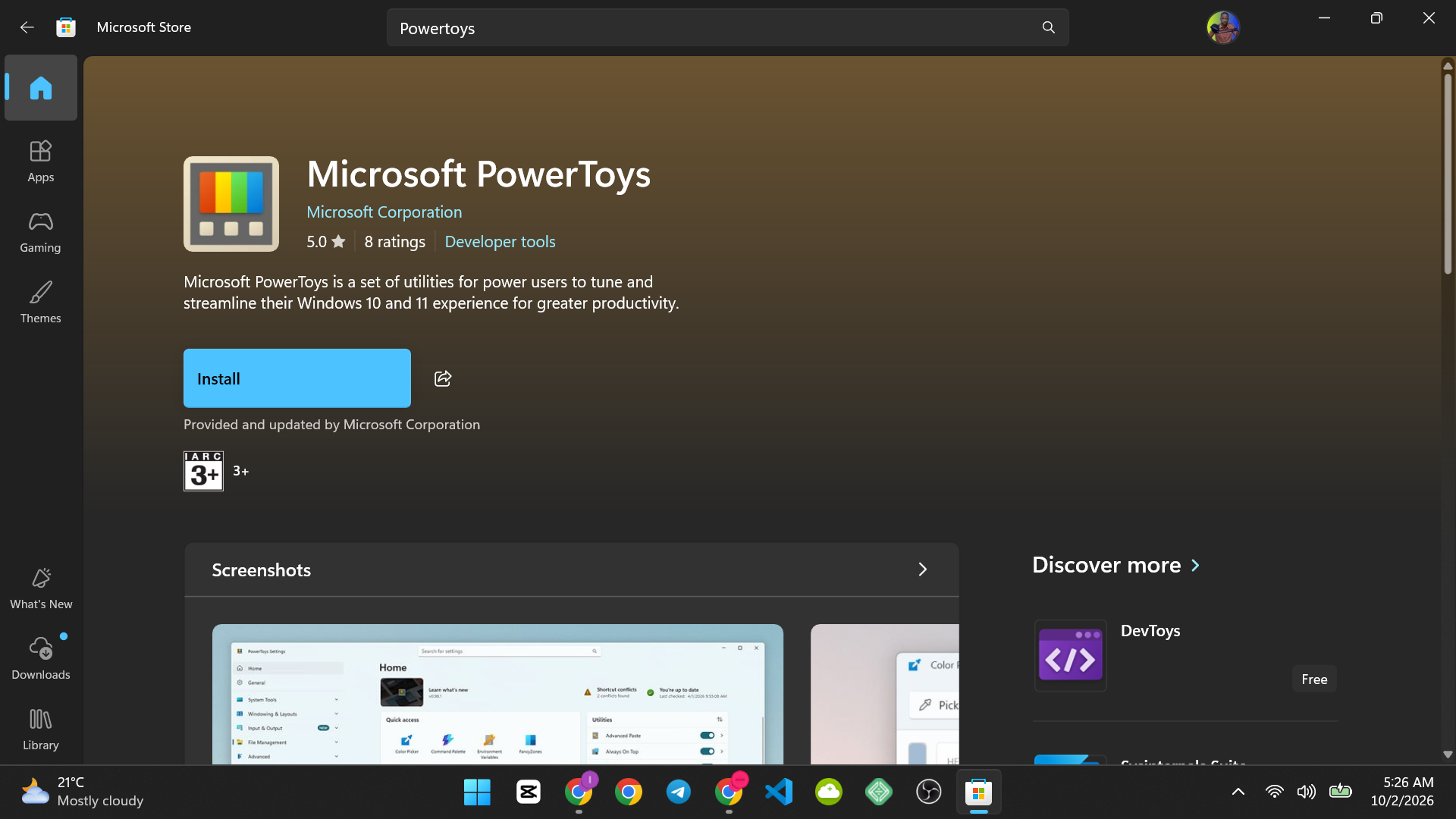
- Click Install (or “Get” depending on your Store version).
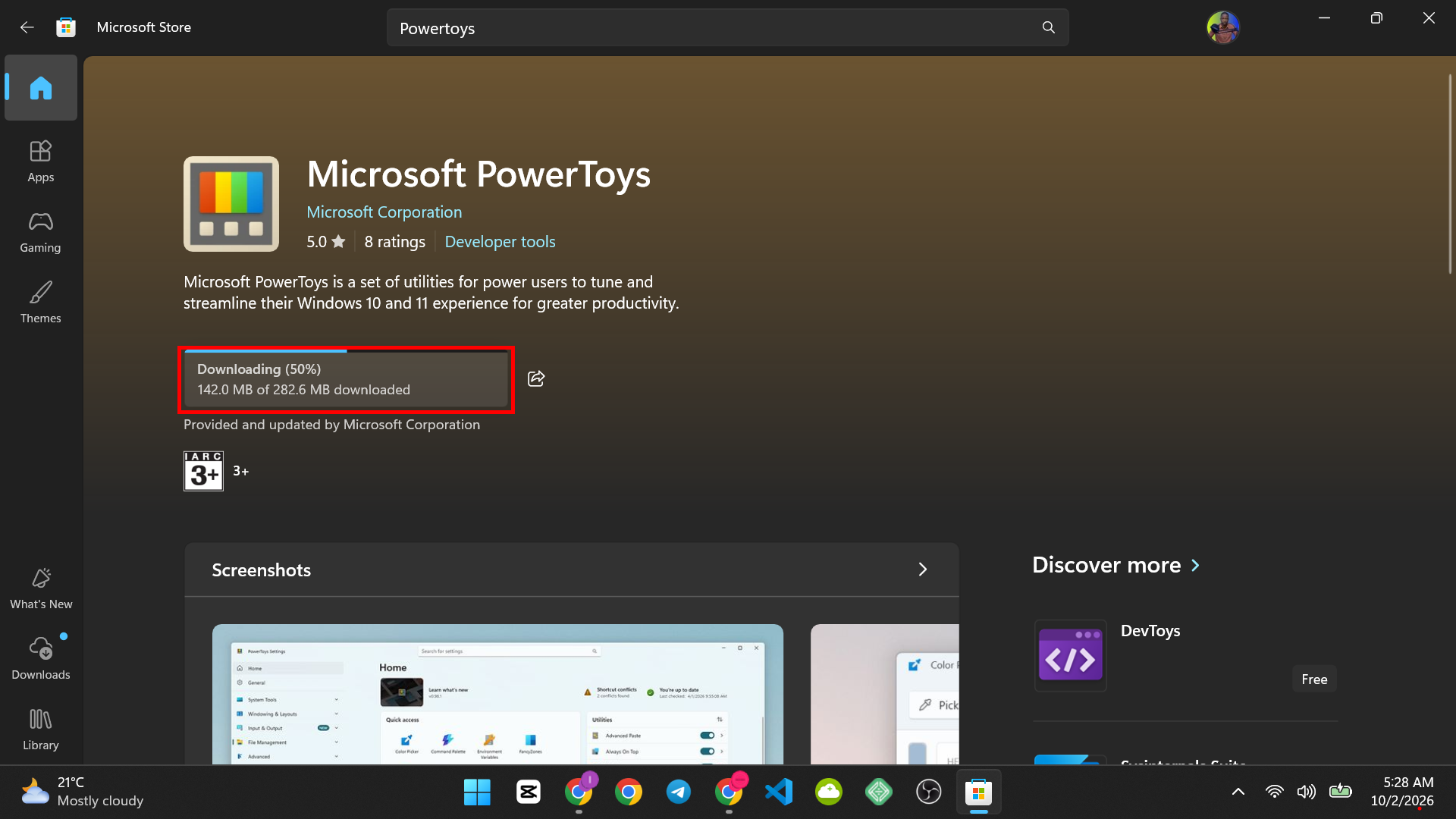
- Wait for the install bar to finish, usually under a minute on a normal connection
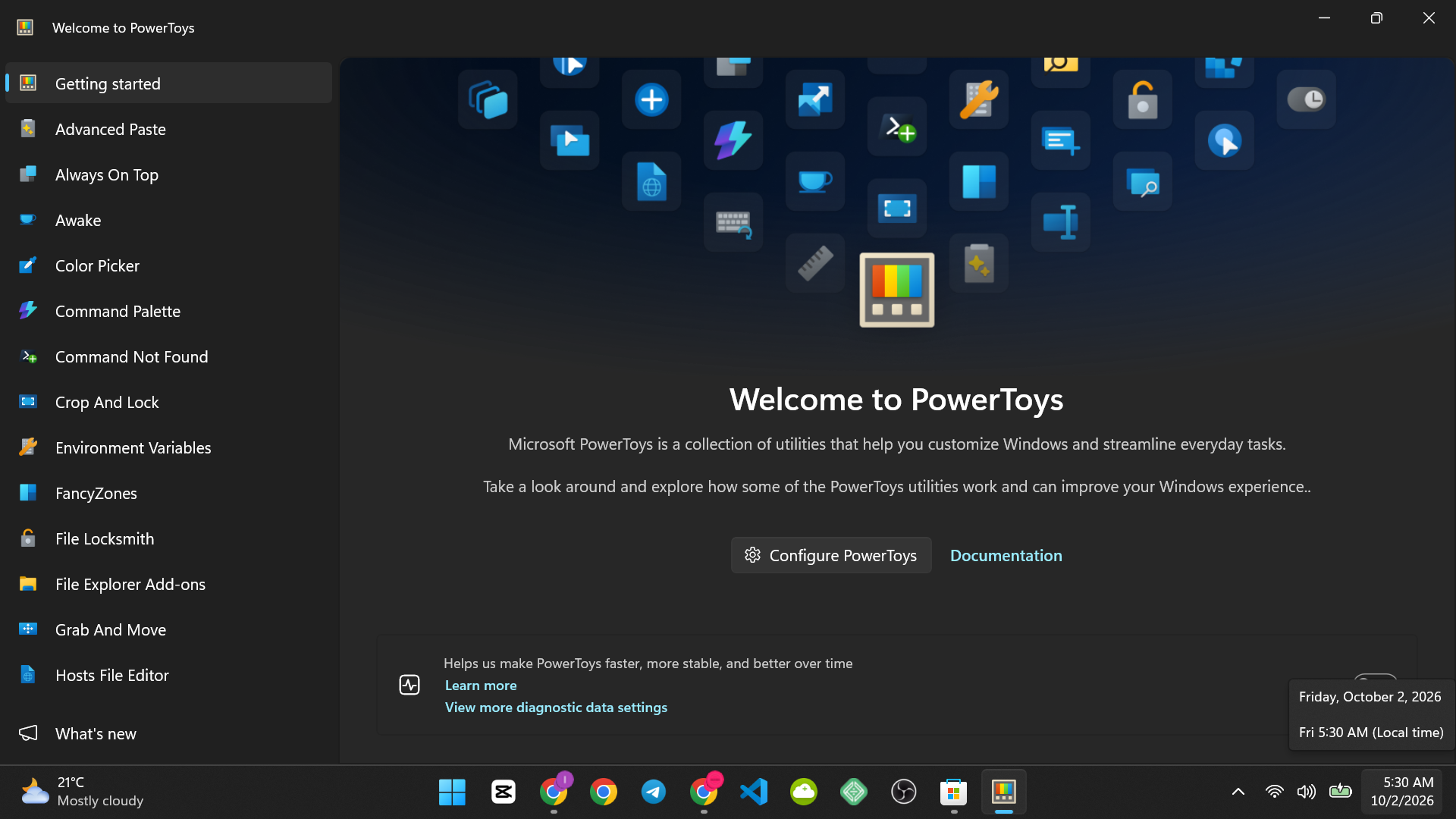
- PowerToys opens automatically once installed
Expected Result
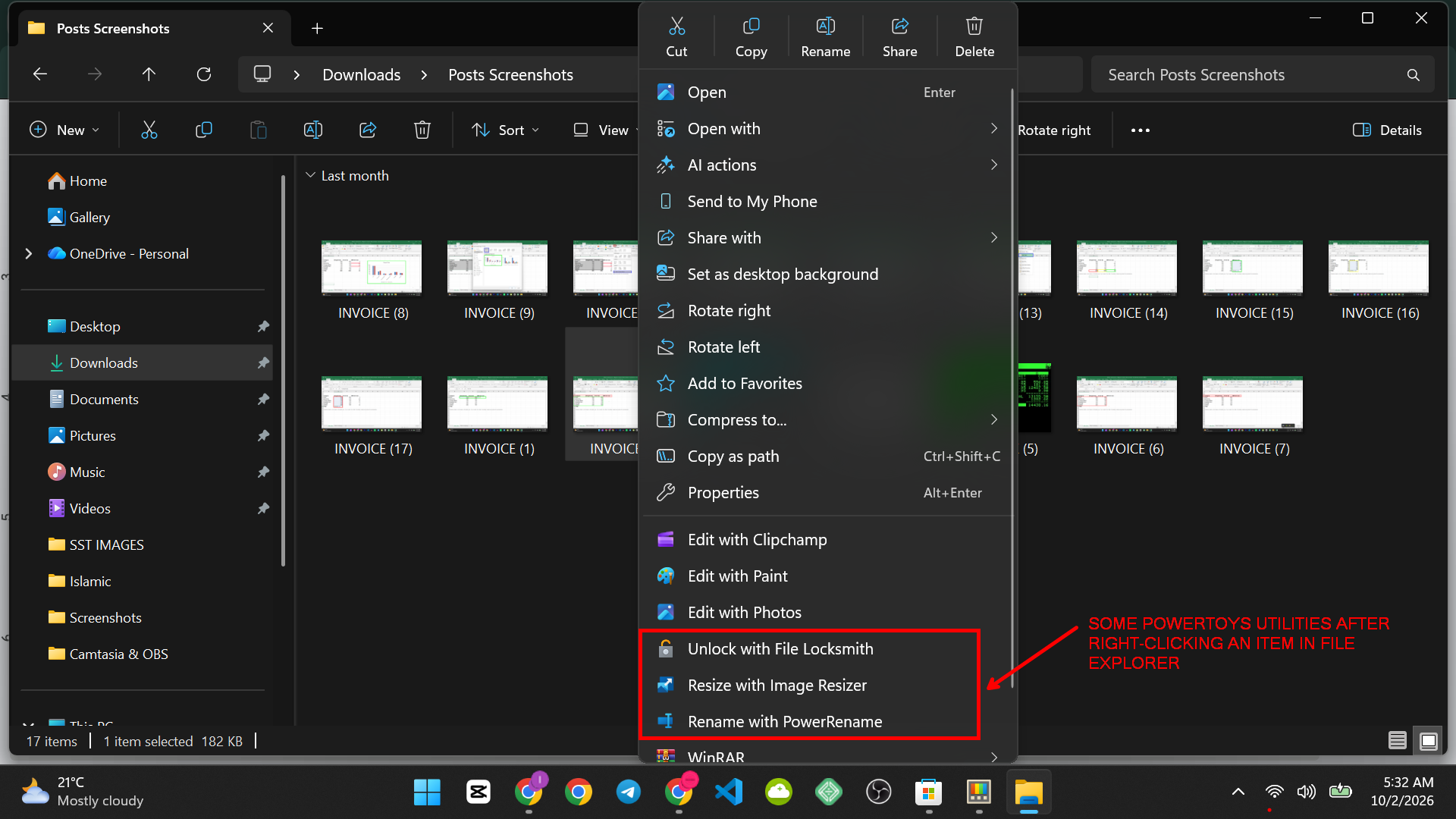
PowerToys is now running in the background, shown by its icon in the system tray. Right-clicking any file in File Explorer should now show new options like PowerRename, and other PowerToys utilities can be opened from the system tray icon.
Why this is the simplest method: There’s no separate file to download, no SmartScreen warning to click through, and no need to figure out which installer file matches your PC. The Store also updates PowerToys automatically along with your other apps, so you never have to think about it again.
Method 2: Direct Download from GitHub (For More Control)
This method is better if you specifically want a certain version, prefer not to use the Microsoft Store, or are installing PowerToys on a PC without Store access (common on some work or managed PCs).
- Open your browser and go to the official PowerToys release page on GitHub.
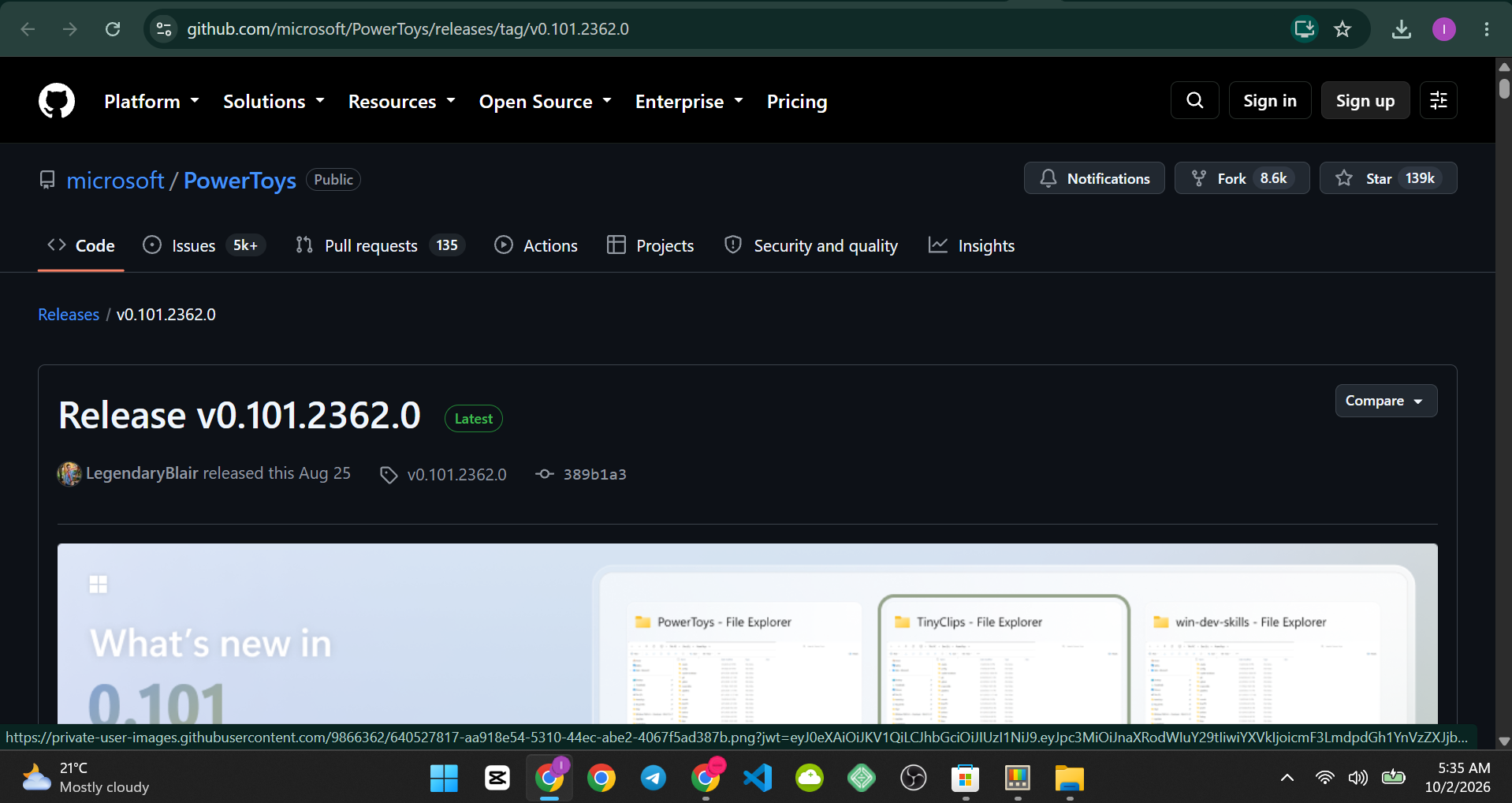
- Scroll down to the “Assets” section near the bottom of that release.
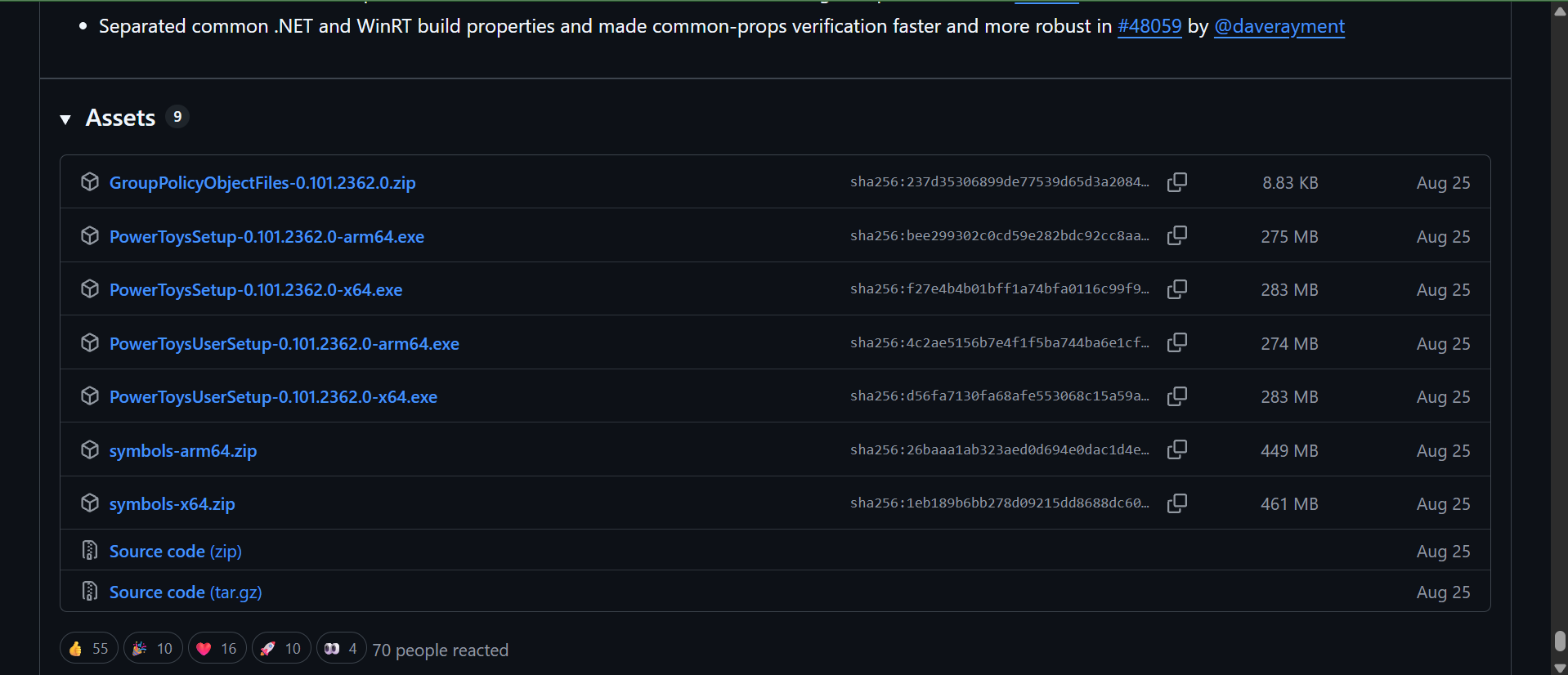
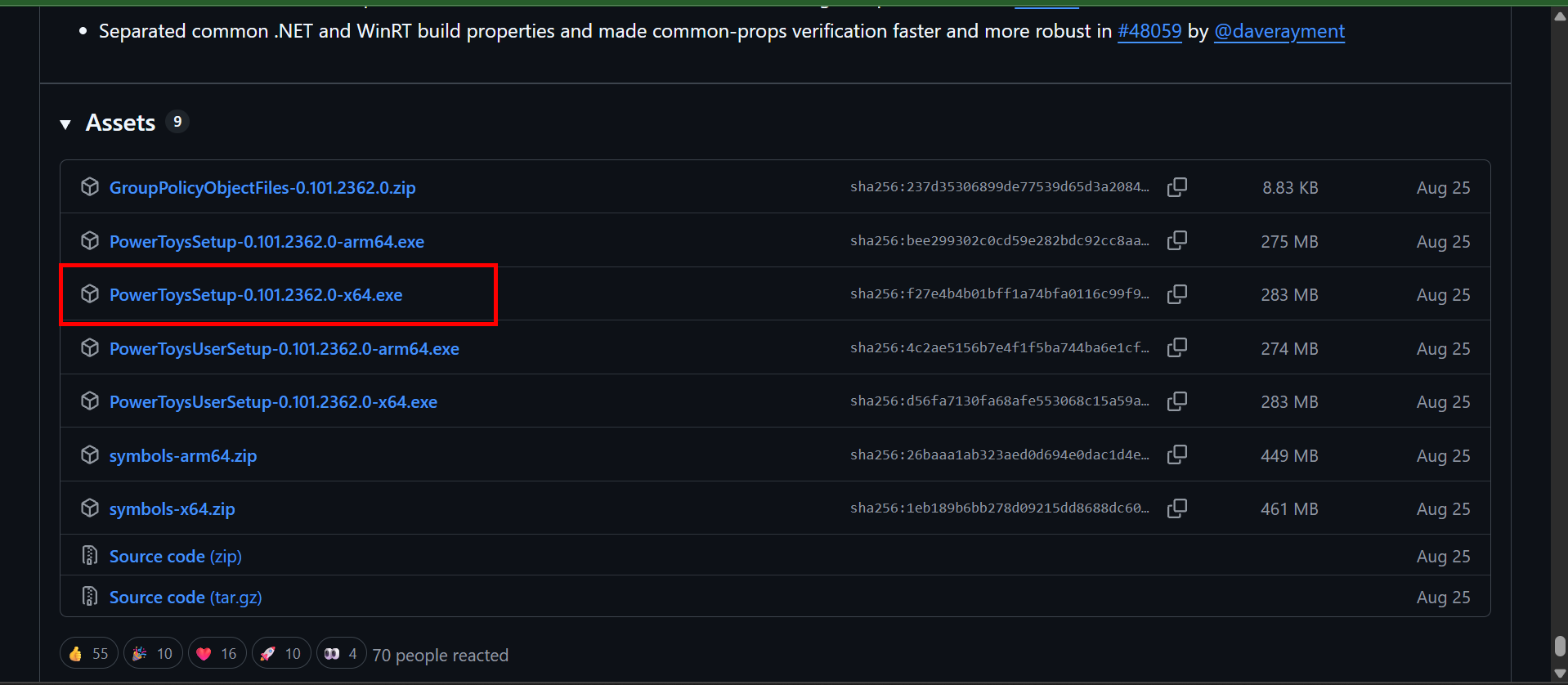
- Click the file ending in .exe that matches your PC, usually PowerToysSetup-x64.exe for most modern PCs (choose the ARM64 version only if you’re specifically on a Windows on ARM device).
- Once the file finishes downloading, open it from your browser’s downloads bar or your Downloads folder.
- If Windows shows a SmartScreen warning saying the app isn’t commonly downloaded, click “More info,” then “Run anyway.” This is expected and doesn’t mean the file is unsafe, since it’s coming directly from Microsoft’s official GitHub page.
- Follow the installer prompts, accept the license terms, and click Install.
- Once installation finishes, PowerToys opens automatically and its icon appears in your system tray.
Downloading PowerToys from a random search result or third-party download site instead of the two official sources above. Third-party sites sometimes bundle extra unwanted software with the installer.
Method Comparison: Use Method 1 (Microsoft Store) if you want the simplest possible setup with automatic updates, which covers almost everyone. Use Method 2 (GitHub) if you need a specific version, don’t have Microsoft Store access on that PC, or prefer managing updates yourself.
Common Problems and Solutions
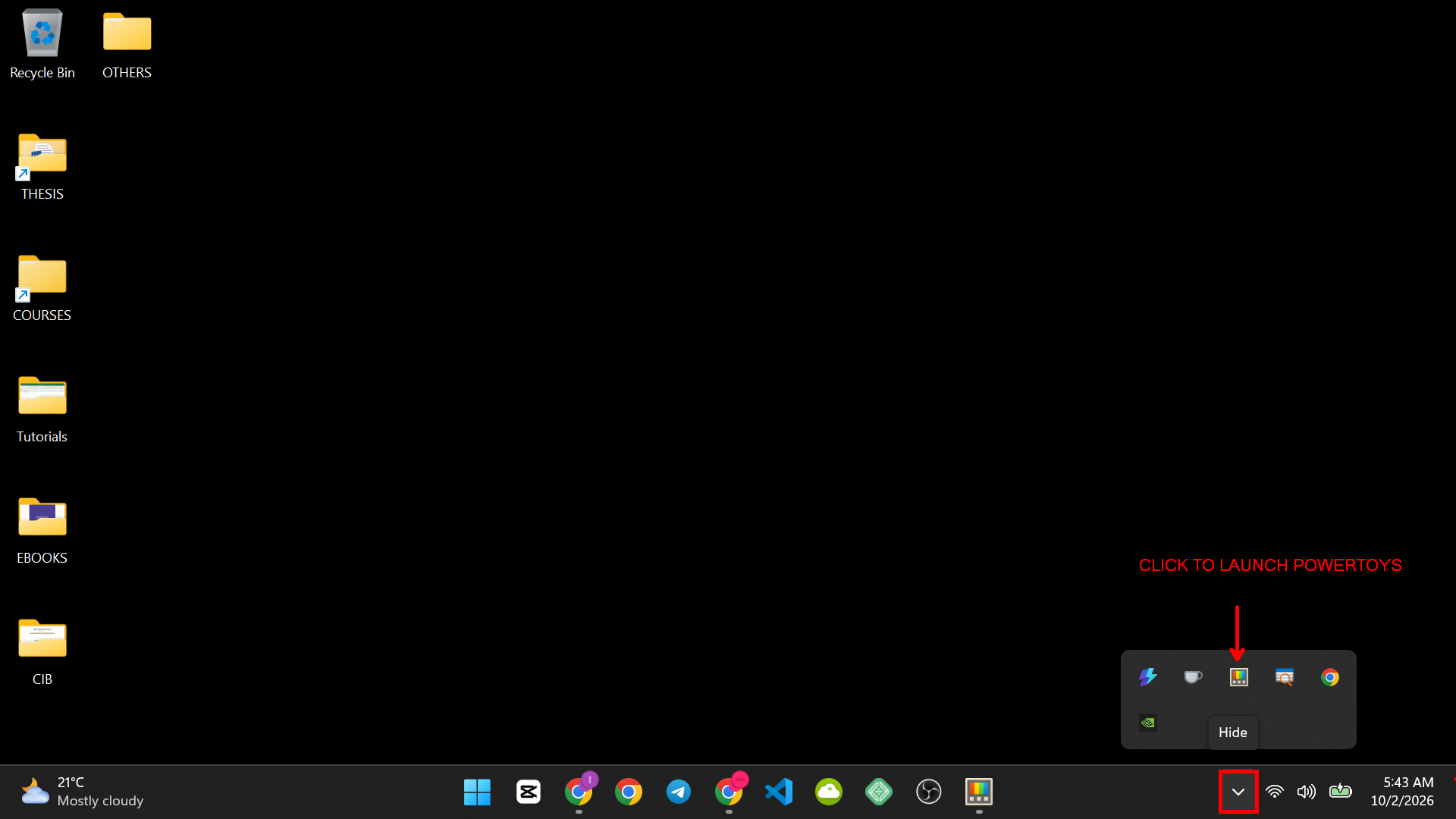
PowerToys icon doesn’t appear in the system tray after installing.
Click the small upward arrow near the system tray to check for hidden icons, since PowerToys sometimes starts there instead of the main tray row.
Installer won’t run, or Windows blocks it entirely (GitHub method).
Confirm you downloaded the file from the official GitHub Releases page, not a mirrored copy elsewhere, and make sure you downloaded the correct version for your PC (x64 for most modern PCs, ARM64 only if you’re on a Windows on ARM device).
Microsoft Store won’t open, or shows an error (Store method).
This is usually a temporary Store glitch, not a PowerToys problem. Restart the Store app, or restart your PC, then try again.
PowerToys utilities like PowerRename aren’t showing in right-click menus after install. Open PowerToys from the system tray, go to Settings, and confirm the specific module (like PowerRename) is toggled on, since each utility can be individually enabled or disabled.
FAQs
Is PowerToys free?
Yes, PowerToys is completely free and published directly by Microsoft as an open-source project.
Does PowerToys work the same on Windows 10 and Windows 11?
Yes, it installs and runs the same way on both, though a few individual utilities have been added over time and may only be available in newer PowerToys versions regardless of which Windows version you’re on.
Conclusion
Once PowerToys is installed, it’s worth spending a few minutes in its Settings app looking through the full list of utilities, since most people only use one or two features like PowerRename without realizing how many other tools are bundled into the same install.


