


You do not need to memorize hundreds of Microsoft Windows shortcuts to work faster. Ten of them cover most daily tasks: copying, undoing mistakes, switching windows, locking your PC, taking screenshots and opening key tools.
Every shortcut below works in both Windows 10 and Windows 11 unless the text says otherwise. The Windows key (also called the Win key) is the key with the Windows logo, usually between Ctrl and Alt on the bottom row.
WATCH VIDEO HERE:
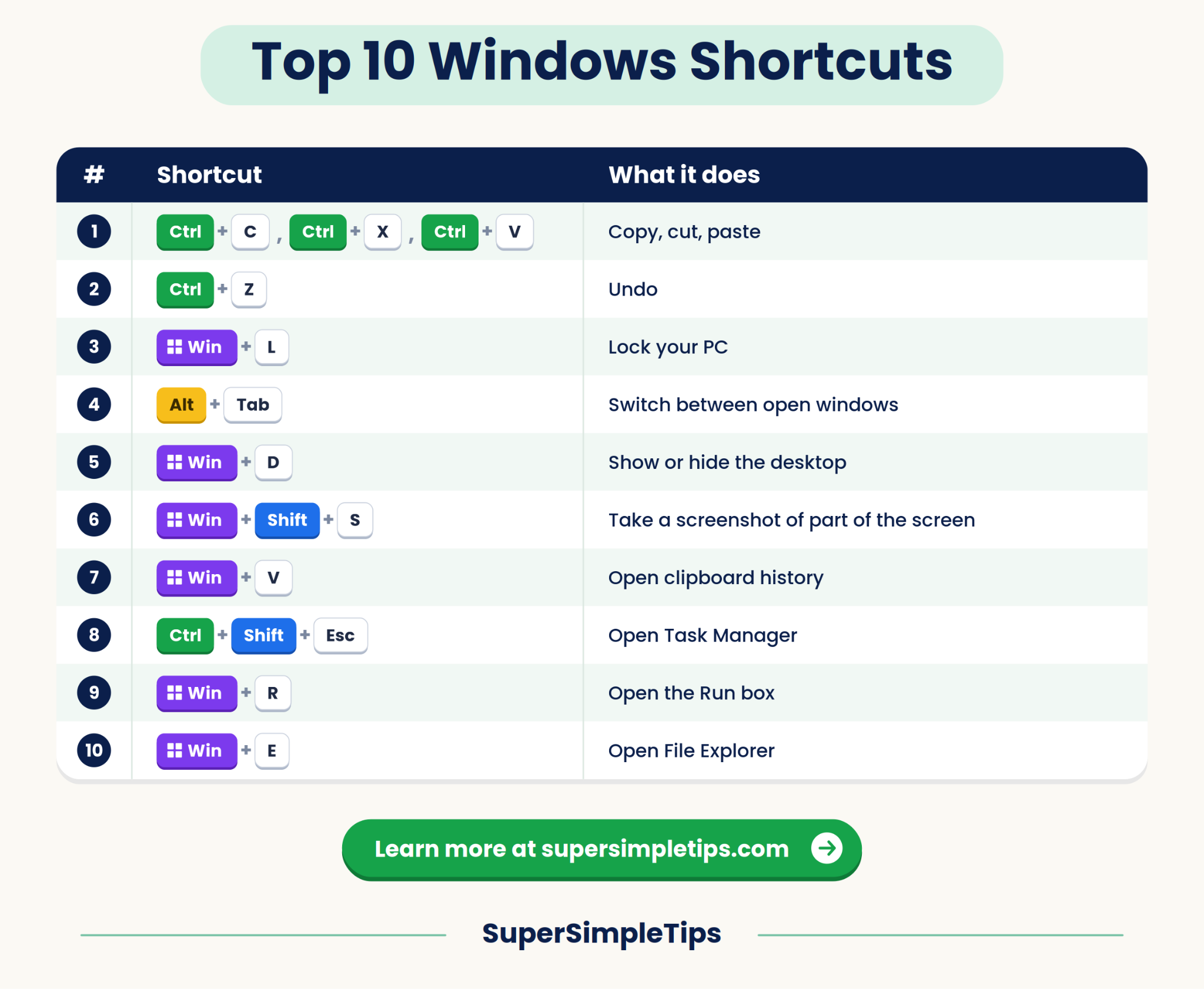
Here is the full list at a glance.
| # | Shortcut | What it does |
| 1 | Ctrl + C, Ctrl + X, Ctrl + V | Copy, cut, paste |
| 2 | Ctrl + Z | Undo |
| 3 | Windows key + L | Lock your PC |
| 4 | Alt + Tab | Switch between open windows |
| 5 | Windows key + D | Show or hide the desktop |
| 6 | Windows key + Shift + S | Take a screenshot of part of the screen |
| 7 | Windows key + V | Open clipboard history |
| 8 | Ctrl + Shift + Esc | Open Task Manager |
| 9 | Windows key + R | Open the Run box |
| 10 | Windows key + E | Open File Explorer |
1. Ctrl + C, Ctrl + X and Ctrl + V: Copy, Cut and Paste
These three work almost everywhere: documents, web pages, folders and email.
- Select the text, file or image you want.
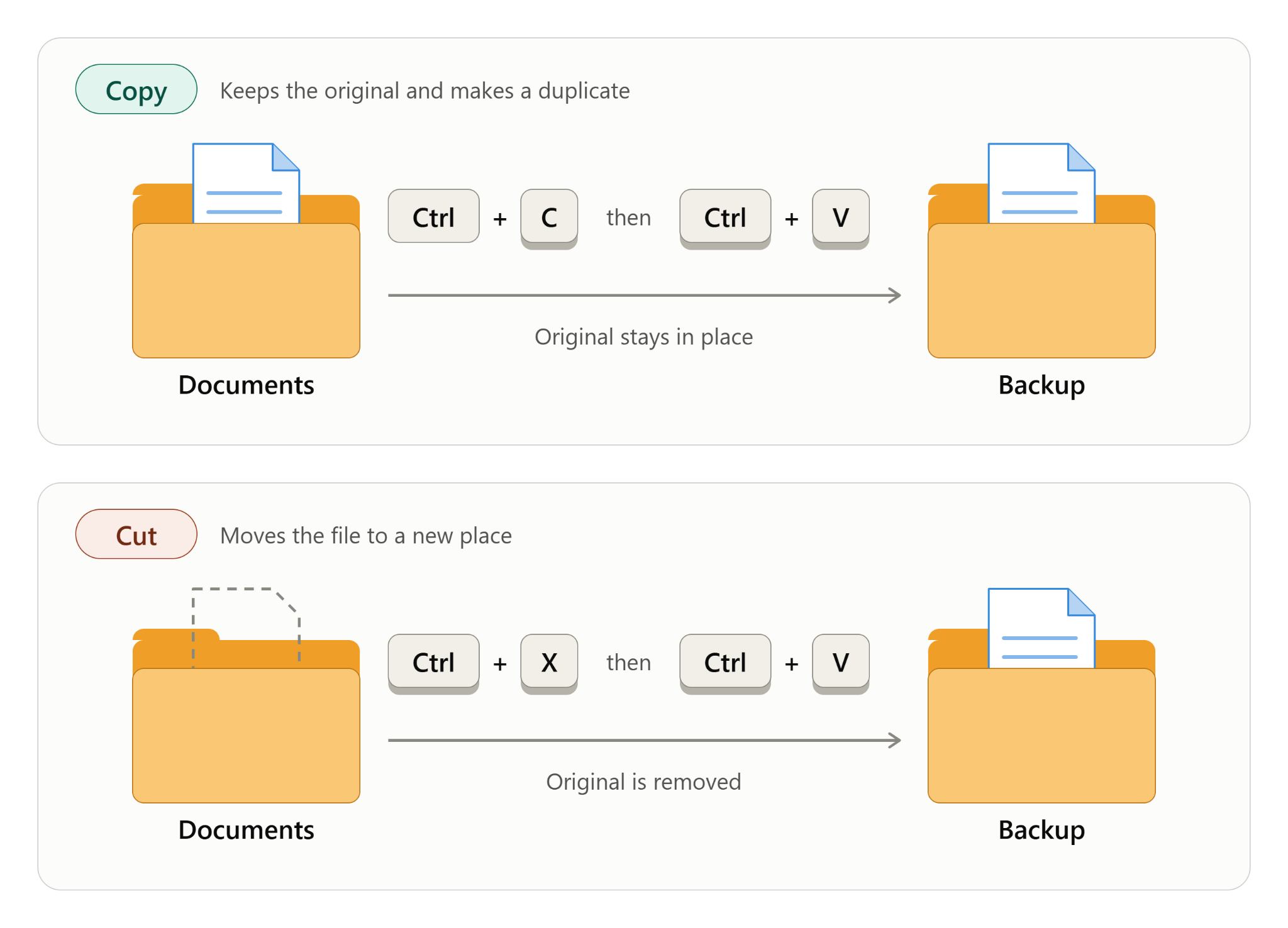
- Press Ctrl + C to copy it. The original stays where it is.
- Click where you want the copy, then press Ctrl + V to paste.
To move something instead of copying it, press Ctrl + X (cut) and then Ctrl + V in the new place. When you cut a file, it stays visible until you paste it.
Tip: To paste text without its original fonts and colors, press Ctrl + Shift + V in apps that support it, such as many web browsers. It is not available in every app, so test it first.
2. Ctrl + Z: Undo
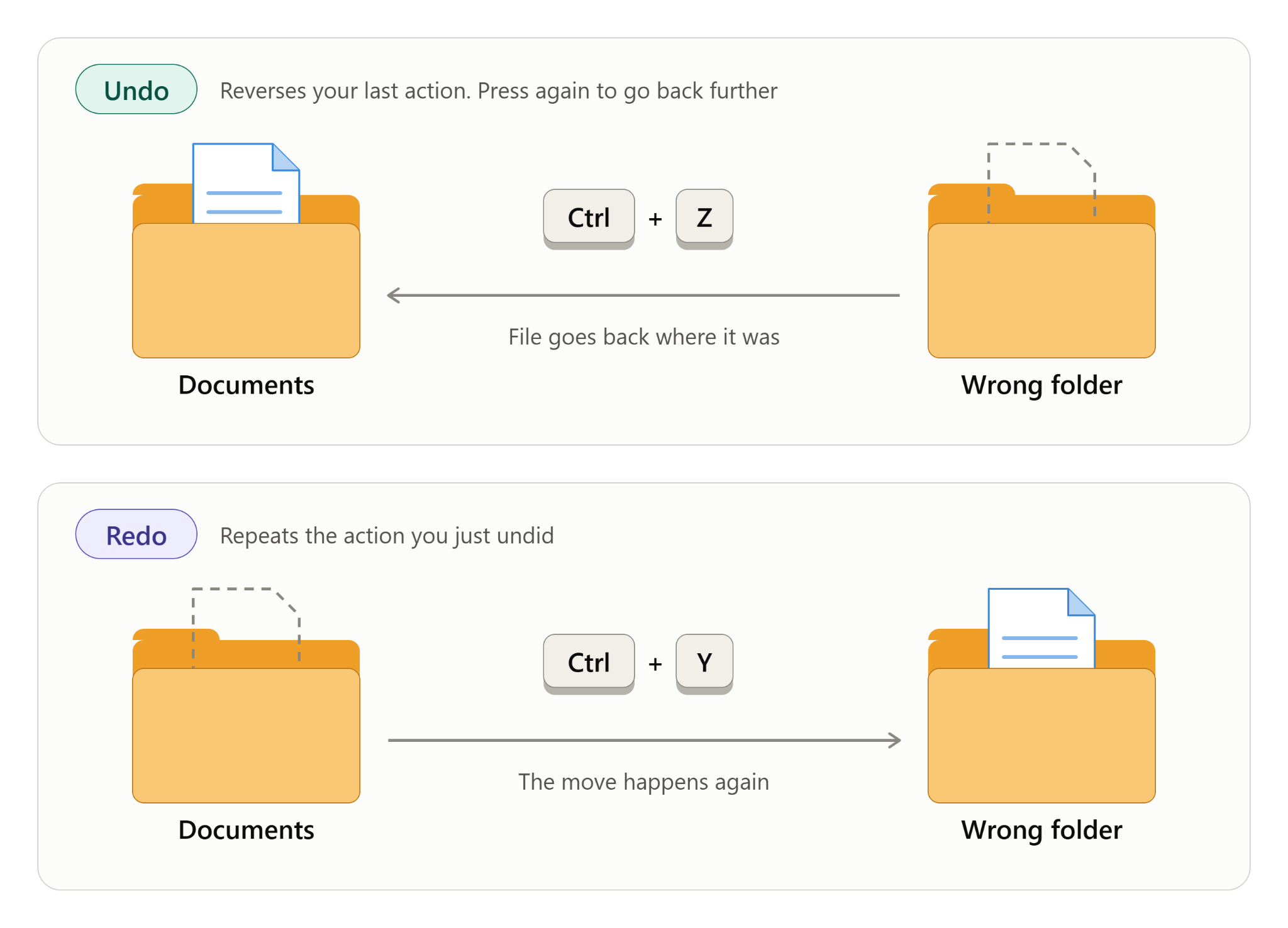
Deleted the wrong paragraph? Moved a file to the wrong folder? Press Ctrl + Z and Windows reverses your last action. Press it again to go back another step.
To redo what you just undid, press Ctrl + Y. How many steps you can undo depends on the app. In File Explorer, Ctrl + Z can undo a rename, a move or a copy, but a file permanently deleted from the Recycle Bin cannot be brought back this way.
3. Windows Key + L: Lock Your PC
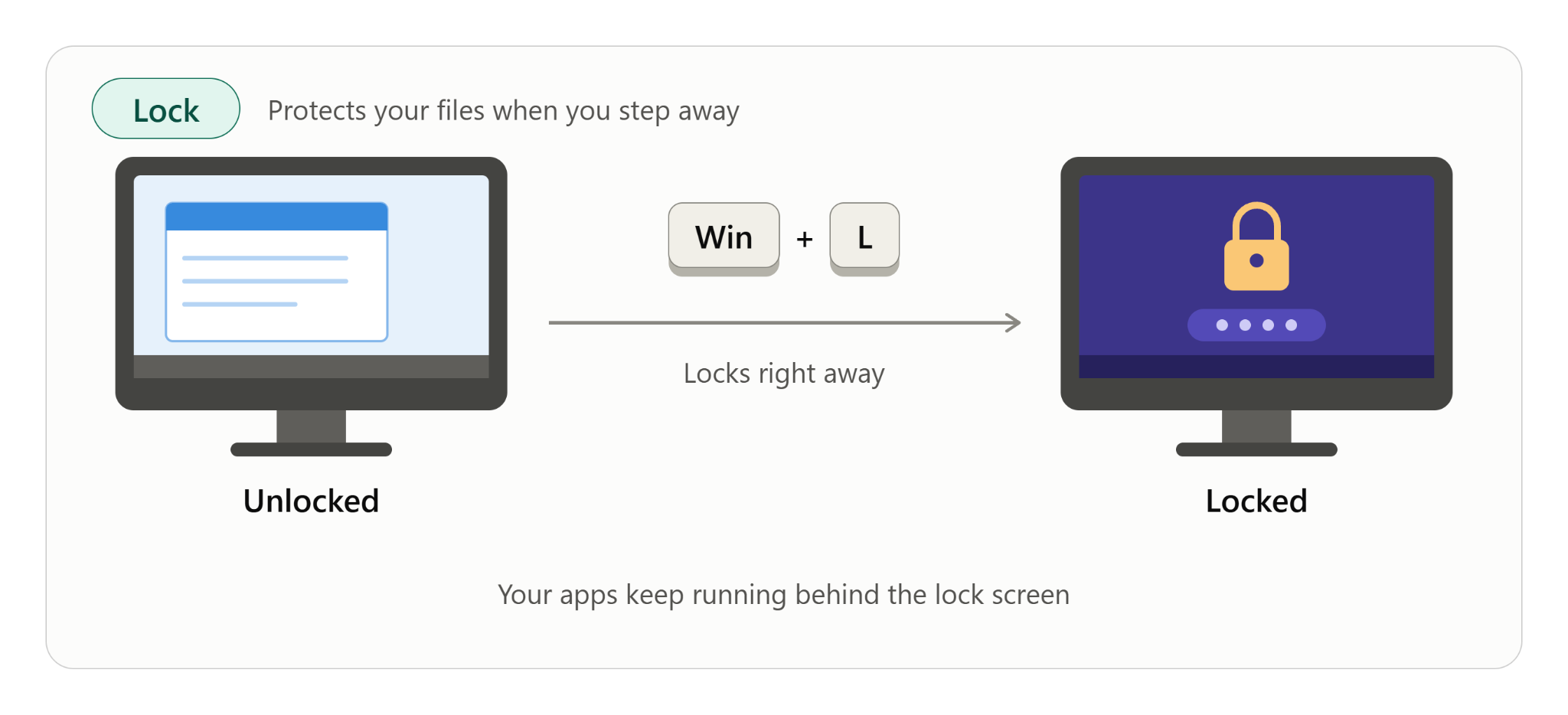
Stepping away from your desk? Press Windows key + L. Your screen goes to the lock screen right away, and you need your password, PIN or other sign-in method to get back in. Your open apps keep running.
This is the quickest way to protect your files on a shared or office computer.
4. Alt + Tab: Switch Between Open Windows
- Hold down Alt.
- Press Tab once. A row of open windows appears.
- Keep holding Alt and press Tab again to move through the windows.
- Release both keys to switch to the highlighted window.
To go backward through the list, hold Alt + Shift and press Tab. If you want a bigger view of all your windows and virtual desktops, press Windows key + Tab to open Task View.

5. Windows Key + D: Show or Hide the Desktop
Press Windows key + D to minimize everything and see your desktop. Press it again to bring your windows back exactly as they were.
This is handy when you need to open a file or app that lives on the desktop. If you keep shortcuts there, our guide on how to create a desktop shortcut for a URL or file in Windows shows how to set them up.

6. Windows Key + Shift + S: Take a Screenshot
This shortcut lets you capture only the part of the screen you need.
- Press Windows key + Shift + S. The screen dims and a small snipping bar appears at the top.
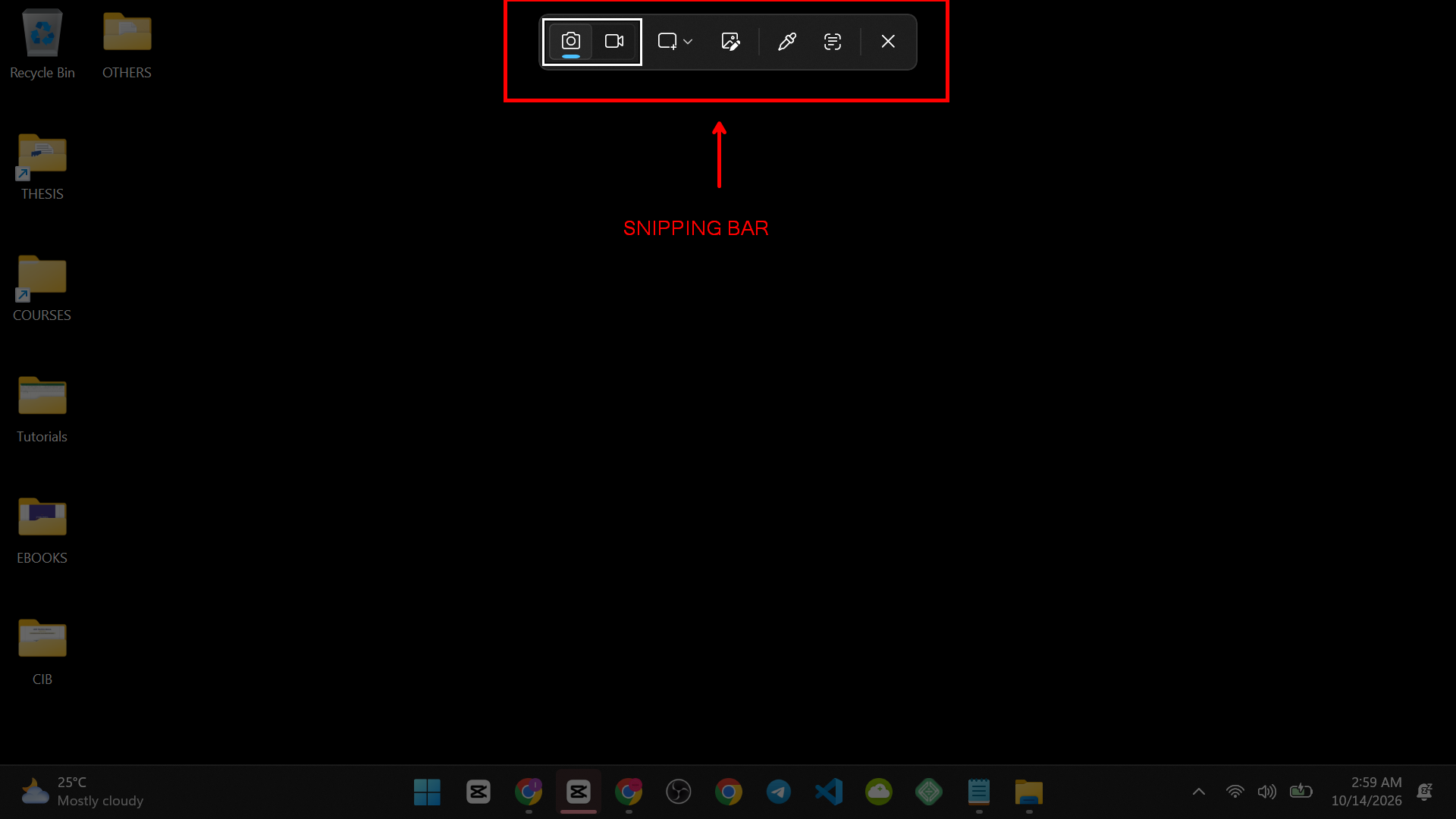
- Choose a mode: rectangle, freeform, window or full screen.
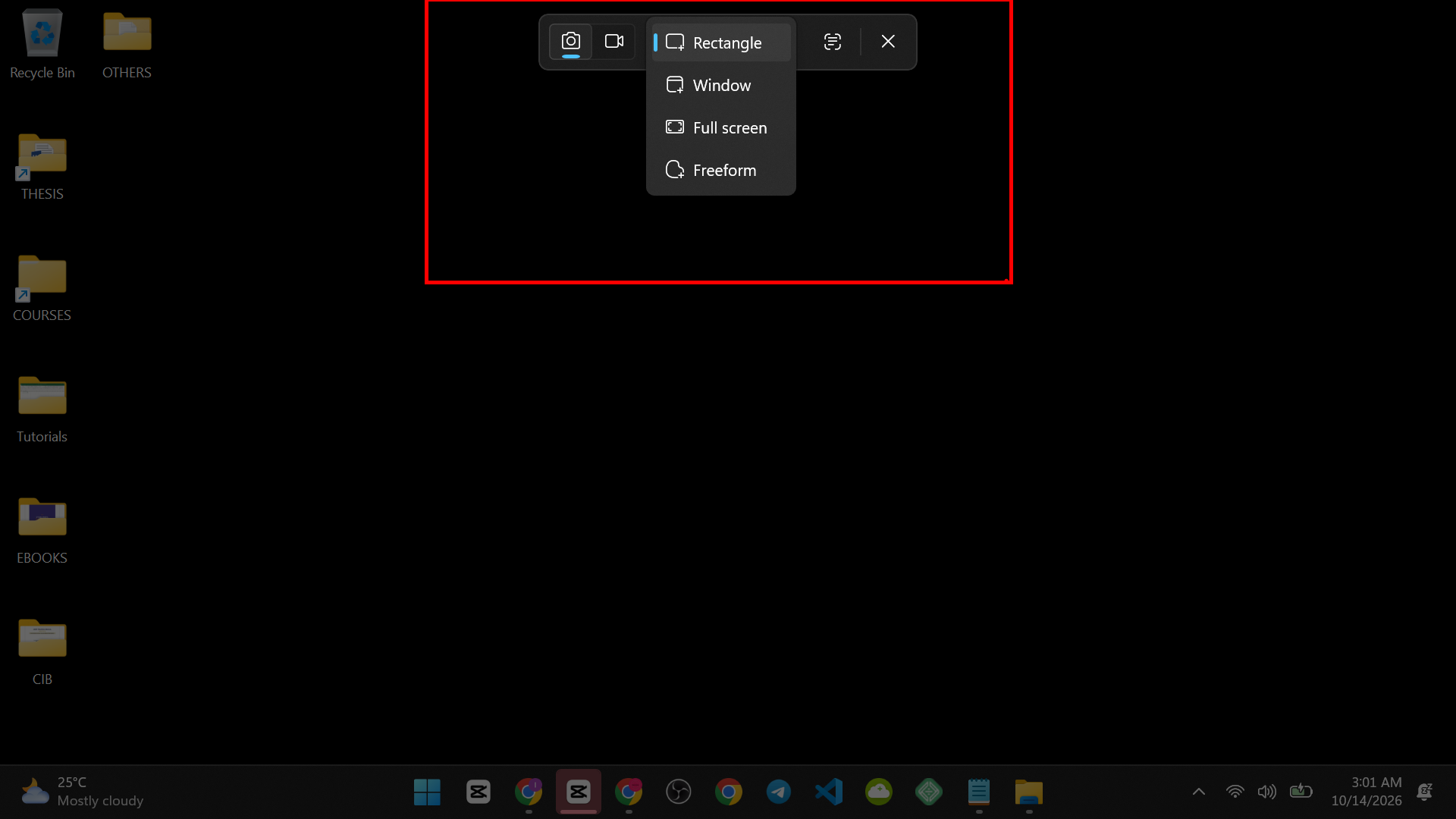
- Drag across the area you want to capture.
- The image is copied to your clipboard. Press Ctrl + V to paste it into a document, email or chat.
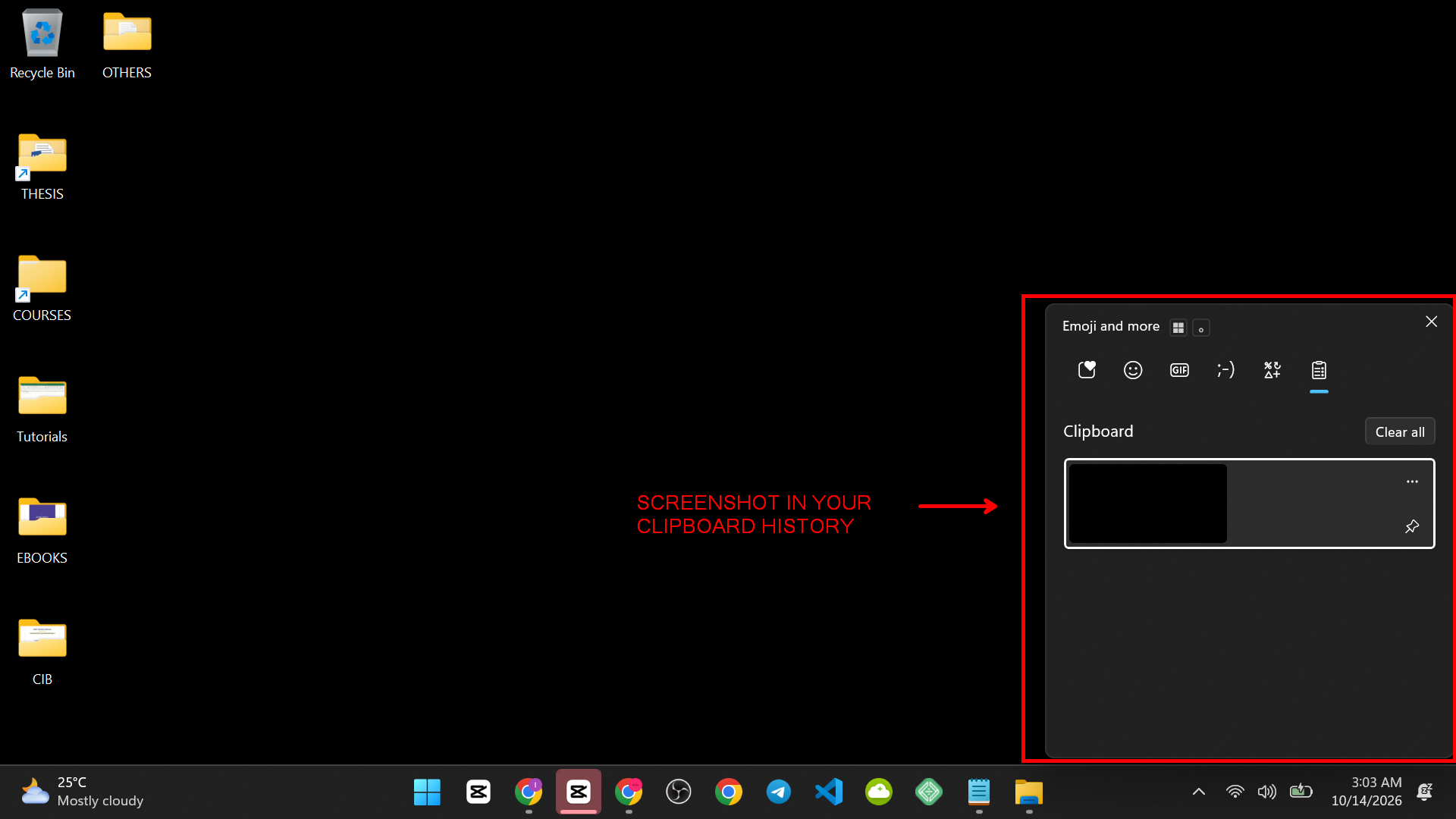
- A notification appears. Click it if you want to mark up or save the image.
On Windows 11 this opens the Snipping Tool. On Windows 10, the tool that opens depends on your version of Windows (it was called Snip & Sketch in many builds). The shortcut itself works the same.
Need a video instead of a picture? See how to record your screen without installing software.
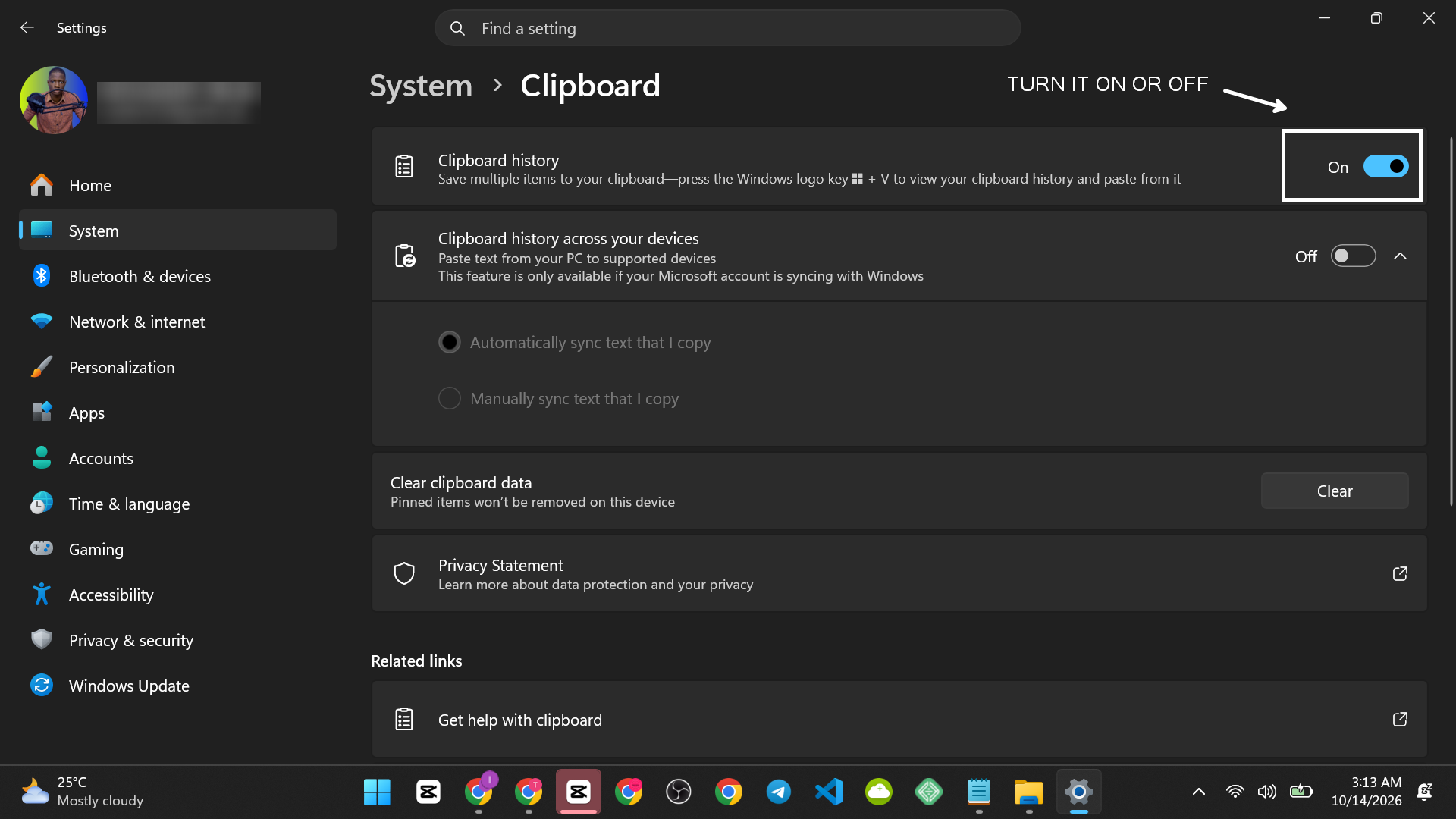
7. Windows Key + V: Clipboard History
Normally, the clipboard remembers only the last thing you copied. Clipboard history keeps several items, so you can paste an older one later.
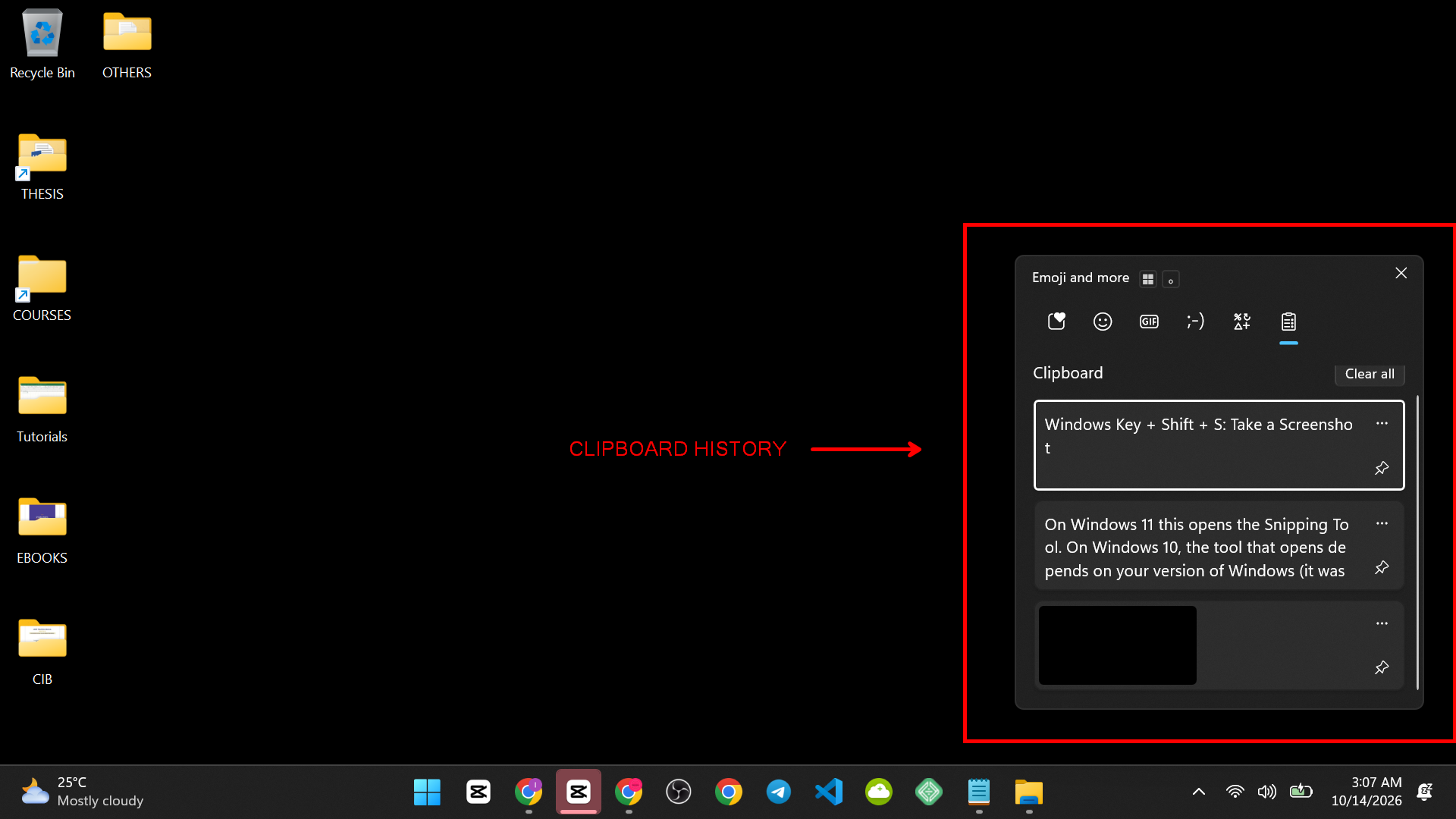
Turn on clipboard history
- Press Windows key + V.
- If you see a message asking to turn on clipboard history, click Turn on.
- You can also check the setting at Settings > System > Clipboard.
Use it
- Copy two or three items with Ctrl + C, one after another.
- Click where you want to paste.
- Press Windows key + V and click the item you want.
Clipboard history clears when you restart your PC, except for items you pin. Avoid copying passwords or private data when history is on, especially on a shared computer.

8. Ctrl + Shift + Esc: Open Task Manager
When an app freezes, you need Task Manager fast. Press Ctrl + Shift + Esc and it opens directly.
- Press Ctrl + Shift + Esc.

- On the Processes tab, find the app marked “Not responding”. I currently don’t have any app freezing so that’s why I can’t find one.
- Click it, then click End task.
You will lose any unsaved work in that app, so give it a minute to recover first. The older Ctrl + Alt + Del also works, but it first shows a menu where you must choose Task Manager.

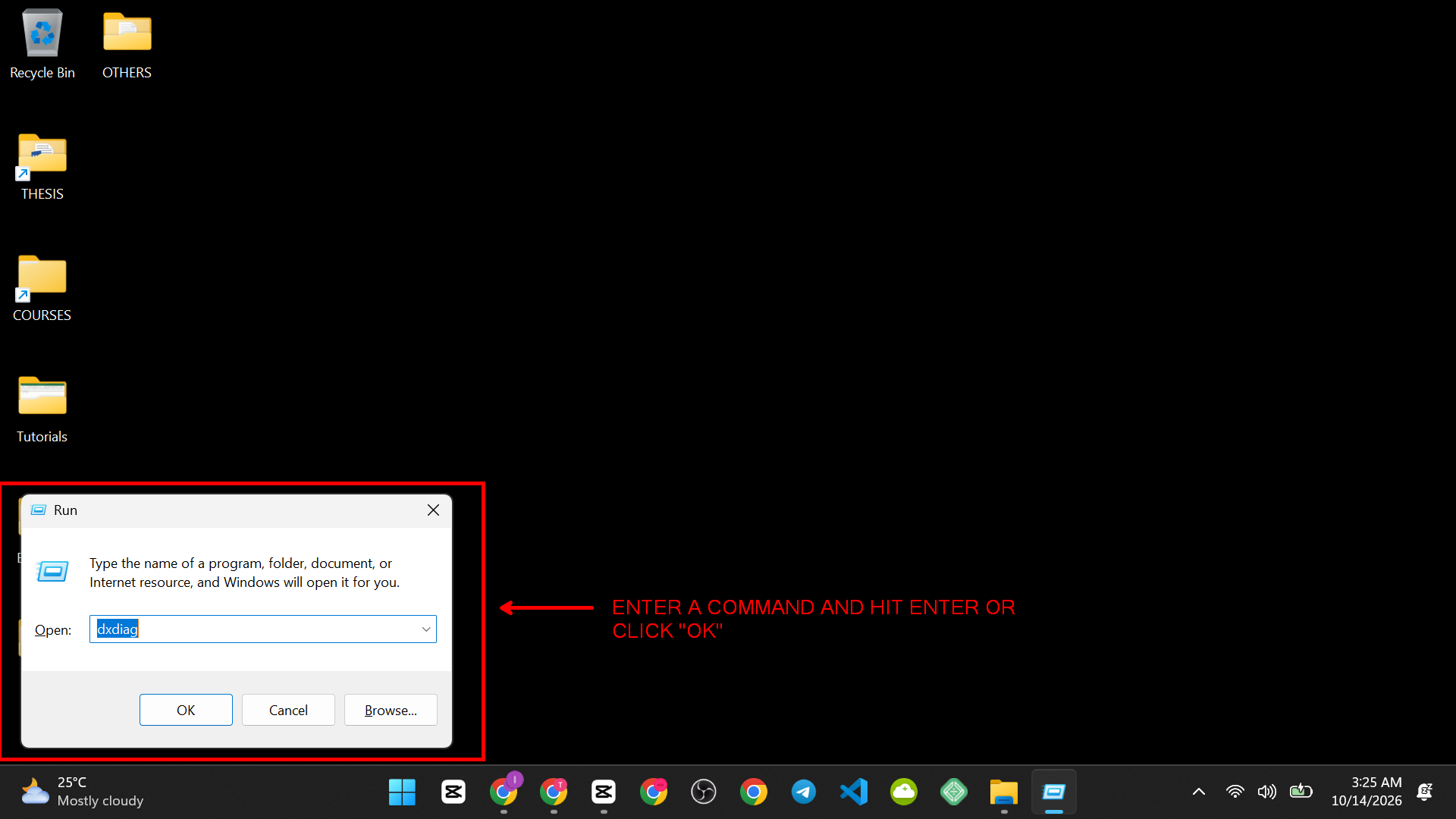
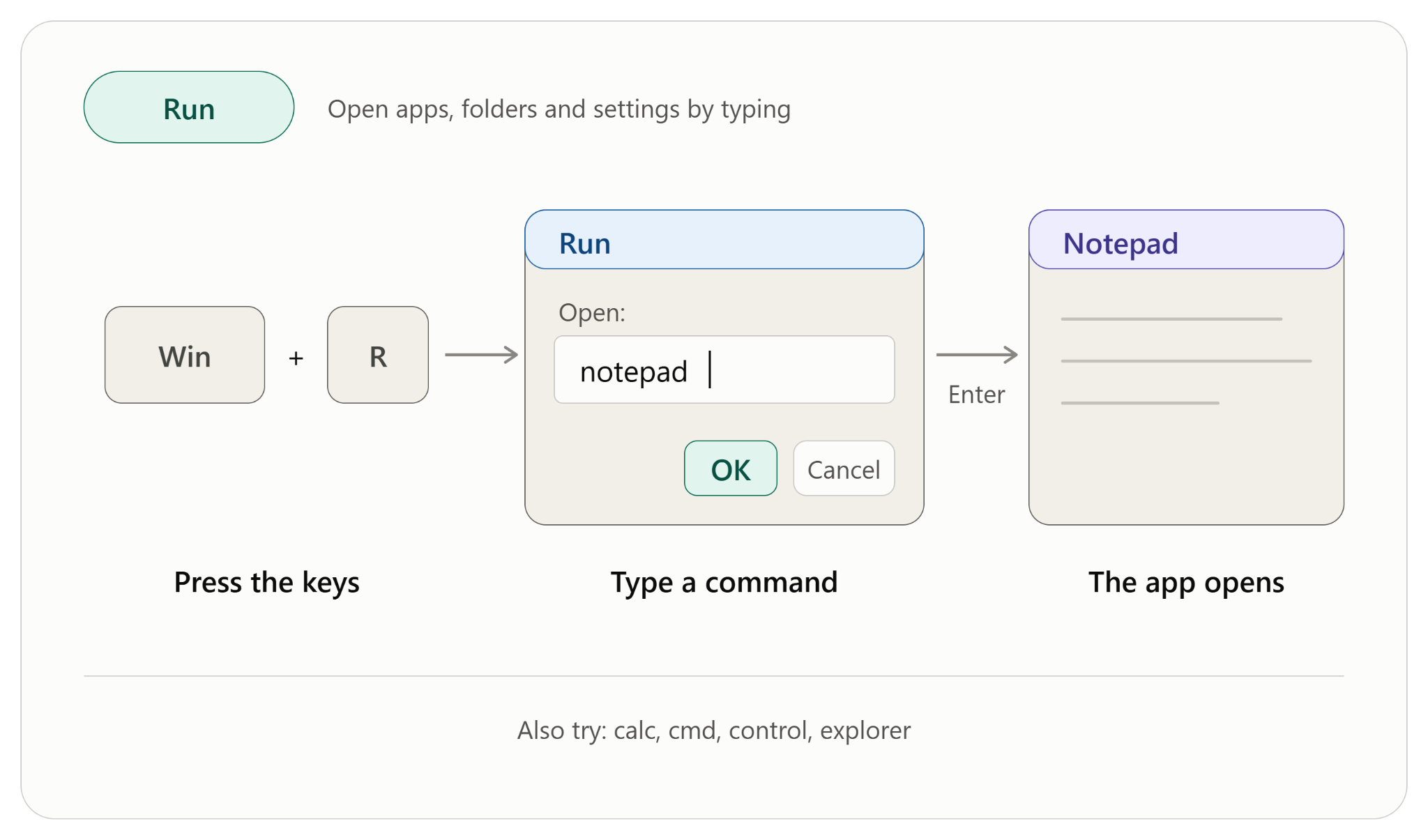
9. Windows Key + R: Open the Run Box
Run lets you open apps, folders and settings by typing a short command. Press Windows key + R, type a command, and press Enter. For example, typing notepad opens Notepad.
For a full walkthrough, read how to open the Run command in Windows. When you are ready to learn more commands, our list of 150 Windows Run commands explained covers them one by one.
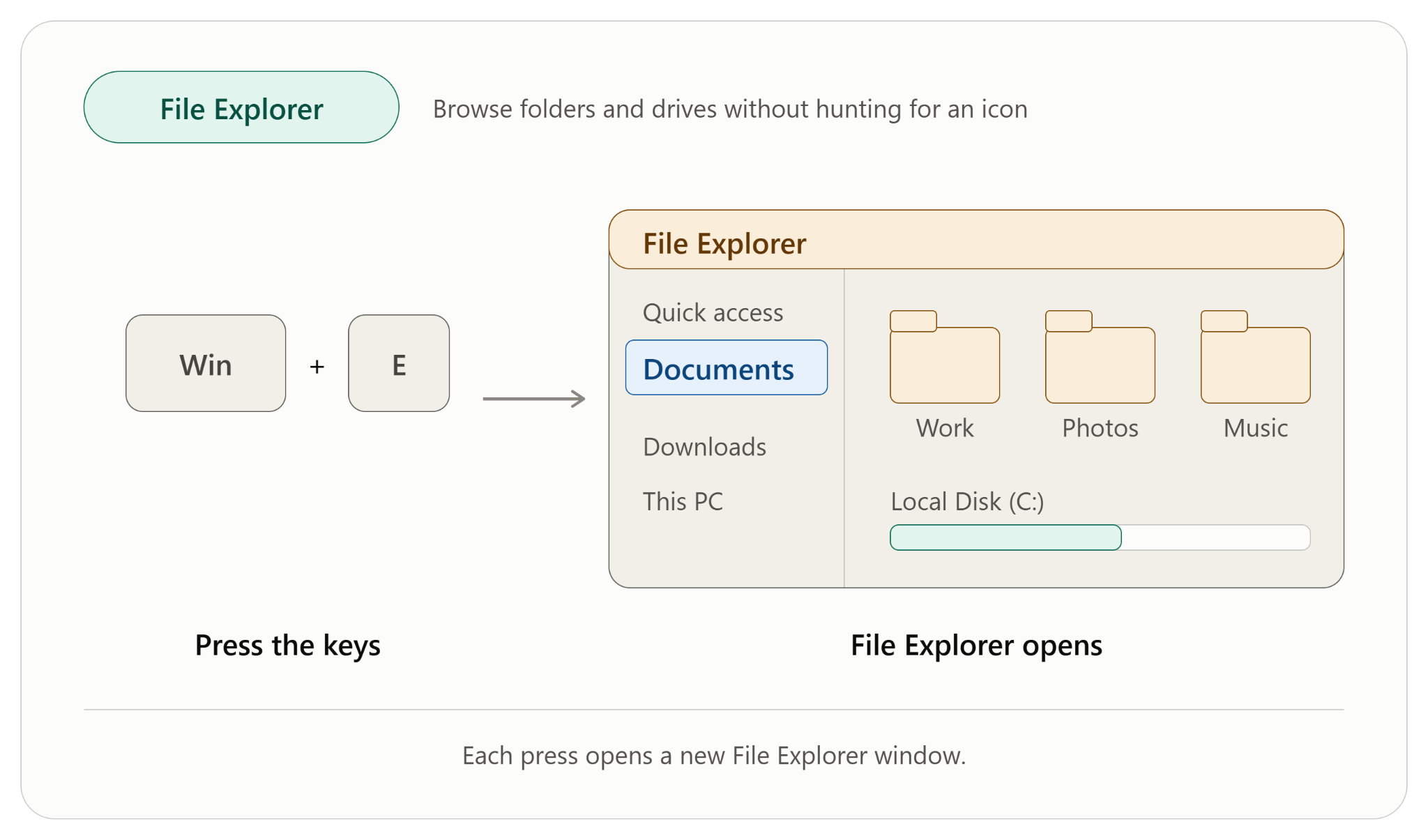
10. Windows Key + E: Open File Explorer
Press Windows key + E and File Explorer opens. You can browse folders and drives without hunting for an icon.
Once you are inside a folder, F2 renames the selected file. To rename many files in one go, follow our guide on how to rename multiple files at once in Windows.
When a Windows Shortcut Does Not Work
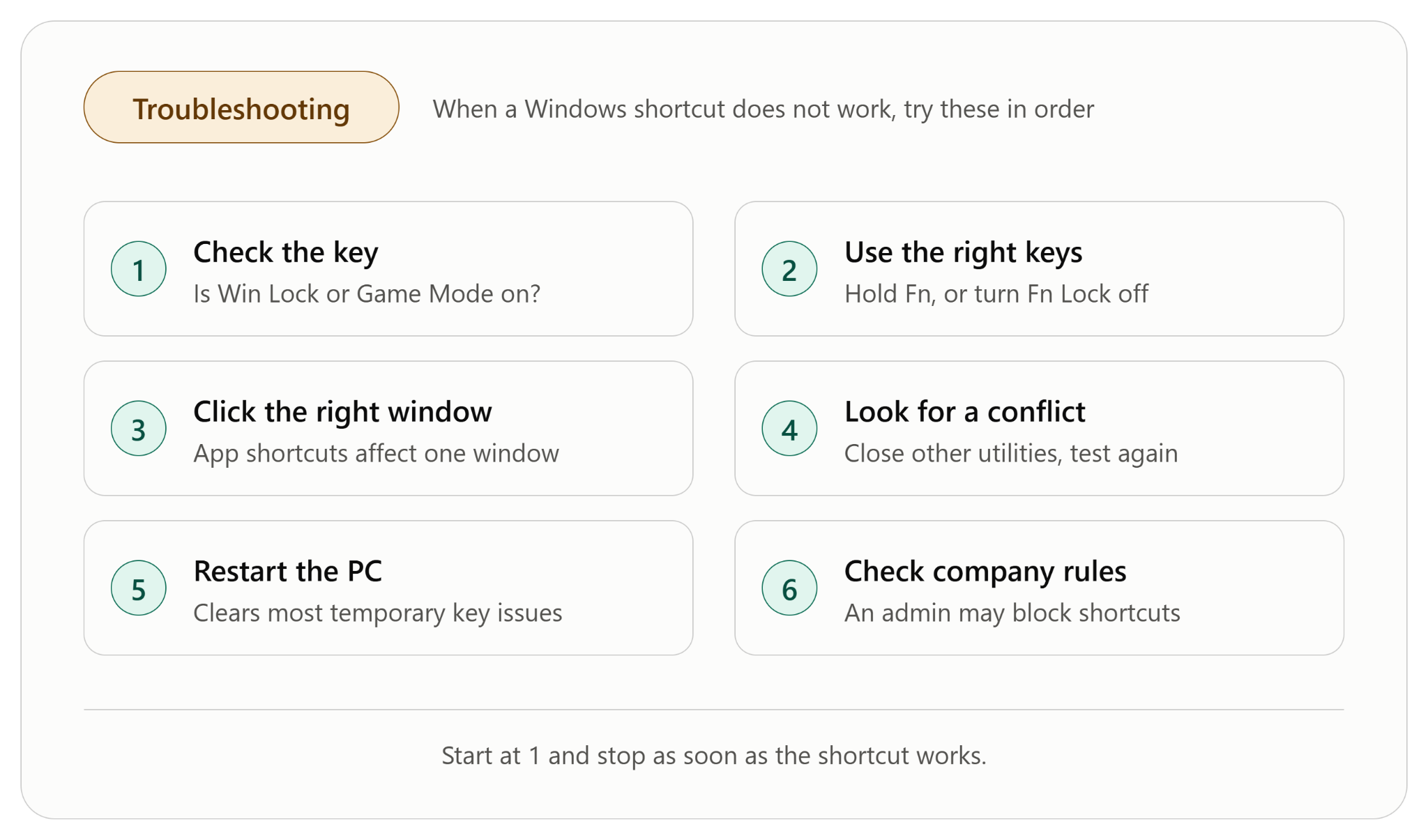
Try these checks in order.
- Check the key itself. Make sure the Windows key is not disabled. Some gaming keyboards have a “Game Mode” or “Win Lock” button.
- Use the right keys. Laptops may need the Fn key held down, or an Fn Lock switched off, so the function row acts as normal keys.
- Click the right window first. App shortcuts like Ctrl + Z only affect the window you are working in.
- Look for a conflict. Some apps or tools reuse the same shortcut. Close other utilities and test again.
- Restart the PC. This clears most temporary key problems.
- Check company rules. On work computers, an administrator may block some shortcuts.
To change a shortcut you do not like, Microsoft PowerToys can remap keys and shortcuts. Here is how to download PowerToys for Windows step by step.
Where to Go Next
Once these ten feel natural, add a new shortcut each week. Our post 200 Windows shortcuts every user should know is the full reference.
If you write often, you may also like how to type an em dash on Windows.


