

A plain email with no signature at all makes every email look unfinished. Gmail actually has a built-in signature editor that supports images, links, and formatting, but most people just haven’t opened it.
Here’s how to set one up properly on both desktop and mobile.
Quick Takeaway
Go to Gmail Settings > See all settings > General tab, scroll to Signature, click Create New, build your signature using the formatting toolbar, then set it as default for new emails and replies, and click Save Changes at the bottom.
WATCH A SHORT TUTORIAL HERE:
Step-by-Step Instructions
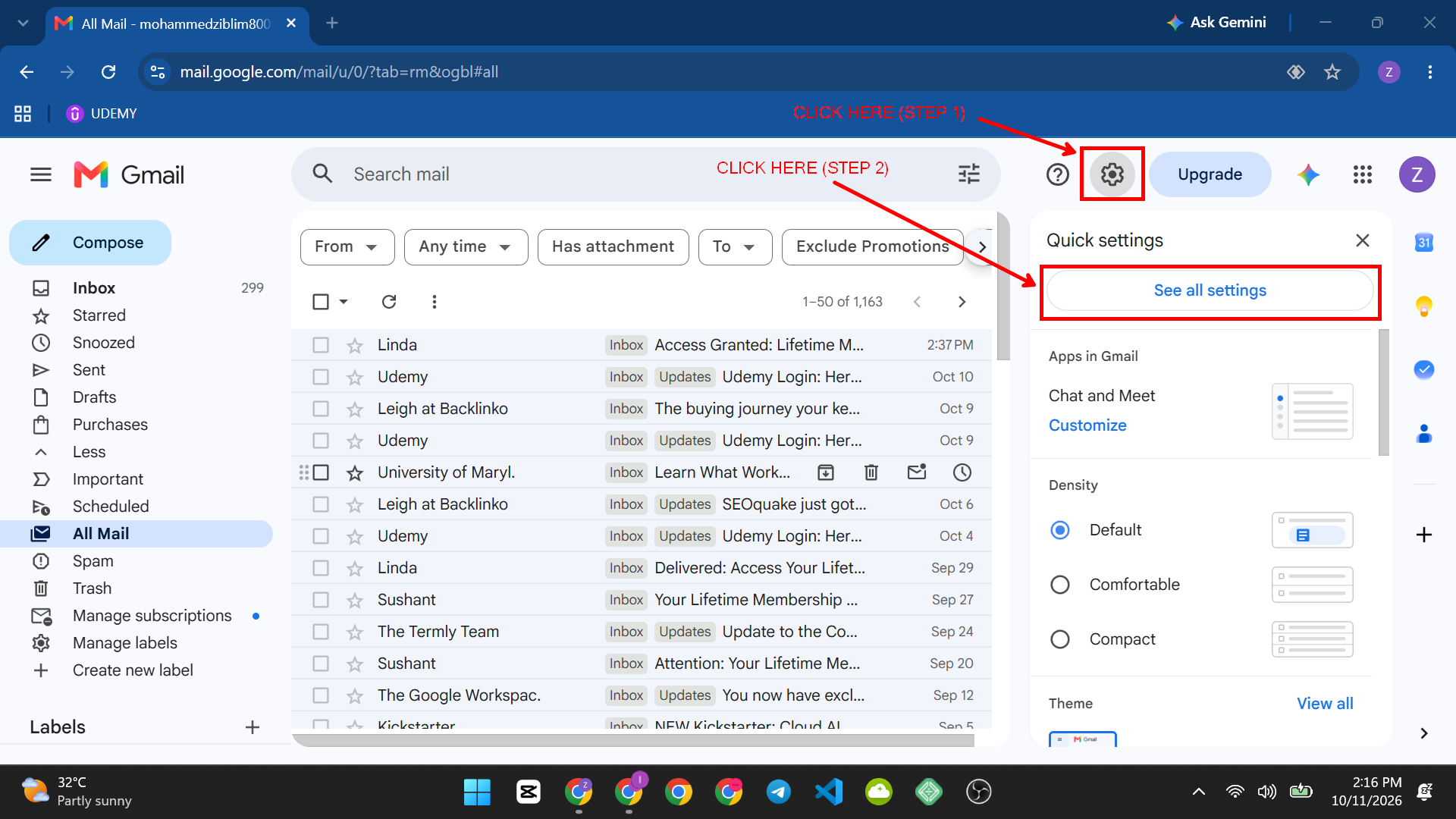
- Open Gmail in a browser and click the gear icon in the top-right corner, then click “See all settings.”
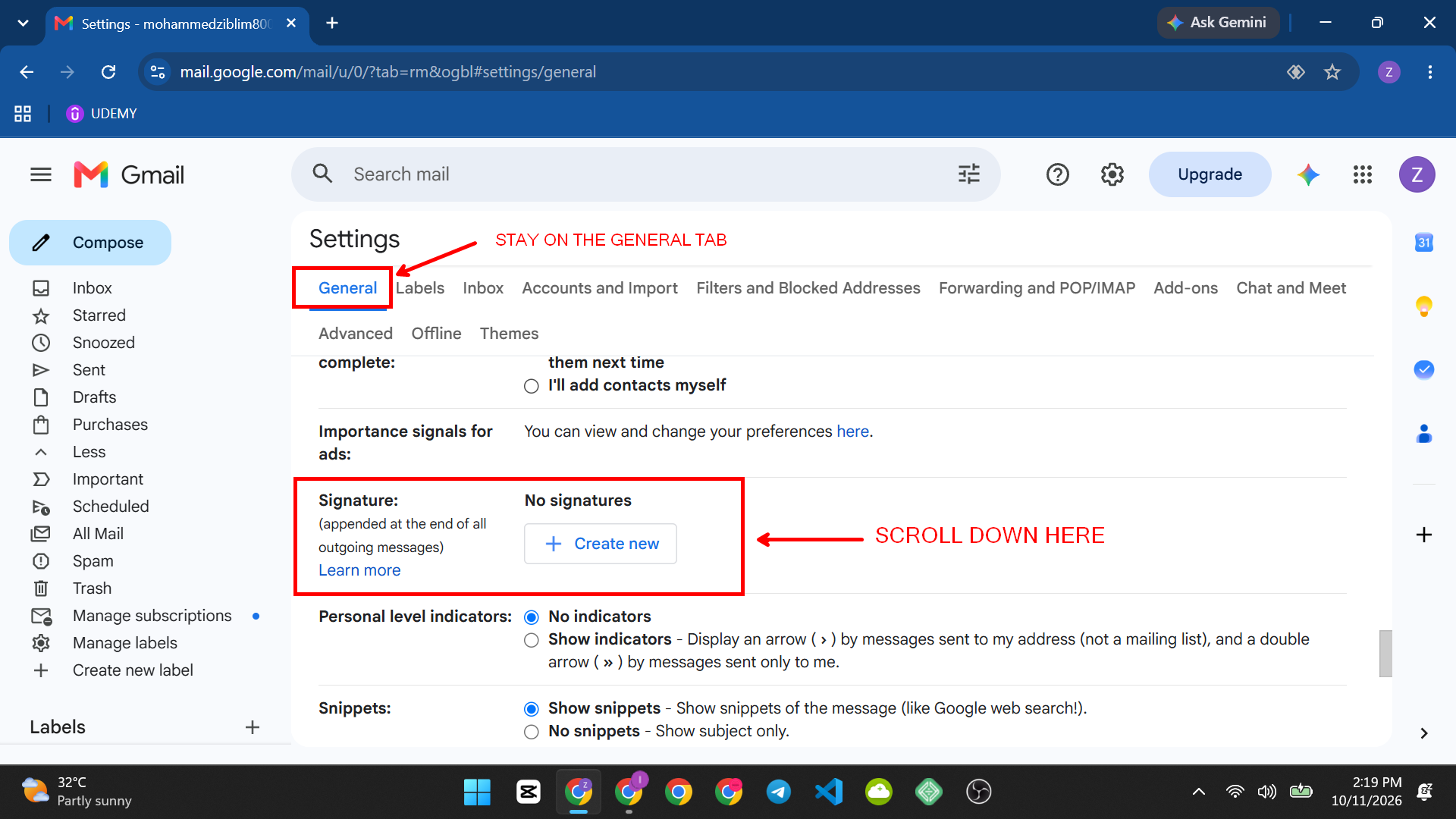
- Stay on the General tab (it opens here by default) and scroll down to the Signature section.
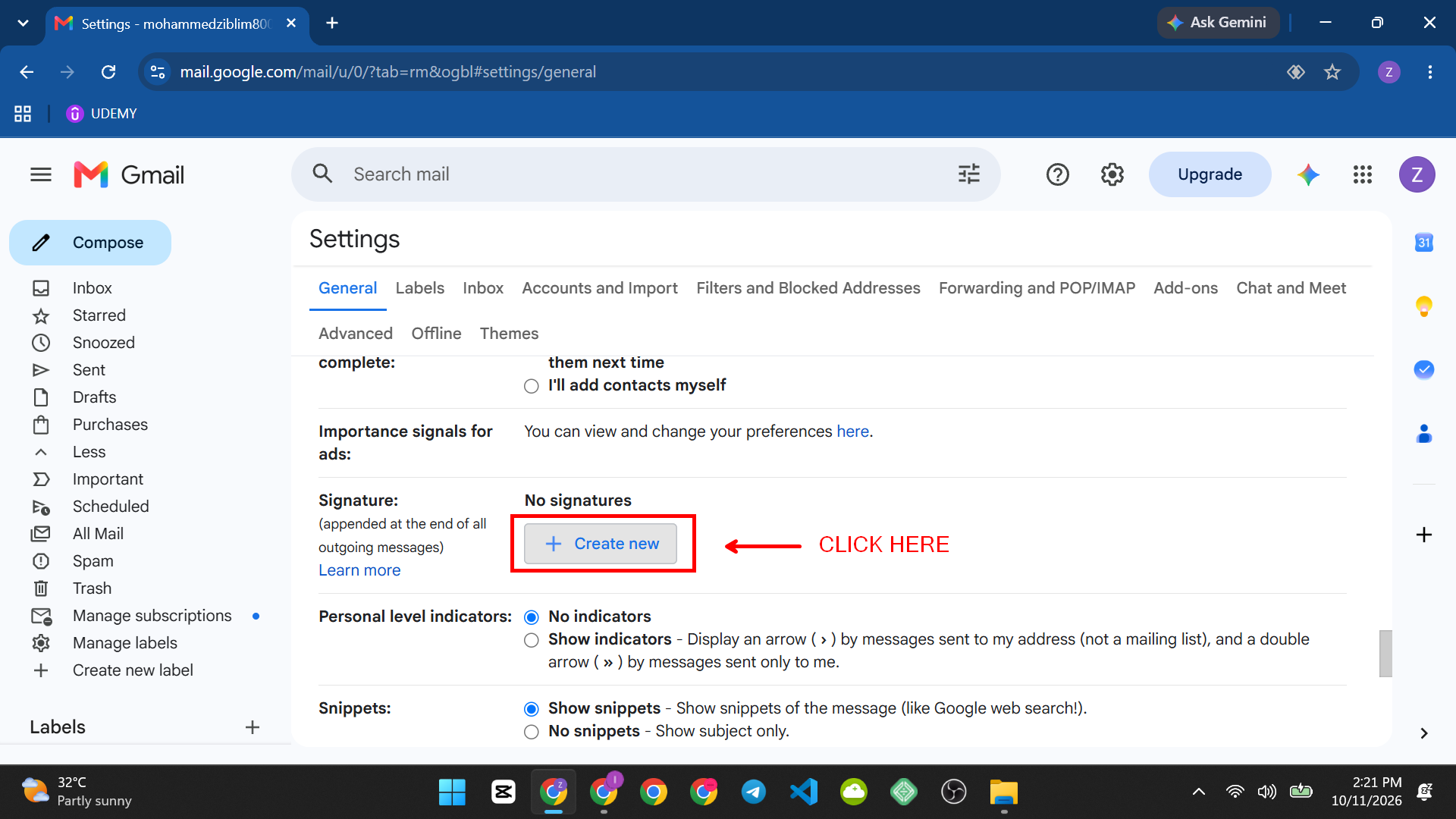
- Click “Create new.”
- Give the signature a name (this is just for your own reference if you make multiple), and click Create.
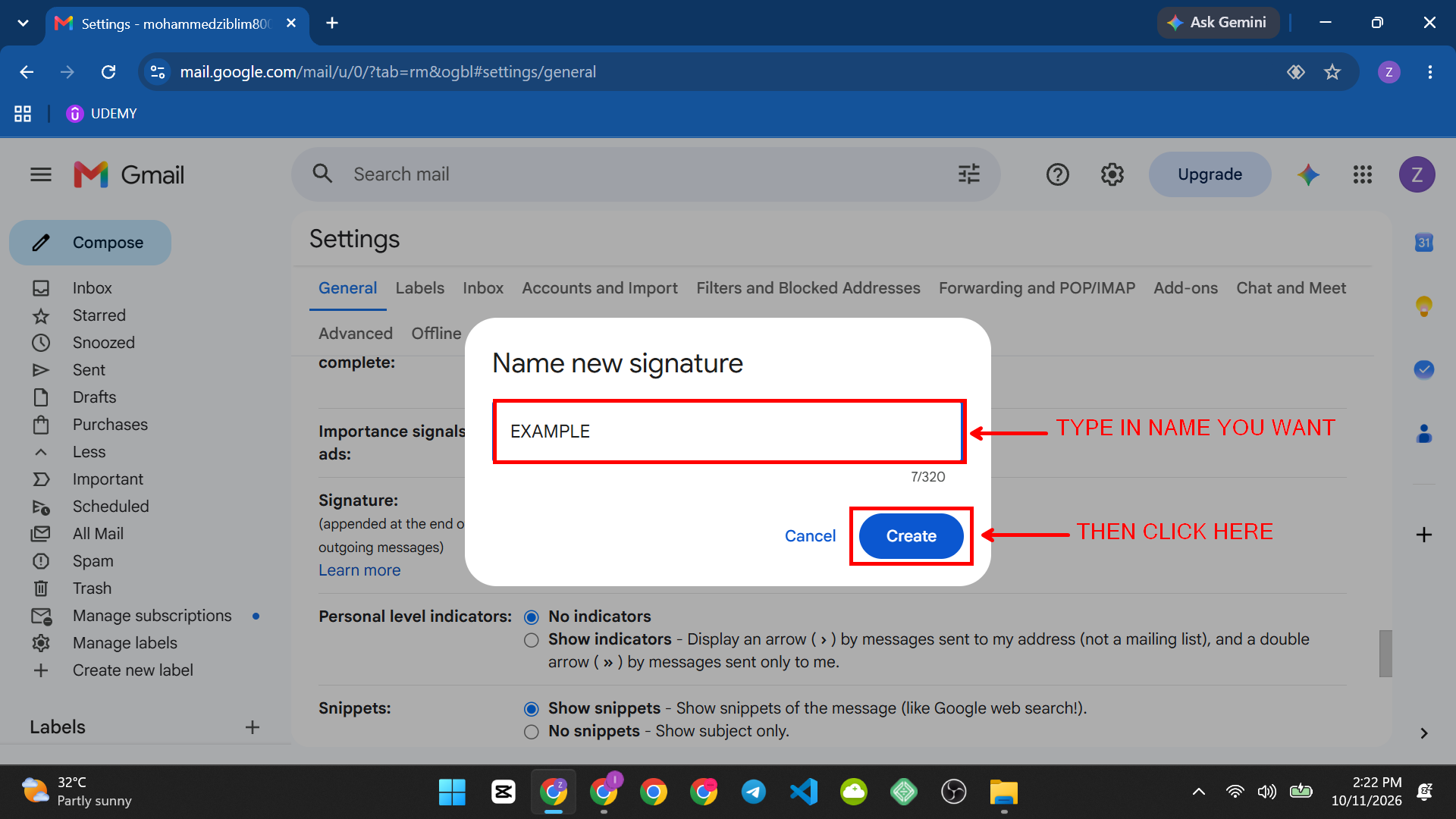
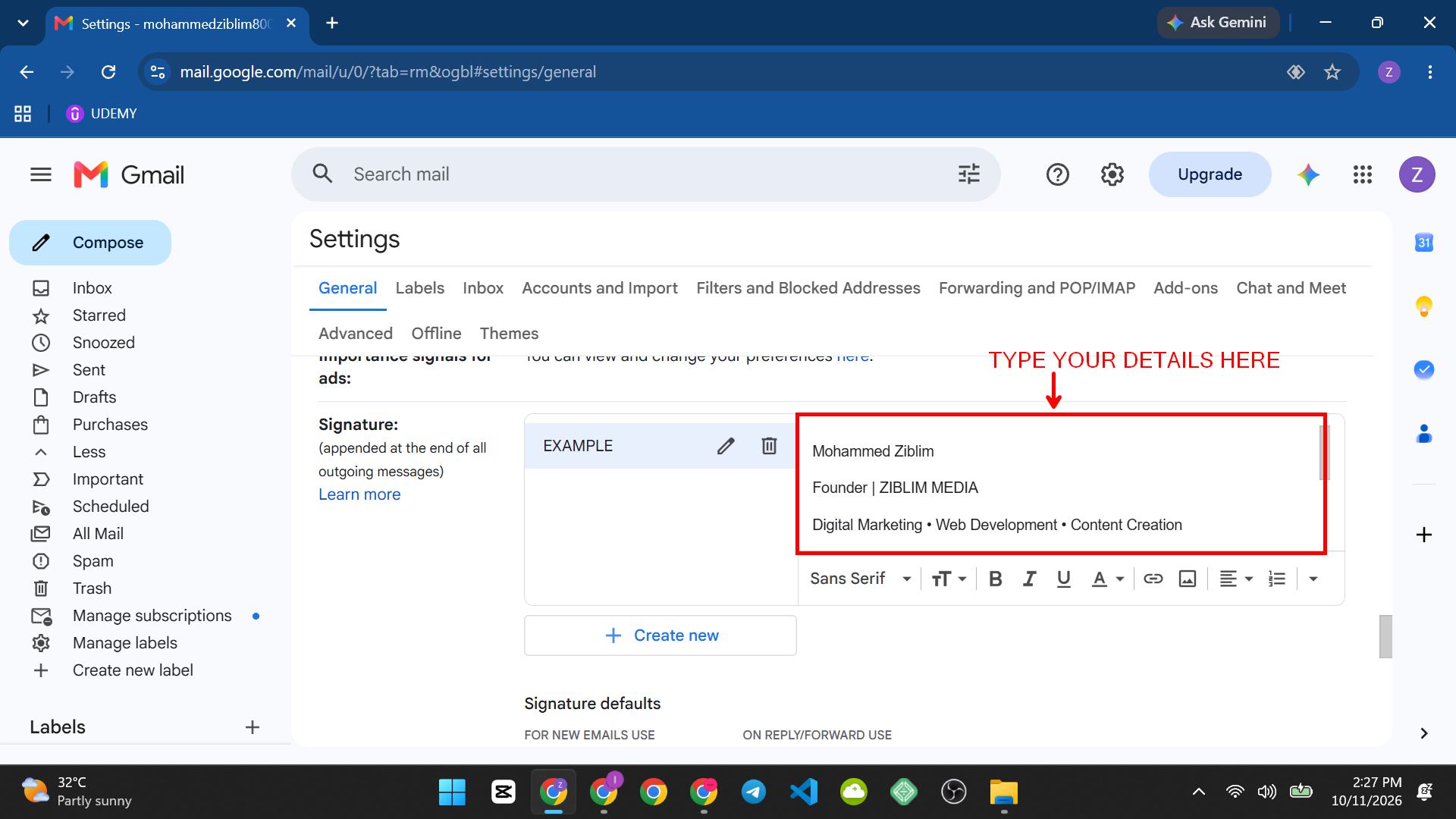
- Type your signature content in the text box: name, job title, company, and phone number are the standard basics.
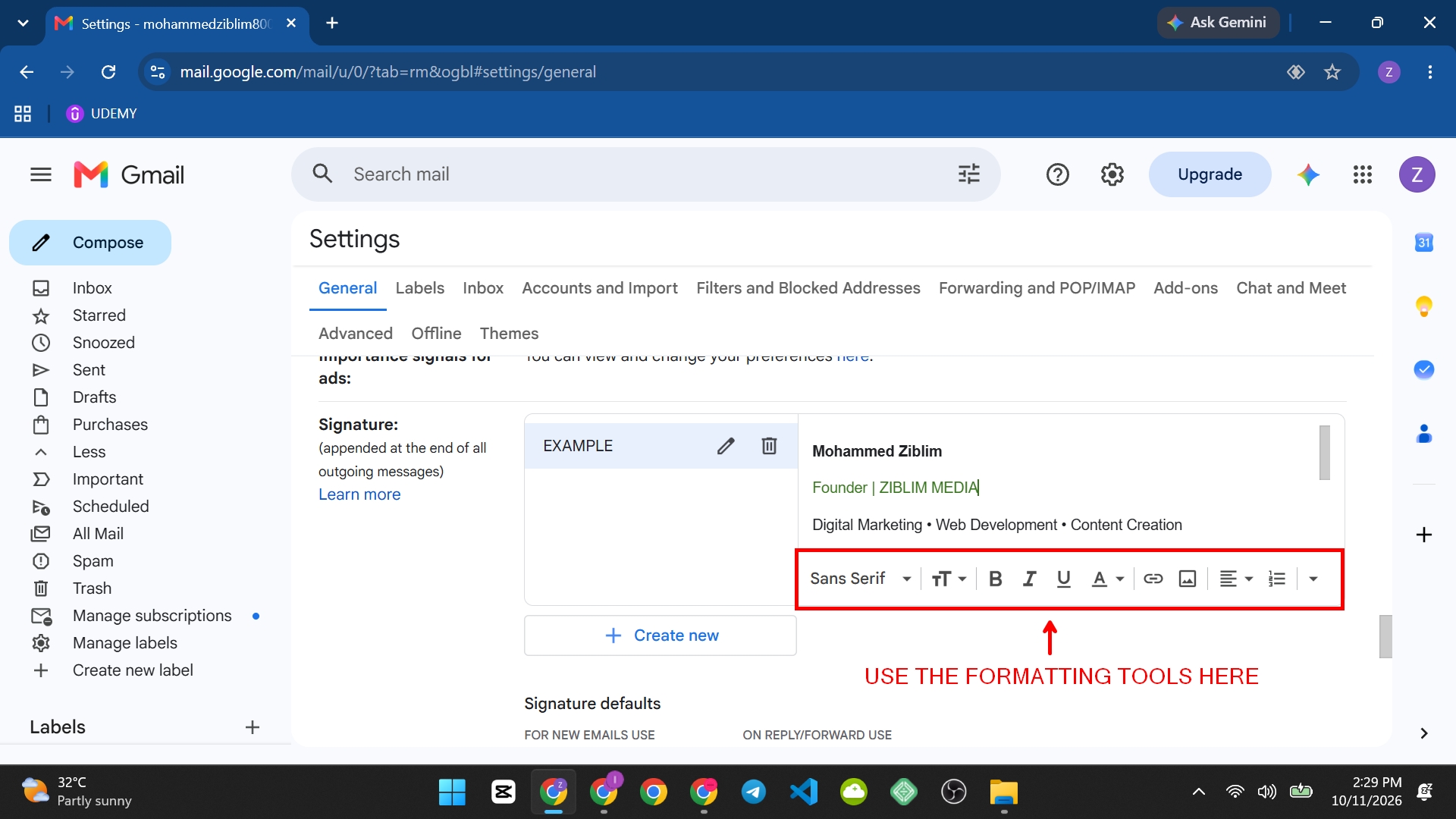
- Use the formatting toolbar above the text box to bold your name, change font size, or adjust text color, the same way you’d format text in a document.
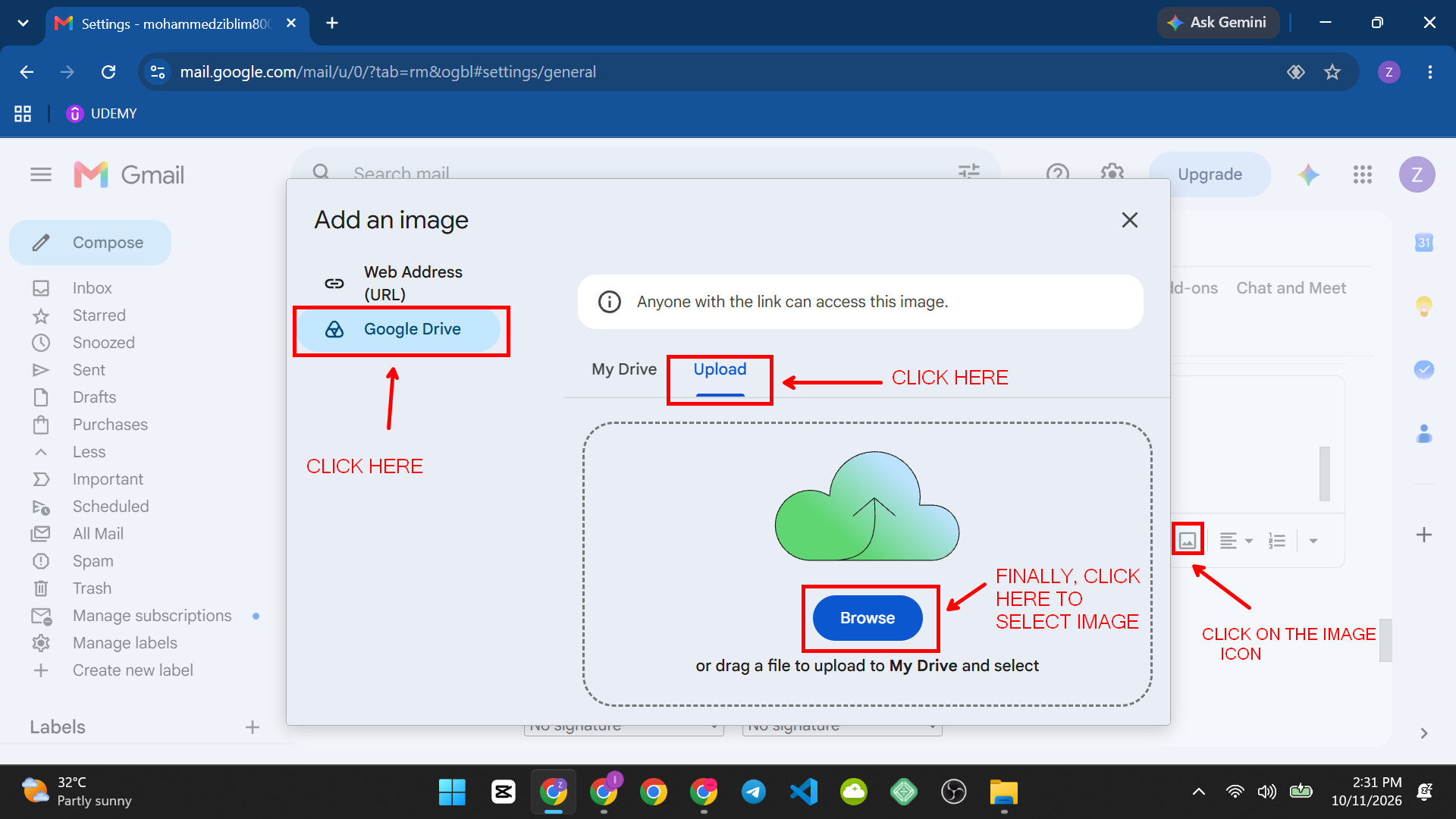
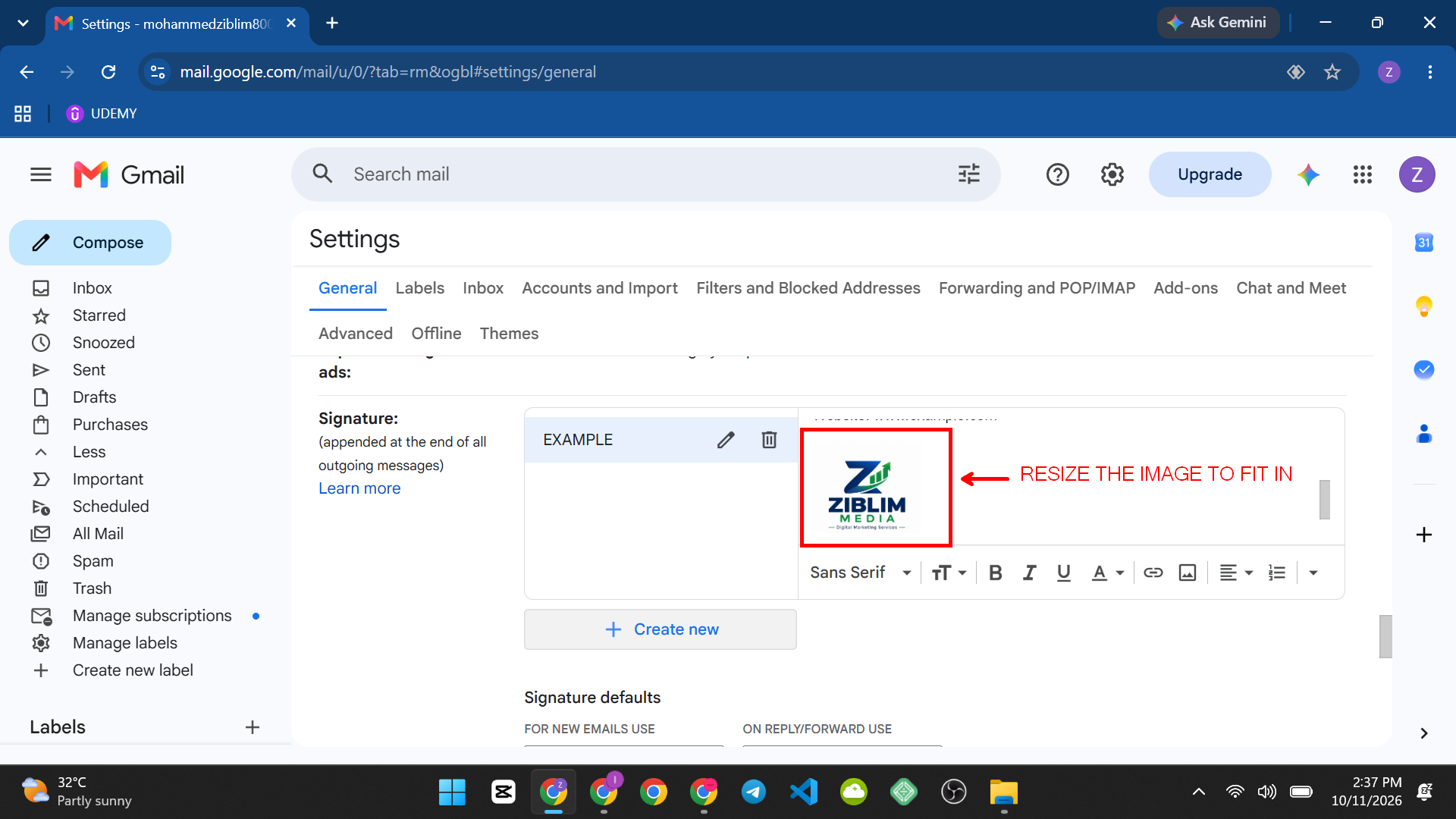
- To add a logo or headshot, click the image icon in the toolbar, upload your image
- Resize it directly in the box
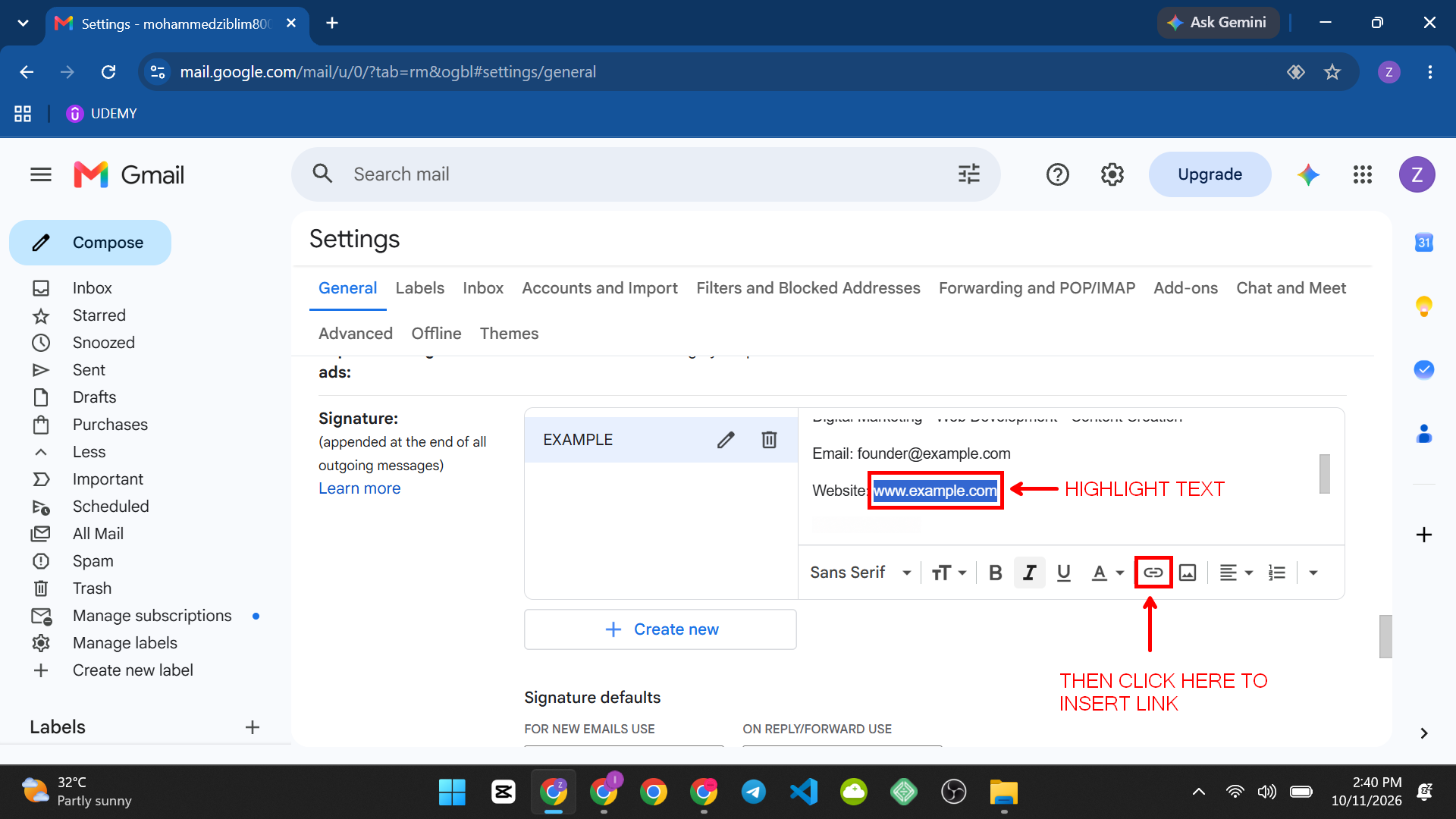
- To add a clickable link (like your website or LinkedIn), highlight the relevant text, click the link icon, and paste the URL.
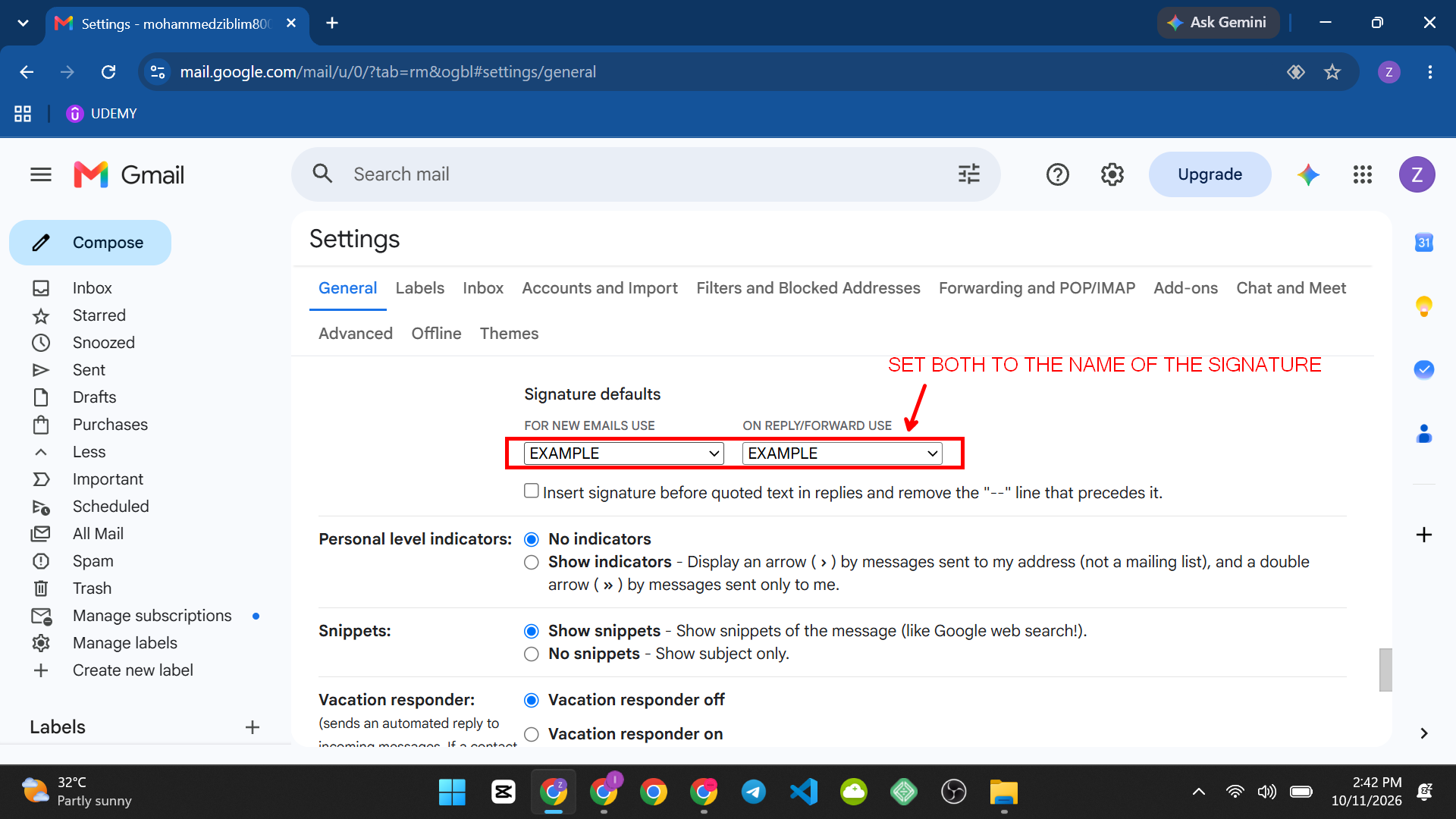
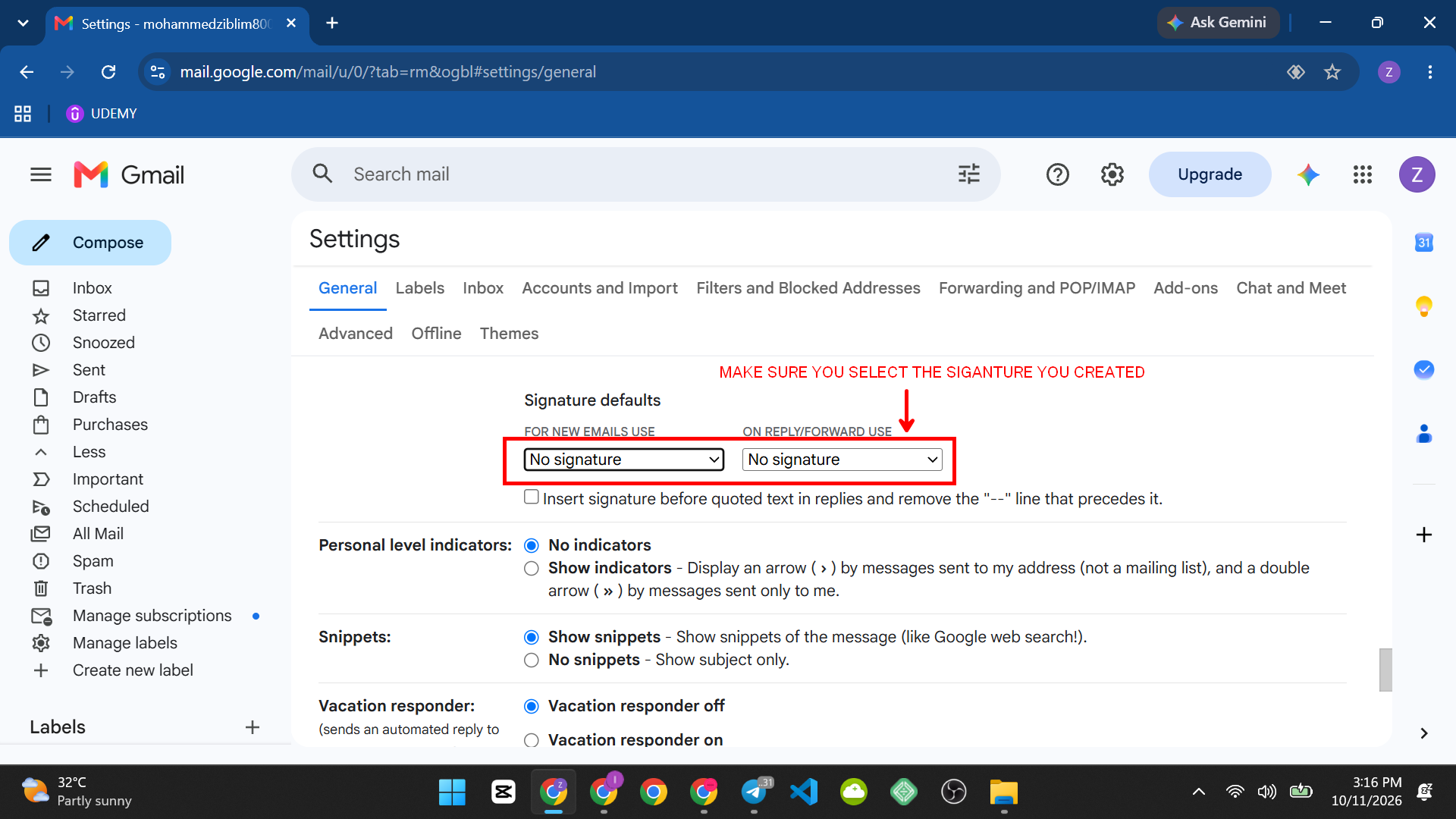
- Scroll down slightly to “Signature defaults” and set your new signature as the default for both “For new emails” and “On reply/forward.”
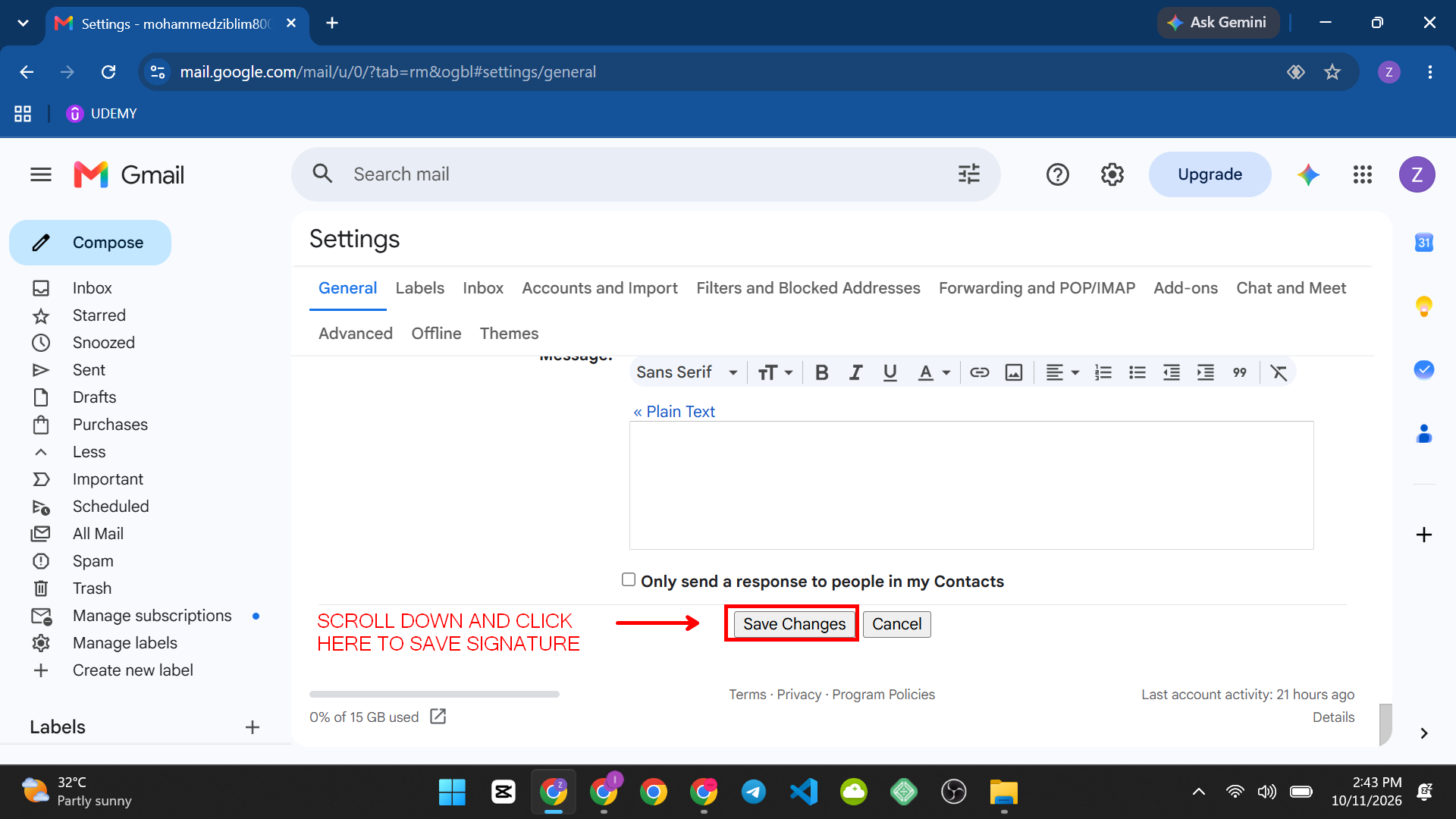
- Scroll to the very bottom of the Settings page and click “Save Changes.” Signatures don’t save automatically.
Expected Result
Every new email you compose, and every reply or forward, now automatically includes your signature below the message body, fully formatted with your image and links intact.
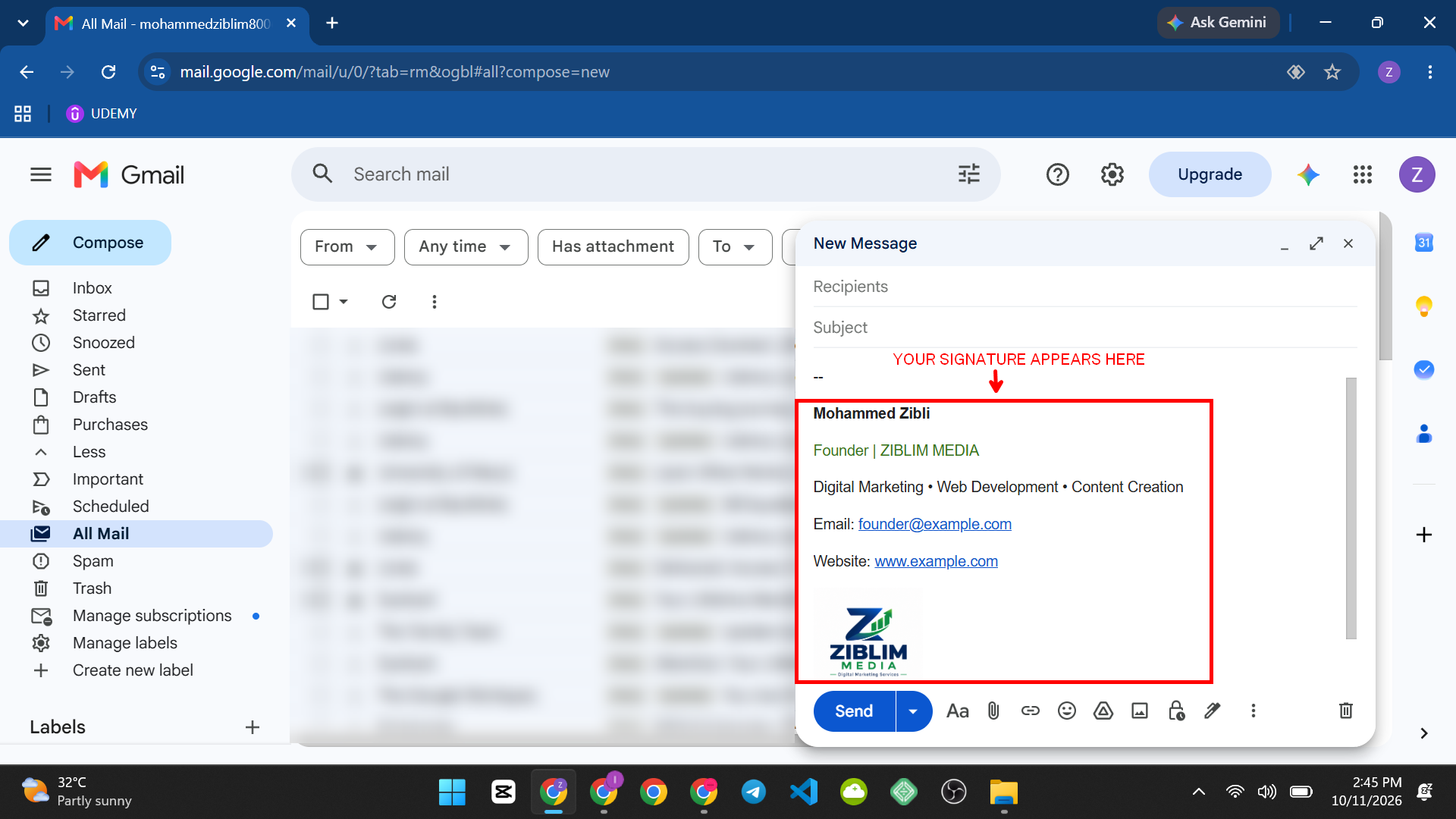
Common Mistake: Building the signature and closing the Settings tab without scrolling down to click “Save Changes.” Gmail doesn’t save signature edits automatically like a document, so this is the single most common reason a signature “doesn’t work.”
Alternative Method: Gmail Mobile App
The Gmail app on Android and iPhone has its own, simpler signature setting, which does not automatically sync with the desktop version.
- Open the Gmail app and tap the menu icon (three horizontal lines) in the top-left. Scroll down and tap Settings, then tap the email account you want to set a signature for.
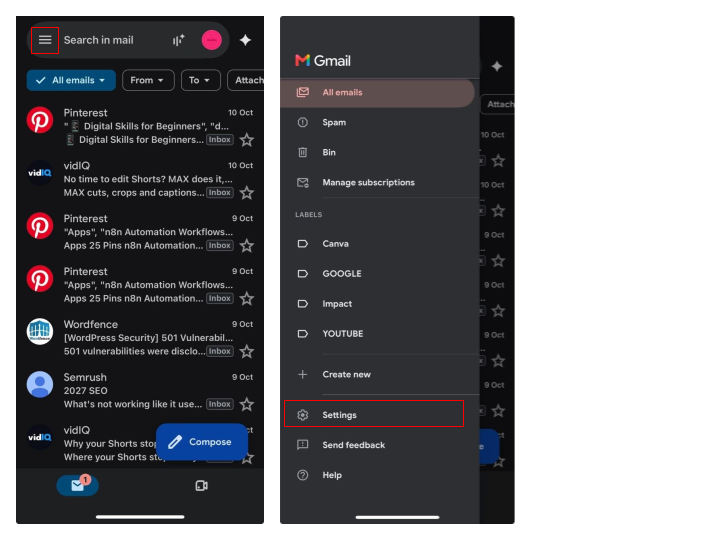
- Tap Signature settings and turn on Mobile Signature.”
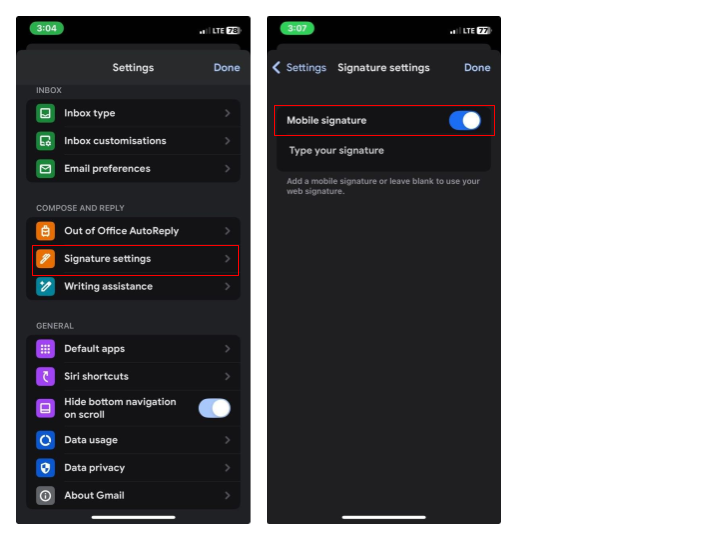
- Type your signature text. Note that the mobile signature editor supports plain text only, no images, links, or formatting like bold or color. Tap the checkmark or back arrow to save.
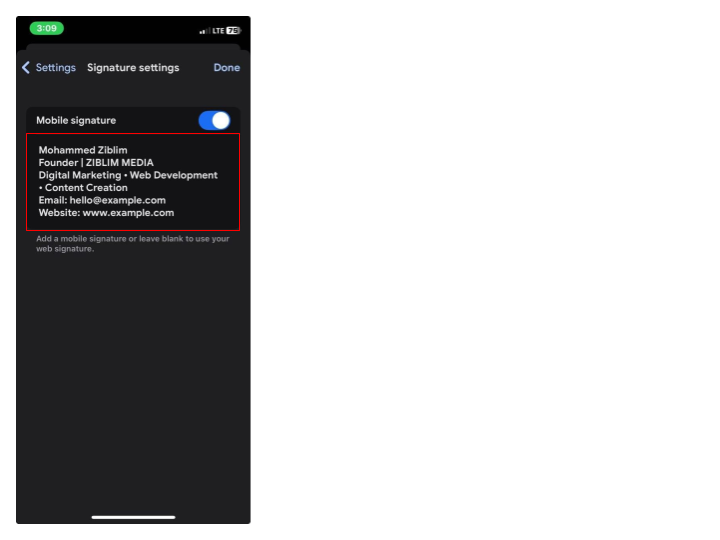
Quick Tip: Since the mobile signature can’t include your logo or formatted links, keep it short and simple on purpose, like “Name, Title, Phone,” rather than trying to recreate your full desktop signature there.
Method 3: Third-Party Signature Generator Tools
Gmail’s built-in editor covers the basics, but it’s a fairly manual process if you want a polished, multi-column design with icons and precise spacing. A third-party signature generator builds the design for you using a template, then gives you ready-to-paste code to drop into Gmail’s signature box. Here are the main ones worth considering:
| Tool | Free Plan | Key Feature | Best For |
| WiseStamp | Yes, limited templates | Large template library, social icon banners, legal disclaimers | Individuals wanting more design variety than Gmail’s editor alone |
| HubSpot Email Signature Generator | Yes, fully free | No account required, simple one-page builder | A quick one-off signature without signing up for anything |
| MySignature | Limited free trial | Clean modern templates, banner ads for promotions | Small businesses wanting a promotional banner in the signature |
| Newoldstamp | Limited free trial | Built-in analytics on signature link clicks | Teams that want to track signature engagement |
| Exclaimer | No, paid only | Centralized signature management across an entire company | Businesses needing every employee’s signature kept consistent automatically |
How to use one of these with Gmail (general steps, works similarly across all of them):
- Go to the tool’s website and fill in your signature details (name, title, company, phone, links) in their builder form.
- Pick a template and customize colors, fonts, and image placement using their editor.
- Click the option to “Copy to clipboard” or similar, once you’re happy with the preview.
- Go to Gmail Settings > General > Signature, click into the signature text box, and paste.
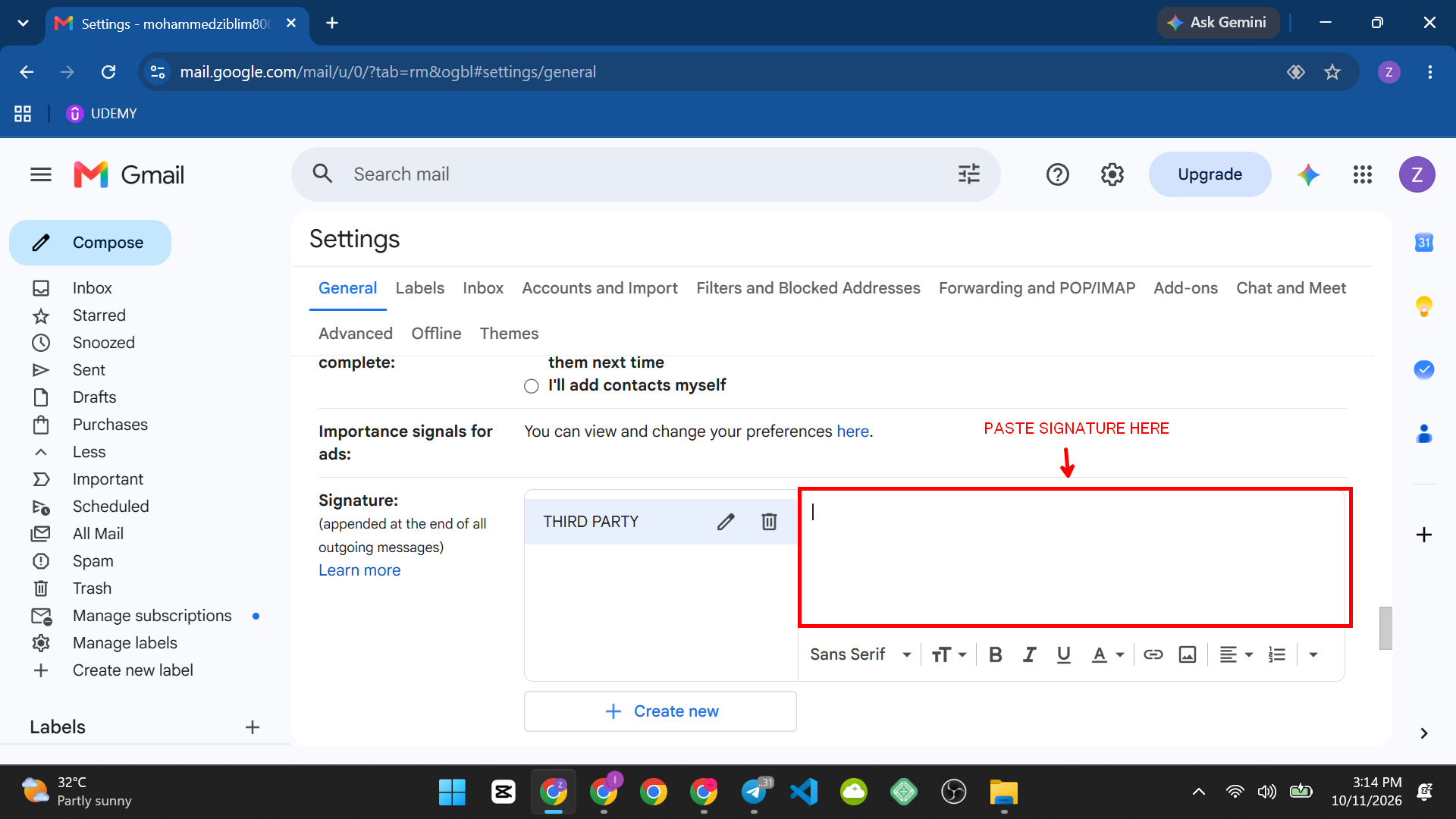
- Confirm the formatting pasted correctly, adjust anything that looks off, and save as usual.
Common Mistake: Pasting a signature from a third-party tool and not checking how it renders afterward. Some generators use layout code that Gmail’s editor simplifies or strips slightly, so always send yourself a test email after pasting to confirm it looks right.
Method Comparison: Use Gmail’s built-in editor (Method 1) if your needs are simple, a name, title, and logo, since it’s free and requires no outside tool. Use a third-party generator (Method 3) if you want a more polished multi-column design, social icon banners, or a promotional element, and don’t mind spending a few extra minutes building it elsewhere first.
Common Problems and Solutions
My signature isn’t showing up on new emails.
Check Settings > General > Signature defaults and confirm the correct signature is selected under “For new emails.” It’s easy to create a signature without actually setting it as the active default.
My logo looks blurry or huge in the signature.
Resize the image directly inside the signature editor by dragging its corner handle before saving, rather than uploading a very large image file and leaving it at full size.
The signature looks fine in Gmail but broken when the recipient opens it.
Some email clients strip certain formatting or large embedded images. Keep signatures relatively simple (one image, basic text formatting) for the most consistent appearance across different email apps.
I have a Google Workspace account and can’t find the signature option.
Some Workspace organizations centrally manage signatures through the admin console, which can override or restrict what individual users can edit. Check with your IT administrator if the Signature section looks different or locked.
A signature pasted from a third-party generator looks broken in Gmail.
Paste it, then send yourself a test email to see the actual rendered result, since Gmail’s signature box preview doesn’t always perfectly match what recipients see. Minor spacing or image-size fixes directly in Gmail’s editor usually resolve it.
FAQs
Can I have different signatures for different Gmail accounts?
Yes, if you manage multiple Gmail accounts, each one has its own separate Signature settings, since signatures aren’t shared across accounts.
Does your desktop signature automatically appear on mobile?
Not always. Gmail has separate signature settings for desktop and mobile. If you create a mobile signature, it replaces the desktop signature when sending emails from the Gmail app. However, if you do not set a separate mobile signature, Gmail uses your desktop signature for new messages. To ensure your preferred signature appears on mobile, check your Gmail app’s signature settings.
Can I add social media icons instead of plain text links?
Yes, upload small icon images the same way you’d upload a logo, then link each icon image to the relevant social profile URL using the link tool.
Are third-party signature generators safe to use?
The ones listed here are established, widely used tools, but as with any third-party service, avoid entering sensitive company information beyond what you’d normally put in a signature, and check a tool’s privacy policy if you’re setting this up for an entire organization rather than personal use.
Conclusion
A Gmail signature takes a few minutes to set up properly and immediately makes every email look more intentional, especially once a logo and working links are in place.
Gmail’s own editor covers most people’s needs, but if you want more design control, the third-party generators above are worth trying since most let you preview a template before committing to anything.