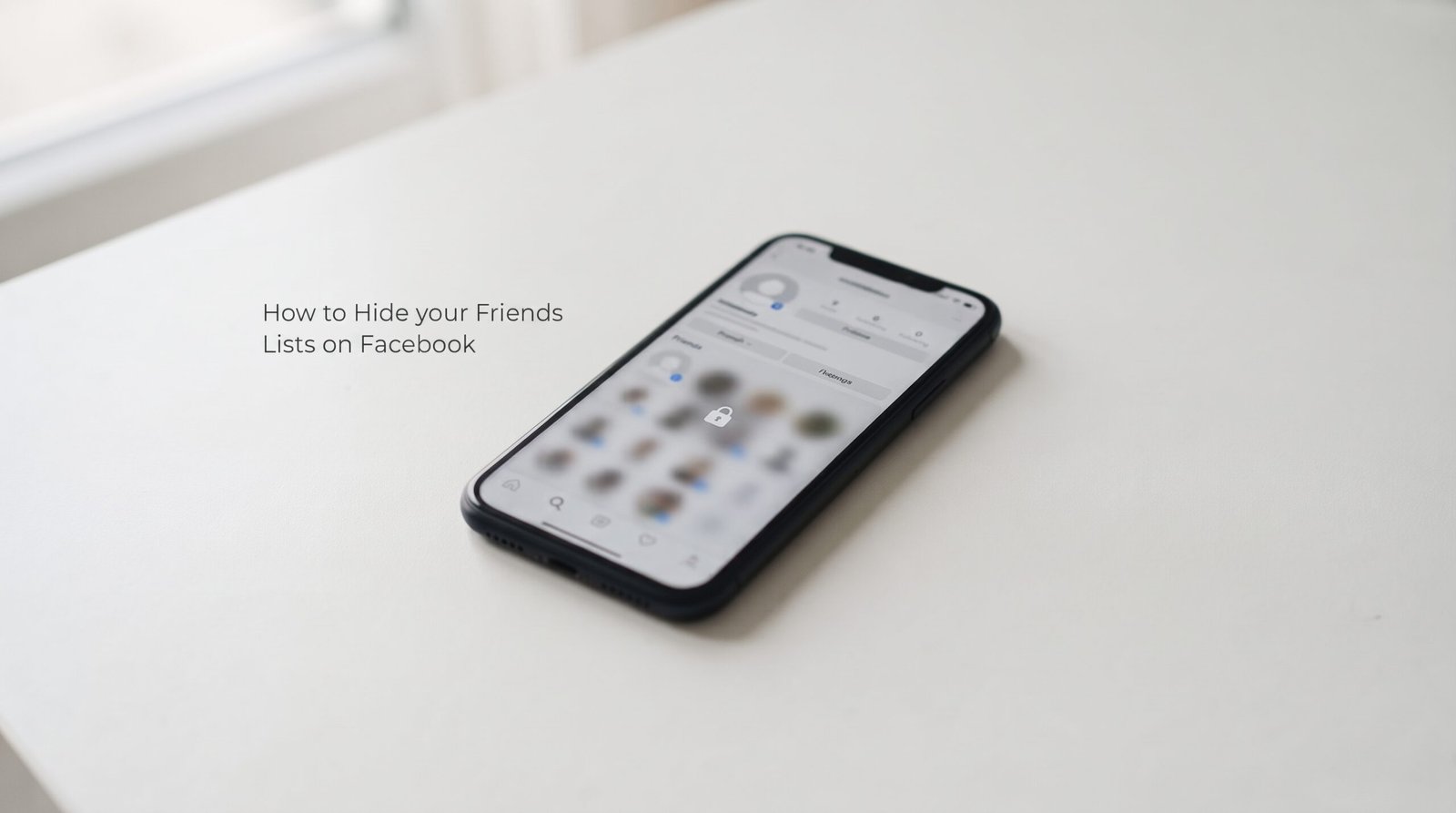

By default, anyone who can see your Facebook profile can also see your list of friends. If you’d rather keep that private, Facebook has a built-in setting for it, and it takes about a minute to change.
Quick takeaway: Go to Settings & Privacy > Settings > Audience and visibility > How people find and contact you > Who can see your friends list, then choose Only me.
Desktop (web browser)
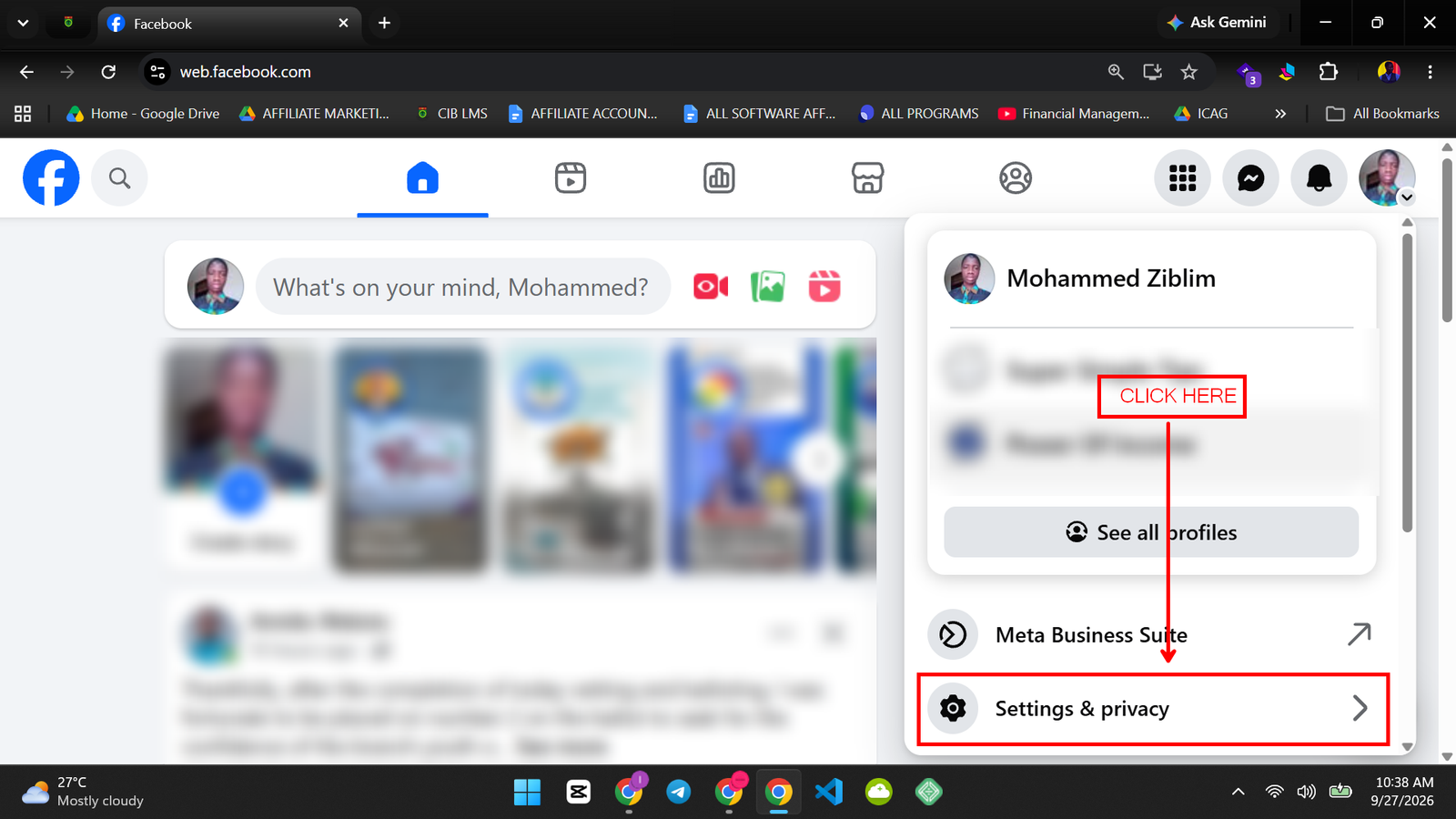
- Click your profile picture in the top-right corner of Facebook.
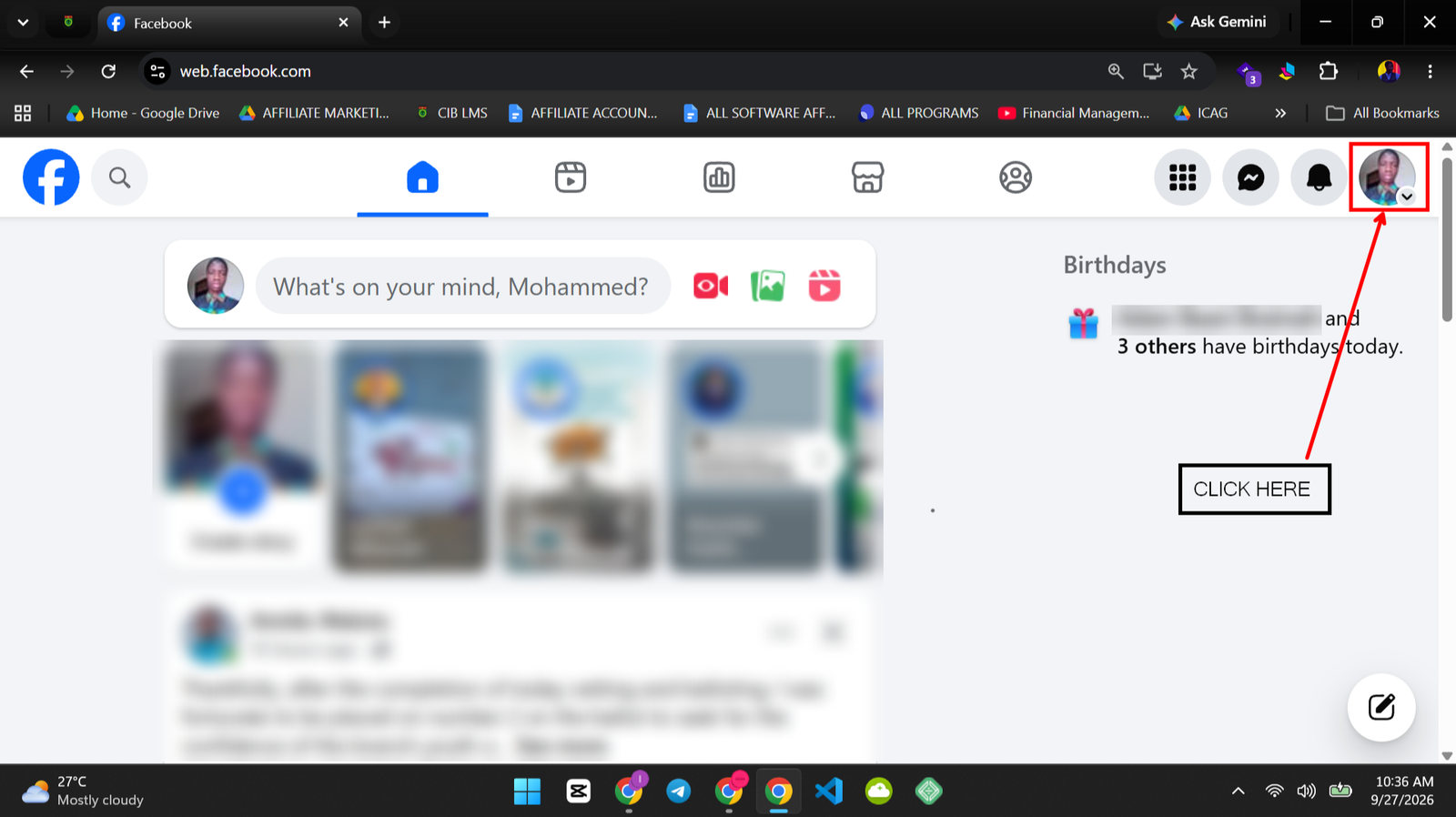
- Select Settings & privacy, then click Settings.
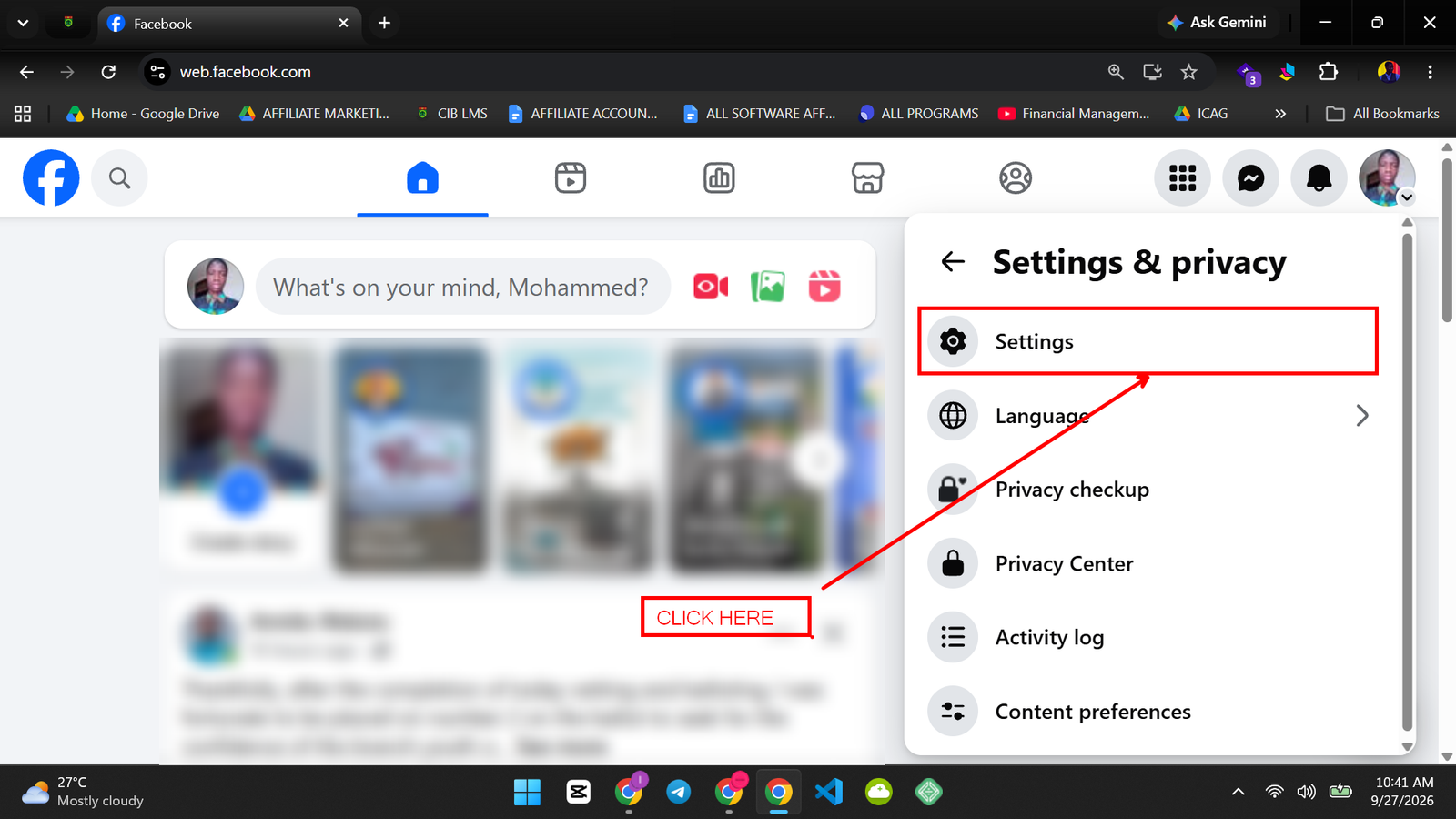
- From Settings, look for Audience and visibility in the left-hand menu
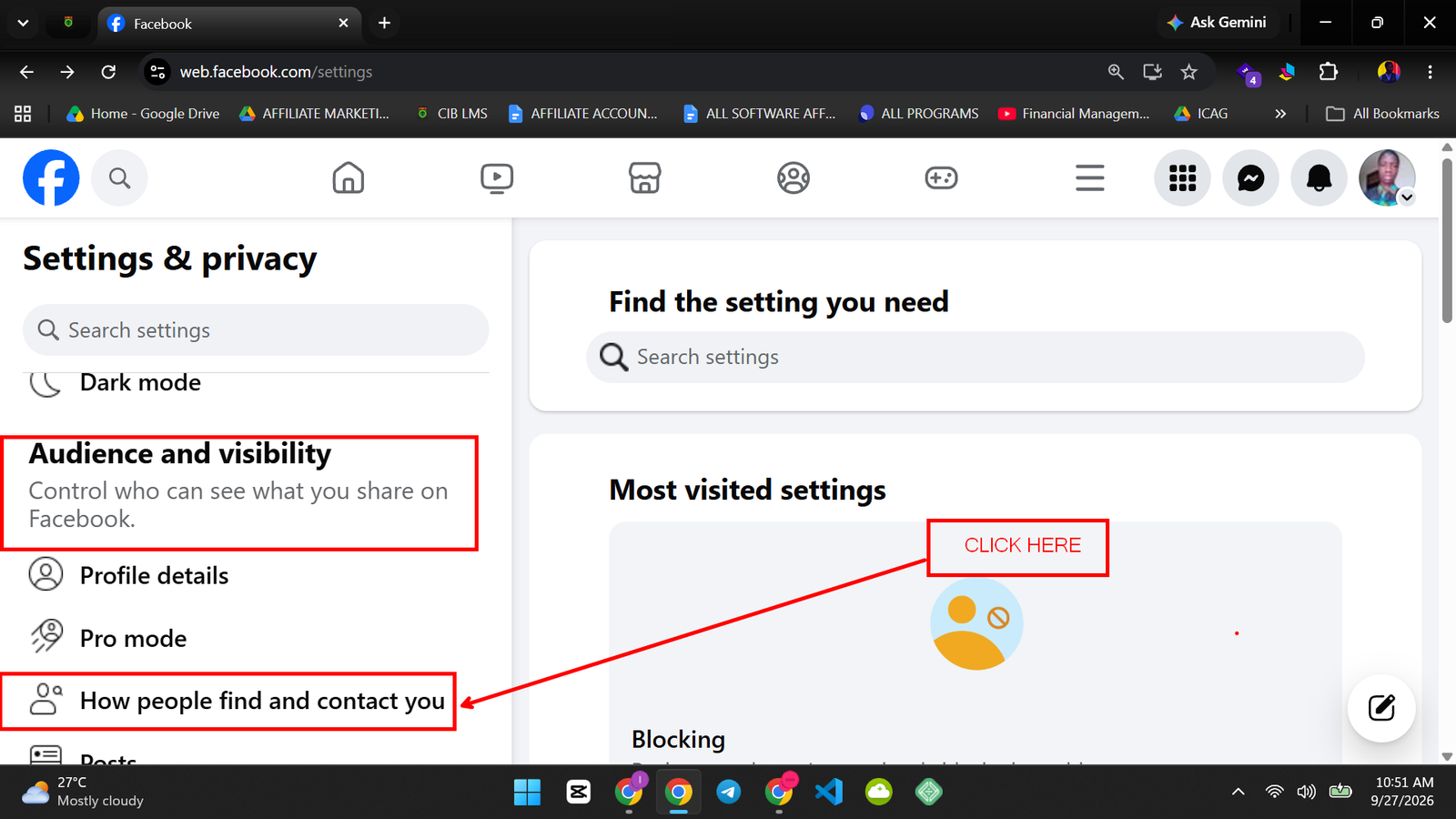
- After clicking on How People Find and Contact You, find Who can see your friends list?
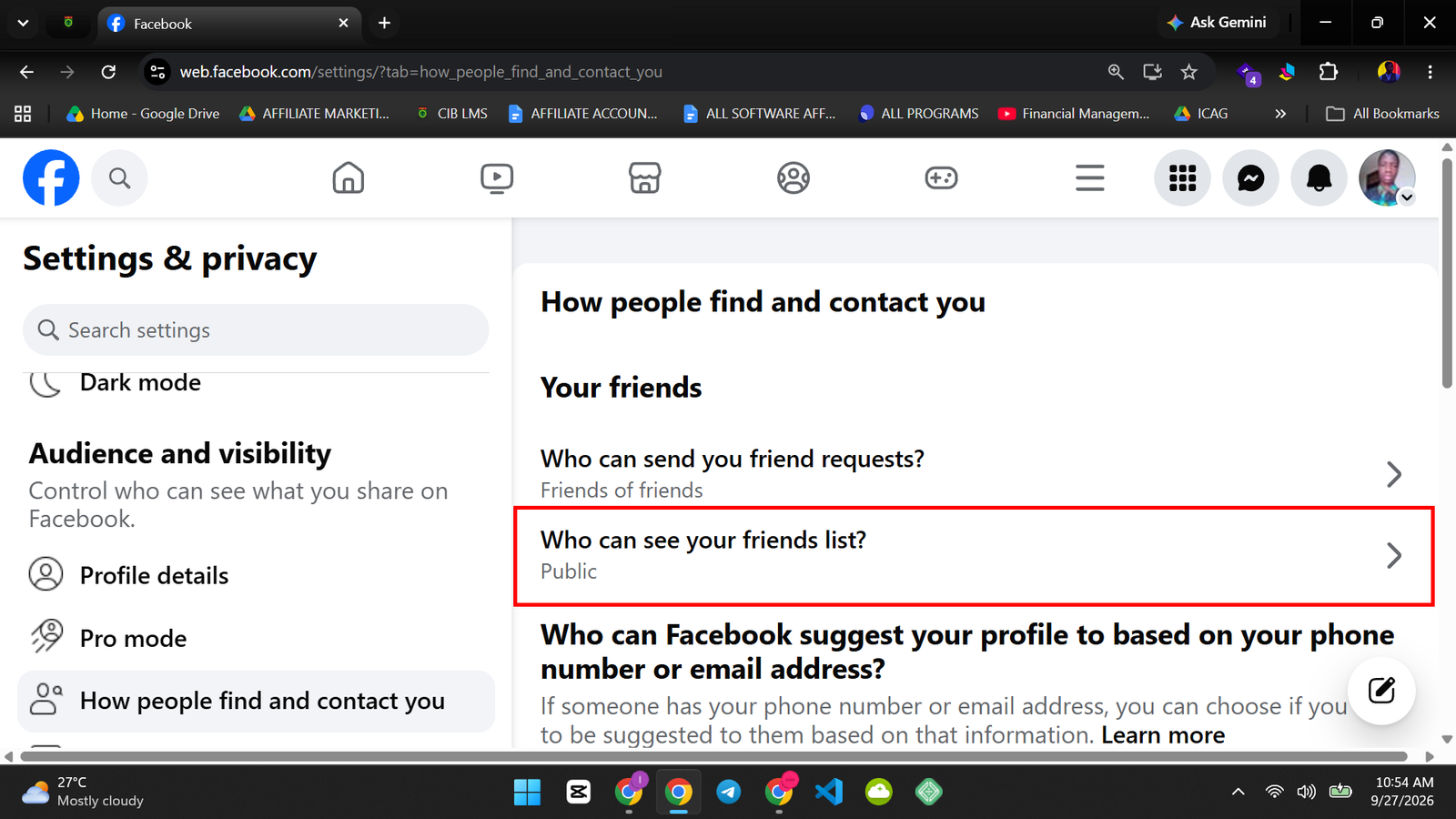
- From the dropdown, choose Only me. Other options include Public, Friends, Custom, Friends except, and Specific friends.
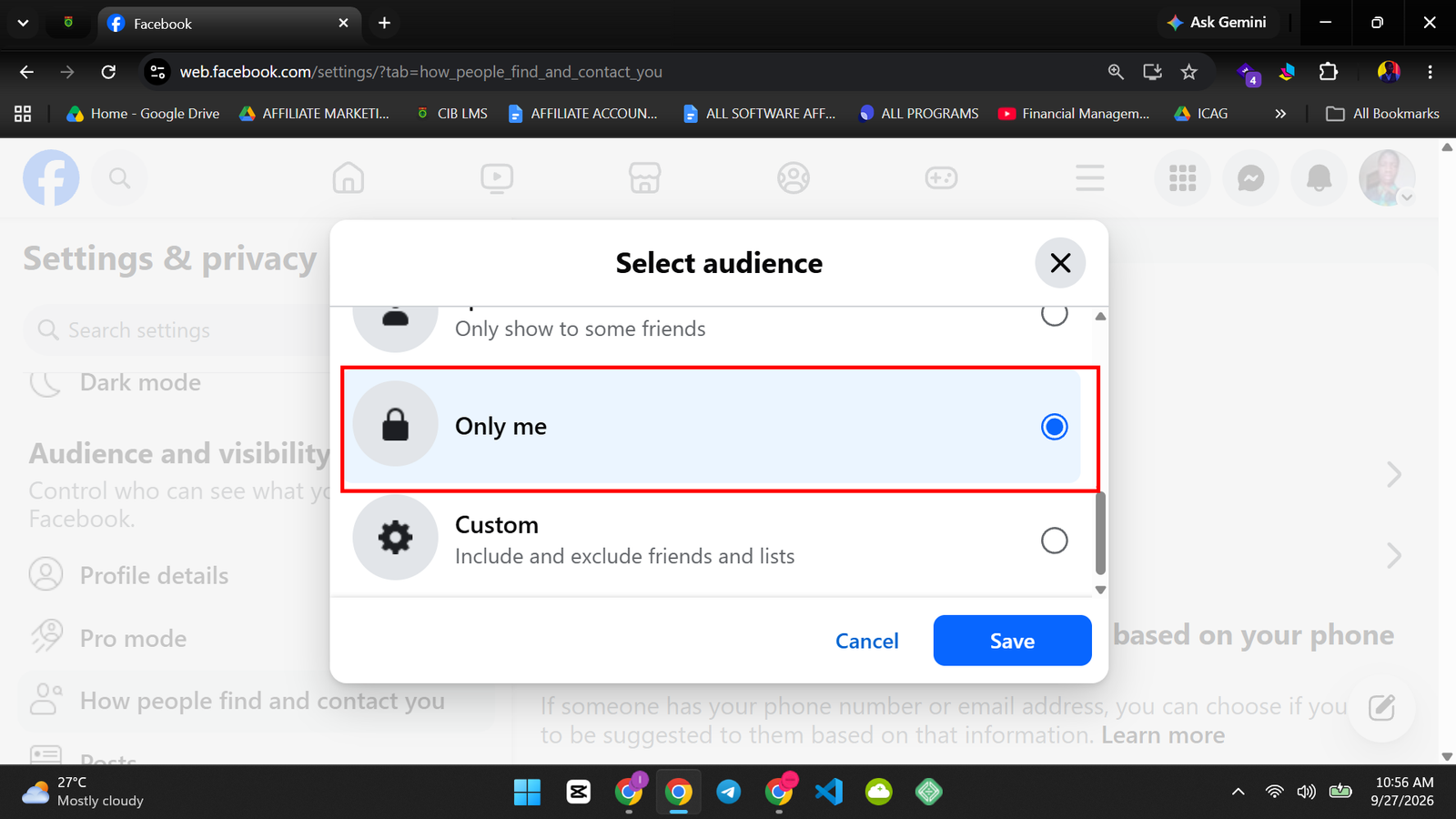
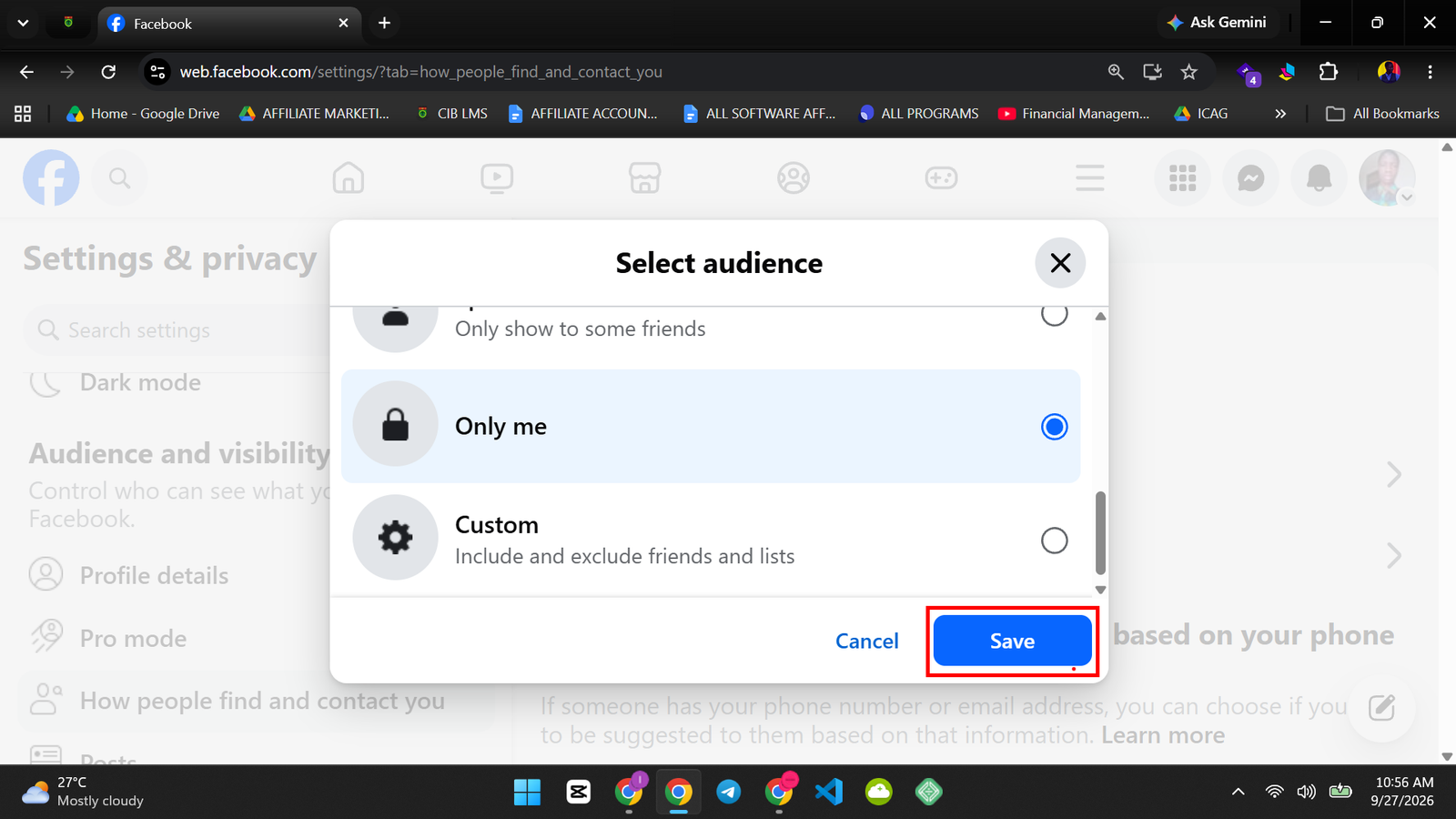
- Click Save.
Mobile app (iOS and Android)
- Open the Facebook app and tap the menu icon (three lines on Android, or your profile picture on iPhone) in the top-right corner.
- Tap Settings & privacy, then tap Settings.
- Tap Audience and visibility, then tap How people find and contact you.
- Tap Who can see your friends list?
- Select Only me.
Common Problems and Solutions
Problem: My friends list is set to “Only me,” but people still see that I’m friends with someone.
This happens when the other person’s own friends list is set to Public or Friends. Facebook privacy settings only control your own list, not what shows up on someone else’s profile. There’s no way to force a friend’s list private on their behalf.
Problem: People can still see mutual friends on my profile.
Setting your list to Only me hides the full list, but Facebook may still show mutual friends when someone who knows one of your contacts visits your profile. This is a separate feature and isn’t controlled by the friends list privacy setting.
Problem: I want to hide my list from specific people only, not everyone.
Choose Friends except instead of Only me, then select the names you want excluded. This keeps the list visible to everyone else.
Quick Tip
While you’re in the Privacy settings, it’s worth checking Who can see your future posts and Who can send you friend requests at the same time. If you’re locking down your friends list, those two usually matter to you too.
Frequently Asked Questions
Does hiding my friends list affect Messenger?
No. Messenger contacts and conversations aren’t affected by this setting; it only controls who can view your Friends list on your profile.
Will this remove me from other people’s friends lists?
No. It only controls what’s visible on your own profile. You’ll still appear on a friend’s list if their own privacy setting allows it.
Can I hide my friends list from just one person without blocking them?
Yes. Use the Friends except option and add their name, which hides your list from them specifically while keeping it visible to everyone else.
Does this setting apply to Facebook groups or Pages I’ve joined?
No. It only affects your personal friends list, not group membership lists or the people who follow a Page.
Conclusion
Hiding your friends list on Facebook takes a few clicks. Just keep in mind it only controls your own list, not what your friends choose to show on theirs.