
If your iPhone battery seems to drop faster than it used to, the cause is usually a setting or habit, not a failing battery. Apple’s own guidance on iPhone battery and performance confirms that daily use and charging habits directly affect how long a battery lasts. Below are 10 common habits that quietly drain battery life, and the exact fix for each one.
Quick takeaway: Check Settings > Battery to see which apps are draining the most, then work through the list below. Most fixes take under a minute.
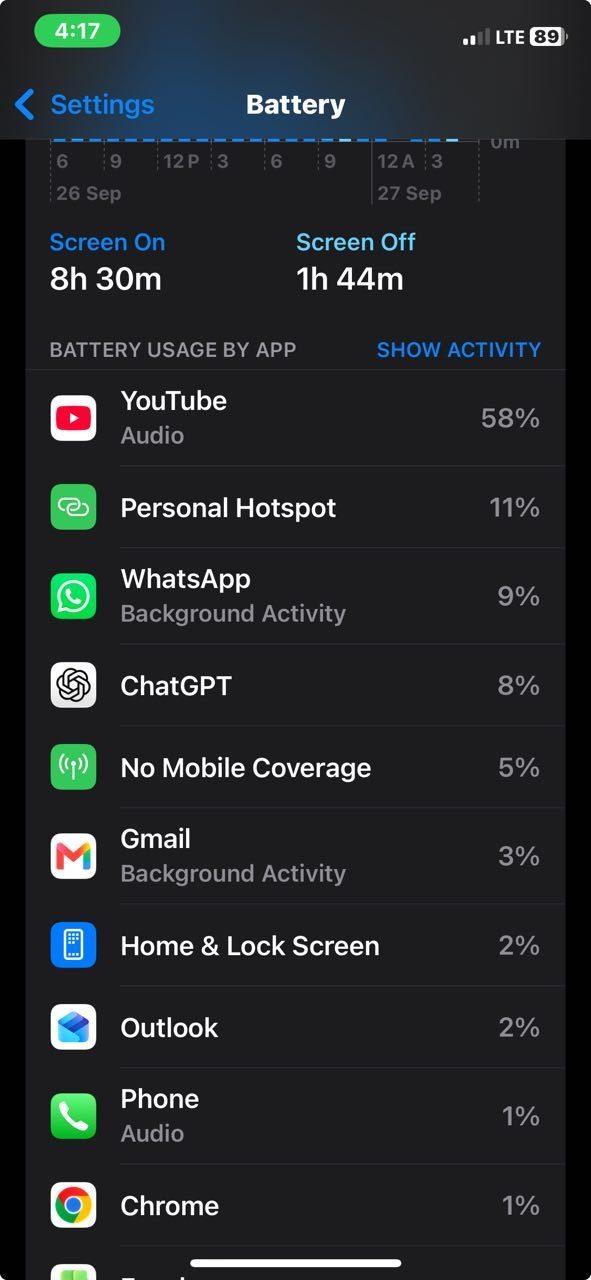
Quick Note: You’re going to be using settings a lot for the steps below. Whenever you don’t see an item you’re looking for under the settings menu, use the search bar and it should take you to the preferred screen.
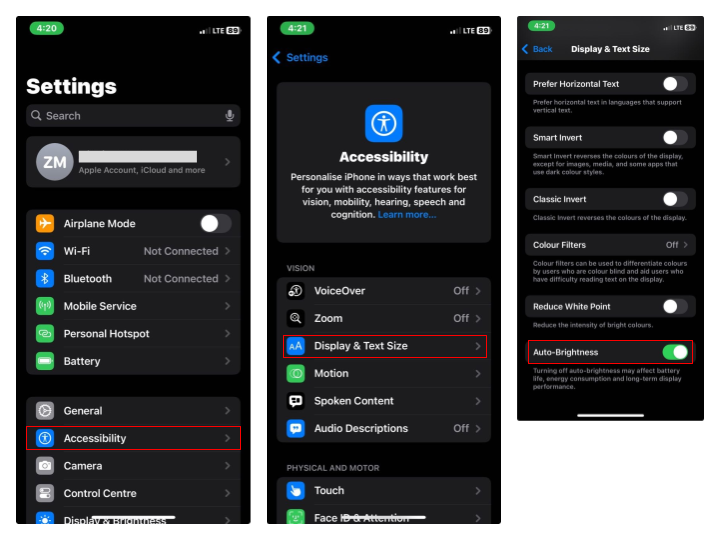
1. Full screen brightness with Auto-Brightness off
The display is the single biggest battery drain on most iPhones. Running it at full brightness manually, instead of letting the phone adjust automatically, uses noticeably more power over a day.
Fix: Go to Settings, tap Accessibility, tap Display & Text Size, and turn on Auto-Brightness. On most models you can also lower brightness quickly from Control Center.
2. Background App Refresh left on for every app
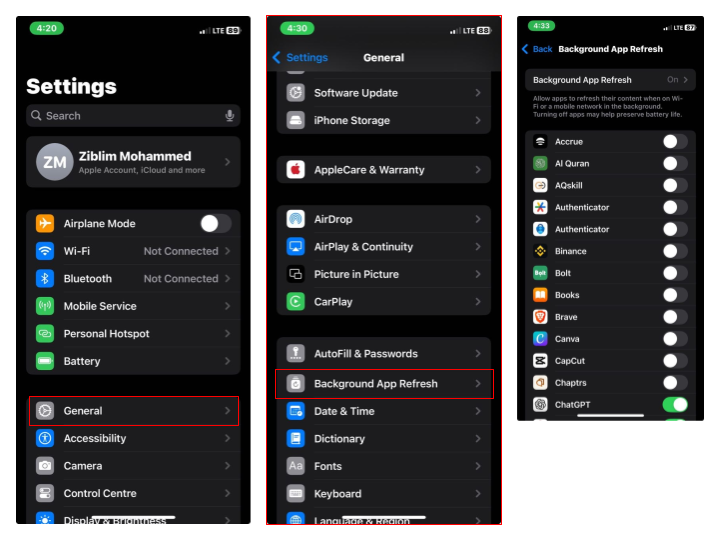
This lets apps update their content while you are not using them. Useful for a few apps like Mail or Messages, wasteful for the dozens you rarely open.
Fix: Go to Settings, tap General, tap Background App Refresh, and turn it off for apps you do not need updating in real time. Chances are that all your Apps are turned on here. You can completely turn it off or select only important Apps that need to be ON.
3. Location Services running for apps that do not need it
Apps that check your location constantly, even a shopping or game app, force the GPS radio to stay active.
Fix: Go to Settings, tap Privacy & Security, tap Location Services, and set apps to “Never” or “While Using the App” instead of “Always.”
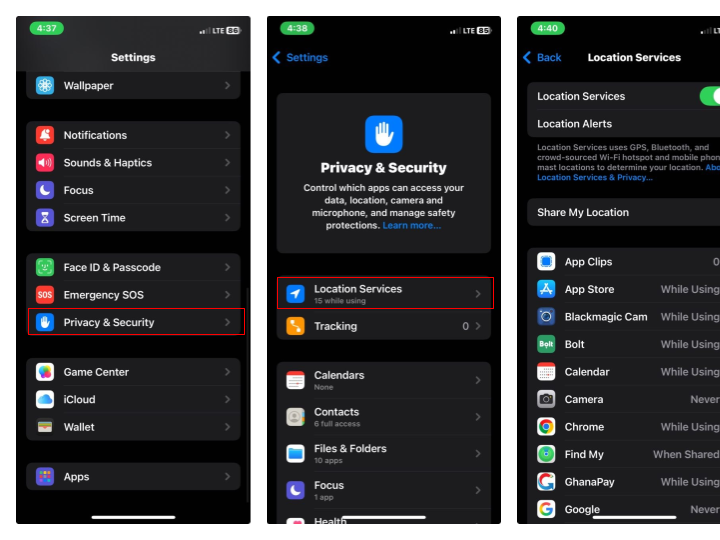
4. Mail set to Push instead of Fetch
Push mail keeps a constant connection open so new messages arrive instantly. That convenience costs battery, especially with multiple accounts.
Fix: Go to Settings, tap Mail, tap Accounts, tap Fetch New Data, turn off Push, and set Fetch to every 30 or 60 minutes, or Manually.
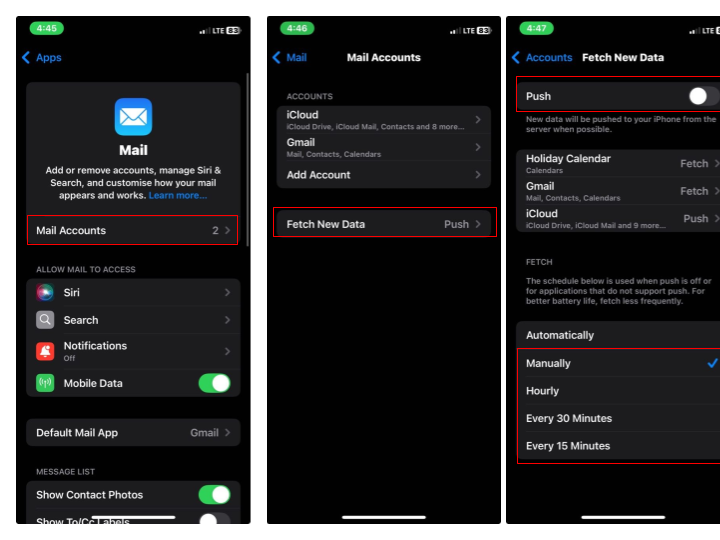
5. 5G left on in areas with weak coverage
When signal is weak, the phone works harder to maintain a 5G connection, which drains battery faster than a stable connection would.
Fix: Go to Settings, tap Mobile/Cellular Data, tap Mobile/Cellular Data Options, tap Voice & Data, and choose “5G Auto” or “LTE” if you’re in a low-coverage area often.
Important Note: If Voice & Data doesn’t appear, your iPhone or SIM plan doesn’t support 5G, so this setting won’t apply to you. Only iPhone 12 and later have 5G hardware. Older models won’t show this option at all.
6. Non-essential Live Activities and notifications
Live Activities on the Lock Screen and Dynamic Island refresh frequently and wake the display often. The same goes for apps sending constant notifications.
Fix: Go to Settings, tap Face ID & Passcode (or Touch ID & Passcode on older models), Enter your passcode, Scroll to the “Allow Access When Locked” section, tap Live Activities, and turn off ones you do not need.
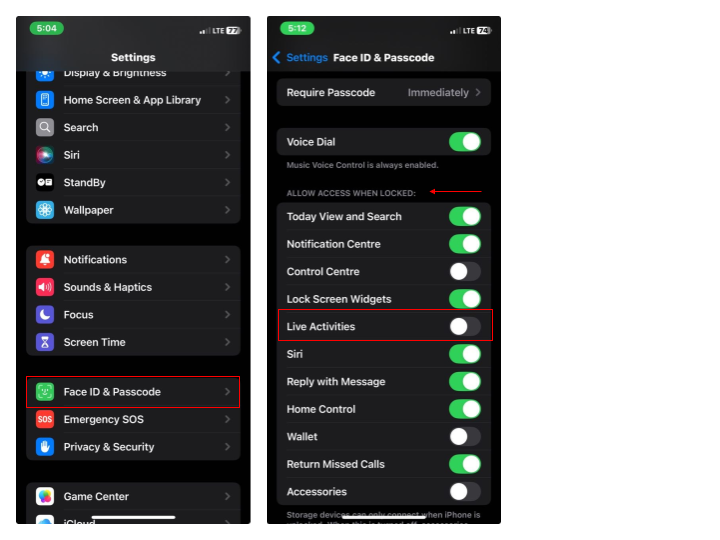
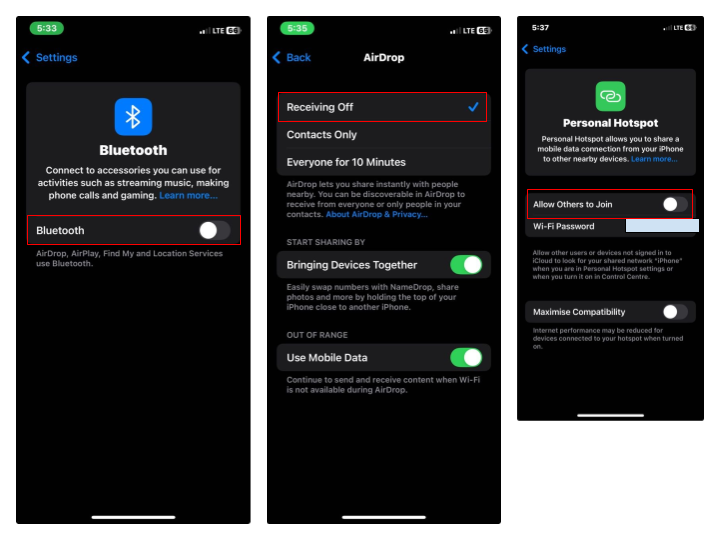
7. Bluetooth, AirDrop, and Personal Hotspot left on
Each of these keeps a radio active in the background, scanning for connections even when you are not using them.
Fix: Turn these off from Control Center when not in use
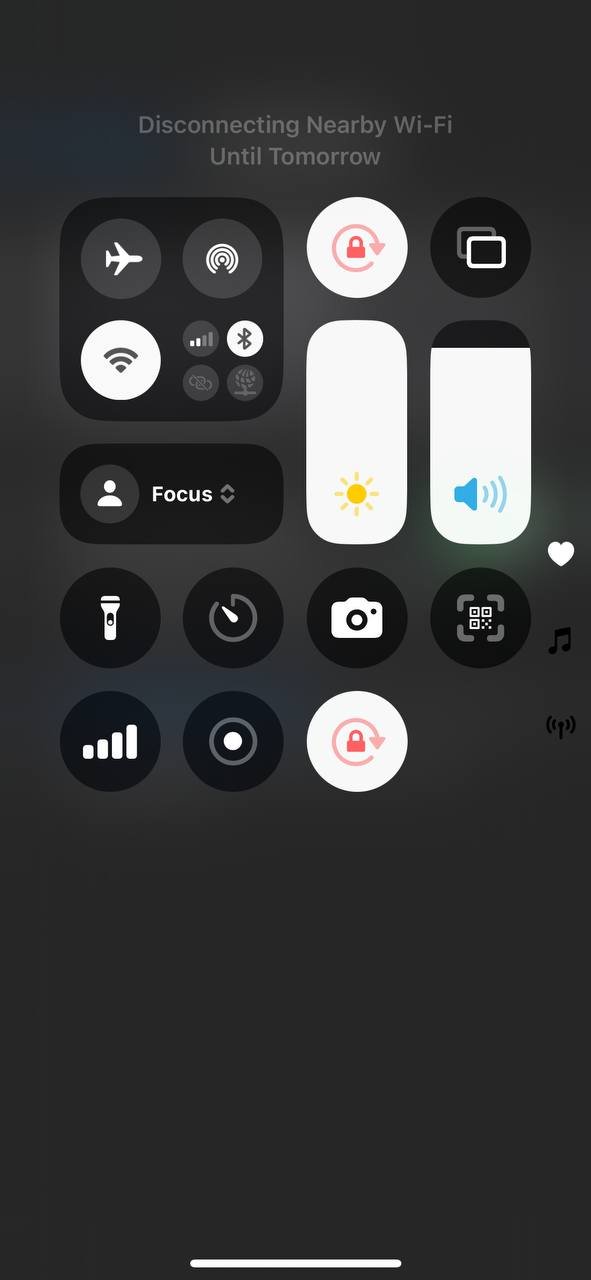
Alternatively, disable them individually under Settings > Bluetooth, General > AirDrop, and Personal Hotspot under settings.
8. Too many Home Screen widgets
Widgets that update frequently refresh in the background to stay current, which adds up across a full screen of them.
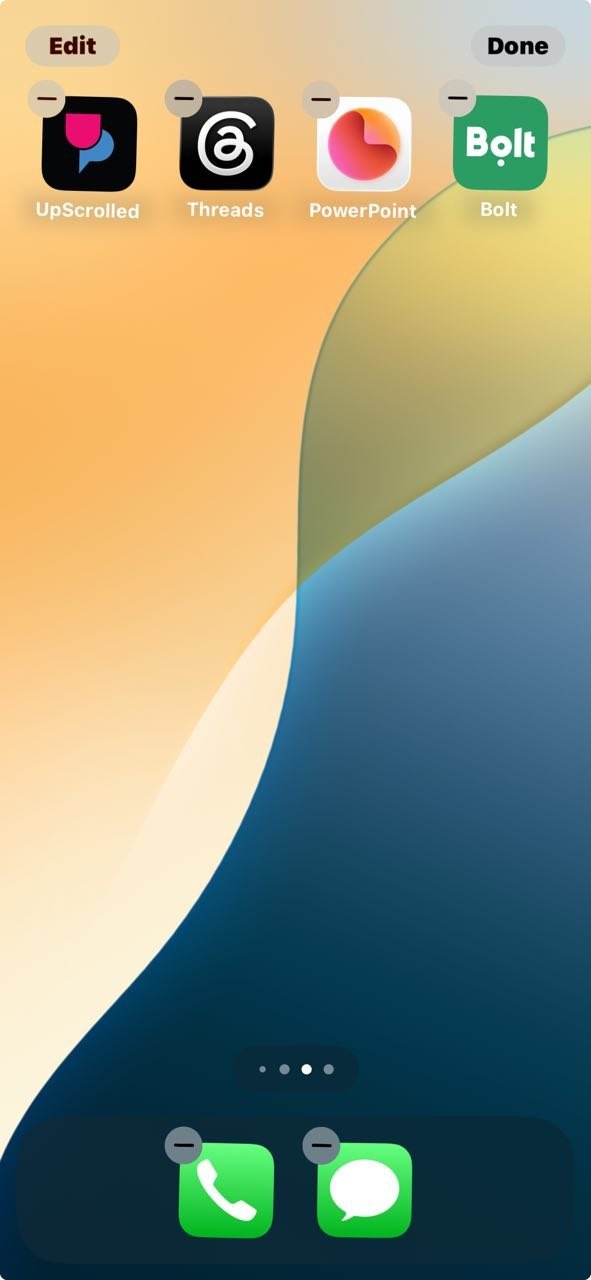
Fix: Long-press an empty area of the Home Screen, tap the minus icon on widgets you rarely check, and keep only the ones you actually use.
9. Exposing the phone to heat
Leaving an iPhone in a hot car or in direct sunlight causes the battery to degrade faster over time. Apple’s guidance on maximizing battery performance and lifespan specifically warns against charging or storing the phone in hot environments.
Fix: Keep the phone out of direct heat when possible, and remove thick cases while fast charging if the phone feels hot.
10. Ignoring Optimized Battery Charging and Charge Limit
Charging to 100% every time and leaving the phone plugged in overnight puts extra strain on the battery over months of use. As Apple explains in About Optimized Battery Charging on your iPhone, the feature uses machine learning to slow charging past 80% until closer to when you actually need the phone.
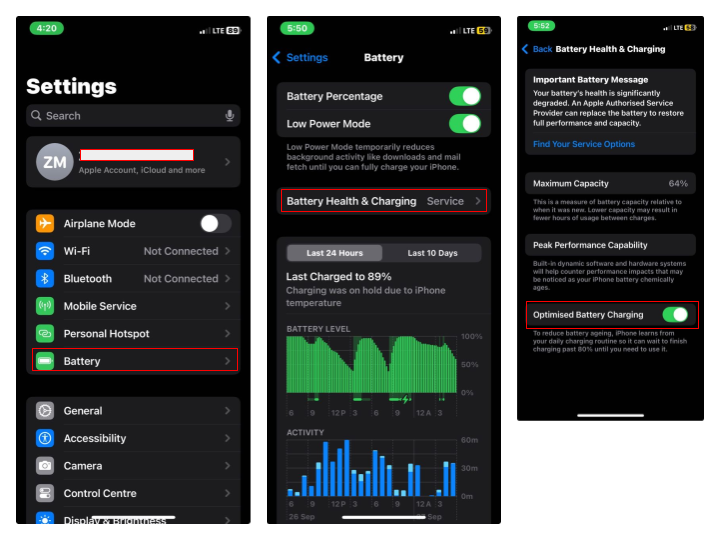
Fix: Go to Settings, tap Battery, tap Battery Health & Charging, and turn on Optimized Battery Charging. If your model supports it, you can also set a Charge Limit under the same screen.
Alternative Method: Let Adaptive Power handle it automatically
iOS 26 introduced Adaptive Power, a feature that makes small adjustments, like slightly lowering brightness or delaying some background tasks, automatically when it detects heavier-than-usual battery use. It is worth noting it is only available on iPhone 15 Pro and newer models, and needs about a week to learn your habits before it kicks in.
To turn it on: go to Settings, tap Battery, tap Power Mode, and enable Adaptive Power.
Common Problems and Solutions
Problem: Battery still drains fast after adjusting these settings.
Check Settings > Battery for the weekly usage graph. If one app is highlighted in orange, it is using more power than expected for its actual on-screen or background time.
Problem: Optimized Battery Charging option is missing.
This feature is not available on every iPhone model or in every region. If it is missing, focus on avoiding overnight charging at 100% manually instead.
Problem: Adaptive Power does not appear in Power Mode.
This means the phone is older than iPhone 15 Pro. Low Power Mode remains the best alternative on those models.
Problem: Battery percentage seems to drop suddenly.
This is often a display quirk right after a habit or setting change, not an actual sudden loss. Let the phone run for a full charge cycle before judging the new battery life.
Quick Tip
Check Settings > Battery once a week rather than only when the battery feels low. Spotting a problem app early saves more battery over time than any single setting change.
Frequently Asked Questions
Does closing apps from the App Switcher save battery?
Not usually. iOS manages background apps efficiently on its own, and force-quitting apps can actually use more battery when they have to fully relaunch later.
Will turning off all these settings shorten how long my apps stay updated?
Some apps will refresh less often, which is the trade-off. Keeping Background App Refresh and Push on for one or two essential apps while turning them off for the rest usually gives the best balance.
Does Dark Mode actually save battery?
On iPhones with an OLED display, Dark Mode can reduce power use somewhat, since dark pixels use less energy than white ones.
How do I know if my battery itself is degraded rather than a habit issue?
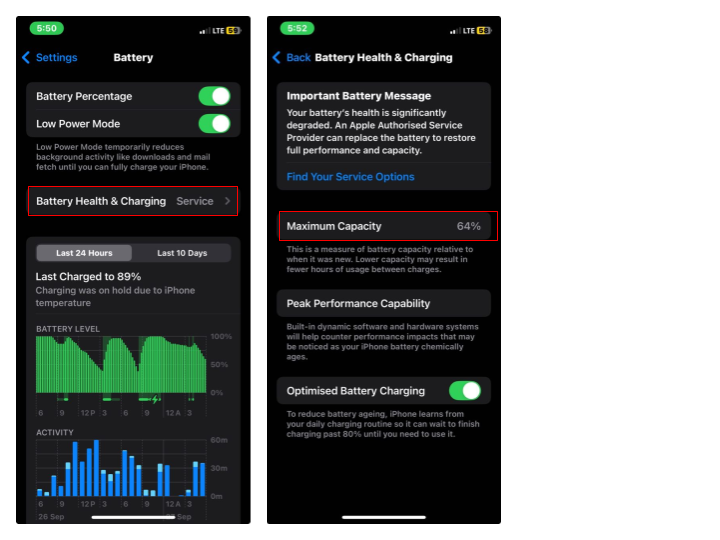
Check Settings > Battery > Battery Health & Charging for Maximum Capacity. A number well below 80% after several years of use points to battery wear rather than a fixable habit but the above settings are still important even for an iPhone with less than 80% maximum capacity.
Conclusion
Most iPhone battery complaints come down to a handful of settings running more aggressively than they need to, not a defective battery. Working through the 10 habits above, starting with brightness, Background App Refresh, and charging habits, usually restores a noticeable amount of daily battery life within a day or two.